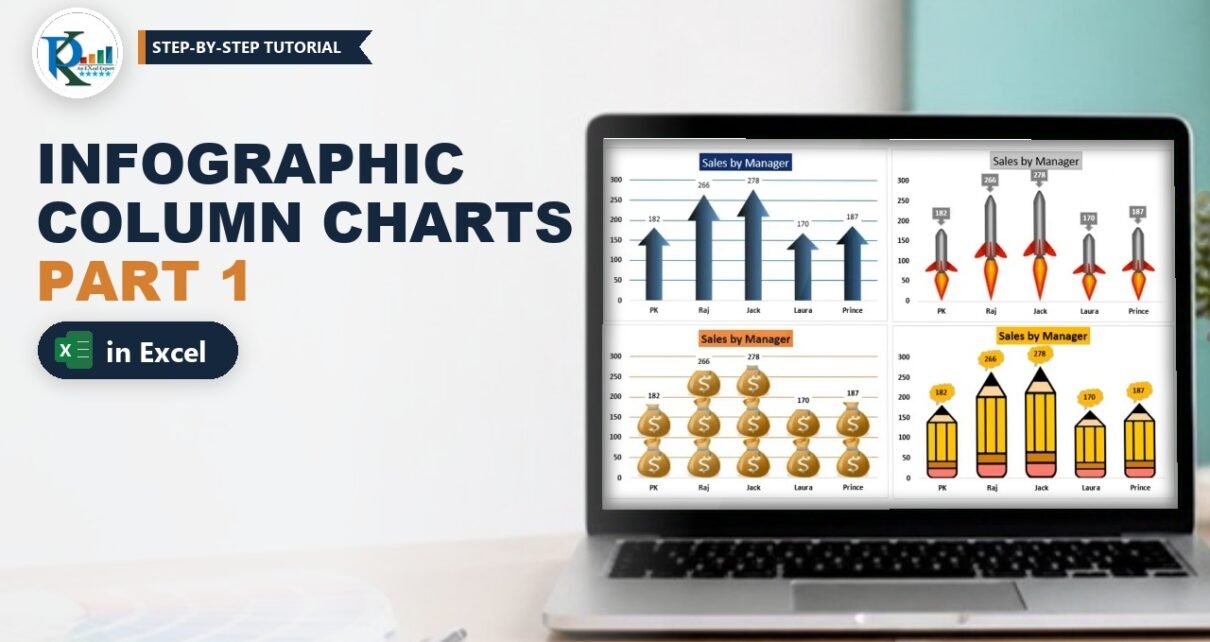
An infographic column chart in Excel swaps the plain blue bars for pictures, such as arrows, rockets, money bags or pencils, so a simple Sales by Manager report grabs attention the moment it appears on a dashboard or a slide. The good news is that you don’t need any add-in or VBA. Every chart in this tutorial is still a normal clustered column chart. The trick is to copy a shape or an image and paste it into the column series, then adjust a few fill settings. In this Part 1 you build four styles from one small data table.
Watch the Video Tutorial
In the video, PK starts from a default clustered column chart and turns it into the arrow, rocket, money bag and pencil charts by pasting shapes and pictures into the columns.
What You Will Build
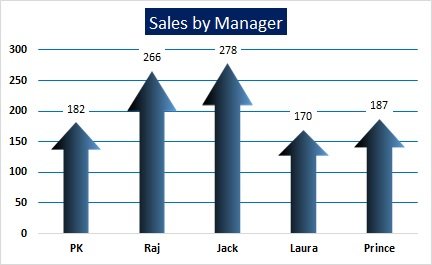
- Arrow chart: a gradient Up Arrow shape stretched into every column.
- Rocket chart: a rocket picture in each column with grey arrow-shaped data labels.
- Money bag chart: revenue icons stacked on top of each other, one icon for every 100 sales.
- Pencil chart: a pencil picture in each column with cloud callout data labels.
- A reusable method you can apply to any icon and any column or bar chart.
Part 1 – The Data and the Base Column Chart
Step 1: Enter the data
All four charts use the same five-row table. Put the headers Sales Manager and Sales in A1:B1 and the values below them:
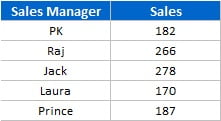
Sales Manager   Sales
PK              182
Raj             266
Jack            278
Laura           170
Prince          187
In the video PK copies this table to a new sheet (click the + button next to the sheet tabs) and then removes the gridlines from View > Gridlines so the charts sit on a clean white background.
Step 2: Insert a clustered column chart
Select A1:B6 and go to Insert > Charts > Insert Column Chart > 2-D Clustered Column. Excel draws five blue columns titled Sales. If you click a column, the formula bar shows the series behind it, for example:
=SERIES(Sheet4!$B$1,Sheet4!$A$2:$A$6,Sheet4!$B$2:$B$6,1)Your sheet name may differ. This is the only series you need. Every infographic below simply changes how this one series is filled.
Part 2 – The Arrow Infographic Column Chart
Step 3: Draw and style an Up Arrow
Go to Insert > Shapes > Block Arrows and pick the Up Arrow. Drag it out anywhere on the sheet. Then:
- Set Shape Outline > No Outline.
- Right-click the arrow, choose Format Shape, open Fill & Line > Fill and select Gradient fill.
- Delete the extra gradient stops so only two remain. Make the first stop black and the second stop blue.
- Pick a direction you like. In the video the gradient is Linear at 90°, which gives the dark-to-blue look.
Step 4: Paste the arrow into the columns
Right-click the arrow and choose Copy. Now right-click any column, choose Format Data Series, go to Fill & Line > Fill, select Picture or texture fill and click the Clipboard button under Insert picture from. Every column becomes an arrow.
There is an even faster way: copy the arrow with Ctrl+C, click once on the columns to select the series and press Ctrl+V. The result is exactly the same.
Why it works: a picture fill set to Stretch (the default) squeezes the whole image into the height of each column. A taller value gives a taller arrow, so the shape still tells the truth about the data.
Step 5: Make the arrows wider
Thin arrows look weak. In Format Data Series > Series Options reduce the Gap Width. It starts at 219% in the video; drag it down to around 40% to 50% so the arrows fill the space between categories.
Step 6: Finish the chart
- Right-click the series and choose Add Data Labels.
- Make the axis text black and bold.
- Rename the chart title to Sales by Manager.
- To colour the gridlines, select them and use Format > Shape Outline (PK picks Blue, Accent 1).
- Some labels, such as 182, sit on top of a gridline. Select the data labels and set Format > Shape Fill to white so the number stays readable.
Part 3 – The Rocket Chart
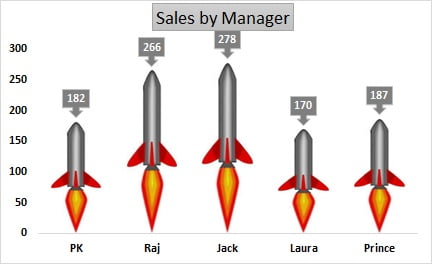
Step 7: Copy the chart and paste a rocket picture
Copy the finished arrow chart and paste it next to the original. All formatting carries over, so you only change the fill. Copy a rocket image, select the columns of the new chart and press Ctrl+V. In the video PK uses images copied from the web; use icons you have the right to use.
If the picture is not a PNG with a transparent background, it brings a white box with it, which hides the gridlines behind the rocket. PK simply removes the gridlines from this chart so the white boxes disappear into the white plot area.
Step 8: Give the labels a shape
Right-click the data labels, choose Change Data Label Shapes and pick an arrow-style callout. Fill it grey, then make the font white and bold. The label now points down at the nose of each rocket.
Part 4 – The Stacked Money Bag Chart
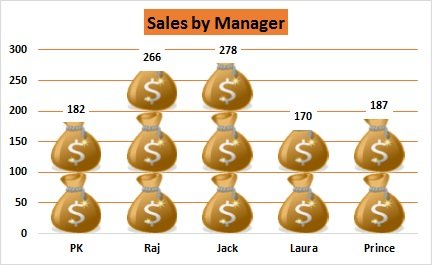
Step 9: Paste the revenue icon
Copy the chart again, copy the money bag icon, select the columns and press Ctrl+V. At first each bag is stretched tall, which looks odd.
Step 10: Switch to Stack and Scale
Right-click the series and open Format Data Series > Fill & Line > Fill. Picture or texture fill is already selected. Scroll down: Stretch is the default. Choose Stack and Scale with and change Units/Picture from 1 to 100.
How the stacking setting works
- Stretch draws one picture per column, resized to the column height.
- Stack repeats the picture at its own size until the column height is reached.
- Stack and Scale with repeats the picture and ties each copy to a number of units. With 100 units per picture, PK’s 182 shows a little under two bags and Jack’s 278 shows almost three. The last bag is cut off at the exact value, so the chart stays accurate.
With Units/Picture left at 1, Excel would try to draw one bag per sale, which is why the setting matters. Finish by adding gridlines in a matching colour and data labels with a white fill.
Part 5 – The Pencil Chart with Cloud Labels
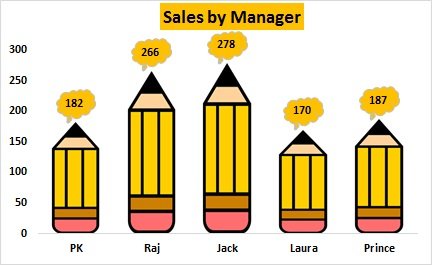
Step 11: Paste the pencil picture
Copy one of the charts, copy the pencil image, select the columns and press Ctrl+V. Keep the fill on Stretch so each pencil grows with the sales value.
Step 12: Change the label shape to a Cloud Callout
The cloud shape is not in the short data label shape list. So add data labels with any shape first, select the labels, then go to Format > Change Shape > Callouts and pick the Cloud Callout. Fill the clouds with a colour that matches the pencil, use a black font and make it bold.
Common Errors and Fixes
- The picture appears as one tall, stretched image when you wanted stacked icons. Switch the fill from Stretch to Stack and Scale with and set a sensible Units/Picture value.
- Hundreds of tiny icons appear in each column. Units/Picture is still 1. Raise it so each icon stands for a round number, such as 50 or 100.
- White boxes around each picture. The image is not transparent. Use a PNG with a transparent background, or remove the gridlines as PK does.
- Ctrl+V pasted a new picture on the sheet instead of filling the columns. Click a column first so the whole series is selected, then paste.
Tips for Better Infographic Charts
- Keep the value axis starting at zero. Picture charts already exaggerate differences, so a cut axis can mislead.
- Use one icon that fits the metric: arrows for growth, bags for revenue, rockets for targets.
- Copy a finished chart to start the next one. Labels, title and axis formatting come along for free.
- Store your icons on a hidden sheet so you can re-paste them when the design changes.
- Microsoft explains the picture fill options in Use a picture in a chart.
Want It Ready-Made?
If you want all four charts already built with the icons in place, get the Info-graphics with Column Chart (Part-1) template on NextGenTemplates.com, or browse more Excel chart templates. To build charts, infographics and full dashboards step by step, join the course Excel Pivot Tables and Dashboards on NextGenTemplates Academy.
Related Tutorials
- Info-graphics with Column Chart (Part 2): Filling Bucket, Doughnut, Circle and Tear Drop for KPIs
- Employee and Supervisor Chart with Arrow Infographics
- Stylish Column Chart in Excel
- Quick Male-Female and Waffle Chart in Excel
- 10 Pro Tips for Excel Charts
Frequently Asked Questions
How do I put a picture inside an Excel column chart?
Copy the picture or shape, click the columns to select the series and press Ctrl+V. You can also use Format Data Series, Fill, Picture or texture fill and click Clipboard.
How do I stack icons in a column chart?
In Format Data Series under Fill, choose Stack and Scale with and enter the number of units each icon represents in Units/Picture, for example 100.
Can I use a shape instead of an image?
Yes. The arrow chart uses an Excel Up Arrow shape with a gradient fill. Copy the shape and paste it into the series just like a picture.
Why do my pictures have a white background in the chart?
The source image is not transparent. Use a PNG with a transparent background, or remove the gridlines and keep the plot area white.
Does this work in newer versions of Excel?
Yes. The video uses Excel 2013, and the same Picture or texture fill, Stack and Scale and Change Shape options exist in Excel 2016, 2019, 2021 and Microsoft 365.
About the Author
PK is a Microsoft Excel expert and trainer and the founder of PK: An Excel Expert and NextGenTemplates.com. He has been teaching Excel, Power Query and Power BI since 2016 on his YouTube channel.
Conclusion
An infographic column chart in Excel is just a clustered column chart with a smarter fill. Paste a shape or picture into the series, choose Stretch for single icons or Stack and Scale for repeated ones, then polish the gap width and data labels. With these four styles ready, you can give any sales report a fresh look in minutes. Next, continue with Part 2 to build filling infographics for KPI metrics such as service level.