Wedding Budget Dashboard in Excel is a professionally designed, interactive Excel template that helps couples, wedding planners, and event coordinators take complete control of their wedding finances. With 5 dynamic dashboard pages, 4 high-level KPI cards, multiple analytical charts, and built-in slicers for instant filtering, this template transforms raw wedding expense data into clear visual insights. Whether you are managing vendor payments, comparing estimated vs. actual costs, or analyzing guest impact on your budget, this Wedding Budget Dashboard in Excel delivers everything you need in one organized workbook.
Planning a wedding involves dozens of expense categories, multiple vendors, varied payment methods, and constantly shifting budgets. A simple spreadsheet often falls short when you need to see the full picture at a glance. This dashboard solves that problem by giving you a data-driven command center powered entirely by pivot tables — no VBA, no macros, just standard Excel functionality that refreshes automatically.
 Wedding Budget Dashboard in Excel
Key Features of Wedding Budget Dashboard in Excel
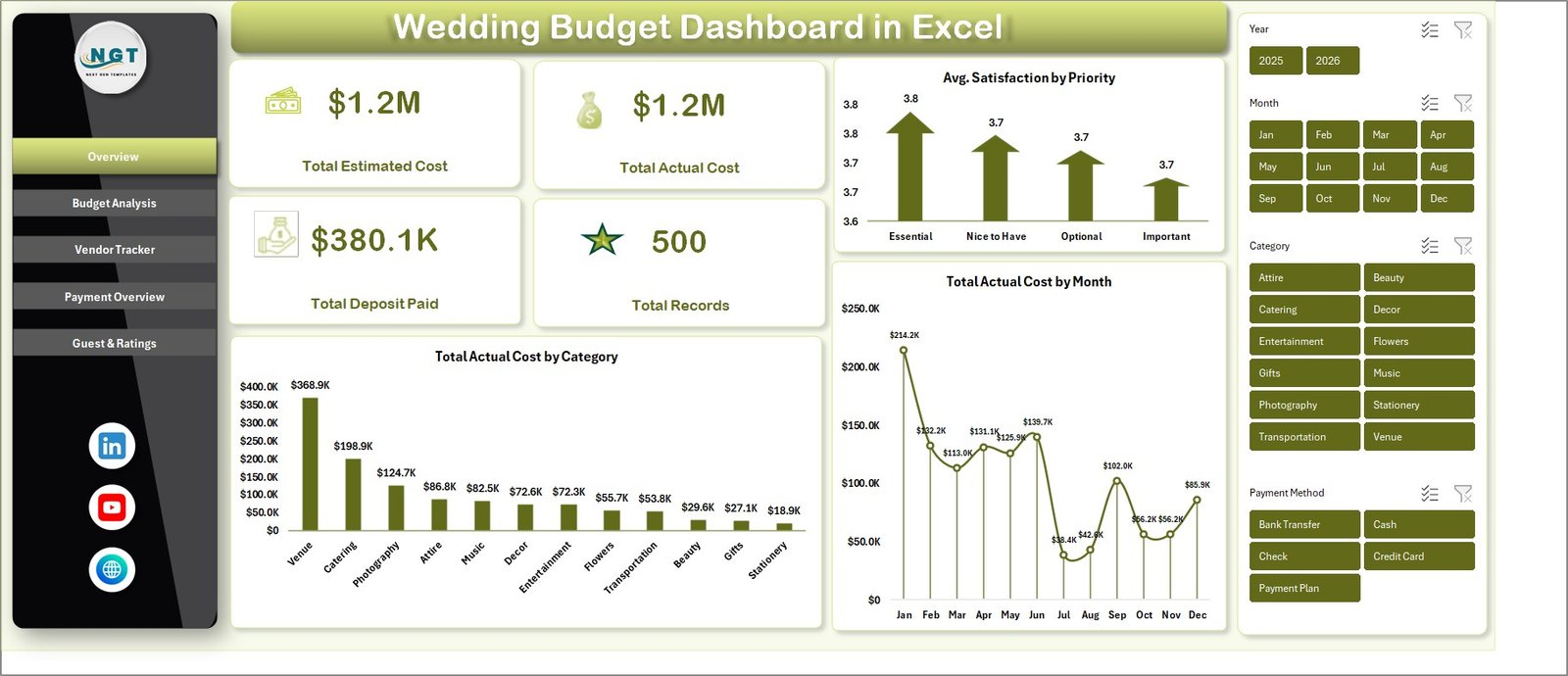
This template includes 5 interactive dashboard pages, a structured data input sheet, and a support sheet with all underlying pivot tables. It tracks 4 key metrics — Total Estimated Cost, Total Actual Cost, Total Deposit Paid, and Total Records — on the Overview page. Across all pages, you get detailed analysis covering cost breakdowns by category, priority, payment method, vendor satisfaction, guest impact, and wedding phase comparisons. Built-in slicers on the Overview page let you filter data instantly without any manual sorting or formula adjustments.
The template is designed for Microsoft Excel 2016 or later (including Microsoft 365) and requires no advanced Excel skills. Simply open the file, replace the sample data with your own wedding expenses, and click Refresh All to see your personalized dashboard come to life.
Dashboard Pages Explained
1. Overview Page
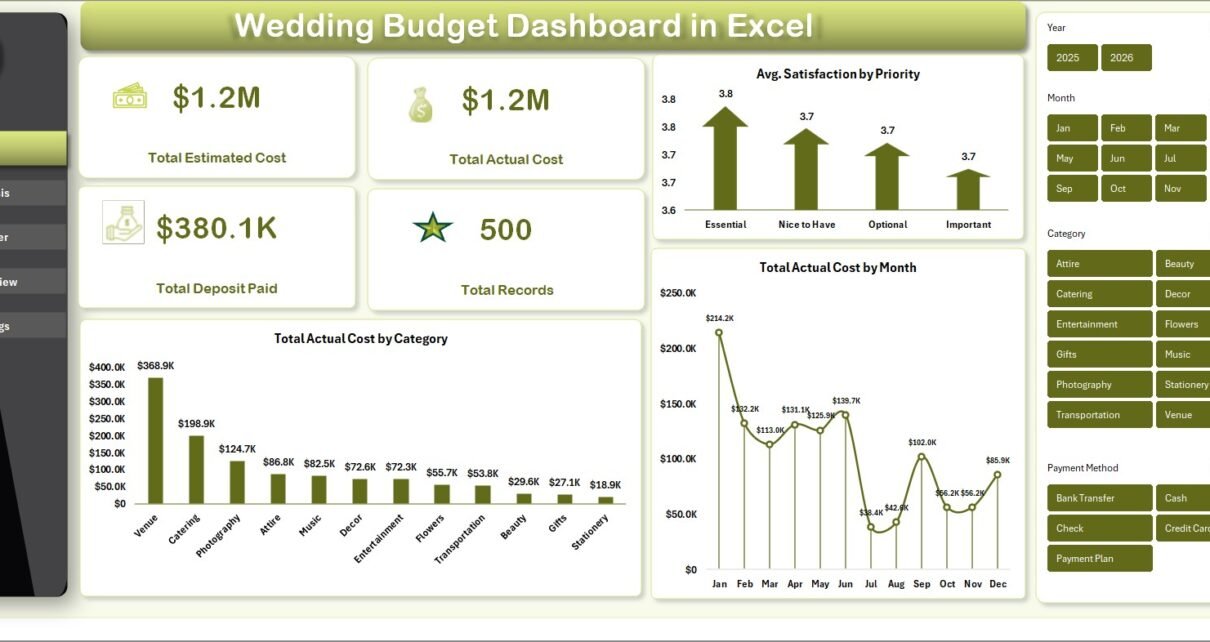
The Overview page serves as your wedding budget command center. At the top, you will find 4 KPI summary cards displaying Total Estimated Cost, Total Actual Cost, Total Deposit Paid, and Total Records. Below the cards, interactive charts provide visual analysis including Avg. Satisfaction by Priority, Total Actual Cost by Month, and Total Actual Cost by Category. Multiple slicers allow you to filter the entire dashboard by any dimension instantly, giving you a quick snapshot of your wedding finances from any angle.
Wedding Budget Dashboard in Excel2. Budget Analysis
The Budget Analysis page provides a deep dive into your wedding spending patterns. It features three focused analyses: Total Actual Cost by Category helps you identify which expense categories are consuming the largest share of your budget. Total Actual Cost by Priority shows spending distribution across high, medium, and low priority items. The Total Estimated Cost vs Total Actual Cost by Wedding Phase chart reveals whether you are staying within budget or overspending at each stage of your wedding planning journey.
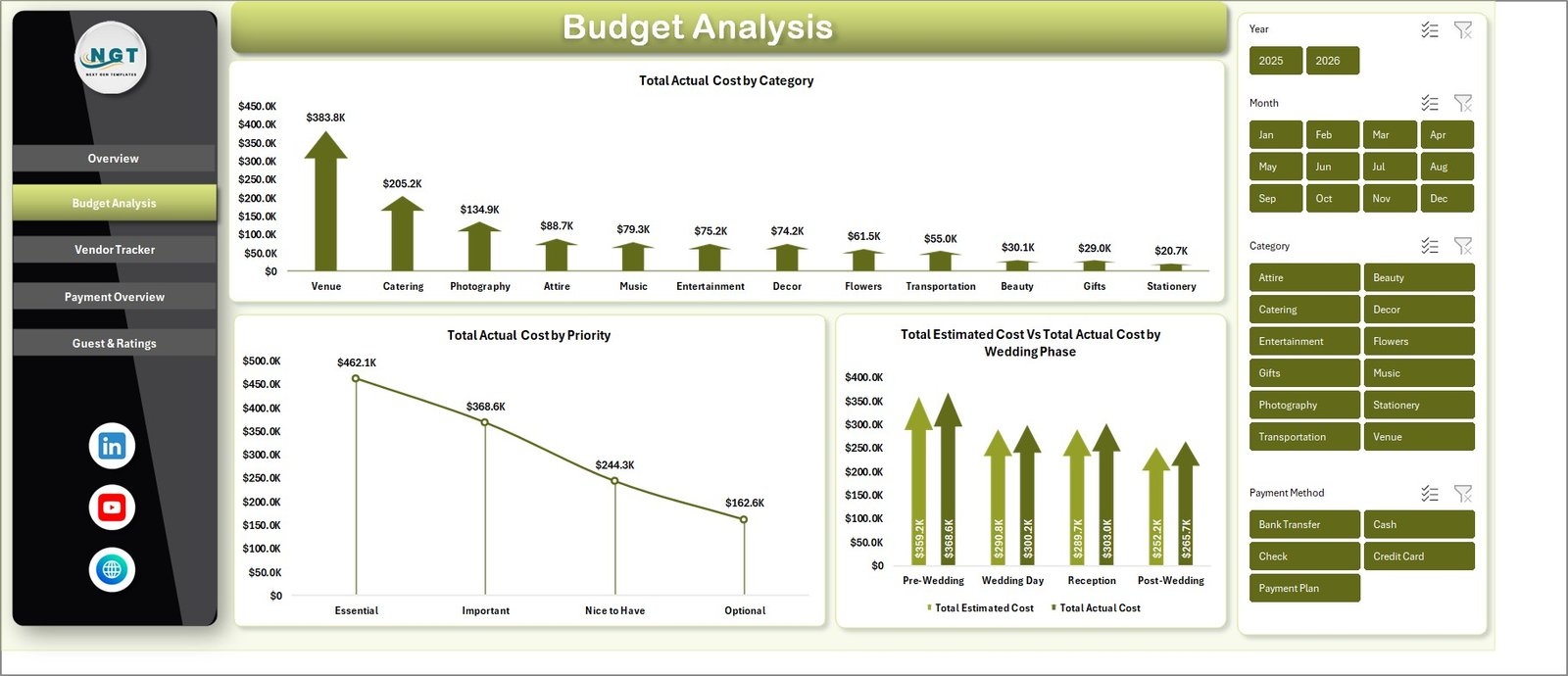 Budget Analysis
3. Vendor Tracker
The Vendor Tracker page is dedicated to monitoring all vendor-related financial activity. It displays Total Actual Cost by Payment Method so you can see how payments are distributed across cash, card, bank transfer, and other channels. The Total Actual Cost vs Total Deposit Paid by Payment Method comparison helps you understand outstanding balances. Total Actual Cost by Payment Status tracks which payments are completed, pending, or overdue. Finally, Avg. Satisfaction by Vendor gives you a performance rating for each vendor based on your satisfaction scores.
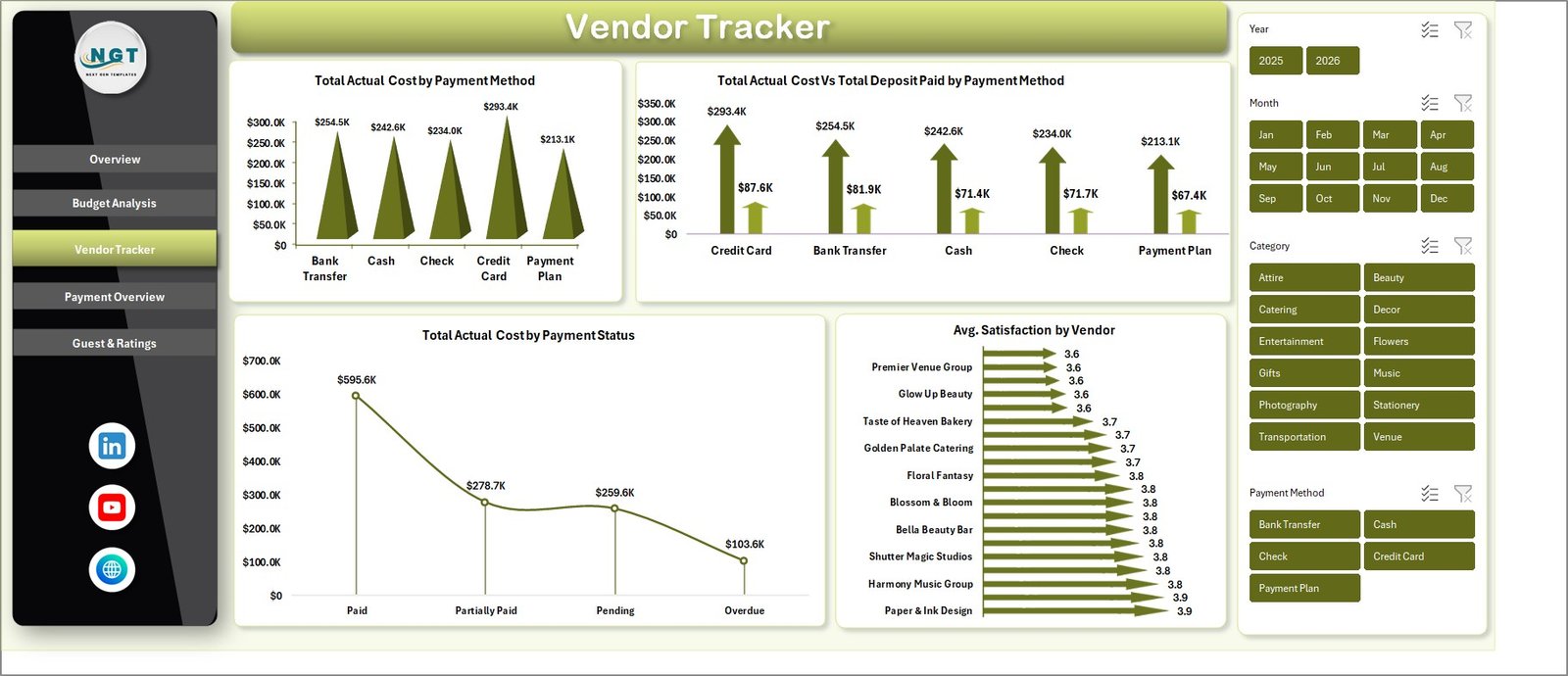 Vendor Tracker
4. Payment Overview
The Payment Overview page focuses on payment timelines and financial breakdowns over time. Total Deposit Paid by Month shows your deposit payment schedule across the planning timeline. Total Actual Cost by Category provides another perspective on category-wise spending. The Total Actual Cost vs Total Deposit Paid by Year comparison helps you track annual financial commitments. Total Records by Status gives you a quick count of items grouped by their current status — helping you see how many budget items are finalized, in progress, or pending.
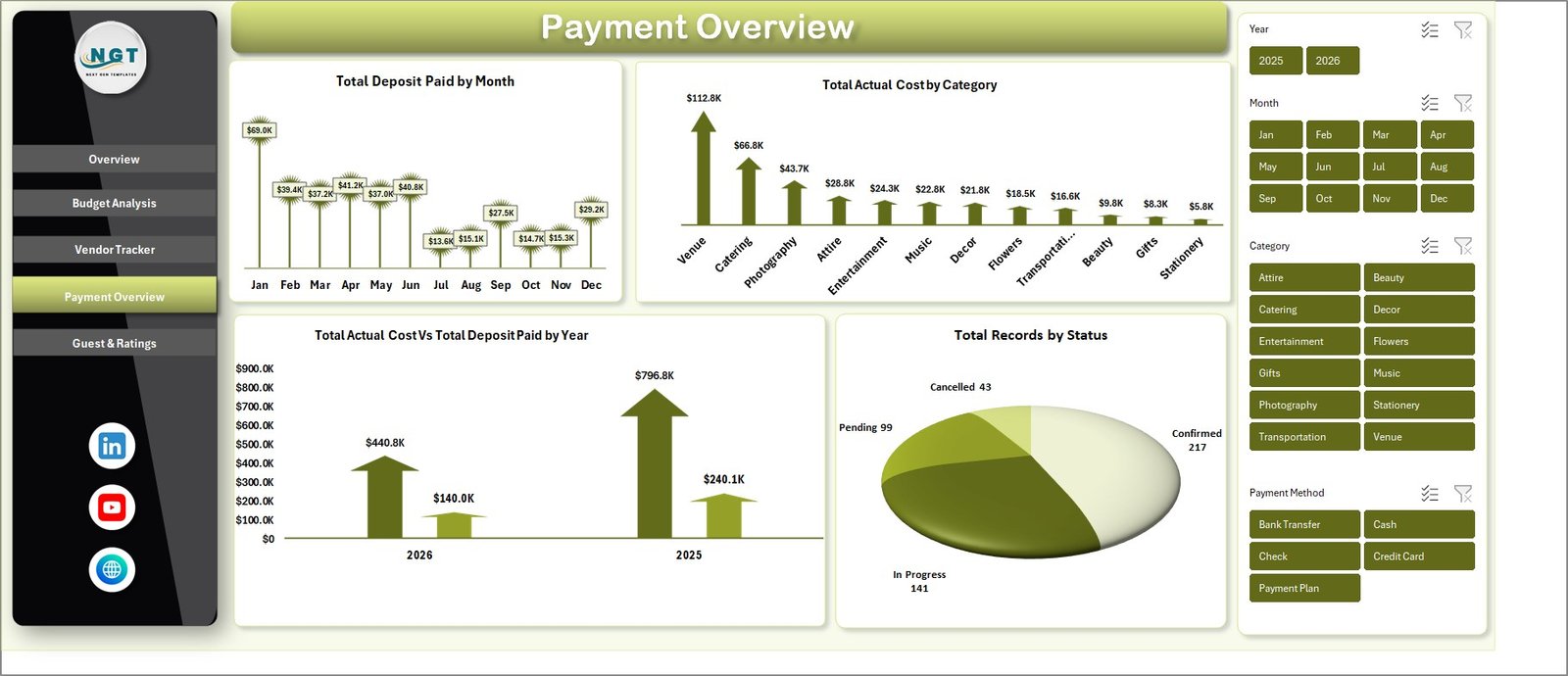 Payment Overview
5. Guest & Ratings
The Guest & Ratings page analyzes the relationship between guest counts and your wedding costs. Total Guest Impact by Category shows how the number of guests affects spending in each budget category. Avg. Satisfaction by Wedding Phase reveals your overall satisfaction levels during different stages of the planning process. The Wedding Phase by Category matrix helps you understand which categories are most active during each wedding phase — from pre-wedding preparations to the reception and post-wedding activities.
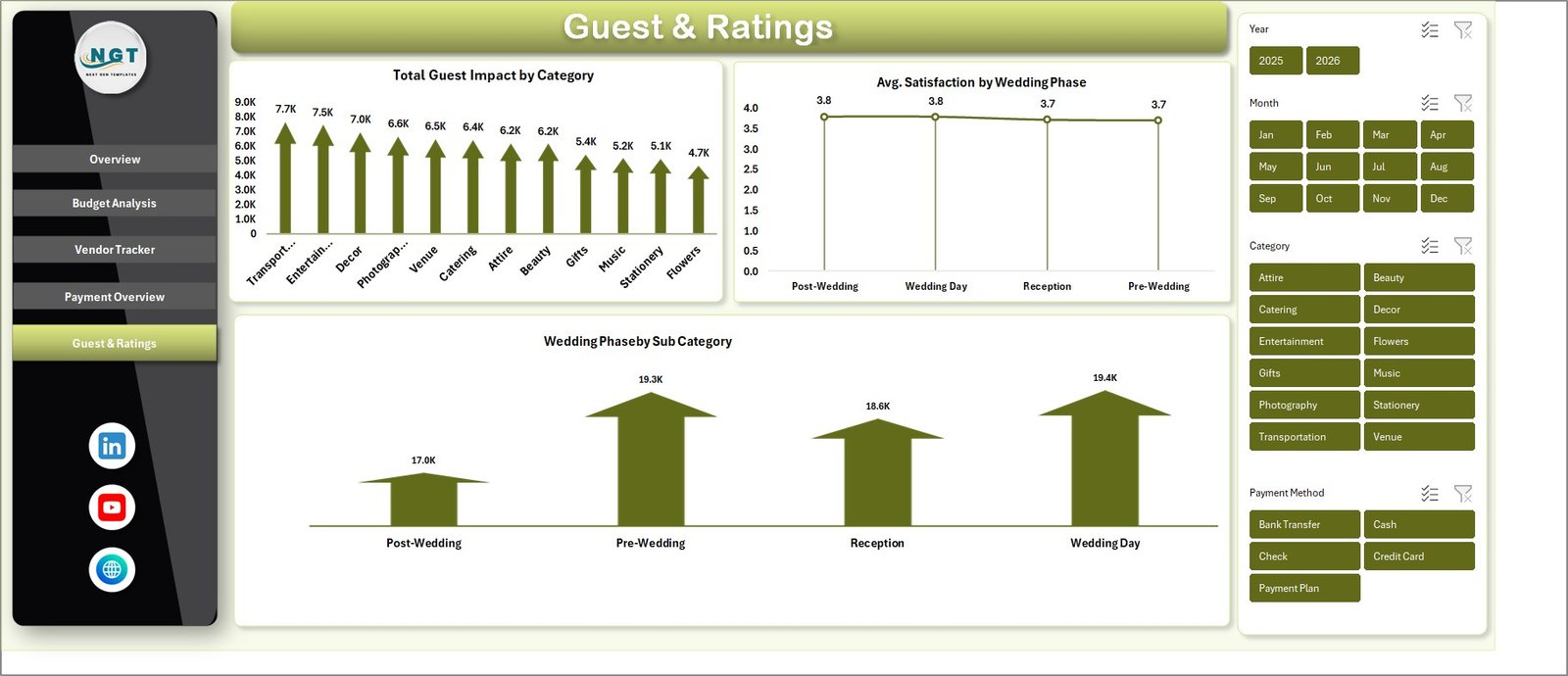 Guest & Ratings
6. Data Sheet
The Data Sheet is where you enter all your wedding budget records. It follows a structured format with columns for category, vendor, estimated cost, actual cost, deposit paid, payment method, payment status, wedding phase, priority, satisfaction score, guest impact, and more. Simply add your data in the same format as the sample entries provided, and the entire dashboard will update when you refresh the pivot tables.
 Data Sheet Tab
7. Support Sheet
The Support Sheet contains all the pivot tables that power the entire dashboard. You do not need to modify anything on this sheet. After updating your data in the Data Sheet, simply navigate to the Data tab in the Excel Ribbon and click Refresh All — every pivot table and chart across all 5 dashboard pages will update automatically. You can keep this sheet hidden for a cleaner workbook experience.
 Support Sheet Tab
Advantages of Wedding Budget Dashboard in Excel
- Complete Financial Visibility — See your entire wedding budget across 5 dedicated analysis pages, each focused on a different aspect of your finances.
- Real-Time Updates — Pivot-table-driven architecture means one click of Refresh All updates every chart and KPI card instantly.
- No Technical Skills Required — No VBA, no macros, no complex formulas. Works with standard Excel features available in Excel 2016 and later.
- Vendor Accountability — Track vendor payments, deposits, satisfaction scores, and payment statuses to ensure every vendor delivers value.
- Budget vs. Actual Comparison — The Budget Analysis page directly compares estimated costs against actual spending by wedding phase, helping you identify overruns early.
- Guest Impact Insights — Unique Guest & Ratings page helps you understand how guest count affects costs across different categories and phases.
Opportunities for Improvement
- Adding a timeline or Gantt chart view could help visualize payment deadlines and milestone dates alongside budget data.
- A currency conversion feature would benefit destination weddings or international vendor payments.
- Integration with online payment tracking tools could automate data entry for recurring vendor payments.
- A summary comparison page showing final budget vs. initial estimates as a percentage variance would add executive-level insights.
Best Practices for Using the Wedding Budget Dashboard
- Start Early — Begin entering budget items as soon as you start planning. The earlier you populate the Data Sheet, the more useful the dashboard becomes over time.
- Update Regularly — After every payment or vendor interaction, update the Data Sheet and click Refresh All to keep your dashboard current.
- Use Priority Levels — Assign high, medium, or low priority to each budget item so you can filter by importance and allocate funds strategically.
- Track Satisfaction Scores — Rate each vendor after interactions. This data populates the Vendor Tracker and Guest & Ratings pages, giving you performance insights.
- Review Weekly — Set a weekly review schedule to compare estimated vs. actual costs and catch budget overruns before they escalate.
Explore Relevant Templates
If you found this Wedding Budget Dashboard useful, check out these related templates on NextGenTemplates:
- Wedding Planning KPI Dashboard in Excel — Track wedding planning performance indicators with dedicated KPI scorecards and trend analysis.
- Event Management Dashboard in Excel — Manage budgets, tasks, and logistics for any event with this comprehensive Excel dashboard.
- Event Production Dashboard in Excel — Track event production costs, timelines, and resource allocation in one interactive dashboard.
- Personal Finance Dashboard in Excel — A full personal finance tracker covering income, expenses, savings, and investment analysis.
- Monthly Budget Planner Template in Excel — Plan and track monthly household or personal budgets with ease.
Frequently Asked Questions
What is the best Excel template for tracking wedding expenses?
The Wedding Budget Dashboard in Excel from NextGenTemplates is one of the best options available. It includes 5 interactive dashboard pages covering budget analysis, vendor tracking, payment overview, and guest impact — all powered by pivot tables that update automatically when you refresh your data.
How do I track wedding vendor payments in Excel?
The Vendor Tracker page in this dashboard lets you monitor Total Actual Cost by Payment Method, compare actual costs vs. deposits paid, track payment statuses (completed, pending, overdue), and view average satisfaction ratings for each vendor — all in one dedicated page.
Can I compare my estimated wedding budget vs. actual spending?
Yes. The Budget Analysis page includes a Total Estimated Cost vs Total Actual Cost by Wedding Phase chart that directly compares your planned budget against actual spending at each stage of your wedding. This helps you identify overspending early and adjust your budget accordingly.
Do I need macros or VBA to use this wedding budget dashboard?
No. This template uses only standard Excel features — pivot tables, charts, and slicers. It works with Excel 2016 and later, including Microsoft 365, without requiring any macros or VBA.
How many KPIs does the Wedding Budget Dashboard track?
The Overview page tracks 4 primary KPIs: Total Estimated Cost, Total Actual Cost, Total Deposit Paid, and Total Records. Beyond these, the 5 dashboard pages provide over 15 different analytical views covering cost breakdowns, payment tracking, vendor performance, and guest impact analysis.
Can professional wedding planners use this template for multiple clients?
Absolutely. You can duplicate the Excel file for each wedding project. Each copy maintains its own independent data and dashboard, making it ideal for professional wedding planners managing multiple client budgets simultaneously.
Conclusion
The Wedding Budget Dashboard in Excel is a must-have tool for anyone serious about managing wedding finances effectively. With 5 interactive pages, real-time KPI tracking, vendor payment monitoring, and guest impact analysis, it transforms chaotic wedding expenses into organized, actionable insights. Download it today and take the stress out of wedding budget planning.
Click here to Purchase: Wedding Budget Dashboard in Excel
For step-by-step video tutorials, visit our YouTube channel: Youtube.com/@PK-AnExcelExpert