Managing financial tasks requires discipline, accuracy, and timely execution. However, many businesses still track financial activities using scattered notes or unstructured spreadsheets. As a result, deadlines get missed, responsibilities become unclear, and financial errors increase.
Therefore, you need a structured system that keeps everything organized and visible. The Financial Task Checklist in Excel provides a simple yet powerful solution. It helps individuals, finance teams, accountants, and business owners track financial tasks efficiently. Moreover, it ensures accountability, improves transparency, and increases productivity.
In this complete guide, you will learn:
-
What a Financial Task Checklist in Excel is
-
Why financial task tracking is important
-
Key features of this ready-to-use template
-
Detailed explanation of worksheets
-
Advantages of using this checklist
-
Best practices for effective implementation
-
Frequently asked questions
Let’s explore everything step by step.
Click to Purchases Financial Task Checklist in Excel
What Is a Financial Task Checklist in Excel?
A Financial Task Checklist in Excel is a structured and ready-to-use template designed to track financial activities, responsibilities, and deadlines in one place.
Instead of relying on memory or scattered files, you can:
-
Record financial tasks
-
Assign responsible persons
-
Set deadlines
-
Track completion status
-
Monitor progress visually
Because Excel offers flexibility and automation, this checklist becomes both easy to use and highly effective.
Why Is Financial Task Tracking Important?
Financial tasks often include payments, audits, tax filings, reconciliations, reporting, budgeting, and compliance activities. When teams fail to track these tasks properly, several problems arise.
For example:
-
Tax deadlines get missed
-
Vendor payments get delayed
-
Compliance risks increase
-
Cash flow becomes unstable
-
Financial reporting loses accuracy
However, when you use a structured checklist, you gain control and clarity. Therefore, you reduce risk and improve performance.
Click to Purchases Financial Task Checklist in Excel
What Are the Key Features of the Financial Task Checklist in Excel?
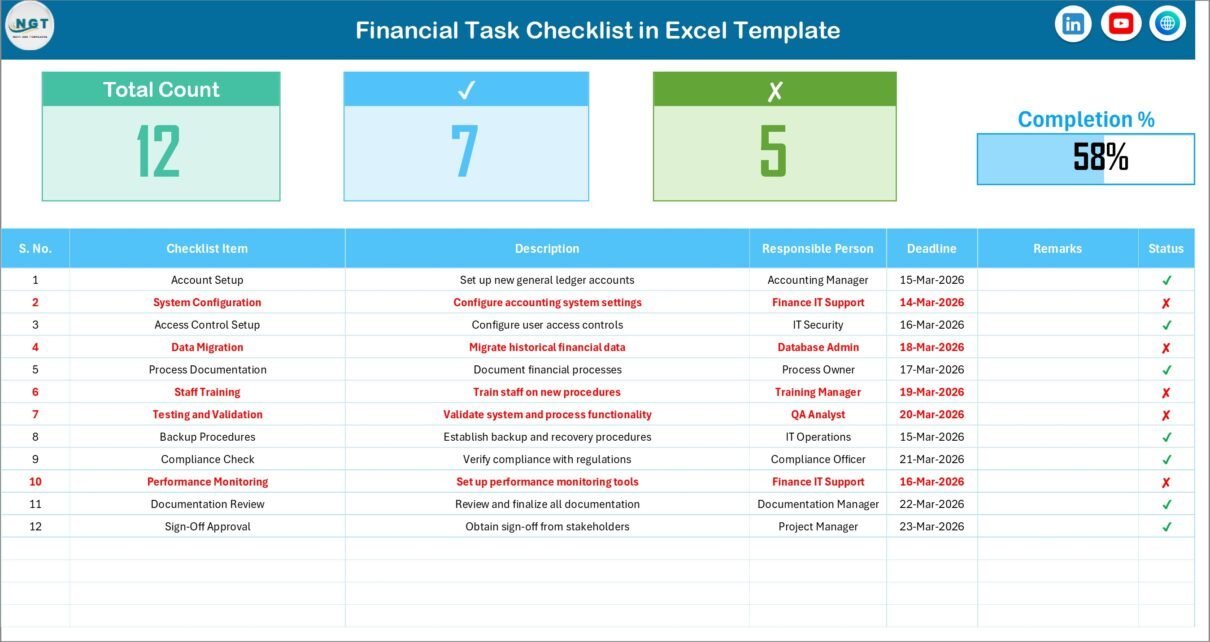
This ready-to-use template includes two structured worksheets. Each sheet serves a specific purpose.
1️⃣ Financial Task Checklist Sheet Tab (Main Sheet)
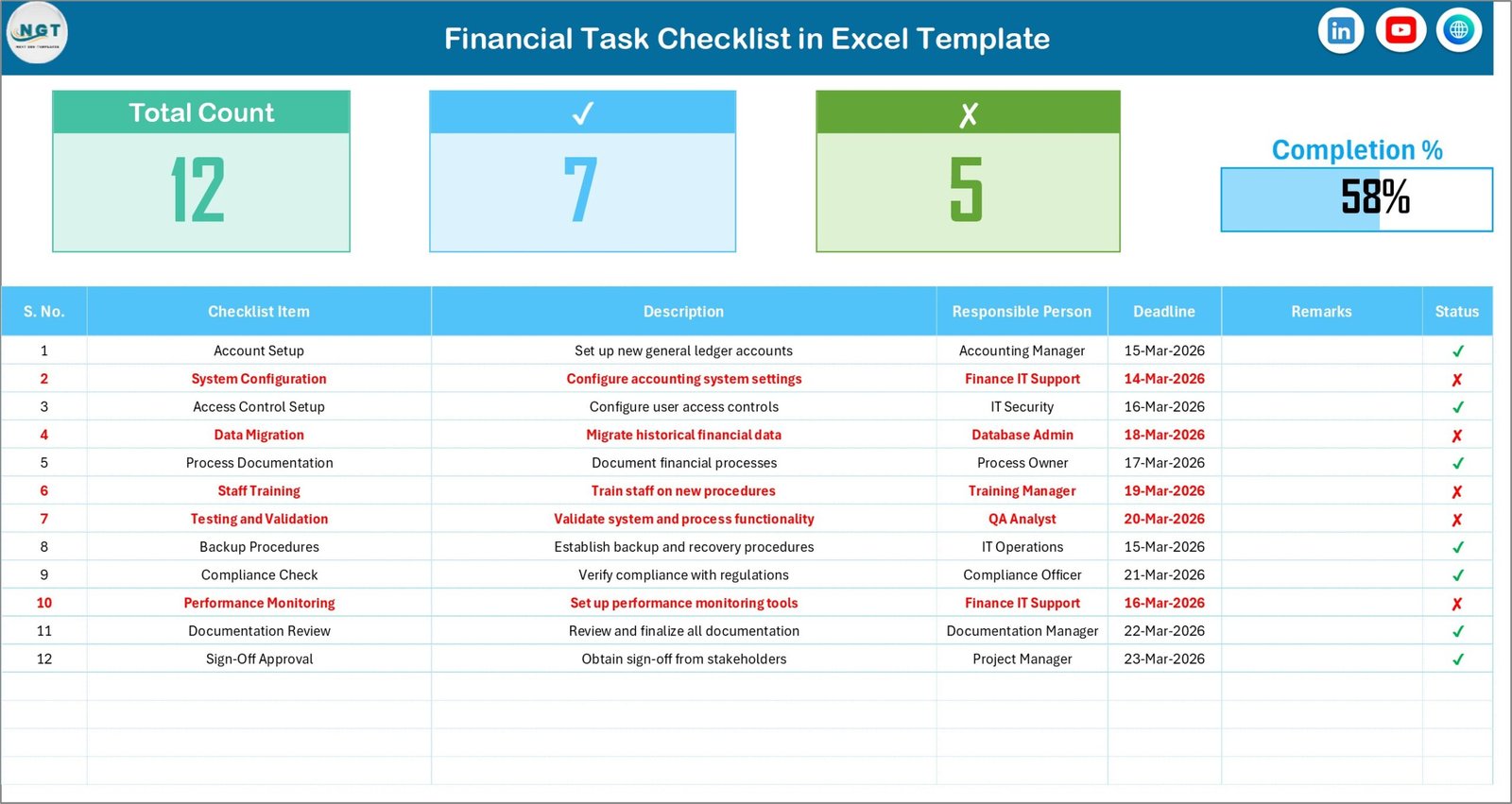
This sheet acts as the core working area of the template. Here, you capture and manage all checklist items.
🔹 Top Section – Performance Overview
At the top of the sheet, you will find a summary section that displays:
-
Total Count – Total number of tasks
-
Checked Count – Completed tasks
-
Crossed Count – Pending tasks
-
Progress Bar for Checked % – Visual progress indicator
Because of this overview section, you can instantly see how much work you have completed. Moreover, the progress bar motivates teams to finish tasks on time.
🔹 Checklist Table – The Main Working Area
Below the summary section, you will see the main checklist table.
In this table, you only need to update the Status column with:
-
✔ (Completed)
-
✘ (Not Completed)
Once you update the status, the summary section automatically updates. Therefore, you do not need manual calculations.
🔹 Columns Included in the Checklist Table
The table includes the following structured columns:
-
Serial No. – Sequence number
-
Checklist Item – Name of financial task
-
Description – Detailed explanation of the task
-
Responsible Person – Person assigned to complete the task
-
Deadline – Due date
-
Remarks – Additional notes or comments
-
Status – ✔ or ✘
Because this structure covers accountability and deadlines, it improves task management significantly.
Click to Purchases Financial Task Checklist in Excel
2️⃣ List Sheet Tab – Drop-Down Control
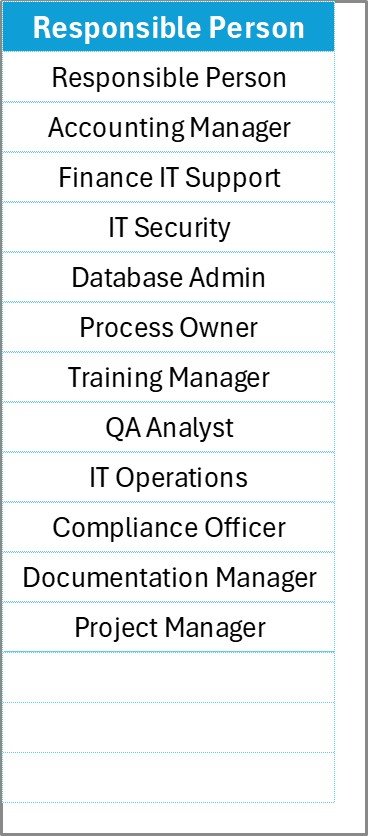
The second worksheet stores the unique list of responsible persons.
You use this sheet to:
-
Enter names of team members
-
Create a drop-down list in the main checklist table
As a result, data entry becomes standardized. Moreover, it prevents spelling mistakes and duplication.
Click to Purchases Financial Task Checklist in Excel
How Does the Financial Task Checklist Improve Productivity?
When you use this Excel checklist, you create a clear workflow.
For example:
-
You assign tasks properly
-
You define deadlines clearly
-
You monitor completion regularly
-
You identify pending tasks instantly
Because everything remains visible, team coordination improves. Furthermore, managers can track performance without asking for updates repeatedly.
What Types of Financial Tasks Can You Track?
You can use this checklist for various financial activities, such as:
🔹 Daily Tasks
-
Cash reconciliation
-
Bank reconciliation
-
Invoice verification
-
Expense recording
🔹 Weekly Tasks
-
Vendor payment review
-
Accounts receivable tracking
-
Budget monitoring
🔹 Monthly Tasks
-
Financial statement preparation
-
Payroll processing
-
Tax calculation
-
GST filing
🔹 Quarterly Tasks
-
Internal audit
-
Compliance review
-
Budget variance analysis
🔹 Annual Tasks
-
Year-end closing
-
Statutory audit
-
Income tax filing
-
Financial planning
Therefore, this template works for both small businesses and large organizations.
Click to Purchases Financial Task Checklist in Excel
Advantages of Financial Task Checklist in Excel
Using this structured checklist offers several advantages.
1️⃣ Improves Accountability
You assign each task to a specific person. Therefore, no confusion occurs.
2️⃣ Enhances Time Management
Because you define deadlines, teams complete tasks on time.
3️⃣ Provides Clear Progress Tracking
The progress bar shows completion percentage instantly.
4️⃣ Reduces Financial Errors
When you follow a checklist, you avoid missing critical steps.
5️⃣ Increases Transparency
Everyone can see task status clearly.
6️⃣ Easy to Use and Maintain
Excel makes updates simple. You do not need advanced technical skills.
7️⃣ Customizable Structure
You can modify tasks based on your business needs.
How Can You Customize This Checklist?
You can easily customize this template.
For example:
-
Add new columns if required
-
Insert additional financial tasks
-
Modify responsible person list
-
Adjust deadlines based on business cycle
Because Excel offers flexibility, you can adapt this template to any industry.
Click to Purchases Financial Task Checklist in Excel
Best Practices for the Financial Task Checklist in Excel
To maximize effectiveness, follow these best practices.
1️⃣ Update Tasks Regularly
Do not wait until the last moment. Instead, update the status daily or weekly.
2️⃣ Assign Clear Responsibilities
Always assign one person per task. Avoid shared responsibility without clarity.
3️⃣ Set Realistic Deadlines
Ensure deadlines align with actual workload.
4️⃣ Review Progress Weekly
Managers should review progress at least once a week.
5️⃣ Keep the Responsible Person List Updated
Update the List sheet when team members change.
6️⃣ Use Remarks Section Wisely
Add notes for delays or special instructions.
7️⃣ Backup Your File
Save regular backups to avoid data loss.
Click to Purchases Financial Task Checklist in Excel
Who Should Use the Financial Task Checklist?
This checklist benefits:
-
Small business owners
-
Accountants
-
Finance managers
-
CFOs
-
Auditors
-
Startups
-
Corporate finance teams
Because financial tasks exist in every organization, this template suits almost every industry.
How Does This Checklist Support Compliance?
Financial compliance requires consistent monitoring. When you track compliance-related tasks properly:
-
You avoid penalties
-
You meet regulatory deadlines
-
You maintain accurate records
Therefore, this checklist reduces legal risks and improves financial discipline.
Why Should You Choose Excel for Financial Task Management?
Many software tools exist. However, Excel offers:
-
Easy accessibility
-
Cost-effectiveness
-
Customization flexibility
-
Offline functionality
-
Simple automation
Moreover, most finance professionals already understand Excel. Therefore, training becomes unnecessary.
Conclusion
Managing financial tasks requires structure, discipline, and accountability. However, without a proper system, teams often miss deadlines and create unnecessary stress.
The Financial Task Checklist in Excel provides a practical and effective solution. It organizes tasks, assigns responsibility, tracks deadlines, and displays progress clearly. Furthermore, it improves productivity, reduces errors, and enhances financial control.
If you want better financial management without complex software, this checklist becomes your ideal solution.
Click to Purchases Financial Task Checklist in Excel
Frequently Asked Questions (FAQs)
1️⃣ Can I add more checklist items?
Yes, you can easily add new rows to the checklist table.
2️⃣ How does the progress bar update?
The progress bar updates automatically based on ✔ status entries.
3️⃣ Can multiple people use this file?
Yes, you can share the Excel file with your team.
4️⃣ Do I need advanced Excel knowledge?
No. You only need basic Excel skills to use this template.
5️⃣ Can I use this checklist for tax planning?
Yes, you can track tax-related tasks easily.
6️⃣ Can I modify the responsible person list?
Yes. Update the List sheet to change or add names.
7️⃣ Is this checklist suitable for large companies?
Yes. You can expand it based on your company size and requirements.
Click to Purchases Financial Task Checklist in Excel
Visit our YouTube channel to learn step-by-step video tutorials