The Staff Birthday and Anniversary Calendar in Excel tracks employee birthdays and work anniversaries across 5 worksheets with 5 color themes, 3 calendar views (annual, monthly, daily), and VBA-powered event forms for adding, updating, and deleting records. Over 68% of employees say they feel more valued when their workplace recognizes personal milestones like birthdays, yet most small and mid-size companies still rely on sticky notes or scattered spreadsheets to track these dates.
This ready-to-use Excel calendar template solves that problem in under 5 minutes. Select your year, pick a color theme, and start entering staff birthdays and work anniversaries through a clean VBA form. The calendar auto-generates for any year, highlights weekends and events, and stores all records in a searchable database. At $4.99 one-time, it replaces the need for monthly HR SaaS subscriptions that charge $6-8 per user per month.
👉 Click here to Purchase the Staff Birthday and Anniversary Calendar in Excel
Key Features of Staff Birthday and Anniversary Calendar in Excel
The Staff Birthday and Anniversary Calendar in Excel includes 5 worksheets, 5 switchable color themes, and 7 data fields per event record. Here are the features that make this template stand out:
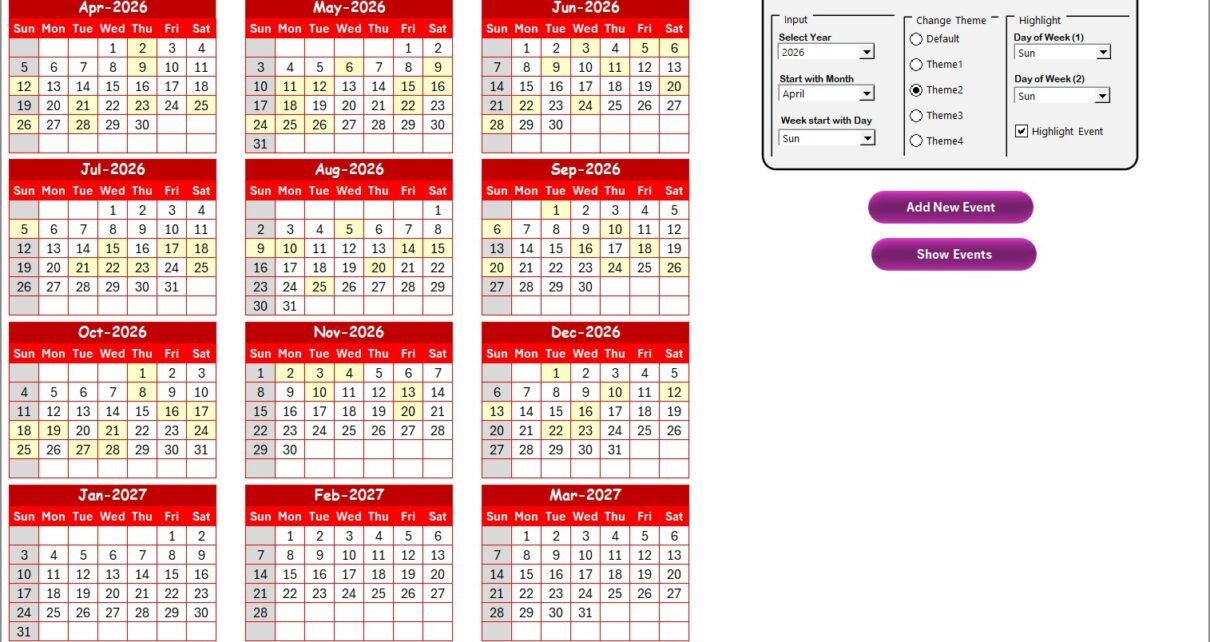
- Annual View with 12-Month Calendar — displays all 12 months on a single sheet. Change the year, starting month, or starting day of the week from the control panel and the entire calendar rebuilds instantly.
- 5 Built-In Color Themes — switch the entire workbook’s color scheme with one click. Match your company branding or personal preference without manual formatting.
- Weekend and Event Highlighting — select any two days of the week to highlight in grey. Enable the Highlight Events checkbox to mark all events in yellow on the Annual View.
- VBA-Powered Event Forms — Add New Event, Update Existing Record, and Delete Record buttons open a validated form. No one types directly into cells, eliminating data entry errors.
- Monthly View with Events on Dates — view one month at a time with event names displayed directly on calendar dates. Dates with multiple events show “more than 1…” as an indicator.
- Daily View with Date Range Filtering — set a start and end date to display all events within that range in a detailed list. Click Refresh to update the view.
- Events Database — stores all records with 7 fields: auto-generated ID, Date, Day, Event Name, Time, Location, and Description.
Template Worksheets Explained
👉 Click here to Purchase the Staff Birthday and Anniversary Calendar in Excel
The Staff Birthday and Anniversary Calendar in Excel contains 5 worksheets, each serving a specific purpose in the event management workflow:
1. Home Sheet
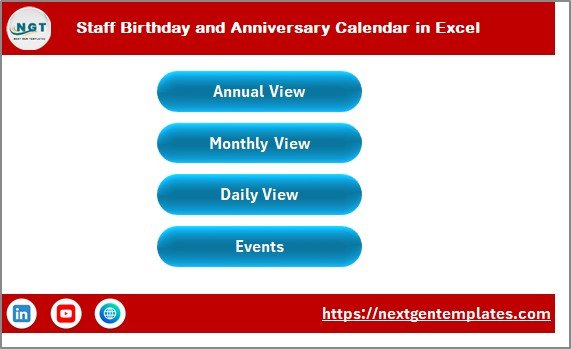
This is the index page with 4 navigation buttons — Annual View, Monthly View, Daily View, and Events — for quick access to any section of the workbook. It serves as the central hub when you first open the file.
2. Annual View Sheet
The Annual View displays all 12 months on a single sheet. The control panel at the top contains 3 groups:
- Input Group: Select the Year to change the calendar automatically. Change the starting month (January, April, September, etc.) and the starting day of the week.
- Change Theme Group: Choose from 5 color themes that apply across the entire workbook.
- Highlight Group: Select Day of Week (1) and Day of Week (2) to highlight in grey (e.g., Saturday and Sunday). Toggle the Highlight Events checkbox to mark events in yellow.
Two buttons — Add New Event and Show Event — let you manage events directly from this view.
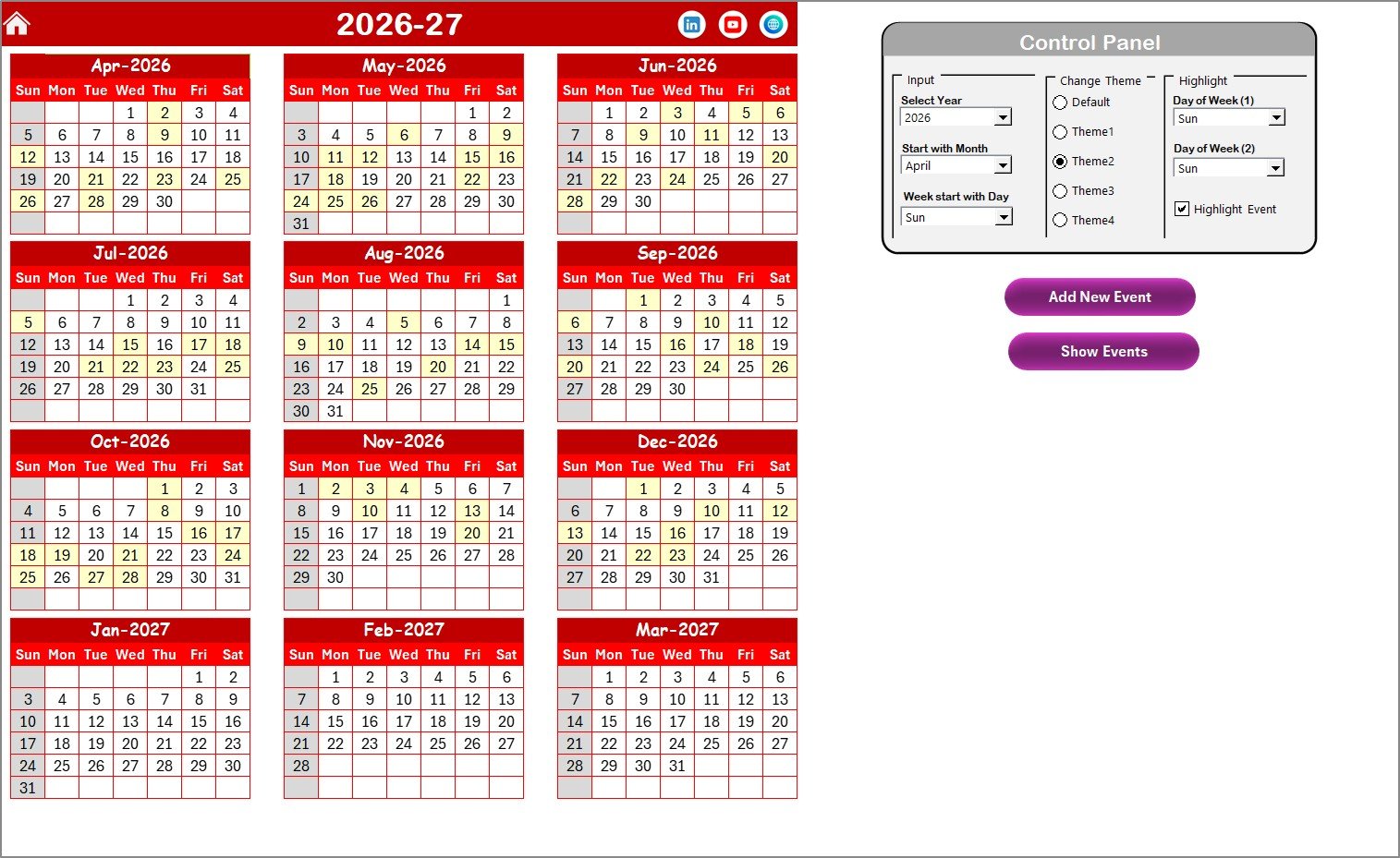 Annual View Sheet
3. Monthly View Sheet
A single-month calendar that displays events directly on dates. Select the Month and Year from dropdown menus at the top. If a date has more than one event, the calendar shows “more than 1…” so you can click Show Event for the full list. Add New Event and Show Event buttons are available at the top.
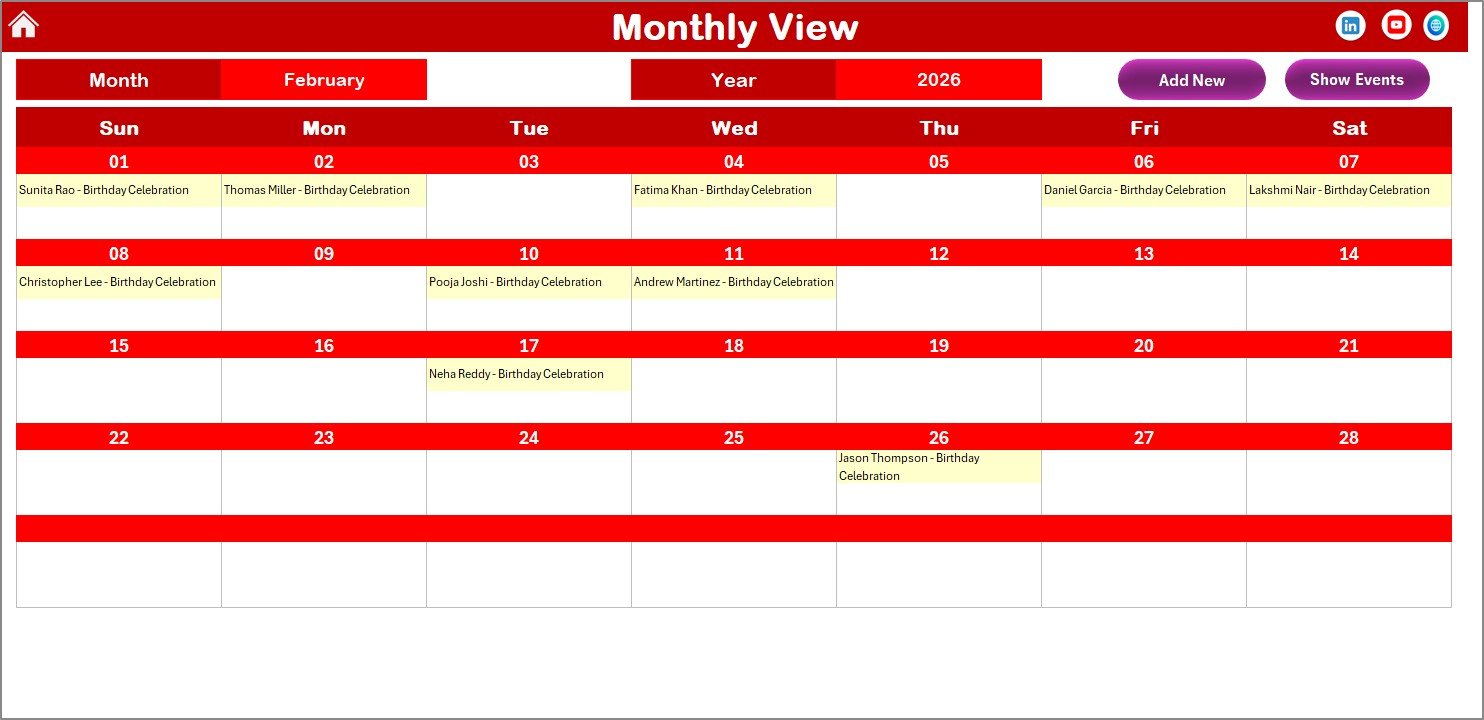 Monthly View Sheet
4. Daily View Sheet
A date-range filtered event list. Enter a Start Date and End Date using the calendar icon, then click Refresh to display all events in that period with full details. The Add New Event button opens the VBA form for quick entry.
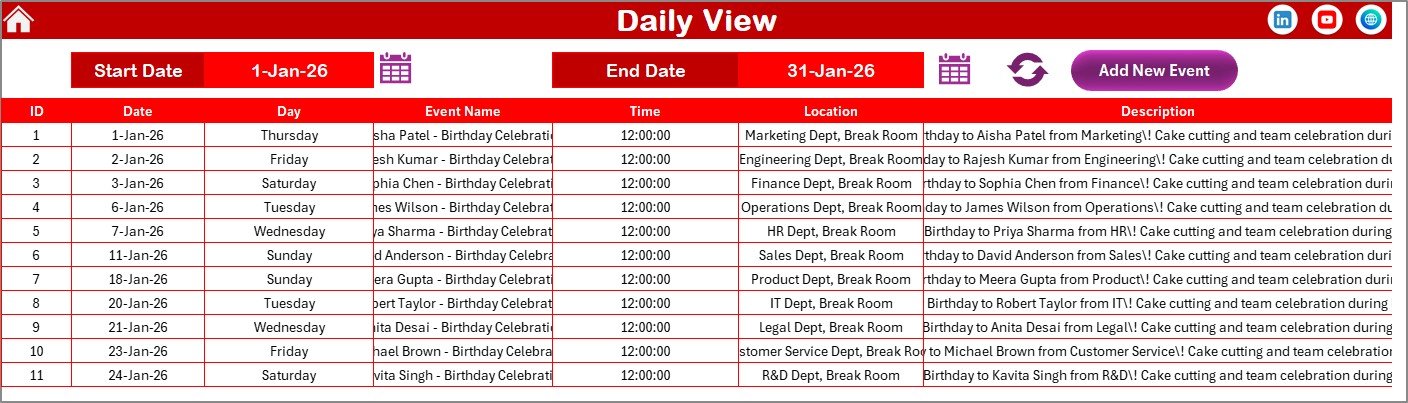 Daily View Sheet
5. Events Sheet (Database)
The central database storing all event records. Each record includes: ID (auto-generated), Date, Day (Sunday, Monday, etc.), Event Name, Time, Location, and Description. Three action buttons at the top — Add New Record, Update Existing Record, and Delete Record — provide full CRUD (Create, Read, Update, Delete) functionality.
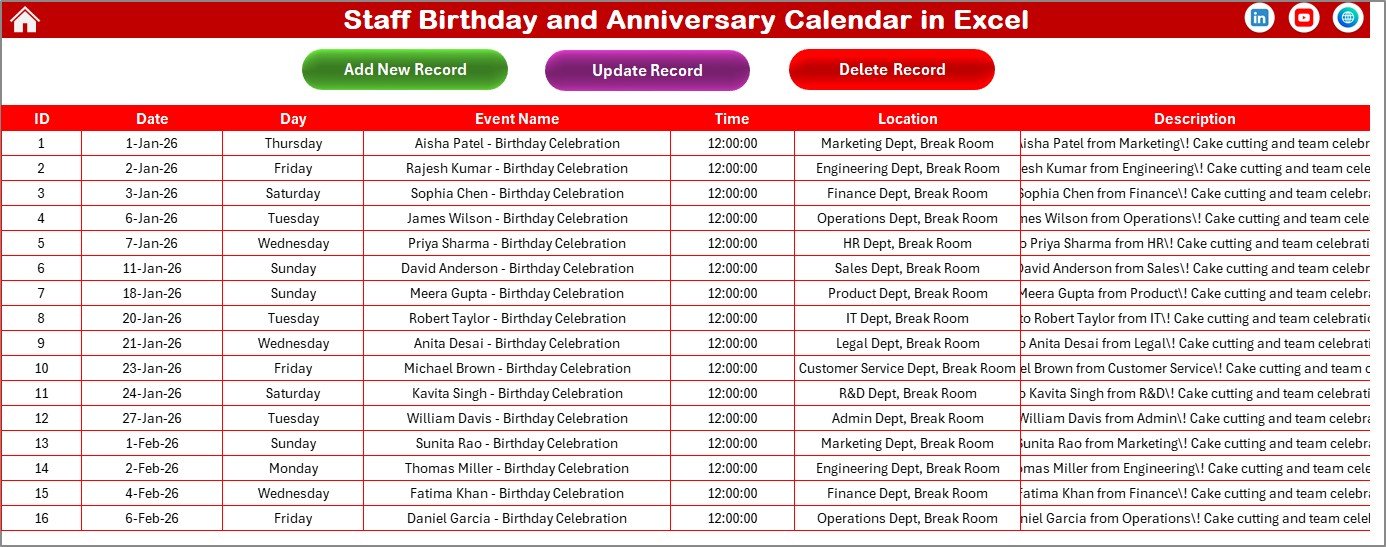 Events Database Sheet
Staff Birthday and Anniversary Calendar in Excel vs. Google Sheets Calendar vs. BambooHR — Feature Comparison
| Feature | Staff Birthday Calendar (Excel) | Google Sheets Calendar | BambooHR |
|---|---|---|---|
| Cost | $4.99 one-time | Free (manual setup) | $6-8 / user / month |
| Platform | Microsoft Excel (desktop + web) | Google Sheets (web only) | Cloud SaaS |
| Setup Time | Under 5 minutes | 2-4 hours (build from scratch) | 1-2 weeks onboarding |
| Annual + Monthly + Daily Views | ✅ All 3 included | ❌ Build manually | ✅ Built-in |
| VBA Event Forms | ✅ Add / Update / Delete | ❌ No VBA support | ✅ Web forms |
| Color Themes | ✅ 5 themes | ❌ Manual formatting | Limited branding |
| Offline Access | ✅ Full offline | ❌ Internet required | ❌ Internet required |
| Year-1 Cost (5 users) | $4.99 total | $0 (but hours of setup) | $360-480 / year |
For HR teams that want a ready-made birthday and anniversary tracker without monthly SaaS fees, the Staff Birthday and Anniversary Calendar in Excel sits in the sweet spot.
Who Should Use This Template
Perfect for:
- HR managers and office administrators at 10-500 person companies tracking employee milestones
- Small business owners who want to remember staff birthdays and work anniversaries without paid HR software
- Team leads and department managers planning team celebrations and recognition events
- Schools, churches, and nonprofits tracking member birthdays and annual events
Not a fit if:
- You manage 1,000+ employees and need HRIS integration with payroll and benefits systems
- You need cloud-based real-time multi-user editing — consider the Birthday and Anniversary Tracker in Google Sheets instead
Real-World Use Cases
👉 Click here to Purchase the Staff Birthday and Anniversary Calendar in Excel
Priya manages HR at a 45-person marketing agency. She enters every employee’s birthday and work anniversary into the calendar at the start of each year. Each Monday she checks the Monthly View to see if celebrations are coming up, then sends a reminder to the team lead. Setup took 20 minutes — compared to the $2,400/year her manager quoted for BambooHR.
David runs a 12-person accounting firm. He uses the Daily View to print a weekly list of upcoming staff milestones. He also logs client birthdays so the team can send personalized greeting cards. The 5 color themes let him switch between a professional blue scheme for client-facing printouts and a festive orange theme for internal celebrations.
Sister Mary coordinates events at a parish with 300 members. She tracks congregation birthdays, wedding anniversaries, and feast days on the Annual View. The event highlighting in yellow lets her spot busy weeks at a glance, and the VBA form prevents data entry errors from volunteers who help maintain the list.
Advantages of Staff Birthday and Anniversary Calendar in Excel
- Zero recurring costs — $4.99 one-time purchase vs. $6-8/user/month for cloud HR tools. A 20-person team saves $1,440-1,920 in the first year alone.
- Works offline — no internet connection needed. Open the file on any computer with Excel 2016 or later.
- 5-minute setup — select your year, pick a theme, and start entering events. No onboarding calls, no training sessions.
- VBA forms prevent errors — validated input forms eliminate typos, broken formulas, and accidental deletions that plague manual spreadsheets.
- Reusable every year — change the year in the control panel and the entire calendar regenerates while preserving all stored events.
Opportunities for Improvement
👉 Click here to Purchase the Staff Birthday and Anniversary Calendar in Excel
- Single-user VBA forms — the VBA event forms support one user at a time. Teams needing simultaneous editing should consider the Google Sheets version or share the file with read-only access on OneDrive.
- No automated email reminders — the calendar displays events visually but does not send email notifications. You would need to check the calendar manually or pair it with Outlook reminders.
- Desktop Excel required for full functionality — VBA buttons work only in the desktop version of Excel. Excel Online and mobile Excel display the calendar views but cannot run macros.
Best Practices
- Batch-enter all birthdays at the start of the year — export your employee list from your HR system, then use the VBA form to add each birthday and work anniversary in one session.
- Set a weekly review routine — open the Monthly View every Monday morning to check for upcoming celebrations that week.
- Use the Daily View for reports — set the date range to the current month and print the list for your bulletin board or team meeting agenda.
- Back up the file monthly — save a copy to OneDrive, SharePoint, or a local backup folder to prevent data loss.
- Choose a color theme that matches your company branding — this makes the calendar look professional when sharing printouts with leadership.
Explore Relevant Templates
📌 Birthday and Anniversary Tracker in Google Sheets — the Google Sheets version with built-in search feature, ideal for cloud-based teams.
📌 Performance Review Schedule Calendar in Excel — track performance review cycles and deadlines alongside your HR calendar.
📌 HR Compliance and Audit Calendar in Excel — manage compliance deadlines, audits, and regulatory events.
📌 Monthly Timesheet Calendar in Excel — combine time tracking with calendar views for attendance and hours.
📌 Performance Appraisal Tracker in Excel — run a full review cycle with VBA forms, dashboard, and multi-user login.
Browse all Excel Calendar Templates and HR & Payroll Templates on NextGenTemplates.
Frequently Asked Questions
👉 Click here to Purchase the Staff Birthday and Anniversary Calendar in Excel
How many events can the Staff Birthday and Anniversary Calendar hold?
The Staff Birthday and Anniversary Calendar in Excel stores events in a standard Excel worksheet, supporting up to 1,048,576 rows. For most organizations tracking birthdays and anniversaries, this is effectively unlimited capacity.
Does this calendar work with Microsoft 365 and Excel Online?
The calendar opens in any version of Microsoft Excel from 2016 onward. VBA features (Add, Update, Delete forms) require the desktop app. Annual, Monthly, and Daily views display correctly in Excel Online but VBA buttons need the desktop version.
Can I change the starting month of the calendar?
Yes. The Annual View control panel lets you select any starting month. Choose April for a fiscal-year calendar, September for an academic-year calendar, or January for a standard calendar year.
How does this compare to BambooHR for birthday tracking?
BambooHR charges $6-8 per user per month and requires onboarding. The Staff Birthday and Anniversary Calendar in Excel costs $4.99 one-time, works offline, and is ready in under 5 minutes with no per-user fees.
Can multiple people use this calendar at the same time?
One person at a time can use the VBA forms. Share the file on OneDrive or SharePoint for read access by team members. For real-time multi-user editing, consider the Google Sheets Birthday Tracker.
Is the calendar reusable for future years?
Yes. Simply change the Year in the control panel and the entire 12-month calendar regenerates automatically. All existing events remain in the Events database and display on the correct dates in the new year.
What information does each event record store?
Each event stores 7 fields: auto-generated ID, Date, Day of the week, Event Name, Time, Location, and Description. You can add, update, or delete records using the VBA-powered buttons on the Events sheet.
About the Author
Built by PK — Microsoft Certified Professional with 15+ years of Excel, Google Sheets, and Power BI experience. Founder of NextGenTemplates, reaching 300K+ subscribers across YouTube channels. Every template is hand-built and tested before release.
Conclusion
The Staff Birthday and Anniversary Calendar in Excel gives HR managers, office administrators, and small business owners a ready-to-use tool for tracking employee birthdays and work anniversaries — without monthly SaaS fees or complex onboarding. With 5 worksheets, 5 color themes, VBA-powered forms, and three calendar views, it handles everything from entering new events to printing date-range reports.
👉 Click here to Purchase the Staff Birthday and Anniversary Calendar in Excel
✅ Instant download · One-time payment · No subscription
Visit our YouTube channel for step-by-step tutorials: Youtube.com/@PK-AnExcelExpert
For more Excel tutorials and tips, explore Microsoft Excel Support.