The Virtual Classrooms KPI Dashboard in Excel tracks 20+ virtual classroom KPIs across 7 interactive worksheets, with MTD and YTD trend charts, conditional formatting arrows, and month-based filtering. Whether you run an online school, an EdTech startup, or a corporate virtual training program, this ready-to-use Excel template transforms raw performance data into structured, visual insights in under 10 minutes.
Virtual classroom adoption grew 300% between 2020 and 2024, yet most education teams still track attendance, completion rates, and instructor performance in scattered spreadsheets. The Virtual Classrooms KPI Dashboard in Excel solves this by centralizing every metric into a single, formula-driven workbook with automated comparisons against targets and previous year benchmarks.
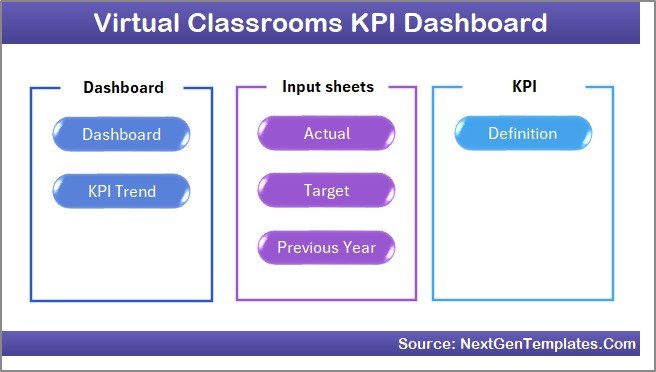
Key Features of Virtual Classrooms KPI Dashboard in Excel
Click here to Purchase the Virtual Classrooms KPI Dashboard in Excel
This Excel KPI Dashboard delivers structured performance tracking for virtual classrooms through 7 interconnected worksheets. Here are the features that make it a practical replacement for expensive LMS analytics tools:
Month-Based Dynamic Filtering — Select any month from a dropdown on the Dashboard sheet (range D3) and all MTD and YTD numbers refresh instantly across every KPI row. No macros, no VBA — just Excel formulas doing the work.
MTD and YTD Comparison Engine — View Actual vs. Target and Actual vs. Previous Year side by side, with conditional formatting arrows (▵ green for favorable, ▿ red for unfavorable) that flag performance gaps immediately. The dashboard tracks both month-to-date and year-to-date metrics, giving you short-term and long-term performance visibility in one view.
KPI Trend Analysis with Charts — Select any KPI from a dropdown on the KPI Trend sheet (range C3) and view MTD and YTD trend lines for Actual, Target, and Previous Year. This helps you spot seasonal patterns in student engagement, attendance drops during exam periods, or gradual improvements in course completion rates.
Structured KPI Definition Library — Every KPI includes its group, unit, formula, definition, and direction type (LTB — Lower the Better, or UTB — Upper the Better). This ensures your entire team interprets virtual classroom metrics consistently.
Three Separate Input Sheets — Enter Actual numbers, Target numbers, and Previous Year numbers on dedicated worksheets. Change the starting month on range E1 and the entire year adjusts automatically.
No Macros, No Coding — Built entirely with standard Excel formulas (SUMIFS, INDEX-MATCH, IFERROR), so the dashboard runs on Windows, Mac, and Excel Online without compatibility issues.
Dashboard Pages Explanation
The Virtual Classrooms KPI Dashboard in Excel contains 7 worksheets, each serving a specific function in the KPI tracking workflow:
1. Home Sheet
This is the index page with 6 interactive navigation buttons. Click any button to jump directly to the corresponding worksheet. Even first-time users can navigate the entire dashboard without scrolling through tabs.
Home Page
2. Dashboard Sheet
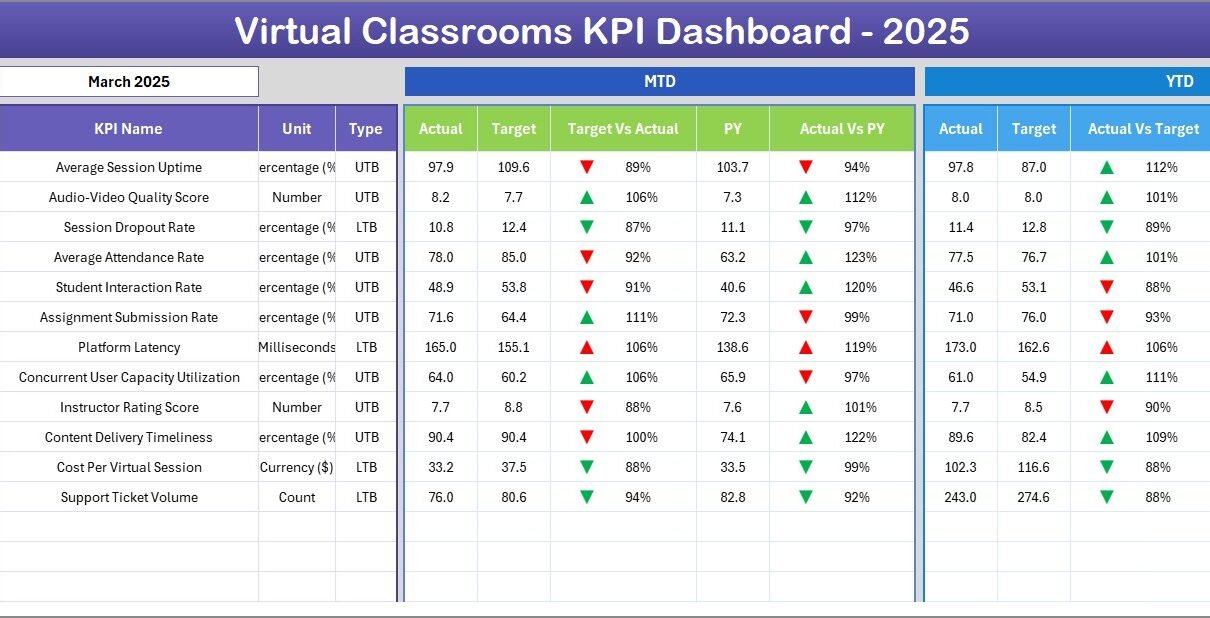
This is the main performance view. Select any month from the dropdown on range D3 and the entire sheet updates. You see MTD Actual, Target, and Previous Year data alongside YTD Actual, Target, and Previous Year data. Each variance column uses conditional formatting arrows to flag whether performance is above or below target and previous year — making it easy to identify which KPIs need attention.
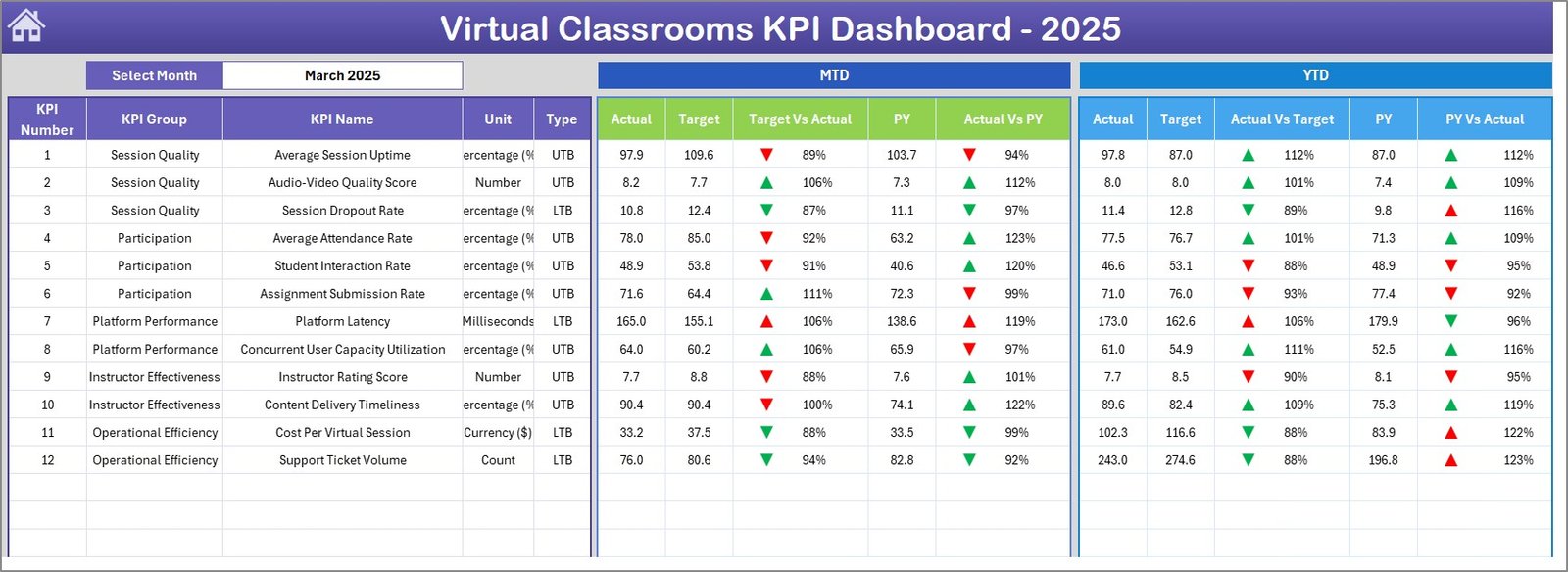
Virtual Classrooms KPI Dashboard
3. KPI Trend Sheet
Select any KPI from the dropdown on range C3. The sheet displays the KPI Group, Unit, Type (LTB/UTB), Formula, and Definition. Below that, MTD and YTD trend charts show Actual, Target, and Previous Year lines side by side. This is where you analyze long-term performance patterns and spot emerging trends.
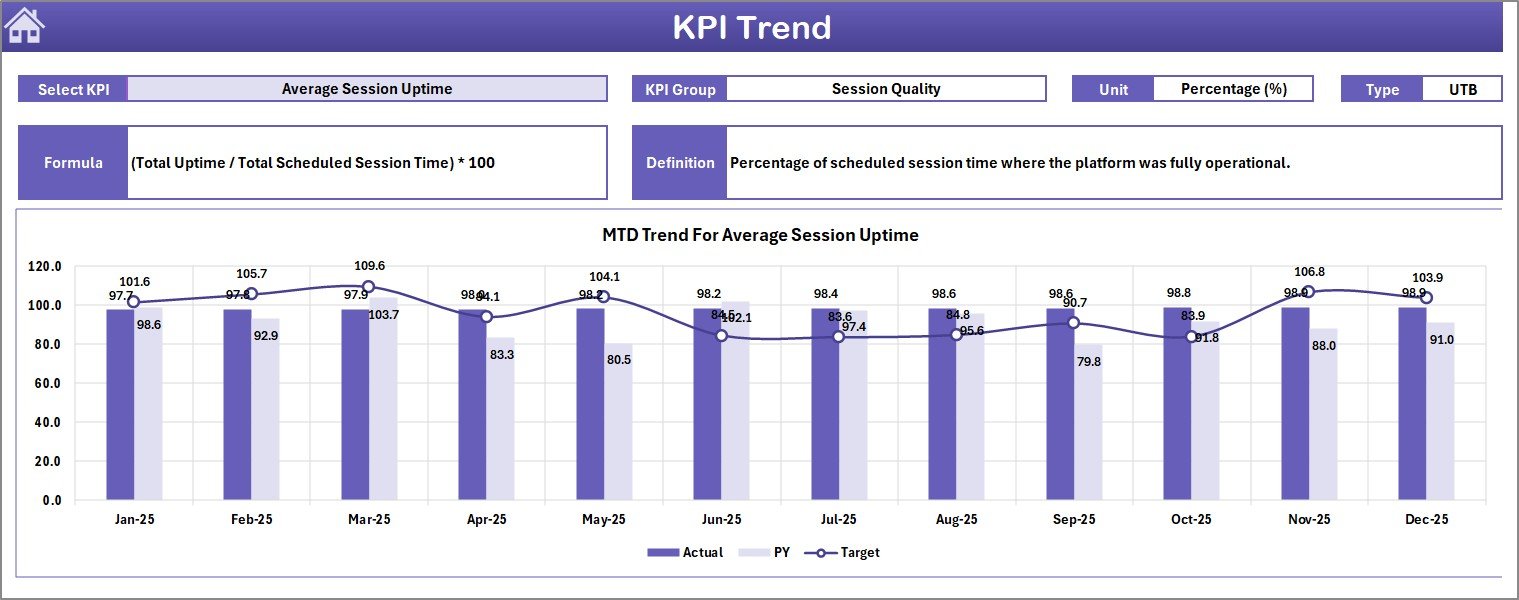
KPI Trend Sheet
4. Actual Numbers Input Sheet
Enter your actual MTD and YTD numbers for each KPI here. Set the first month of the year on range E1 to align with your fiscal or academic calendar. All data entered here feeds directly into the Dashboard and KPI Trend sheets.
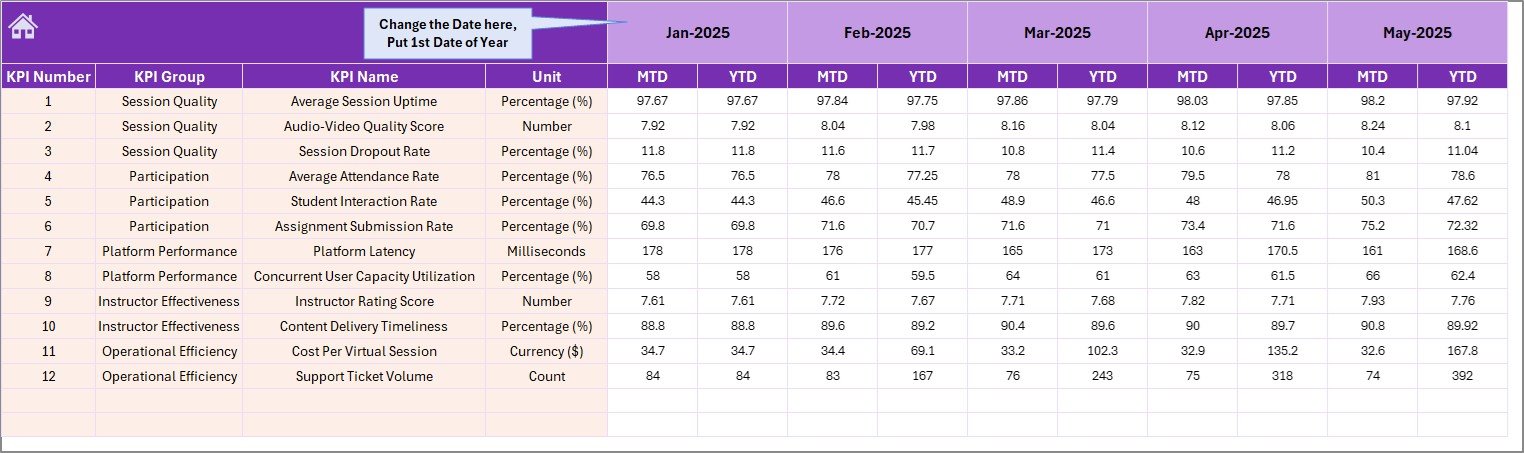
Actual Numbers Input Sheet
5. Target Number Input Sheet
Set MTD and YTD targets for each KPI by month. The Dashboard sheet uses these values to calculate Target vs. Actual variances and display conditional formatting arrows.
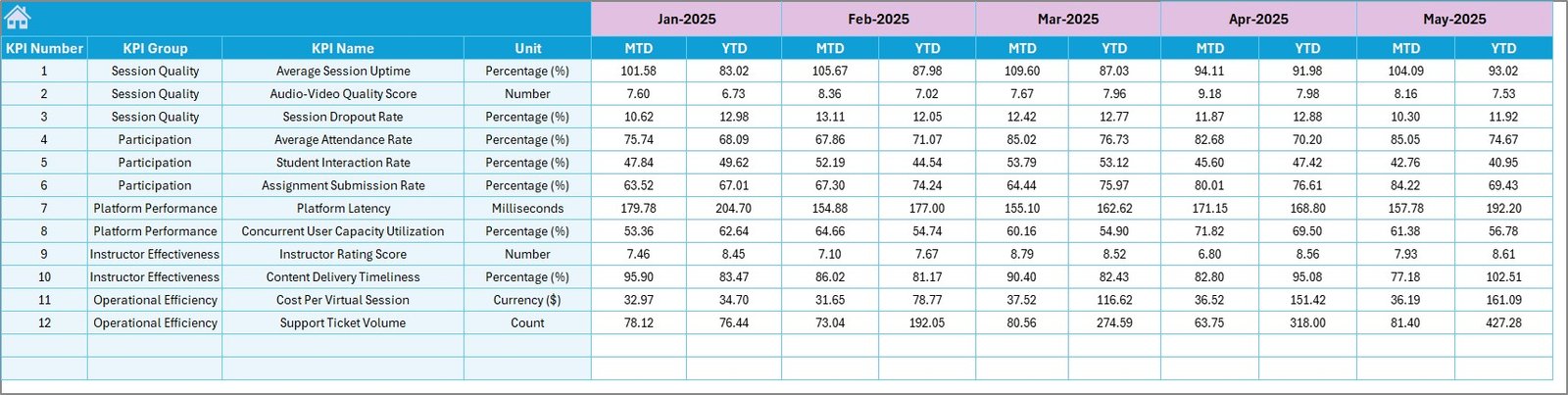
Target Number Input Sheet
6. Previous Year Number Sheet
Enter last year’s data in the same format as the Actual and Target sheets. The Dashboard sheet automatically computes PY vs. Actual variance with conditional formatting arrows for every KPI, both MTD and YTD.
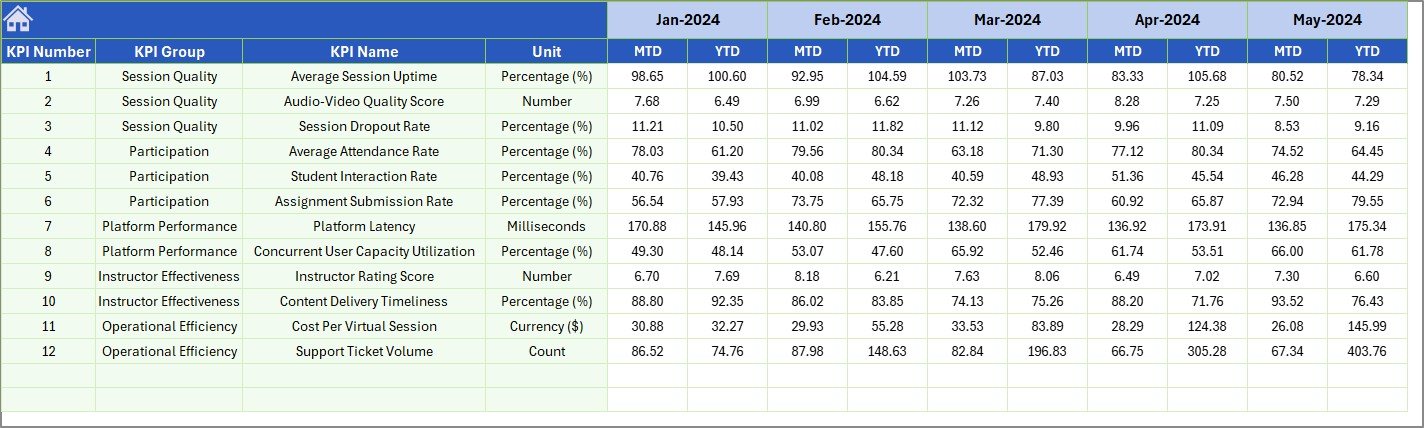
Previous Year Number Input Sheet
7. KPI Definition Sheet
Define each KPI’s Name, Group, Unit, Formula, Definition, and Type (LTB or UTB). This sheet drives the KPI Trend sheet’s metadata display and ensures every team member uses the same definitions for reporting.

KPI Definition Sheet
Virtual Classrooms KPI Dashboard vs. Google Sheets vs. Canvas/Blackboard Analytics — Feature Comparison
| Feature | Virtual Classrooms KPI Dashboard (Excel) | Google Sheets Dashboard | Canvas LMS / Blackboard Analytics |
|---|---|---|---|
| Cost | $14.99 one-time ✔ | Free (manual setup) | $5,000–$50,000+/year |
| Platform | Microsoft Excel ✔ | Google Sheets | Web-based SaaS |
| Setup Time | Under 10 minutes ✔ | 2–5 hours (build from scratch) | Weeks (IT integration) |
| Real-time Collaboration | Via OneDrive/SharePoint | Built-in ✔ | Built-in ✔ |
| Customizable KPIs | Unlimited — add your own ✔ | Manual formulas needed | Limited to platform defaults |
| Offline Access | Full offline use ✔ | Limited offline | Requires internet |
| MTD/YTD with PY Comparison | Built-in ✔ | Manual setup | Varies by tier |
| Year-1 Cost (5 Users) | $14.99 total ✔ | $0 (but hours of setup) | $5,000–$50,000+ |
| Data Ownership | 100% yours ✔ | Google Cloud | Vendor-hosted |
For education teams that want structured KPI tracking without paying enterprise LMS fees, the Virtual Classrooms KPI Dashboard in Excel sits in the sweet spot.
Who Should Use This Template
Perfect for:
- Virtual classroom coordinators and online education managers tracking student engagement, attendance, and completion rates across multiple classes
- EdTech startups and small LMS operators monitoring platform performance without expensive enterprise analytics subscriptions
- School administrators and training department heads who need to present monthly KPI reports to leadership or accreditation bodies
- Freelance online tutors and course creators tracking revenue, student satisfaction, and course completion metrics
Not a fit if:
- You need real-time LTI integration with Canvas, Moodle, or Blackboard that auto-pulls student data — this template uses manual data entry
- Your organization requires automated data pipelines from multiple APIs — consider dedicated BI tools like Power BI dashboards instead
Real-World Use Cases
Click here to Purchase the Virtual Classrooms KPI Dashboard in Excel
Priya manages virtual classrooms for a K-12 online school with 2,000 students. She uses the Virtual Classrooms KPI Dashboard to track monthly attendance rates, assignment submission rates, and student satisfaction scores across 15 virtual classrooms. Each month, she selects the current month on the Dashboard sheet and presents a one-page performance summary to the principal — replacing a 3-hour manual reporting process with a 10-minute data entry task.
James runs an EdTech startup offering live coding bootcamps. He tracks course completion rates, instructor ratings, and revenue per student using this dashboard. The KPI Trend sheet helps him spot that completion rates drop in Q3, so he adjusts his curriculum pacing before the fall cohort starts. The Previous Year comparison lets him prove 22% year-over-year growth to investors.
Dr. Anita heads faculty development at a community college. She monitors virtual workshop attendance, faculty certification completion, and student feedback scores using this KPI tracking framework. The LTB/UTB classification on each KPI ensures her team knows whether a rising number is good or bad for each metric.
Advantages of Virtual Classrooms KPI Dashboard in Excel
This template saves education teams 3–5 hours per month on performance reporting. Instead of building spreadsheets from scratch or paying $5,000+ annually for LMS analytics add-ons, you get a structured, tested KPI tracking system for a one-time $14.99 investment.
The three-sheet input structure (Actual, Target, Previous Year) enforces data discipline — every number has a defined place, so reports stay consistent month over month. The conditional formatting arrows on the Dashboard sheet eliminate the need to manually calculate variances, and the KPI Trend charts let you present visual performance stories to leadership without exporting data to separate charting tools.
Because it runs on standard Excel formulas, the dashboard works across Windows, Mac, and Excel Online. You can share it via OneDrive or SharePoint for team collaboration without additional licensing costs.
Opportunities for Improvement
Click here to Purchase the Virtual Classrooms KPI Dashboard in Excel
The dashboard relies on manual data entry — there is no automated connection to LMS platforms like Canvas, Moodle, or Blackboard. If your institution generates large volumes of student data daily, you will need to aggregate numbers manually or use Power Query to import data before entering it.
The template tracks KPIs at an aggregate level rather than per-classroom. If you need individual classroom breakdowns, you would need to create separate copies of the template or add classroom-specific KPI rows. For multi-campus operations with complex data hierarchies, a dedicated analytics dashboard with drill-down capability may be more suitable.
Best Practices
- Define your KPIs on the KPI Definition sheet before entering any data — clarity on what each metric measures prevents inconsistent reporting
- Update actual numbers monthly on a fixed date (e.g., the 5th of each month) to maintain data integrity
- Set targets before the fiscal or academic year begins so the Dashboard sheet shows meaningful variances from day one
- Use the KPI Trend sheet during quarterly reviews to identify patterns that monthly snapshots might miss
- Protect formula cells using Excel’s sheet protection to prevent accidental overwrites
- Share the file via OneDrive or SharePoint so your team can view live updates without emailing copies
Explore Relevant Templates
If you are tracking virtual classroom performance, these related templates on NextGenTemplates may also be useful:
- E-learning Apps KPI Dashboard in Excel — Track e-learning platform KPIs including enrollments, engagement, and content performance
- Online Learning Platforms KPI Dashboard in Excel — Monitor student progress, instructor metrics, and financial KPIs for LMS platforms
- Exam Boards KPI Dashboard in Excel — Track examination performance, pass rates, and assessment quality metrics
- Educational NGOs KPI Dashboard in Excel — Monitor education program impact, beneficiary metrics, and funding utilization
- Teacher Training Institutes KPI Dashboard in Excel — Track training program effectiveness, instructor certification, and participant feedback
Browse all KPI Dashboard Templates on NextGenTemplates.
Frequently Asked Questions
Click here to Purchase the Virtual Classrooms KPI Dashboard in Excel
What KPIs does the Virtual Classrooms KPI Dashboard track?
The Virtual Classrooms KPI Dashboard in Excel tracks any KPI you define — student attendance, course completion, instructor ratings, revenue per session, dropout rates, and more. You enter KPI names, groups, units, and formulas on the KPI Definition sheet and the dashboard builds around them automatically.
Does this dashboard work on Mac and Excel Online?
Yes. The Virtual Classrooms KPI Dashboard uses only standard Excel formulas (no macros or VBA), so it runs on Windows, Mac, and Excel Online without compatibility issues. Share it via OneDrive or SharePoint for team collaboration.
How long does setup take?
Setup takes under 10 minutes. Enter your KPI definitions, input your actual and target numbers, and the Dashboard and KPI Trend sheets populate automatically with charts, conditional formatting arrows, and MTD/YTD comparisons.
Can I add more KPIs to this dashboard?
Yes. Add new rows to the KPI Definition sheet and corresponding rows to the Actual, Target, and Previous Year input sheets. The Dashboard and KPI Trend sheets will include the new KPIs automatically through the dropdown selections.
How does this compare to Canvas or Blackboard analytics?
Canvas and Blackboard analytics cost $5,000–$50,000+ per year and require IT integration. The Virtual Classrooms KPI Dashboard in Excel costs $14.99 one-time, works offline, and lets you define custom KPIs that match your specific virtual classroom metrics — without vendor lock-in.
Can I track multiple virtual classrooms in one dashboard?
The dashboard tracks KPIs at an aggregate level across your virtual classroom operation. For individual classroom-level tracking, create separate copies of the template or add classroom-specific KPI rows to the definition sheet.
Is previous year comparison built in?
Yes. The Virtual Classrooms KPI Dashboard includes a dedicated Previous Year Number sheet. Enter last year’s data and the Dashboard sheet automatically shows PY vs. Actual variance with conditional formatting arrows for every KPI, both MTD and YTD.
About the Author
Built by PK — Microsoft Certified Professional with 15+ years of Excel, Google Sheets, and Power BI experience. Founder of NextGenTemplates, reaching 300K+ subscribers across YouTube channels. Every template is hand-built and tested before release.
Conclusion
The Virtual Classrooms KPI Dashboard in Excel gives education teams a structured, visual, and affordable way to track virtual classroom performance without relying on expensive LMS analytics subscriptions. With 7 worksheets covering KPI definitions, actual and target data entry, previous year comparisons, and trend analysis — you get everything needed to report on virtual classroom effectiveness in one Excel file.
Click here to Purchase the Virtual Classrooms KPI Dashboard in Excel
Instant download · One-time payment · No subscription
Visit our YouTube channel: Youtube.com/@PK-AnExcelExpert