The insurance brokerage industry manages over $300 billion in annual premiums globally, yet most brokerages with 5 to 200 employees still rely on manual Excel tracking or expensive agency management systems costing $150–$300 per user per month. The Insurance Brokers KPI Dashboard in Excel closes that gap — it tracks 15+ insurance broker KPIs across 7 interactive worksheets, with MTD and YTD comparisons, conditional formatting arrows, and trend charts that auto-update from 3 simple input sheets. Setup takes under 10 minutes.
Whether you manage policy retention rates, claims ratios, commission income, or premium growth, this dashboard gives you month-by-month visibility into every metric that matters — without paying for Applied Epic, Vertafore, or any per-user subscription. Built by PK, Microsoft Certified Professional with 15+ years of Excel experience and 300K+ YouTube subscribers.
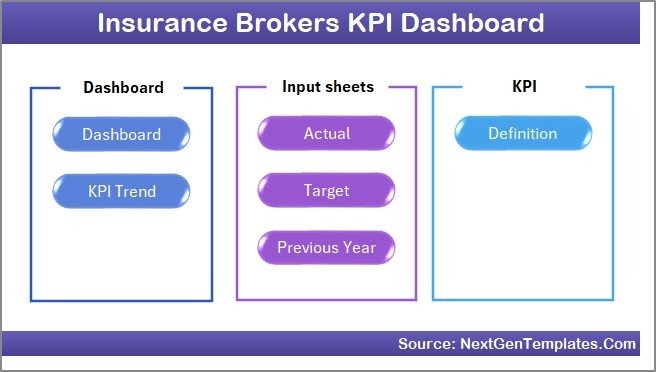
Key Features of Insurance Brokers KPI Dashboard in Excel
👉 Click here to Purchase the Insurance Brokers KPI Dashboard in Excel
The Insurance Brokers KPI Dashboard in Excel includes 7 purpose-built worksheets: Home, Dashboard, KPI Trend, Actual Numbers Input, Target Number Input, Previous Year Numbers, and KPI Definition. Each KPI displays MTD Actual, Target, and Previous Year data alongside YTD equivalents, with up/down arrow indicators that instantly flag whether each metric is beating or missing its target.
The KPI Trend sheet lets you select any KPI from a dropdown on cell C3 and instantly view its definition, formula, unit type (LTB or UTB), and 12-month trend charts comparing Actual vs Target vs Previous Year for both MTD and YTD periods. The month selector dropdown on cell D3 of the Dashboard sheet changes every number on the page — no pivot tables, no slicers, no VBA required.
Three separate input sheets keep data organized: Actual Numbers, Target Numbers, and Previous Year data. The first-month cell on the Actual sheet lets you set your fiscal year start. The Home sheet includes 6 navigation buttons for one-click access to any worksheet. The entire template is formula-driven with no macros, working on Excel 2016, 2019, 2021, Microsoft 365, and Excel for Mac.
Dashboard Pages Explanation
1. Home Sheet
An index page with 6 navigation buttons linking to each worksheet for quick access. Insurance brokerage teams use this as their starting point — click any button to jump directly to the Dashboard, KPI Trend, or any input sheet without scrolling through tabs.
Home Page
2. Dashboard Sheet
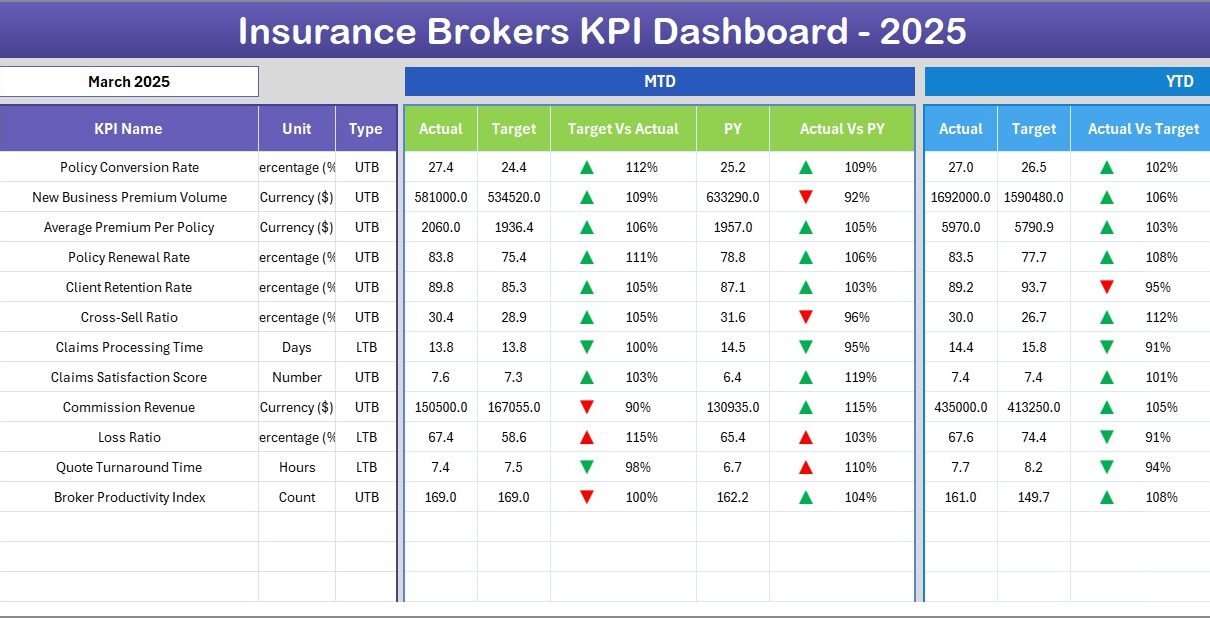
The main analytics view. Select a month from the dropdown on D3 and view all KPIs with MTD Actual, Target, Previous Year, and YTD equivalents. Conditional formatting arrows (▲▼) highlight Target vs Actual and PY vs Actual variances at a glance. This is the sheet you share with leadership during monthly reviews.
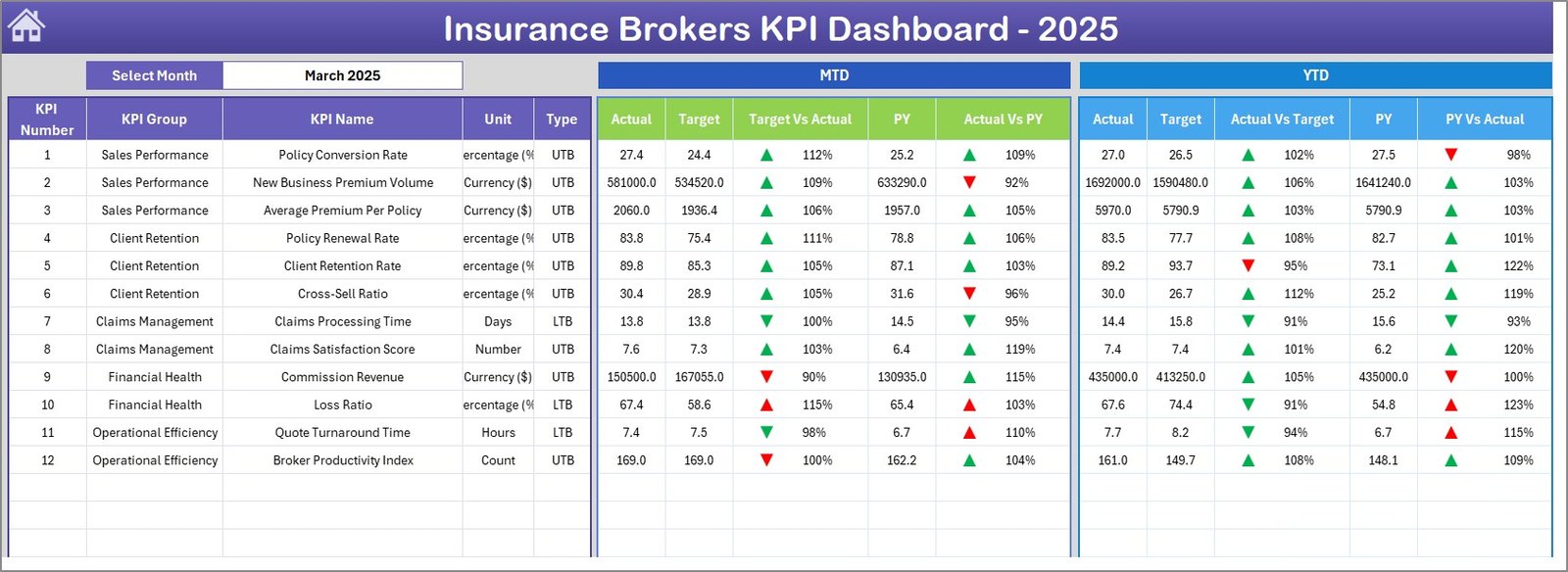
Insurance Brokers KPI Dashboard
3. KPI Trend Sheet
Select any KPI from the dropdown on C3. View the KPI Group, Unit, Type (LTB/UTB), Formula, and Definition. Below, MTD and YTD trend charts plot Actual, Target, and Previous Year lines across 12 months. Use this to identify seasonal patterns in policy renewals, claims spikes, or commission fluctuations.
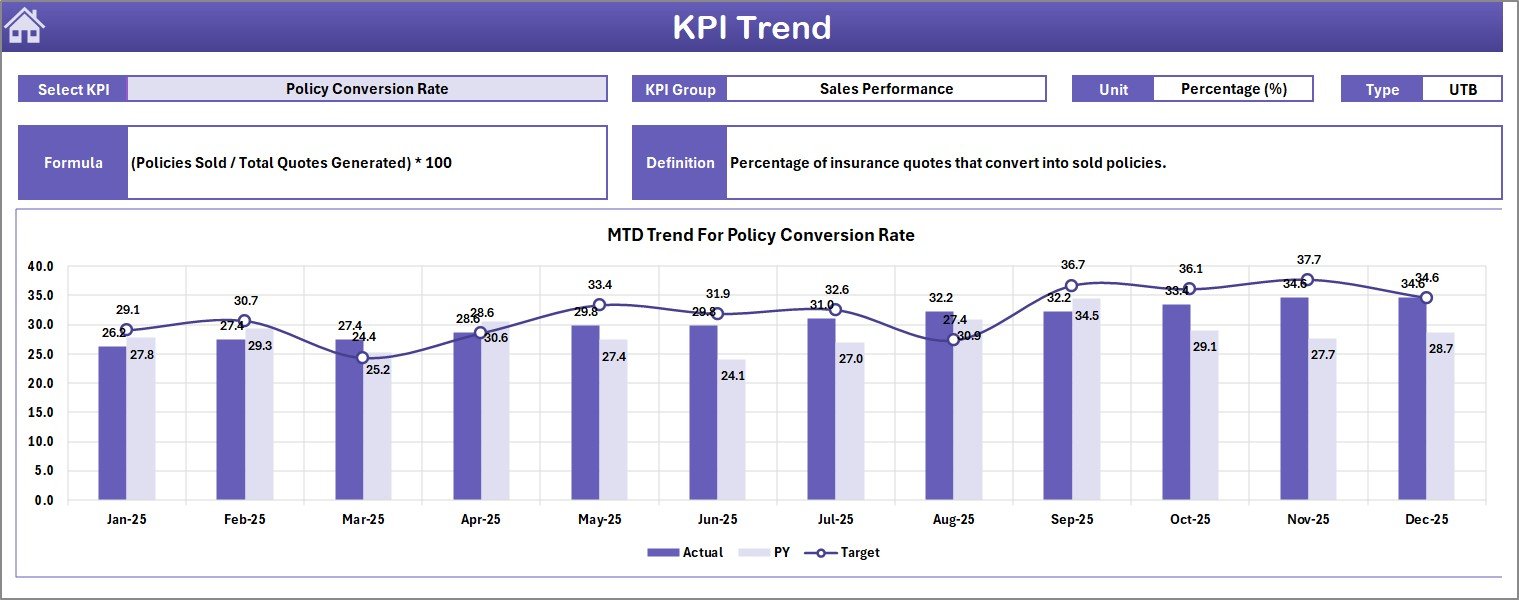
KPI Trend Sheet
4. Actual Numbers Input Sheet
Enter actual MTD and YTD numbers for each KPI per month. Set the first month of your fiscal year on cell E1. This is where your monthly data goes — policy retention rates, new business premium, claims ratios, and every other metric you track.
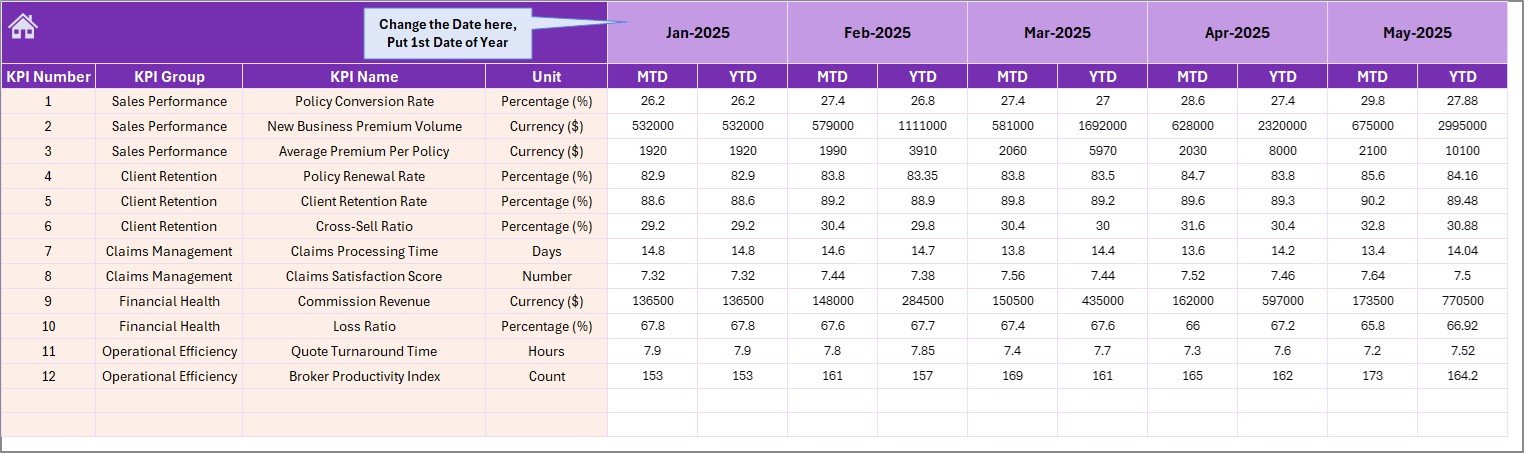
Actual Numbers Input Sheet
5. Target Number Input Sheet
Enter target numbers for each KPI as MTD and YTD values for every month of the year. Your annual targets get broken down monthly here, and the Dashboard sheet automatically compares them against actuals.
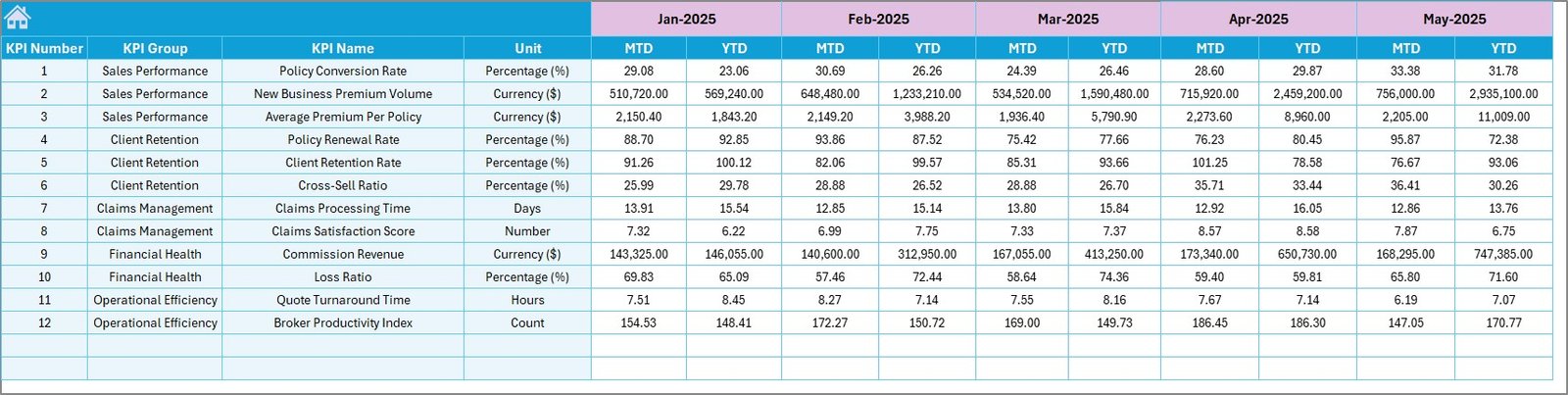
Target Number Input Sheet
6. Previous Year Number Sheet
Enter previous year data in the same format as the current year for year-over-year comparison. This feeds the PY vs Actual columns on the Dashboard sheet, giving you historical context for every KPI.
Previous Year Number Input Sheet
7. KPI Definition Sheet
Define each KPI’s Name, Group, Unit, Formula, Definition, and Type (LTB or UTB). The KPI Trend sheet references this data automatically, ensuring every team member understands exactly what each metric measures and how it’s calculated.

KPI Definition Sheet
Insurance Brokers KPI Dashboard in Excel vs. Google Sheets vs. Applied Epic — Feature Comparison
| Feature | Insurance Brokers KPI Dashboard in Excel | Google Sheets Equivalent | Applied Epic / Vertafore |
|---|---|---|---|
| Cost | $14.99 one-time | $9.99 one-time (separate purchase) | $150–$300/user/month |
| Platform | Microsoft Excel (desktop) | Google Sheets (browser) | Cloud SaaS |
| Setup Time | Under 10 minutes ✅ | 10–15 minutes | 4–8 weeks implementation |
| Real-time Collaboration | Via OneDrive/SharePoint | Built-in | Built-in |
| Customizable KPIs | Unlimited ✅ | Manual setup | Limited to plan |
| Offline Access | Full offline ✅ | Limited | No |
| Year-1 Cost (5 users) | $14.99 total ✅ | $9.99 total | $9,000–$18,000 |
| MTD/YTD Trend Charts | Built-in ✅ | Manual | Varies by plan |
| Commission Tracking KPIs | Built-in ✅ | With manual setup | Advanced automation |
For insurance brokerages that want structured KPI tracking without paying $150–$300/user/month for Applied Epic or Vertafore, the Insurance Brokers KPI Dashboard in Excel sits in the sweet spot.
Who Should Use This Template
✅ Perfect for:
- Insurance brokers and agencies with 5–200 employees tracking policy retention, claims ratio, and commission performance monthly
- Brokerage operations managers needing monthly MTD/YTD KPI reports for leadership presentations
- Independent insurance agents comparing actual premium growth against annual targets
- Insurance consultants delivering structured KPI scorecards to brokerage clients
❌ Not a fit if:
- Large carriers needing API integrations with policy administration systems like Guidewire or Duck Creek
- Agencies requiring automated data feeds from Applied Epic or AMS360 without manual entry
- Teams needing SOC 2 compliance with audit trails on KPI data changes
Real-World Use Cases
👉 Click here to Purchase the Insurance Brokers KPI Dashboard in Excel
Rajesh manages a 15-agent insurance brokerage in Mumbai. He uses the Insurance Brokers KPI Dashboard in Excel to track policy retention rate, new business premium, and commission income across all agents monthly. Before quarterly reviews, he selects the relevant month on the Dashboard sheet and exports it as a PDF — replacing a 4-hour manual reporting process with a 10-minute refresh.
Sarah runs operations at a mid-size P&C brokerage in Chicago. She enters monthly targets for loss ratio, claims turnaround time, and premium per client. The conditional formatting arrows instantly show her which KPIs missed target and by how much — helping her prepare variance reports for the CEO without building pivot tables from scratch.
Ahmed is a freelance insurance consultant in Dubai. He uses the KPI Trend sheet to present 12-month performance trajectories to his brokerage clients during quarterly strategy sessions. Comparing Actual vs Target vs Previous Year helps his clients spot seasonal patterns in policy renewals and plan marketing campaigns accordingly.
Advantages of Insurance Brokers KPI Dashboard in Excel
At $14.99 one-time with no per-user fees, the dashboard delivers structured KPI tracking at roughly 1/1000th the annual cost of Applied Epic for a 5-person team. The 7-sheet architecture separates data input from visualization, reducing the risk of accidental formula overwrites. New KPIs can be added at any time by updating the KPI Definition sheet — the dropdowns and trend charts adapt automatically.
The LTB/UTB classification system ensures conditional formatting arrows always point the right direction. For loss ratio (lower is better), a decrease shows a green arrow. For premium growth (upper is better), an increase shows green. This removes ambiguity when multiple team members review the dashboard.
No macros and no VBA means the file opens and runs on any version of Excel without security prompts, compatibility issues, or IT involvement. Brokerage teams can share the file via email, OneDrive, or SharePoint without worrying about macro-blocked environments.
Opportunities for Improvement
👉 Click here to Purchase the Insurance Brokers KPI Dashboard in Excel
The dashboard does not include automated data imports from agency management systems like Applied Epic, AMS360, or HawkSoft. All data entry is manual, which works well for monthly reporting cycles but may not suit brokerages needing daily or weekly updates. The template also does not include benchmarking against industry averages — brokerages wanting to compare their loss ratios or retention rates against IIABA or similar benchmarks would need to source that data separately.
Best Practices
Start by filling the KPI Definition sheet before entering any numbers. Clearly define each KPI’s formula, unit, and LTB/UTB type so every team member interprets the Dashboard consistently. Enter targets at the beginning of each fiscal year and update actuals monthly on the same day (e.g., the 5th of each month). Use the KPI Trend sheet during quarterly reviews to identify metrics with consistent misses — a 3-month downward trend is easier to act on than a single month’s red arrow.
Explore Relevant Templates
📌 Insurance Policy Analytics Dashboard in Google Sheets — Track policy performance, commission analysis, and agent performance with slicers and pivot charts.
📌 Underwriting Efficiency KPI Dashboard in Google Sheets — 15+ underwriting KPIs with MTD/YTD trends and conditional formatting arrows.
📌 Digital Wallets KPI Dashboard in Excel — Same 7-sheet Excel KPI structure for fintech and digital payment teams.
📌 Browse All KPI Dashboard Templates — Explore the full library across Excel, Power BI, Google Sheets, and HTML.
Frequently Asked Questions
👉 Click here to Purchase the Insurance Brokers KPI Dashboard in Excel
What KPIs does the Insurance Brokers KPI Dashboard in Excel track?
The Insurance Brokers KPI Dashboard in Excel tracks any KPI you define — policy retention rate, new business premium, loss ratio, claims ratio, commission income, premium per client, renewal rate, and more. You enter KPI names and definitions on the KPI Definition sheet, making the dashboard fully customizable to your brokerage’s needs.
How long does it take to set up this insurance broker dashboard?
Setup takes under 10 minutes. Enter your KPI definitions, fill in actual and target numbers for the current month, and the Dashboard sheet auto-populates with MTD and YTD comparisons, conditional formatting arrows, and trend charts. No formulas to write.
Can I use this dashboard for other insurance verticals besides broking?
Yes. The KPI Definition sheet is completely flexible — you can rename KPIs for underwriting, claims management, actuarial, or reinsurance operations. The structure works for any MTD/YTD KPI tracking use case in the insurance industry.
Does the Insurance Brokers KPI Dashboard work on Mac?
Yes. The Insurance Brokers KPI Dashboard in Excel uses only standard formulas — no macros, no VBA. It works on Excel for Mac, Excel 2016, 2019, 2021, and Microsoft 365 without any compatibility issues.
How does this compare to Applied Epic or Vertafore analytics?
Applied Epic costs $150–$300 per user per month and requires weeks of implementation. The Insurance Brokers KPI Dashboard in Excel costs $14.99 one-time with no subscription, no per-user fees, and full offline access. For brokerages that enter data monthly, this template delivers 90% of the reporting value at less than 1% of the annual cost.
Can I add more KPIs beyond what’s pre-filled?
Yes. Add new rows on the KPI Definition sheet and corresponding rows on the Actual, Target, and Previous Year input sheets. The Dashboard and KPI Trend sheets reference these dynamically — no formula edits needed.
Is there a Google Sheets version of this dashboard?
Yes. Check out the Insurance Policy Analytics Dashboard in Google Sheets for browser-based insurance analytics with slicers and pivot charts. Also explore the Underwriting Efficiency KPI Dashboard in Google Sheets for underwriting-specific KPI tracking.
About the Author
Built by PK — Microsoft Certified Professional with 15+ years of Excel, Google Sheets, and Power BI experience. Founder of NextGenTemplates, reaching 300K+ subscribers across YouTube channels. Every template is hand-built and tested before release.
Conclusion
The Insurance Brokers KPI Dashboard in Excel gives brokerage teams a single file for tracking policy retention, claims ratios, commission performance, and every other metric that matters — with MTD/YTD comparisons, trend charts, and conditional formatting arrows that update automatically from 3 simple input sheets.
👉 Click here to Purchase the Insurance Brokers KPI Dashboard in Excel
✅ Instant download · One-time payment · No subscription · Lifetime access
🎥 Visit our YouTube channel: Youtube.com/@PK-AnExcelExpert