Tracking productivity across teams is one of the hardest problems in modern business reporting. Most managers juggle 8 to 30 KPIs across multiple departments, compare them to monthly and yearly targets, and somehow benchmark them against last year — usually inside a brittle Excel file that breaks when someone deletes a cell. The Productivity Tracker KPI Dashboard in Power BI solves this with a 3-page report, automatic MTD vs YTD vs prior-year scoring, and an Excel-driven data model that updates in under 10 minutes.
This blog post walks you through every page of the Productivity Tracker KPI Dashboard, the 16-column scoreboard, how the LTB and UTB direction logic works, the 3 Excel input sheets, and why this $11.99 one-time template replaces $480 to $4,500 per year of paid productivity SaaS for small and mid-sized teams.
Key Features of the Productivity Tracker KPI Dashboard
The Productivity Tracker KPI Dashboard is built in Power BI Desktop and ships as a single .pbix file plus an Excel data source. Three connected report pages — Summary, KPI Trend, and a hidden KPI Definition drill-through — share one data model, so a single click on a slicer cascades through cards, tables, and charts.
- 3 connected report pages — Summary scoreboard, KPI Trend, and KPI Definition drill-through.
- Direction-aware status icons — red ▼ and green ▲ icons flip automatically for LTB (Lower the Better) versus UTB (Upper the Better) KPIs.
- 16-column KPI scoreboard — Actual CY MTD, Target CY MTD, MTD %, PY MTD, CY vs PY %, plus the same 6 columns at YTD scope.
- Three slicers — Month and KPI Group on the Summary page, KPI Name on the KPI Trend page.
- Excel-driven data model — three input sheets (Input_Actual, Input_Target, KPI Definition) drive the entire report.
- Drill-through metadata — right-click any KPI to see its formula, definition, unit, and type.
Dashboard Pages Explanation
Page 1: Summary Page
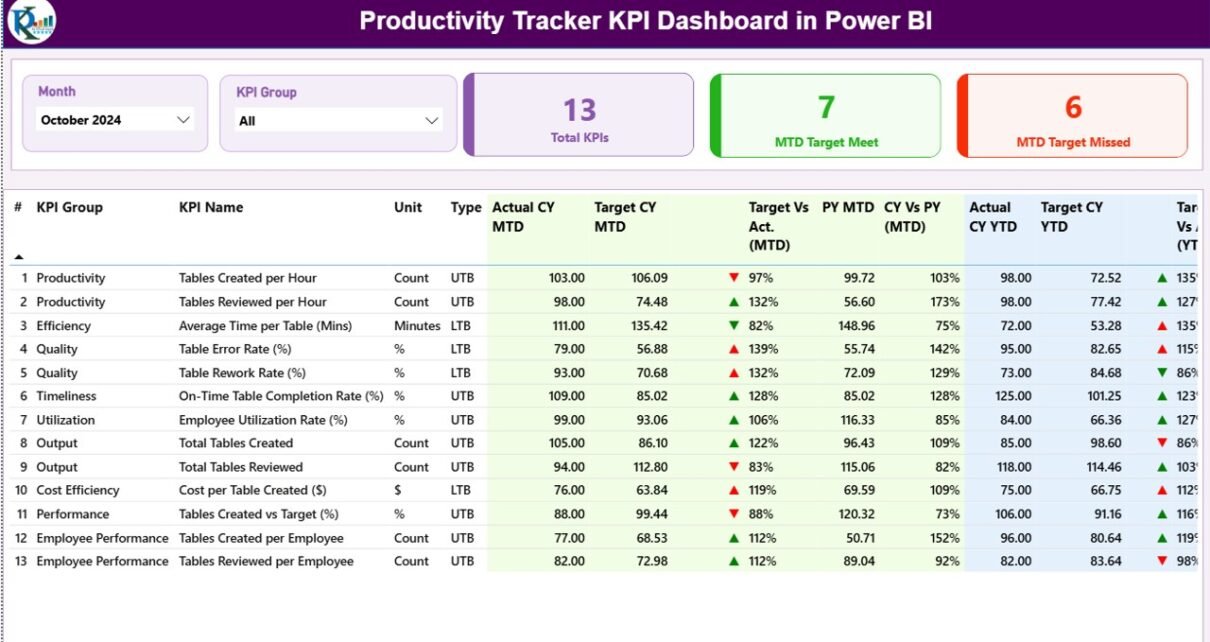
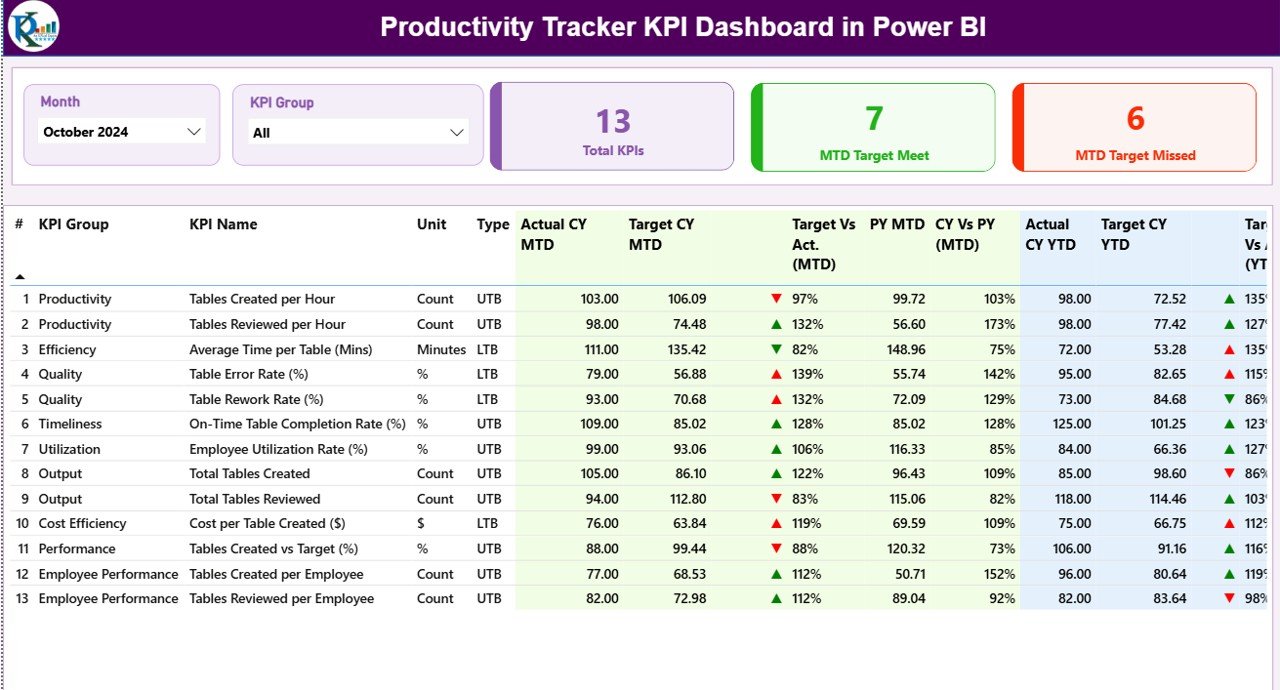
The Summary Page is the main scoreboard of the Productivity Tracker KPI Dashboard. The top of the page carries two slicers — Month and KPI Group — that filter every visual on the page. Below them sit three card visuals showing the Total KPIs count, the count of MTD Targets Met, and the count of MTD Targets Missed.
The remainder of the page is occupied by the 16-column KPI table: KPI Number, KPI Group, KPI Name, Unit, Type (LTB or UTB), Actual CY MTD, Target CY MTD, MTD status icon, Target vs Actual MTD %, PY MTD, CY vs PY MTD %, Actual CY YTD, Target CY YTD, YTD status icon, Target vs Actual YTD %, PY YTD, and CY vs PY YTD %.
The MTD and YTD icons are the visual core of the page. For UTB metrics (where higher is better), the icon turns green ▲ when Actual ≥ Target and red ▼ when Actual is short. For LTB metrics (where lower is better — defects, complaint volume, response time), the logic reverses automatically. This direction-aware behavior is hard-coded into the Power BI measures, so once a KPI’s Type is set to LTB or UTB in the KPI Definition sheet, the dashboard just works.
Page 2: KPI Trend Page
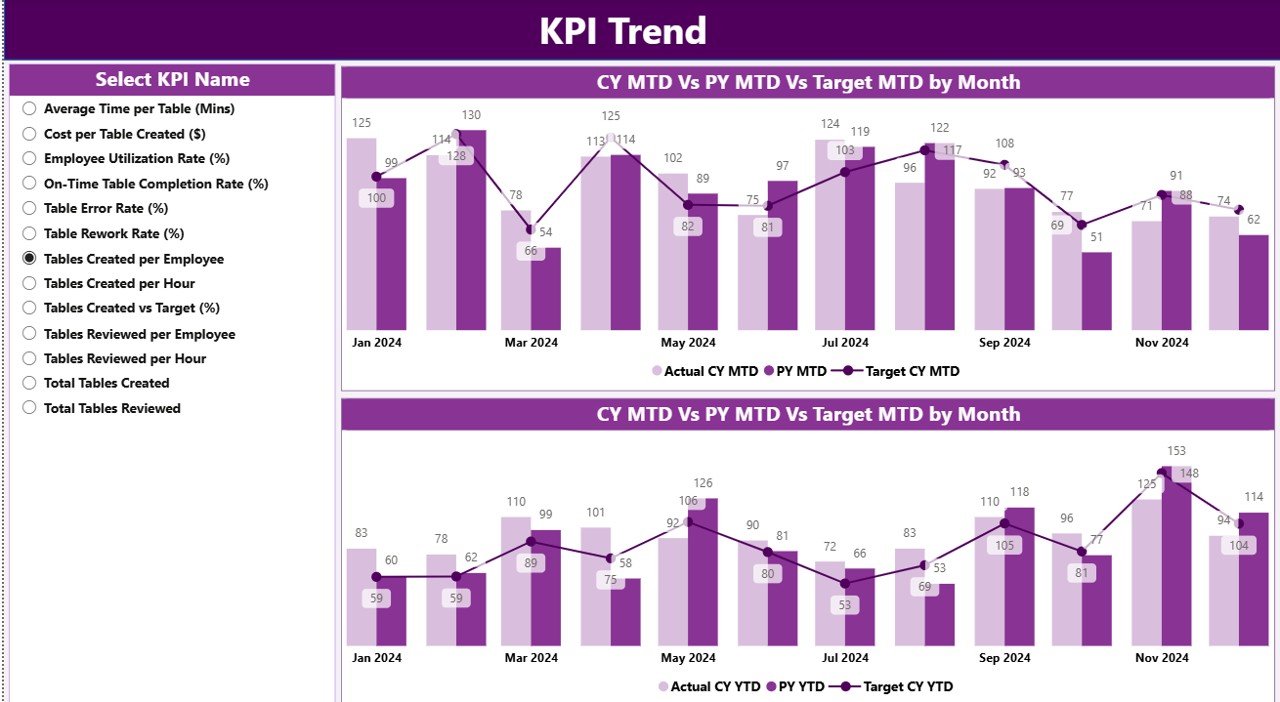
The KPI Trend page is where you spot whether a productivity KPI is improving or sliding over time. A KPI Name slicer on the left lets the viewer pick one metric, and two combo charts on the right show the trend. The first combo chart plots MTD Actual CY, MTD Actual PY, and MTD Target month-over-month. The second combo chart shows the same three series at the YTD scope.
This page is most useful in monthly business reviews. Instead of jumping between tabs in an Excel file, leadership selects the KPI from the slicer and immediately sees both the short-term (MTD) and cumulative (YTD) story side by side.
Page 3: KPI Definition Page (Drill-Through, Hidden)
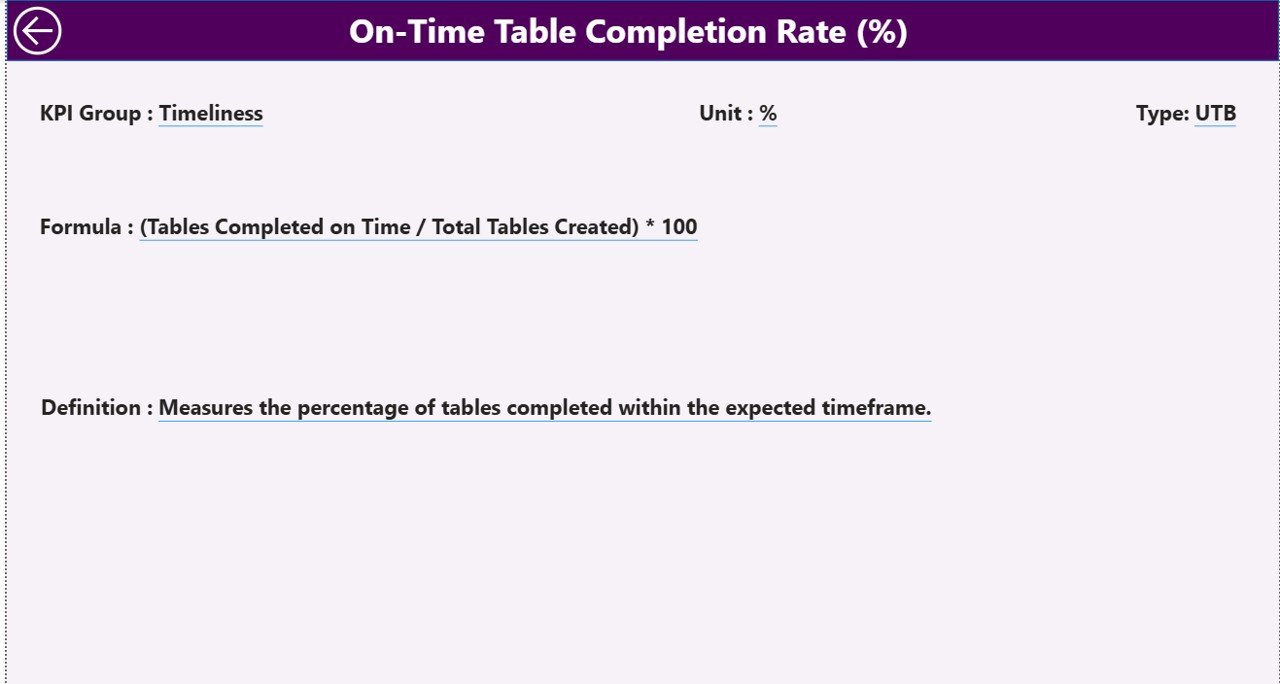
The KPI Definition page is hidden from normal navigation — it does not appear in the page tabs. It is configured as a drill-through target so that when a viewer right-clicks any KPI on the Summary page and chooses Drill-through → KPI Definition, the page opens filtered to that single KPI. The page shows the KPI Number, Group, Name, Unit, Formula, Definition, and Type.
A back button in the top-left corner returns the viewer to the Summary page. This pattern is exactly the one Microsoft documents in the official Power BI drill-through guide, and it keeps your scoreboard uncluttered while still making metadata one click away.
Excel Data Source — 3 Input Sheets
The Productivity Tracker KPI Dashboard reads from a single Excel file with three named sheets. Replace the sample rows with your own data and click Refresh in Power BI Desktop to update every visual.
- Input_Actual — list each KPI Name, the Month (use the first date of the month, e.g. 2026-05-01), the MTD Actual value, and the YTD Actual value.
- Input_Target — list each KPI Name, the Month, the MTD Target value, and the YTD Target value.
- KPI Definition — list KPI Number, KPI Group, KPI Name, Unit (e.g. %, hours, count), Formula (the calculation logic in plain English), Definition (what the KPI measures and why it matters), and Type (LTB or UTB).
Productivity Tracker KPI Dashboard vs. Tableau/Qlik vs. 15Five/Lattice — Feature Comparison
| Feature | Productivity Tracker KPI Dashboard (Power BI) | Tableau / Qlik Sense | 15Five / Lattice / Workday Productivity |
|---|---|---|---|
| Cost | $11.99 one-time | $15-75 / user / month | $8-15 / user / month |
| Platform | Power BI Desktop (free) | Tableau Desktop / Server | Cloud SaaS only |
| Setup time | Under 10 minutes | 2-6 weeks (data modeling) | 1-3 weeks (HRIS integration) |
| MTD vs YTD vs PY scoring | ✅ Built in | Custom build required | Limited — depends on plan |
| LTB / UTB direction icons | ✅ Pre-configured | Custom calc required | Not configurable |
| Drill-through KPI definitions | ✅ Built in | ✅ Manual setup | ❌ Not available |
| Customizable KPIs | ✅ Define any KPI | ✅ Full control | ❌ Locked schema |
| Year-1 cost at 5 users | $11.99 total | $900-4,500 | $480-900 |
| Data ownership | Local file | Cloud or on-prem | Vendor-hosted |
For teams that want a productivity scoreboard with MTD/YTD scoring without paying $480-4,500 per year, the Productivity Tracker KPI Dashboard sits in the sweet spot.
Who Should Use This Template
Perfect for:
- Team leads tracking 8-30 productivity KPIs across departments, shifts, or business units
- HR analytics, Operations, and Project Management leads reporting monthly to leadership
- Small-to-mid-sized companies (10-500 employees) replacing paid productivity SaaS
- BI consultants who need a starter Power BI report to white-label for clients
- Department heads who want one .pbix showing MTD, YTD, and prior-year comparisons
Not a fit if:
- You need real-time time-tracking — this is a periodic scoreboard, not a stopwatch
- You require automated payroll integration or HRIS sync (use BambooHR or Workday)
- You are on Mac without access to Windows VMs (Power BI Desktop is Windows-only)
- Your enterprise requires SOC 2 audit trails on the visual layer
Real-World Use Cases
Priya leads operations at a 120-person BPO in Pune. She tracks 14 productivity KPIs — calls per agent, average handle time, first-call resolution, schedule adherence, quality score. She uses the Productivity Tracker KPI Dashboard to publish a monthly scorecard to her CEO showing which KPIs hit MTD and YTD targets, without paying $12 per agent per month for a workforce-management SaaS.
Marcus is the People Analytics lead at a 60-person SaaS company in Austin. His team monitors engineering productivity (PRs merged, deployment frequency, defect rate) plus customer-success productivity (tickets resolved, CSAT, time-to-first-response). He hands the .pbix file to each team lead so they can self-serve their KPI Trend page during 1:1s.
Anita runs HR for a 35-person consulting firm in London. She tracks consultant productivity — utilization %, billable hours, project margin, CSAT — for her quarterly board pack. The drill-through KPI Definition page lets non-technical board members see exactly how each metric is calculated, which has cut “what does this number mean?” questions in half.
Advantages of the Productivity Tracker KPI Dashboard
- One-time cost vs annual SaaS: $11.99 once replaces a $480-$4,500 yearly bill at 5 users.
- No vendor lock-in: all data lives in your Excel file; the .pbix is fully editable.
- Direction-aware scoring: LTB and UTB logic is built into the measures, so red/green icons stay correct for both “more is better” and “less is better” metrics.
- One model, three views: a single Excel data source feeds the scoreboard, the trend charts, and the metadata page — no duplication.
- Setup measured in minutes, not weeks: typical Power BI dashboard projects run 2-6 weeks; this one is ready after the first refresh.
Opportunities for Improvement
To set realistic expectations: the Productivity Tracker KPI Dashboard is a periodic monthly scoreboard, not a real-time time-tracking app. There is no built-in HRIS, payroll, or ERP connector — data flows from your Excel input sheets, which means someone needs to maintain the Actual and Target rows each month.
Power BI Desktop is Windows-only as of 2026, so Mac users need a Windows VM (Parallels or VMware Fusion), Boot Camp on Intel Macs, or the browser-based Power BI Service after publishing the .pbix file. The Excel data source itself works fine on Mac Excel.
Best Practices
- Start with 8-12 KPIs, not 30. Over-stuffed scoreboards lose attention. Pick the metrics that drive a decision.
- Set the Type column carefully. Defects, error rate, response time, and complaint volume should be LTB. Output, utilization, CSAT, and revenue per FTE should be UTB.
- Use the first date of each month in the Input_Actual and Input_Target sheets. The Month slicer relies on this convention.
- Document each KPI’s formula in plain English in the KPI Definition sheet. The drill-through page surfaces this text directly to your readers.
- Refresh once a month, after closing actuals. Save the .pbix file and share it via OneDrive, SharePoint, or by publishing to Power BI Service.
Explore Relevant Templates
If the Productivity Tracker KPI Dashboard fits your stack, these companion KPI scoreboards on NextGenTemplates use the same MTD/YTD pattern:
- Incident Management KPI Dashboard in Power BI
- Crisis Response KPI Dashboard in Power BI
- SaaS Onboarding Dashboard in Power BI
- Corporate Skill Hubs KPI Dashboard in Excel
- Workforce Engagement Dashboard in Google Sheets
💎 Save 35% — Get all 10 templates in the HR & Workforce Analytics Bundle (Excel + Google Sheets + Power BI) →
Frequently Asked Questions
What KPIs does the Productivity Tracker KPI Dashboard track?
The Productivity Tracker KPI Dashboard is metric-agnostic — you define the KPIs in the Excel KPI Definition sheet. Common productivity metrics teams configure include utilization %, output per hour, schedule adherence, first-pass yield, ticket resolution rate, and billable hours. Each KPI carries a Type (LTB / UTB) so status icons flip correctly.
How does this compare to 15Five or Lattice?
15Five and Lattice charge $8-15 per user per month and lock you into their KPI schema. The Productivity Tracker KPI Dashboard is $11.99 one-time, runs in free Power BI Desktop, and lets you define any KPI you want via the Excel input sheets. There are no per-user fees or annual renewals — at 5 users for one year, the SaaS bill is $480-900 against this template’s $11.99.
How long does setup take?
Under 10 minutes if your KPIs are already documented. Open the Excel file, paste your KPI Definition rows, fill the Input_Actual and Input_Target sheets, then open the .pbix file and click Refresh. The Summary, KPI Trend, and KPI Definition pages populate automatically from the Excel source.
Can I add more than 12 months of data?
Yes. The Input_Actual and Input_Target sheets accept any number of monthly rows — keep the first date of each month in the Month column. The Productivity Tracker KPI Dashboard’s Month slicer lists every month present in the data, so multi-year comparisons are supported with no template changes.
Does this work on Mac?
Power BI Desktop is Windows-only as of 2026. Mac users can run Power BI on Windows VMs (Parallels, VMware Fusion), Boot Camp on Intel Macs, or use Power BI Service in a browser after publishing the .pbix file. The Excel data source itself works on Mac Excel.
Can I customize the visuals or colors?
Yes. The Productivity Tracker KPI Dashboard is delivered as an open .pbix file with no locked elements. Edit colors, fonts, the page theme, slicer style, and chart types directly in Power BI Desktop. The drill-through page logic and Excel-driven data model continue to work after restyling.
Where can I purchase the Productivity Tracker KPI Dashboard?
You can buy and download the Productivity Tracker KPI Dashboard from NextGenTemplates.com for $11.99 (regularly $17.99). The .zip file includes the .pbix Power BI report and the Excel data source. Instant download, lifetime access, no subscription.
About the Author
Built by PK — Microsoft Certified Professional with 15+ years of Excel, Google Sheets, and Power BI experience. Founder of NextGenTemplates, reaching 300K+ subscribers across YouTube channels. Every template is hand-built and tested before release.
Conclusion
If your team needs a productivity scoreboard that scores MTD against target, scores YTD against target, compares both to last year, and surfaces formulas on demand — without sending a $480-$4,500 yearly bill to a SaaS vendor — the Productivity Tracker KPI Dashboard in Power BI is the lowest-friction option in 2026. Three pages, one Excel source, ten-minute setup.
👉 Click here to Purchase the Productivity Tracker KPI Dashboard in Power BI
✅ Instant download · One-time payment · No subscription
🎥 For step-by-step Power BI tutorials, visit YouTube.com/@PK-AnExcelExpert.
📅 Last updated: May 2026