The Employee Satisfaction Survey Tracker in Excel captures every employee response across 8 purpose-built worksheets, with a password-protected Login Form, a VBA-driven Data Entry form (Add / Update / Delete), a Dashboard with 4 slicers and 5 auto-refreshing charts, and a dedicated User Management sheet. Setup takes under 10 minutes — replace the sample responses and every KPI, chart, and filter updates automatically.
🌍 Used by 8,400+ teams in 40+ countries who replaced paid employee engagement SaaS subscriptions ($1,200–$9,000/yr) with one-time-purchase Excel, Google Sheets, and Power BI templates from NextGenTemplates.
✅ Instant download · One-time payment · No subscription · No per-user fees · Lifetime access
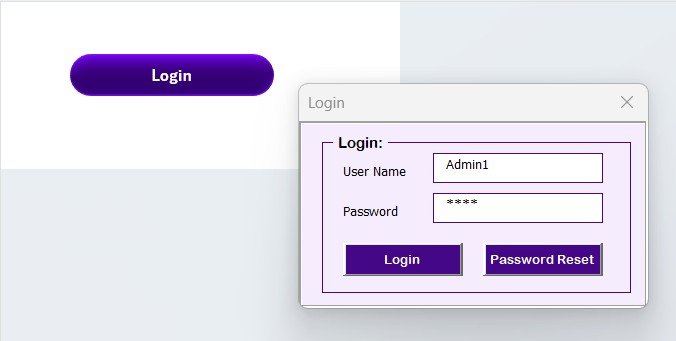
Employee Satisfaction Survey Tracker in Excel — Login Form
Introduction
Most HR teams still run employee satisfaction surveys through SurveyMonkey or Google Forms, then dump the responses into a spreadsheet and stitch together pivot tables every quarter. By the time the data is clean, the insight is two months old. The Employee Satisfaction Survey Tracker in Excel fixes that with a single VBA-powered workbook that captures every survey response, ties it to a department and tenure band, and shows the full picture in one slicer-driven dashboard.
Built on the same proven architecture as our Client Contract Amendment Tracker and Office Key Access Request Tracker.
Key Features
🔹 8 integrated worksheets — Login Form, Home Page, Dashboard, Data Sheet, List Sheet, Support Sheet, Settings Sheet, and User Management Sheet — wired together through VBA so every new survey response flows automatically into the dashboard.
🔹 VBA-driven Data Entry form with three action buttons — Add New Record, Update Record, Delete Record. Update or delete any row in two clicks.
🔹 Login-protected access with a User Management sheet for usernames, passwords, and roles. Stops casual viewing of sensitive satisfaction data and verbatim comments.
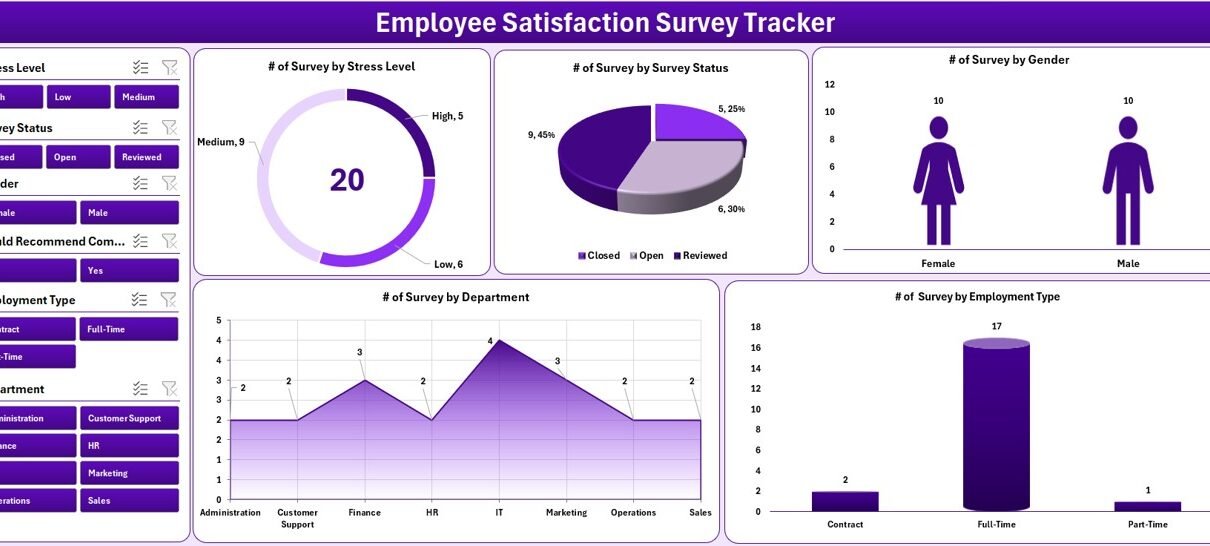
🔹 Interactive Dashboard with 4 slicers and 5 charts — slice by Department, Job Role, Tenure Band, and Survey Wave. Auto-refresh on every form submission.
🔹 Dropdown-driven entry — the List Sheet feeds every combo box. Add a value once and it appears in the form immediately.
🔹 Works in Excel 2016, 2019, 2021, and Microsoft 365 on Windows. See Microsoft Learn — Getting Started with VBA in Office.
Sheets Explanation
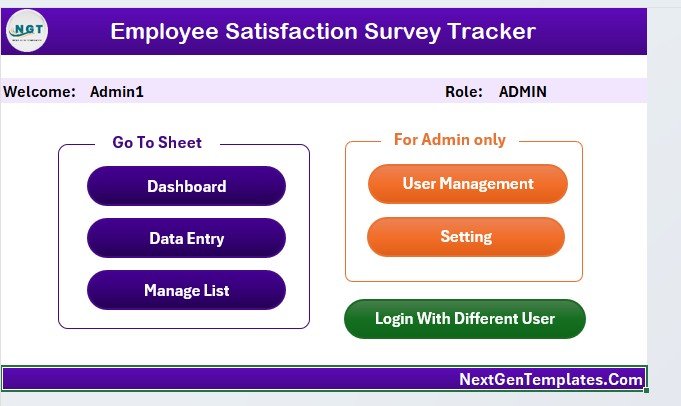
Home Page — central navigation hub
1. Login Form — password screen that validates credentials against the User Management sheet before opening the workbook.
2. Home Page — central navigation with one-click buttons to every sheet.
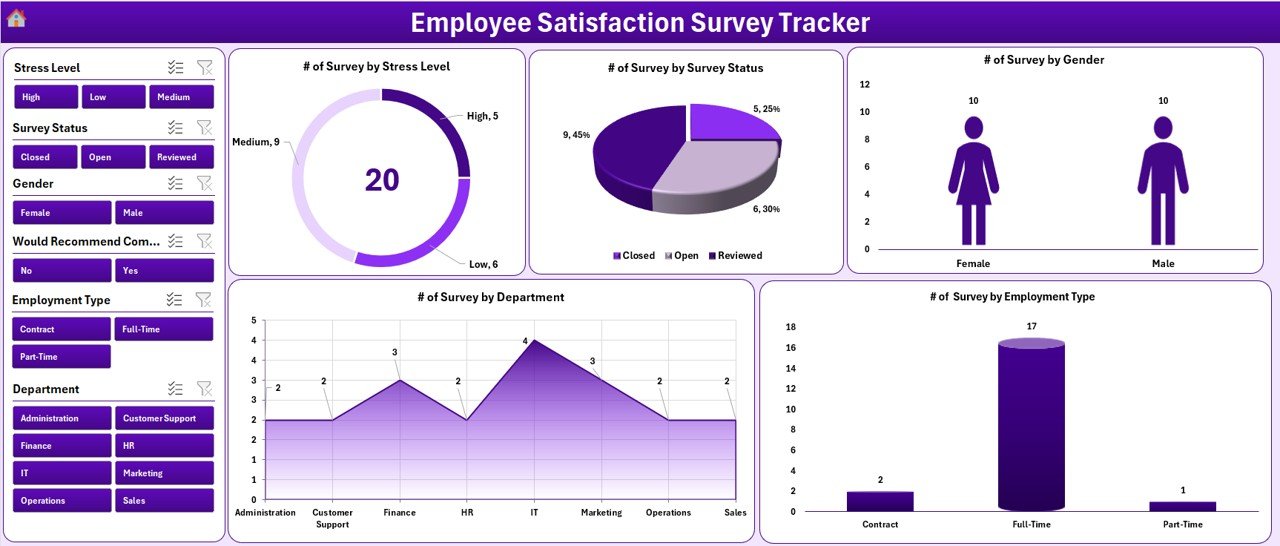
Dashboard — 4 slicers and 5 auto-refresh charts
3. Dashboard — KPI summary plus 4 slicers (Department, Job Role, Tenure Band, Survey Wave) and 5 charts: overall satisfaction score, response volume by department, satisfaction distribution by job role, tenure-band sentiment comparison, and wave-over-wave trend.
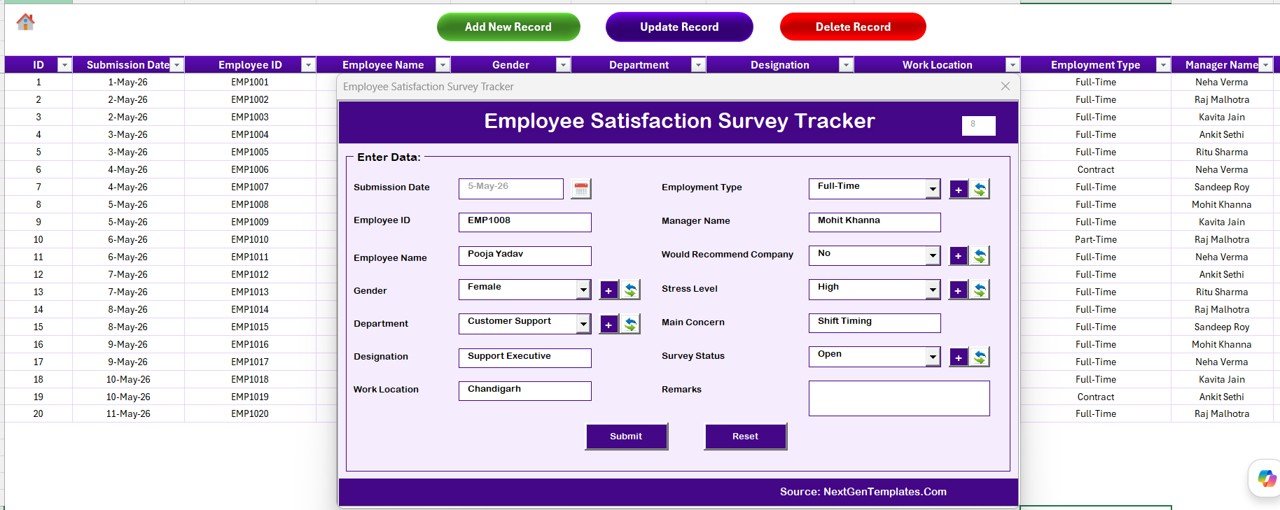
Data Sheet — Add / Update / Delete buttons drive the VBA UserForm
4. Data Sheet — master record table. Three buttons open the same VBA UserForm: Add inserts a new row, Update prefills with selected Response ID, Delete removes after confirmation.
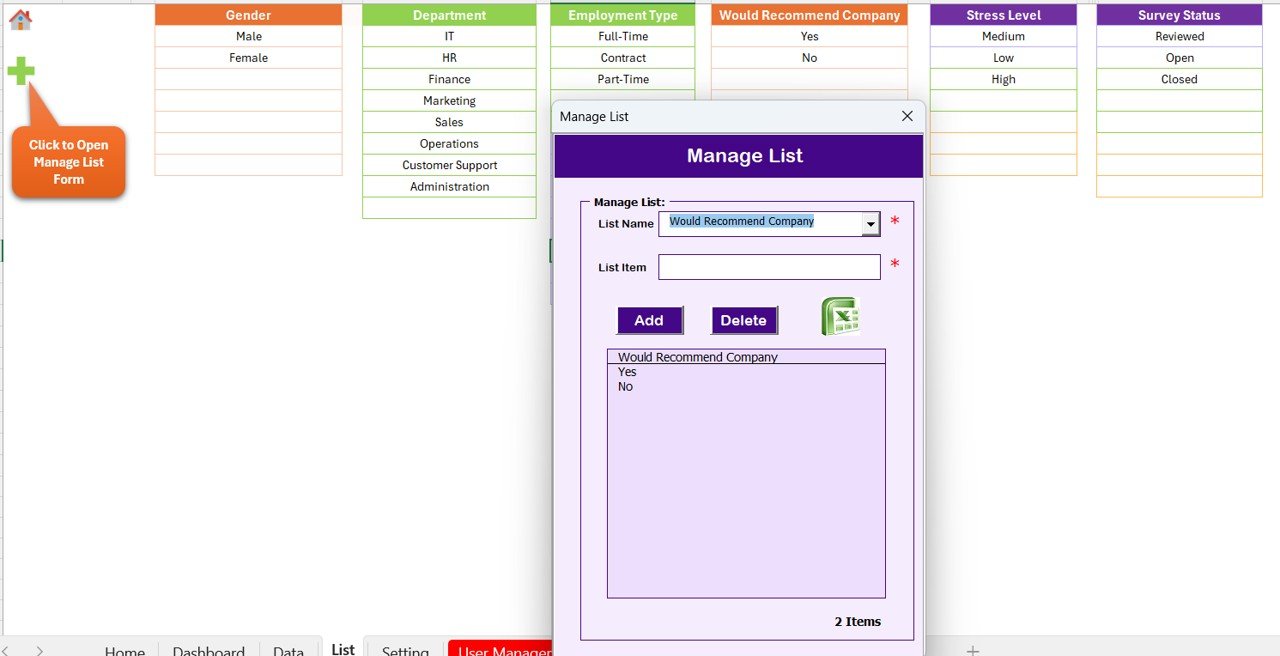
List Sheet — feeds every combo box in the form
5. List Sheet — single source of truth for every dropdown (Departments, Job Roles, Tenure Bands, Survey Waves, Satisfaction Levels). Customise the scale to 5-point Likert, 7-point Likert, or eNPS.
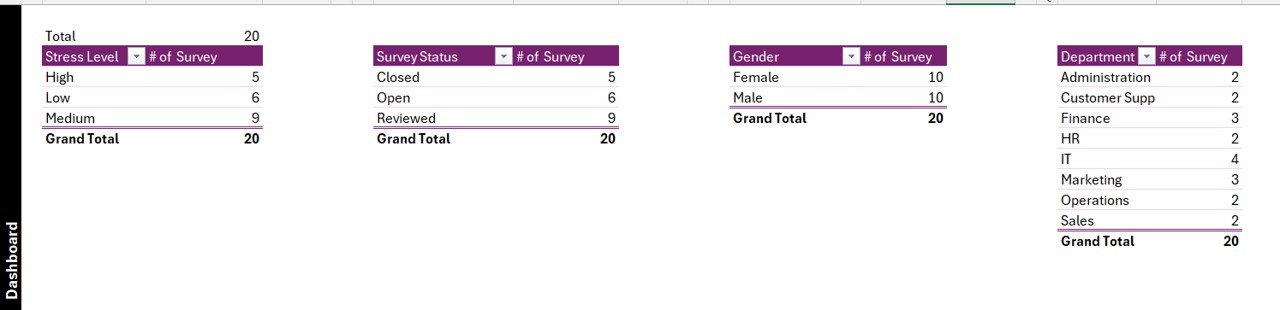
Support Sheet — hidden pivot tables that drive the charts
6. Support Sheet — hidden pivot tables that drive the dashboard charts. Refresh-on-open keeps it in sync with the Data Sheet.
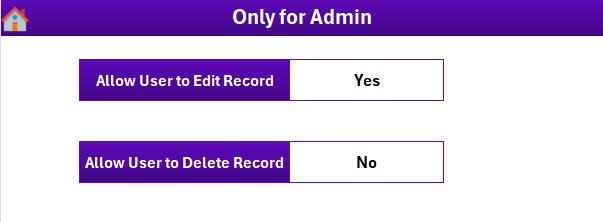
Settings Sheet — branding and survey metadata
7. Settings Sheet — organisation logo, contact details, survey name, period, target population, response goal. Personalise in under 2 minutes.
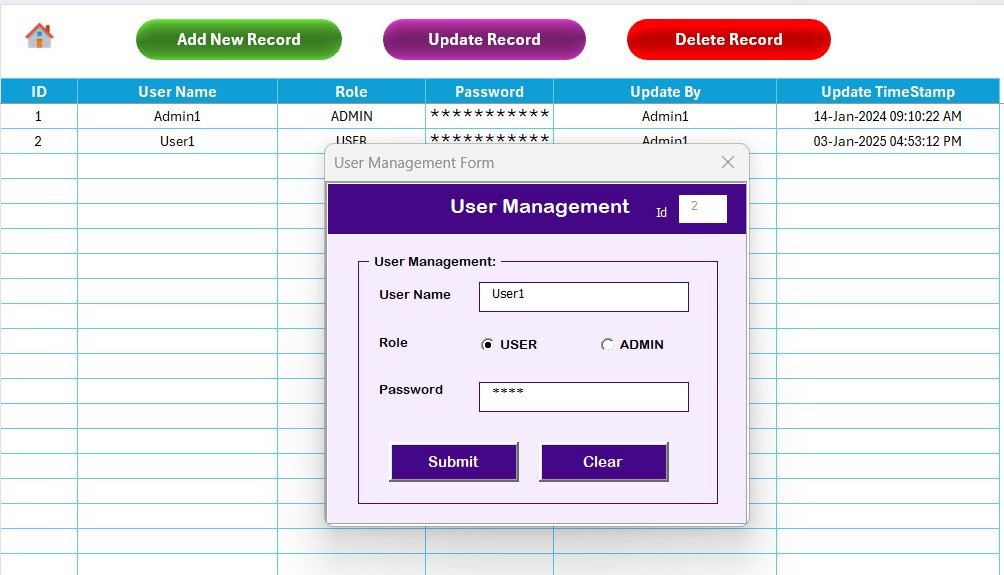
User Management Sheet — usernames, passwords, and roles
8. User Management Sheet — define users, passwords, and access roles. Give DEI committees read-only access while keeping edit rights with HR.
Employee Satisfaction Survey Tracker in Excel vs. Google Sheets vs. Paid Engagement SaaS
| Feature | Excel Tracker | Google Sheets | Culture Amp / Lattice |
|---|---|---|---|
| Cost | $6.99 one-time | $6.99 one-time | $4–$15 per employee/year |
| Platform | Excel — offline | Browser-only | Cloud SaaS |
| Setup time | Under 10 min | Under 10 min | 4–8 weeks |
| VBA Add/Update/Delete form | Yes | Apps Script | Yes (web) |
| Login + role-based access | Yes | Sheet protection | SSO/SOC 2 |
| Slicer dashboard | 4 slicers, 5 charts | Pivot filters | Pre-built |
| Customisable scale | Fully editable | Fully editable | Vendor-controlled |
| Year-1 cost at 300 employees | $6.99 | $6.99 | $1,200 – $9,000 |
Who Should Use This Template
Perfect for:
- HR leads at 50–500 person companies running quarterly or annual satisfaction surveys
- People-Ops managers capturing eNPS, pulse surveys, and post-onboarding feedback
- DEI committees slicing satisfaction by department, job role, and tenure
- Internal Communications teams measuring engagement after major announcements
- HR consultants who want a $6.99 alternative to a $1,200–$9,000/year platform
Not a fit if:
- You require SOC 2 compliance, SSO integration, or AI-driven sentiment analysis
- You need anonymous distribution with cryptographic guarantees
- You’re Mac-only — VBA UserForm features need Windows Excel
Real-World Use Cases
Anjali is the HR lead at a 180-person IT services firm in Pune. She runs a quarterly satisfaction survey through Google Forms, then imports responses into the tracker. The slice-by-Department view reveals support team satisfaction has dropped 18% since the last wave — a burnout signal her leadership acts on before the next attrition cycle. She replaced a $9,000/year Culture Amp subscription with one $6.99 download.
Daniel runs People-Ops at a 60-person renewable-energy startup in Madrid. He runs a 6-week eNPS pulse, slicing by Job Role to compare field engineers against office staff. The Tenure Band slicer isolates the new-hire cohort for onboarding effectiveness. Capturing 60 responses takes under an hour; the leadership report takes 15 minutes flat.
Mei-Lin is the HR-Ops manager at a 240-person fintech in Singapore. She gives the DEI committee read-only dashboard access while keeping edit rights with HR. The Tenure Band comparison view is her standing quarterly DEI council report — new-hires versus tenured staff, sliced by Department. Qualtrics EX took her predecessor three days; she does it in 30 minutes.
Advantages
🔹 Cost — $6.99 one-time replaces $1,200–$9,000/year SaaS for small and mid-sized teams.
🔹 Time — under 10-minute setup vs. 4–8 weeks of vendor onboarding.
🔹 Ownership — full VBA source code included and unprotected.
🔹 Audit trail — every response timestamped and tied to the user who logged it.
🔹 Offline-friendly — works without an internet connection.
Opportunities for Improvement
🔸 Sheet-stored passwords — fine for HR teams of 5–20 people, not SOC 2-grade.
🔸 VBA UserForms depend on Windows Excel; Mac Excel cannot reliably render the controls.
🔸 Structured response capture only — for AI sentiment on free text, layer Power BI or Python on top.
🔸 Real-time multi-user editing requires SharePoint co-authoring.
Best Practices
🔹 Standardise the List Sheet first — lock down Departments, Job Roles, Tenure Bands, Survey Waves before logging the first response.
🔹 Use a fixed satisfaction scale — pick 5-point Likert, 7-point Likert, or eNPS and stick with it across waves.
🔹 Schedule a Friday review using the Department slicer set to your most at-risk team.
🔹 Back up to OneDrive or SharePoint version history (Microsoft guide).
🔹 Hide the Support Sheet for end users.
Explore Relevant Templates
🔹 Employee Satisfaction Survey Tracker in Excel — Buy Now on NextGenTemplates
🔹 Client Contract Amendment Tracker in Excel — sister VBA tracker with the same Add/Update/Delete pattern.
🔹 Office Key Access Request Tracker in Excel — same VBA login + UserForm + slicer dashboard pattern.
🔹 Product Feedback Tracker in Excel — same architecture for product feedback.
🔹 Office Renovation Feedback Tracker in Excel — same login + dashboard + UserForm architecture.
🔹 Employee Health Declaration Tracker in Excel — same Add/Update/Delete pattern.
🔹 Browse all Excel Tracker Templates and the HR & Payroll Templates library.
Frequently Asked Questions
What sheets are included in the Employee Satisfaction Survey Tracker in Excel?
8 sheets — Login Form, Home Page, Dashboard, Data Sheet, List Sheet, Support Sheet, Settings Sheet, and User Management Sheet — wired together through VBA.
How does the VBA Data Entry form work?
Three buttons on the Data Sheet open the same UserForm. Add inserts a new response; Update prefills the form when you click an existing Response ID; Delete confirms before removing the row.
How long does setup take?
Under 10 minutes — open the file, enable macros, edit the List Sheet dropdowns, configure users, personalise Settings.
How does this compare to Culture Amp or Lattice?
Paid SaaS costs $4–$15 per employee per year (~$1,200–$9,000/year for 300 people). The tracker is $6.99 one-time with no recurring fees.
Does it work on Mac?
VBA UserForms render reliably only in Excel for Windows (2016, 2019, 2021, Microsoft 365). Mac Excel does not fully support UserForm controls.
Can I customise the satisfaction scale?
Yes. All combo-box values come from the List Sheet, so switching from 5-point to 7-point Likert or eNPS takes one column edit.
Is it a one-time purchase?
Yes. $6.99 one-time, instant download, no subscription, no per-user fees, lifetime access, free updates.
About the Author
Built by PK — Microsoft Certified Professional with 15+ years of Excel, Google Sheets, and Power BI experience. Founder of NextGenTemplates, reaching 300K+ subscribers across YouTube channels (@PK-AnExcelExpert, @NextGenTemplates, @NeoTechNavigators).
Conclusion
The Employee Satisfaction Survey Tracker in Excel gives HR teams, People-Ops leads, and DEI committees everything an enterprise engagement SaaS does for satisfaction tracking — login, role-based access, structured intake, audit trail, slicer dashboard — at $6.99 one-time instead of $1,200–$9,000 per year.
👉 Click here to Purchase the Employee Satisfaction Survey Tracker in Excel
✅ Instant download · One-time payment · No subscription · Lifetime access · Free updates
🎥 YouTube.com/@PK-AnExcelExpert
📅 Last updated: May 2026