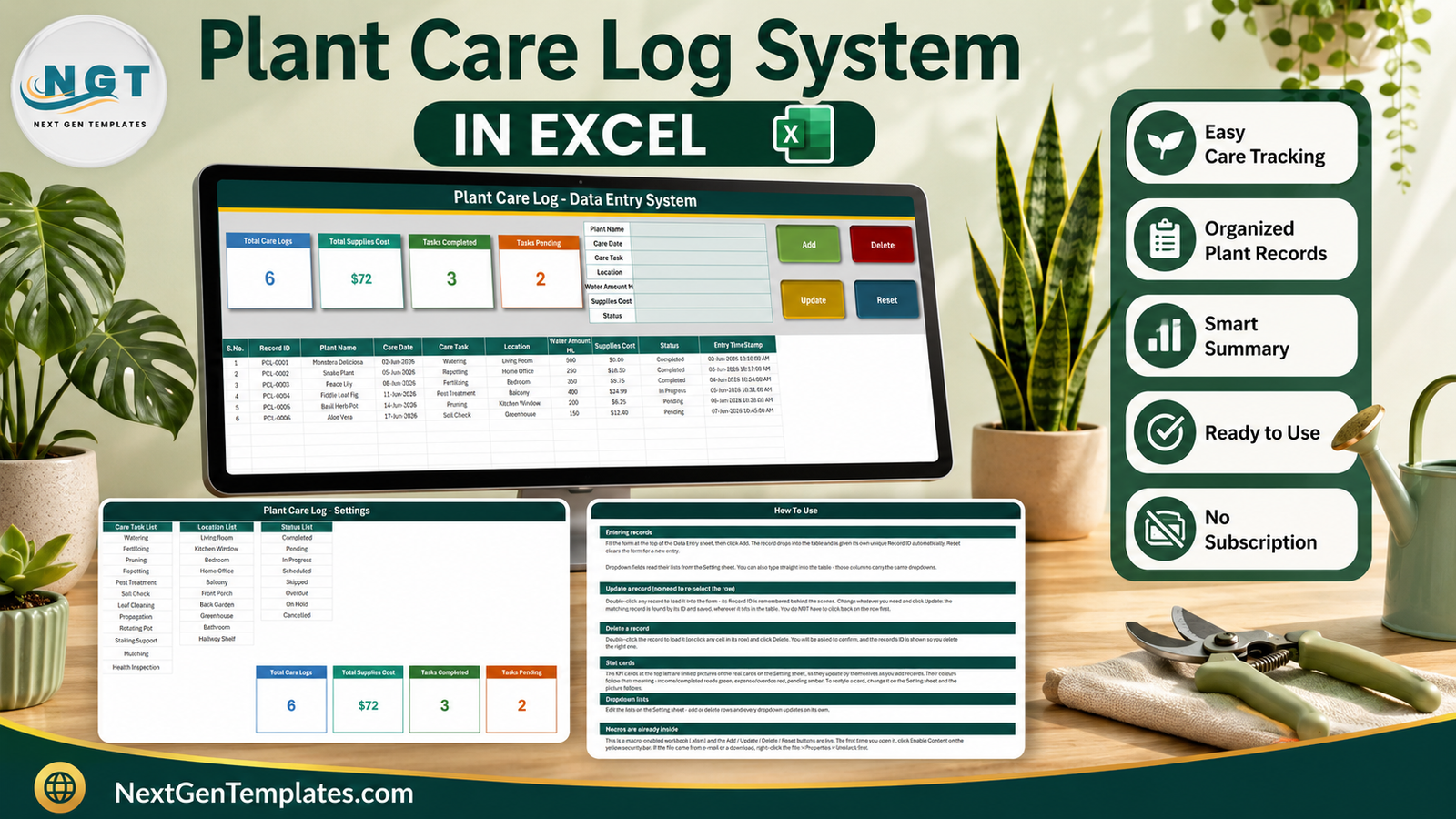
Most people who keep more than a dozen houseplants eventually run into the same problem: they cannot remember what they watered, or when they last fed anything, or how much that year of potting mix and pest spray actually cost. The Plant Care Log Data Entry System in Excel fixes that with a record rather than a reminder. It is one macro-enabled workbook with four sheets, a nine-column care table, twelve ready-made care tasks, ten locations, eight statuses, four live stat cards and 200 rows of pre-applied dropdown validation. Six sample records ship inside it so you can see the shape of the thing before you delete them and start your own log.
This post walks through every sheet, shows exactly what the four cards count (and what they quietly do not count), and is honest about the four or five things you will probably want to change on day one. The template itself is available as the Plant Care Log Data Entry System in Excel on NextGenTemplates.
Key Features of the Plant Care Log Data Entry System in Excel
- A nine-column record. S.No., Record ID, Plant Name, Care Date, Care Task, Location, Water Amount ML, Supplies Cost, Status and Entry TimeStamp.
- Automatic Record IDs. The Add macro stamps PCL-0001, PCL-0002 and upward. Two plants called “Snake Plant” stay distinguishable.
- Four macro buttons. Add, Update, Delete and Reset, sitting to the right of the form.
- Update without re-selecting. Double-click a row, it loads into the form, and the workbook remembers its Record ID behind the scenes. Change what you like, press Update, and the right row is found wherever it has drifted to.
- Four live stat cards. Total Care Logs, Total Supplies Cost, Tasks Completed and Tasks Pending. They are linked pictures of formula cells on the Setting sheet, which is why they update themselves without a macro run.
- Twelve care tasks. Watering, Fertilizing, Pruning, Repotting, Pest Treatment, Soil Check, Leaf Cleaning, Propagation, Rotating Pot, Staking Support, Mulching and Health Inspection.
- Ten locations. Living Room, Kitchen Window, Bedroom, Home Office, Balcony, Front Porch, Back Garden, Greenhouse, Bathroom and Hallway Shelf.
- Eight statuses. Completed, Pending, In Progress, Scheduled, Skipped, Overdue, On Hold and Cancelled.
- Everything list-driven. Add or delete rows on the Setting sheet and every dropdown follows, because the lists are named ranges rather than typed-in strings.
Sheet-by-Sheet Walkthrough
1. Data Entry – the sheet you actually live in
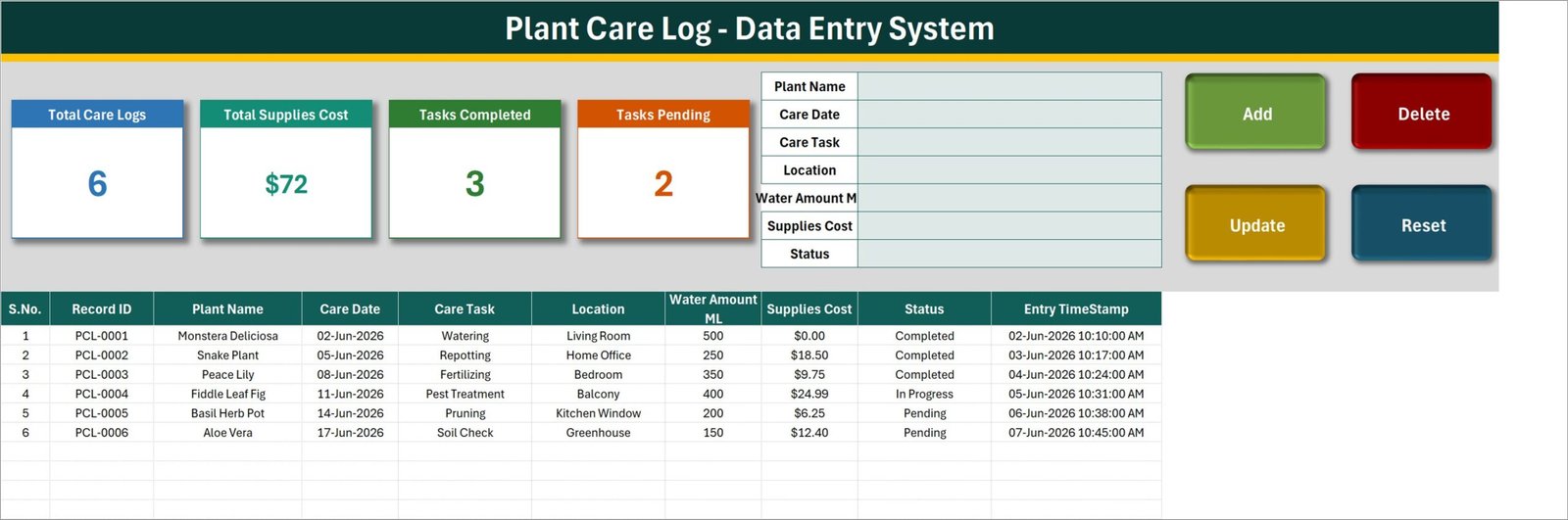
The green banner sits across the top. Below it, left to right: four stat cards, then a seven-field entry form (Plant Name, Care Date, Care Task, Location, Water Amount ML, Supplies Cost, Status), then the Add, Delete, Update and Reset buttons in a two-by-two block. The records table starts at row 15.
The shipped sample is six rows – a Monstera Deliciosa watered in the Living Room, a Snake Plant repotted in the Home Office, a Peace Lily fertilized in the Bedroom, a Fiddle Leaf Fig under pest treatment on the Balcony, a Basil Herb Pot pruned at the Kitchen Window, and an Aloe Vera soil-checked in the Greenhouse. Three are Completed, one is In Progress and two are Pending. That mix is deliberate: it is what makes the card arithmetic visible, which we come back to below.
2. Setting – the lists, and the real cards
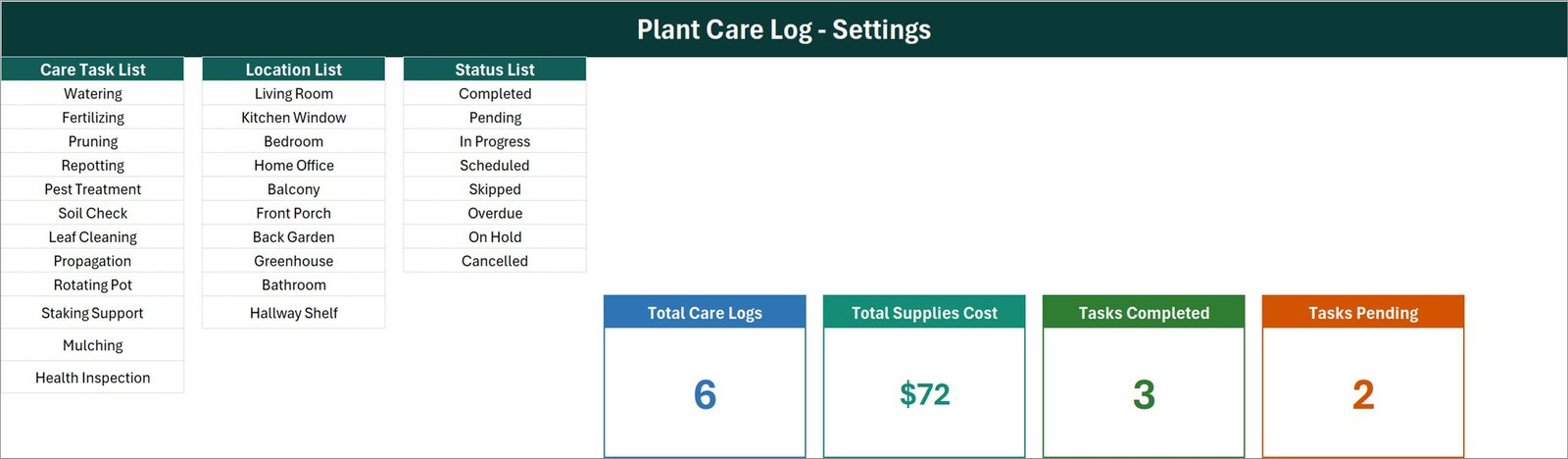
Three list columns run down the left – Care Task List, Location List, Status List – and the four genuine KPI cards sit to their right. Those four cards are the originals; the ones on the Data Entry sheet are linked pictures of them. That is a neat trick, and it has one practical consequence: to restyle a card you change it here, not there, and the picture follows.
The formulas behind the cards are plain and readable:
- Total Care Logs =
COUNTA('Data Entry'!$C$15:$C$1048576) - Total Supplies Cost =
SUM('Data Entry'!$H$15:$H$1048576) - Tasks Completed =
COUNTIF('Data Entry'!$I$15:$I$1048576,"Completed") - Tasks Pending =
COUNTIF('Data Entry'!$I$15:$I$1048576,"Pending")
3. Instructions – the built-in How To Use page
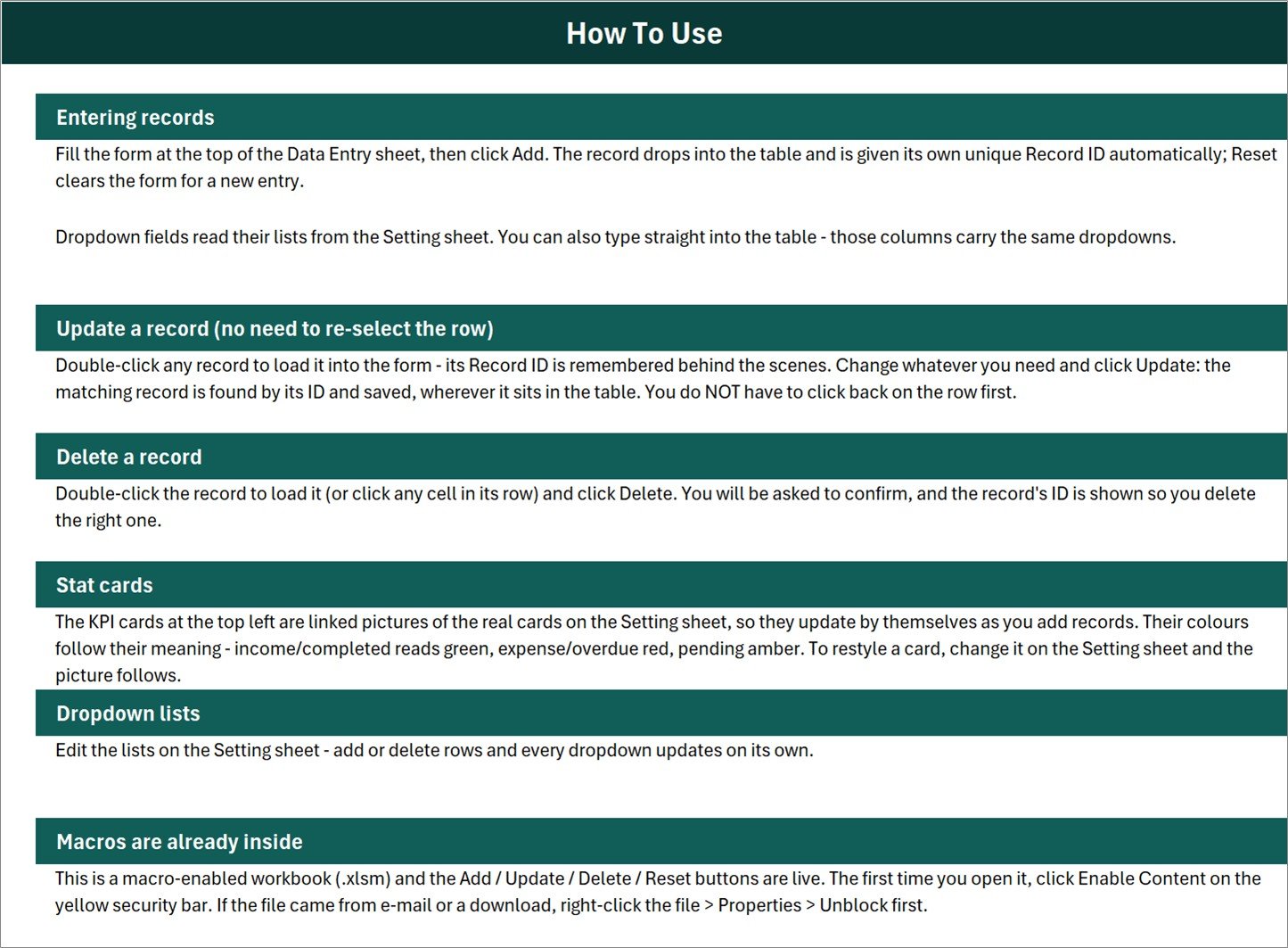
Six blocks: entering records, updating without re-selecting the row, deleting safely, how the stat cards work, editing the dropdown lists, and a plain-English note that this is a macro-enabled workbook and you must click Enable Content. If the file arrived by e-mail or download, right-click it, open Properties and tick Unblock first – that is standard Windows behaviour for files from the internet, and Microsoft documents why macros in downloaded Office files are blocked by default.
4. Get More Templates
A single link sheet back to the NextGenTemplates catalogue. Nothing to configure.
Plant Care Log in Excel vs. Google Sheets vs. a Subscription Plant App – Feature Comparison
| This Excel system | A Google Sheets equivalent | Subscription plant-care app | |
|---|---|---|---|
| Cost | One payment | One payment | Roughly $3-$8 per month |
| Platform | Excel for Windows desktop, macros on | Browser, any device | Phone app |
| Setup time | Under 5 minutes | Under 5 minutes | Account, plant scan, onboarding |
| Real-time collaboration | No | Yes | Usually one account |
| Mobile access | Read-only; buttons need desktop Excel | Yes | Yes |
| Customisable fields | Yes – all three lists are editable | Yes | Rarely |
| Reminders and notifications | No | No | Yes |
| Cost tracking per care job | Yes – Supplies Cost column | Yes if you build it | Usually not |
| Where the data lives | Only on your PC | Google Drive | The vendor’s servers |
| Year-1 cost, one household | Single purchase | Single purchase | $36-$96 |
Who Should Use This Template
It suits the houseplant collector past the point of remembering, the balcony grower with a hundred pots, the propagator who needs dated evidence of when a cutting went into water, and the office where one person waters the greenery and would like a handover list. It also suits anyone who simply wants a year-end number for what plants cost them.
It does not suit anyone who wants to be told what to do. There are no reminders, no schedules, no plant identification, no disease or pest diagnosis, and no watering or feeding advice anywhere in the workbook. It reads no soil sensors, smart pots or irrigation controllers. It is not a nursery stock or point-of-sale system. And because the four buttons are VBA, it needs desktop Excel on Windows; Excel for the web, Excel for Mac and the mobile apps will show the data but not run the macros.
Real-World Use Cases
The Sunday round. One person, sixty-odd plants, one pass through the flat each weekend. Because Location is a dropdown, the table sorts by room, and a whole room gets watered in one trip rather than three.
The propagation shelf. Each cutting goes in as a Propagation row with Status “In Progress”. Weeks later it is found by Record ID and flipped to Completed. The Entry TimeStamp column then tells you how long the batch really took.
The seasonal cost review. Filter the table to Fertilizing and Pest Treatment for the year, sum the Supplies Cost column, and you have a real figure instead of a feeling.
Advantages of the Plant Care Log Data Entry System in Excel
- It is a record, and it behaves like one. Every row is stamped with an ID and a save time, so the log is auditable rather than reconstructed from memory.
- Nothing to learn. Four buttons, one form, one table. Anyone who has used a spreadsheet can drive it in a minute.
- The lists are yours. Because they are named ranges, editing the Setting sheet is enough – no formula rewriting, no re-applying validation.
- The update flow is genuinely good. Loading a record by double-click and letting the macro find it by ID removes the single most common data-entry error, which is overwriting the wrong row.
- No account and no upload. The file lives on your machine and nothing about your home leaves it.
Opportunities for Improvement
Five things are worth knowing before you rely on the numbers. None of them break the workbook; all of them are a one-formula fix.
- Total Care Logs counts the Plant Name column, not the Record ID column. The formula is a COUNTA over column C. Every row added through the form has a plant name, so in practice it is right – but a row typed straight into the table without one is stored and never counted. Point that COUNTA at column B instead and the card counts every saved record.
- Only two of the eight statuses have a card. Completed and Pending are counted; In Progress, Scheduled, Skipped, Overdue, On Hold and Cancelled are not. In the sample that is 3 + 2 = 5 against a total of 6. The counts are correct – they were simply never designed to sum to the total. If you want them to, add cards or switch one to a COUNTIFS of everything outstanding.
- Total Supplies Cost is unfiltered. It sums the whole column, so pending, scheduled and cancelled work sits inside the figure. In the sample the true total is $71.89, of which $43.64 is on rows that are not Completed; completed spend is $28.25. A SUMIF on Status gives you the narrower number.
- That card is formatted with no decimals, so $71.89 renders as $72. The stored value is exact; only the display rounds. Change the number format to two decimals if the pennies matter to you.
- Water Amount ML is never totalled. It is captured per row and used nowhere else – no card, no average, no season total. Add a SUM below the column if you want one.
Two smaller notes. The dropdown validation on Care Task, Location and Status is applied to rows 15 to 214 only, so past 200 records you will want to drag it down – the card formulas already read the whole column, so nothing is miscounted in the meantime. And the “Stat cards” paragraph on the Instructions sheet is shared boilerplate across this family of templates: it talks about income, expense and overdue colours, which do not describe these four cards. It is a wording issue on a help page, not a formula issue.
Best Practices
- Delete the six sample rows before you start, so your first real count is clean.
- Edit the three lists first and edit them properly – your rooms, your tasks, the statuses you will really use. A short list is faster to pick from than a complete one.
- Always use the form and the Add button rather than typing into the table. That is what guarantees a Record ID and a timestamp.
- Keep Plant Name consistent. “Monstera” and “Monstera Deliciosa” are two different plants to a filter.
- Log the cost at the time, not at the end of the month. The Supplies Cost column is only as useful as it is complete.
- Save a dated copy at the end of each season before you archive rows – it is a single file, so a backup is a copy-paste.
Explore Relevant Templates
- Plant Care Log Data Entry System in Excel – the template reviewed in this post.
- Fertilizer Usage Data Entry System in Excel – the same build, for feed applied by plot instead of by pot.
- Harvest Record Data Entry System in Excel – for logging what the plants eventually produce.
- Plant Nurseries Dashboard in Excel – the commercial-horticulture analytics step up.
- Book Reading Log Data Entry System in Excel – the personal-log sibling with the same form-and-table pattern.
Frequently Asked Questions
Why do Tasks Completed and Tasks Pending not add up to Total Care Logs?
Because only two of the eight statuses are carded. Rows marked In Progress, Scheduled, Skipped, Overdue, On Hold or Cancelled are inside the total and inside neither card. In the shipped sample, 3 + 2 = 5 against a total of 6, the missing row being the In Progress pest treatment.
Does Total Supplies Cost exclude cancelled or pending work?
No – it is an unfiltered SUM of the whole column. Sample total $71.89, completed-only $28.25. Use a SUMIF against the Status column if you need the narrower figure.
Why does the card show $72 when the numbers add to $71.89?
The card’s number format is currency with zero decimal places. The underlying cell holds the exact value; only the display rounds.
What happens if I add more than 200 records?
They are counted correctly, because the card formulas read the entire column. What stops at row 214 is the dropdown validation, so beyond that you would type the Care Task, Location and Status values by hand until you drag the validation down.
Does the workbook remind me to water anything?
No. It has no reminders, no notifications and no scheduling logic. You decide the care and set the Status yourself; the workbook only remembers what you told it.
Do I need macros enabled?
Yes. Add, Update, Delete and Reset are VBA. Open the file in Excel for Windows desktop and click Enable Content; if it came from a download, unblock it in the file’s Properties dialog first.
About the Author
Built by PK – Microsoft Certified Professional with 15+ years of Excel, Google Sheets, and Power BI experience. Founder of NextGenTemplates, reaching 300K+ subscribers across YouTube channels. Every template is hand-built and tested before release.
Conclusion
The Plant Care Log Data Entry System in Excel is a small, honest tool: a form, a table, four counters and three editable lists, wrapped in enough VBA to make record-keeping quick rather than tedious. Its card arithmetic has a few sharp edges – a COUNTA pointed at the wrong column, two of eight statuses counted, an unfiltered cost total and a rounding display – and every one of them is a single formula away from behaving exactly as you would expect. Knowing about them up front is worth more than not having them.
If you keep plants and you are tired of guessing, get the Plant Care Log Data Entry System in Excel and log this week’s watering tonight. For step-by-step Excel and VBA tutorials, subscribe at youtube.com/@PKAnExcelExpert.