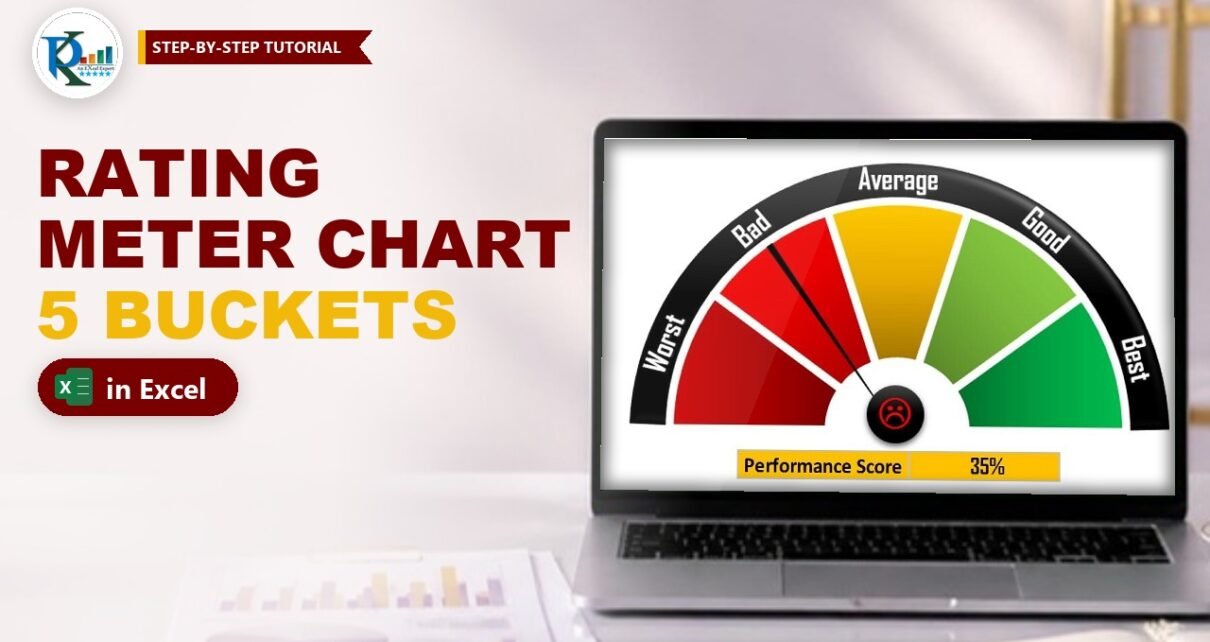
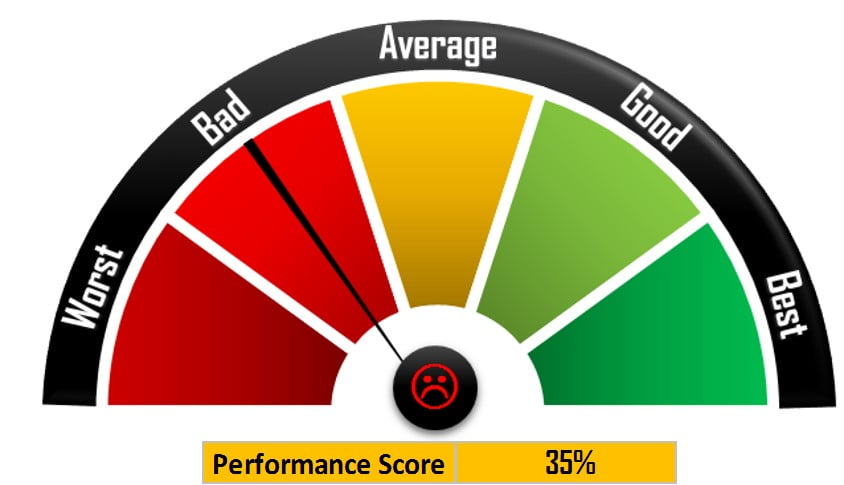
A rating meter chart in Excel turns a single performance score into a speedometer-style gauge that anyone can read in a second. The scale is split into five buckets, Worst, Bad, Average, Good and Best, a needle points to the bucket the score falls in, and a smiley in the centre changes its face and colour with the result. It is a great dashboard visual for process or portfolio health. In this tutorial you build it from scratch with a doughnut chart, a pie chart, two VLOOKUP formulas and a linked picture – no VBA.
Watch the Video Tutorial
The video tests the finished meter with several scores, then rebuilds it on a new sheet: doughnut, needle, outer arc, labels and the colour-changing smiley.
What You Will Build
- A five-bucket rating table that turns any score into Worst, Bad, Average, Good or Best.
- A half-circle colour scale made from a doughnut chart with gradient-filled slices.
- A needle made from a pie chart on the secondary axis, driven by a VLOOKUP formula.
- An outer black arc with labels made from a Block Arc shape and text boxes.
- A smiley that changes shape and colour, built with the Wingdings font, conditional formatting and a linked picture.
How the Sheet Is Laid Out
Everything sits on one sheet with gridlines switched off (View > Gridlines):
- B2 – the label Performance Score; C2 – the score you type, for example 70%.
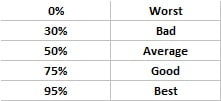
- N1:N5 – the lower limit of each bucket: 0%, 30%, 50%, 75% and 95%.
- O1:O5 – the bucket names: Worst, Bad, Average, Good, Best.
- P1:P5 – the needle position for each bucket (Part 2).
- Q1:Q5 – the smiley letters (Part 4).
- C3, C4:E4 – the bucket name and the three needle values; S1 – the smiley cell.
Part 1 – Build the Rating Meter Chart in Excel: The Scale
Step 1: Insert a doughnut with six values
Click an empty cell and choose Insert > Charts > Doughnut. You get a blank chart. Right-click it, choose Select Data > Add, leave the series name blank and type this into Series values:
={1,1,1,1,1,5}The five 1s are the five rating slices. The 5 is a helper slice: the values total 10, so the helper takes exactly half of the circle and each rating slice gets one tenth of the circle, which is 36 degrees.
Step 2: Turn the doughnut into a half circle
- Delete the chart title and the legend.
- Right-click the doughnut, choose Format Data Series and set Angle of first slice to
270degrees and Doughnut Hole Size to35%. The first slice now starts at nine o’clock, so the five rating slices form the top half. - With the series selected, go to Format > Shape Outline > Weight and choose about 3 pt. With a white outline this gives the clean gaps between the slices.
- Click the big helper slice on its own and set Fill > No fill. Then select the whole chart and set Shape Fill: No Fill and Shape Outline: No Outline.
Step 3: Colour the five slices
Click each slice on its own, give it a solid colour and then a gradient from Shape Fill > Gradient: dark red for Worst, red for Bad, orange for Average, light green for Good and dark green for Best.
Part 2 – Make the Needle
Step 4: Add the needle position column
In P1 type 10%, in P2 enter the formula below and fill it down to P5:
P2 =P1+20%Column P now holds 10%, 30%, 50%, 70% and 90%. Each slice covers 20% of the half circle, so these values are the centre of each slice. That is where the needle should point for each rating.
Step 5: Look up the rating and the needle position
Enter these formulas:
C3  =VLOOKUP(C2,N1:P5,2,1)
C4  =VLOOKUP(C2,N1:P5,3,1)
D4  1%
E4  =200%-SUM(C4:D4)
How the formulas work
VLOOKUP(C2,N1:P5,2,1)uses an approximate match (the last argument is 1, the same as TRUE). It finds the largest limit in column N that is less than or equal to the score and returns the bucket name from column O. A score of 70% returns Average.- The same lookup with column 3 returns the needle position from column P: 50% for Average.
- D4 is the needle itself, a thin 1% slice.
- E4 fills the rest of the pie, so C4, D4 and E4 always add up to 200%. With 70% in C2 that is 200% – 51% = 149%.
Why 200%? The pie totals 200%, so its top half, where the scale sits, is exactly 100%. A needle position of 50% lands right on Average.
Why not point at the exact score? The buckets have different widths (0-30, 30-50, 50-75, 75-95 and 95-100) but the five slices are all the same size. Using the centre of the slice keeps the needle on the right label every time.
Step 6: Add the needle as a pie on the secondary axis
- Right-click the chart, Select Data > Add, and select C4:E4 as the series values.
- Right-click the chart, choose Change Series Chart Type, set the new series to Pie and tick Secondary Axis.
- In Format Data Series set the pie’s Angle of first slice to
270too, so both charts start from the same point. - Remove the pie’s outline. Give the first slice (C4) and the big slice (E4) No fill, and fill the small D4 slice with solid black.
Part 3 – Outer Arc, Labels and Centre
Step 7: Draw the black outer arc
Go to Insert > Shapes > Basic Shapes > Block Arc and draw it over the chart. Drag the yellow handle to set the thickness of the band, and keep the height and width equal so the arc stays round. Fill it black, remove the outline and apply Shape Effects > Preset > Preset 3 for the bevelled look. Size it so it wraps around the coloured slices.
Step 8: Add the five labels
Insert a text box, type Worst, make the text white and bold and remove the shape outline. Rotate it to follow the curve and place it on the arc. Copy it for Bad, Average, Good and Best, change the text and the rotation of each; Average sits at the top with no rotation.
Step 9: Add the centre circle
Insert an Oval and hold Shift while you resize it to keep it a perfect circle. Fill it black, remove the outline, add a preset effect and place it over the centre of the meter, where the needle starts.
Part 4 – The Changing Smiley
Step 10: Type the smiley letters
In Q1:Q5 type L, L, K, J, J and change the font of the cells to Wingdings. In Wingdings, capital L is a sad face, K a neutral face and J a happy face, so Worst and Bad get a sad face, Average a neutral one, and Good and Best a smile.
Step 11: Look up the smiley for the score
Merge two cells for a bigger smiley (the video uses S1) and enter:
S1 =VLOOKUP(C2,N1:Q5,4,1)Set the font of S1 to Wingdings, make it bold and centre it. The same approximate-match lookup now returns the letter for the bucket, which Wingdings displays as a face.
Step 12: Colour the smiley with conditional formatting
With S1 selected, open the rule manager (Home > Conditional Formatting > Manage Rules, or Alt+O+D) and add three rules of the type Format only cells that contain > Cell Value > equal to:
L– bold red font.K– amber font.J– bold green font.
Step 13: Put the smiley inside the meter with a linked picture
Copy S1, then choose Home > Paste > Linked Picture. Excel creates a picture with the formula =$S$1 that always shows the live cell. Move it over the black centre circle. Now type 55% in C2 and the smiley turns amber and neutral; type 80% and it turns green and happy.
Common Errors and Fixes
The needle shows in the wrong place
Check that the pie is on the secondary axis and that both the doughnut and the pie use a first slice angle of 270 degrees. If the pie still starts at 0 degrees the needle points to the right side of the meter.
VLOOKUP returns #N/A or the wrong bucket
The limits in N1:N5 must be sorted in ascending order and start at 0%. A negative score or text in C2 returns #N/A. Make sure C2 is a real percentage, not text.
The smiley shows a letter instead of a face
The cell is not using the Wingdings font. Set both Q1:Q5 and S1 to Wingdings; the linked picture updates on its own.
Tips
- Hide columns N to S once the meter works, so users only see the score cell and the gauge.
- Microsoft’s guide to the VLOOKUP function explains approximate match in more detail.
Want It Ready-Made?
If you want the finished workbook with all the formatting already done, get the Rating Meter Chart in Excel template on NextGenTemplates.com. For a meter with credit-rating style buckets, see the Credit Rating Meter Chart in Excel, or browse all Excel charts and visualization templates. To learn charts, infographics and dashboards step by step, join the course Excel Pivot Tables & Dashboards: Basic to Advanced.
Related Tutorials
- Ultimate Speedometer in Excel
- 3D Gauge Chart in Excel
- RYG Dial Gauge Meter in Excel
- Credit Rating Meter Chart in Excel
- Dynamic Sales Score Meter Chart
Frequently Asked Questions
How do you make a rating meter chart in Excel?
Combine a doughnut with five equal slices plus one hidden slice for the coloured scale and a pie on the secondary axis for the needle. VLOOKUP formulas read the bucket and needle position from a small rating table, and shapes add the arc, labels and centre.
Why does the needle point to the middle of a slice instead of the exact score?
The buckets are not the same width (0 to 30, 30 to 50, 50 to 75, 75 to 95 and 95 to 100) but the slices are. Column P stores the centre of each slice, 10, 30, 50, 70 and 90 percent, and VLOOKUP returns the centre for the bucket the score falls in, so the needle always lands on the matching label.
How do I change the bucket limits?
Edit the lower limits in N1:N5 and keep them sorted from smallest to largest, because VLOOKUP with an approximate match needs ascending values. The labels in column O and the smileys in column Q follow automatically.
Which font makes the smiley in the rating meter?
Wingdings. In that font a capital J is a smiling face, K is a neutral face and L is a sad face, so a lookup that returns one of those letters shows a different smiley for each bucket.
Can I download the rating meter template?
The finished rating meter workbook is available as a paid template on NextGenTemplates.com. The link is in the Want It Ready-Made section, and every step to build it yourself is in this tutorial.
About the Author
PK is a Microsoft Excel expert and trainer and the founder of PK: An Excel Expert and NextGenTemplates.com. He has been teaching Excel, VBA, Power Query and Power BI since 2016 on his YouTube channel.
Conclusion
A rating meter chart in Excel is two charts and a few shapes working together: a doughnut for the five coloured buckets, a pie on the secondary axis for the needle, two VLOOKUP formulas to place it, and a Wingdings smiley in a linked picture that changes with the score. Build it once and drop it into any dashboard where people need to see process or portfolio health at a glance.