Corporate development and CSR teams lose an estimated 6–10 hours per week chasing sponsorship request statuses across email chains, shared folders, and disconnected spreadsheets. Worse, decisions get delayed because decision-makers can’t see which requests are pending, which are approved, and which need follow-up — in one place, in real time. The Corporate Sponsorship Request Tracker in Excel solves this with a VBA-powered workbook that centralizes every inbound sponsorship request into a structured, login-secured, dashboard-driven system. With 8 worksheets, 5 auto-updating charts, 4 interactive slicers, and a complete data entry form suite, your team can manage 50 or 500 sponsorship requests with the same ease — no CRM subscription required.
Trusted by 8,400+ teams worldwide across nonprofits, events companies, sports organizations, and corporate CSR departments, this tracker delivers structured sponsorship intake management for a one-time investment that costs less than one month of any CRM tool.
✅ Instant download · One-time payment · No subscription · No per-user fees · Lifetime access
Corporate Sponsorship Request Tracker in Excel
Key Features of the Corporate Sponsorship Request Tracker in Excel
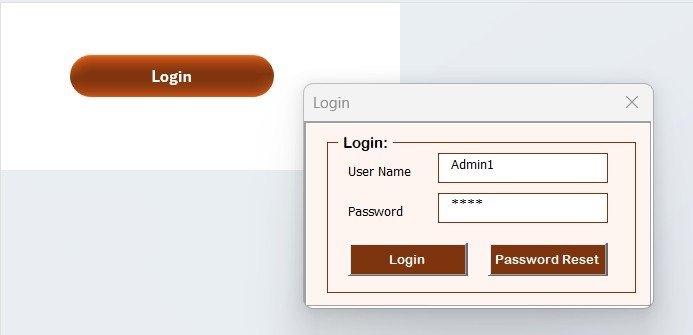
🔹 VBA-Powered Secure Login Form — The tracker opens with a VBA login form that restricts access to authenticated users only. Default credentials (Admin1 / abcd) are set on first launch, and every user credential is manageable through the built-in User Management sheet. This protects sensitive partner communications and approval data from unauthorized edits — a critical requirement for corporate and nonprofit environments.
🔹 Central Home Page Navigation — A clean home screen gives users one-click access to the Dashboard, Data Sheet, Settings, and User Management tabs, eliminating the confusion of navigating a multi-sheet workbook manually.
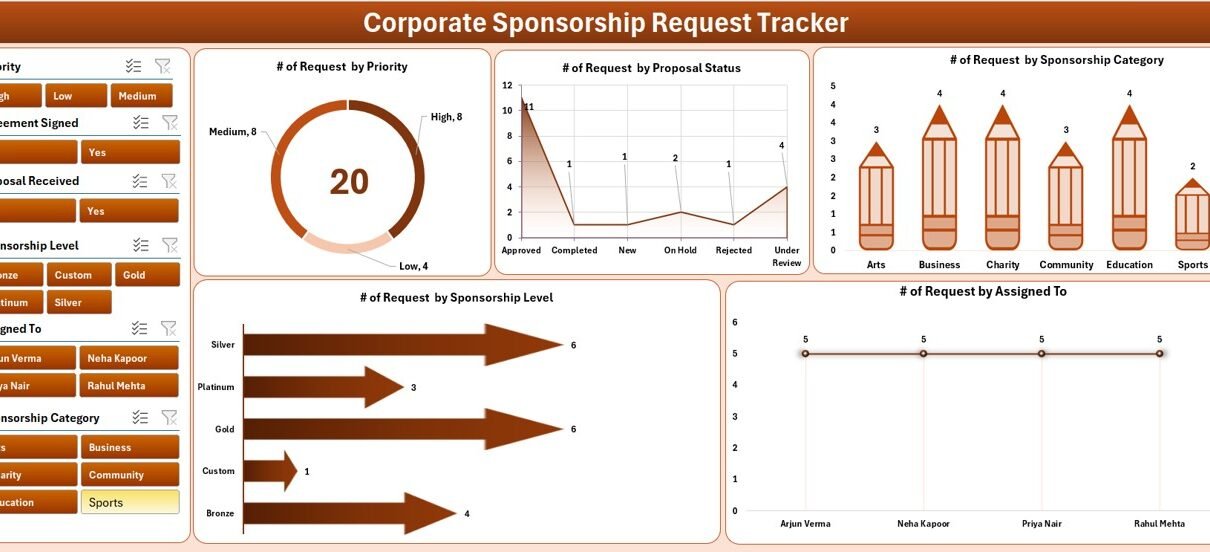
🔹 Dashboard with 5 Charts and 4 Interactive Slicers — The Dashboard sheet provides five auto-updating charts covering sponsorship status breakdowns, request volume by sponsor type, trend analysis by month, amount requested by category, and staff assignment distribution. Four slicers allow instant filtering by status, region, sponsor category, and date — without touching any formulas.
🔹 Data Entry Form: Add, Update, Delete — On the Data Sheet, three action buttons drive the full record management workflow. The Add New Record button opens a blank VBA form for logging new requests; Update Record opens the same form pre-filled with existing data; Delete Record confirms and removes the selected entry. Every operation triggers an automatic dashboard refresh — no manual pivot table updates.
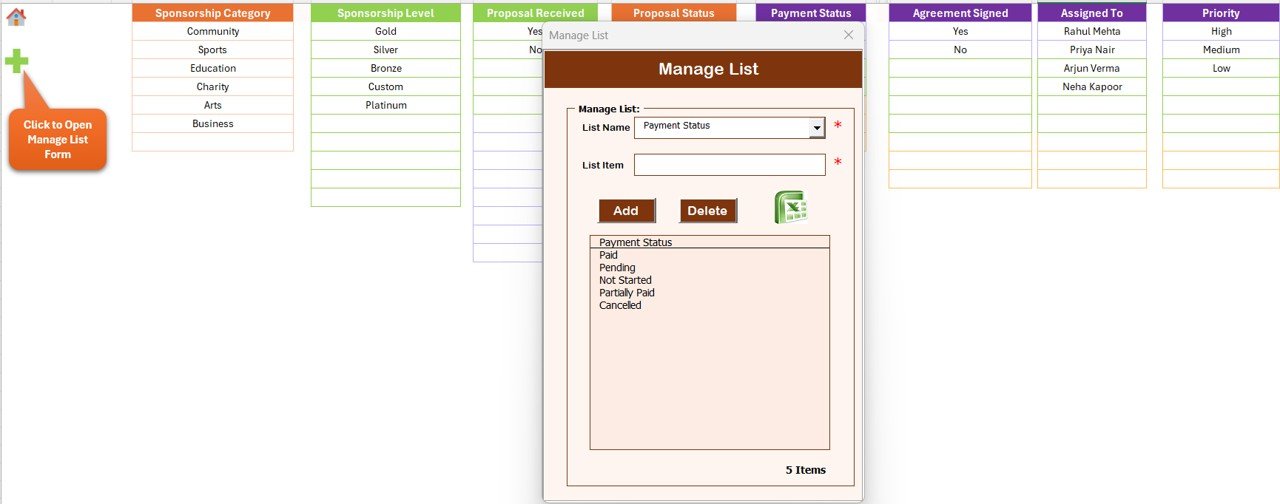
🔹 Customizable List Sheet for Dropdowns — Maintain all dropdown values used in the data entry form (sponsor categories, statuses, regions, event types) by editing the List sheet. Changes reflect in the form combo boxes immediately with no formula editing required.
🔹 User Management Module — The admin-accessible User Management sheet supports adding multiple users with unique IDs and passwords, modifying credentials, and removing inactive accounts — enabling safe multi-user access for a distributed sponsorship team.
🔹 Support and Settings Sheets — The Support sheet manages the pivot tables driving dashboard charts and can be hidden once configured. The Settings sheet handles system-level defaults including auto-refresh behavior and role configurations.
Worksheet Structure Explained
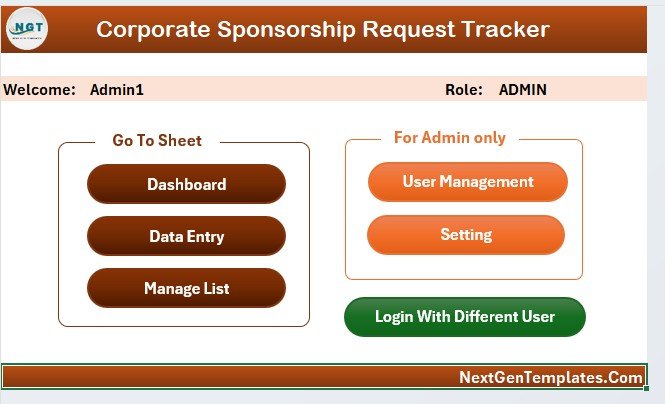
Home Page — Central Navigation Hub
1. Login Form
The workbook opens directly to the VBA login form. Users enter their credentials to gain access. Unauthorized users are blocked from viewing any data. This sheet is especially important for teams that store the file on shared network drives or SharePoint.
2. Home Page
After login, users land on the Home Page — a central control panel with clearly labeled navigation buttons to each module. This eliminates tab confusion in multi-sheet workbooks and makes the tracker accessible to non-Excel users.
3. Dashboard — 5 Charts, 4 Slicers
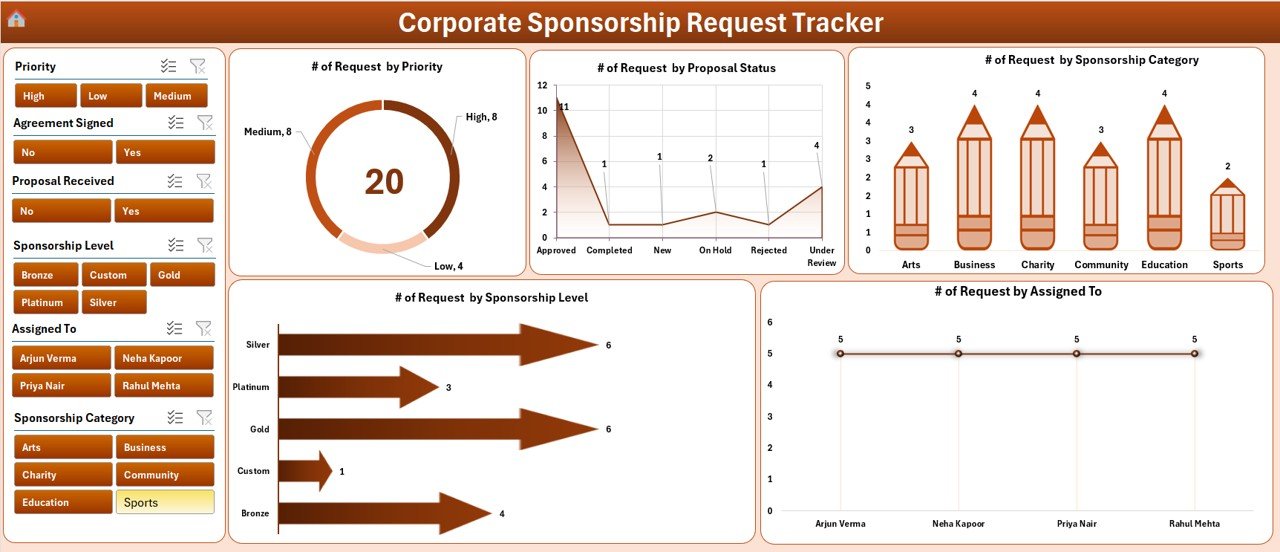
Dashboard — 5 Charts, 4 Interactive Slicers
The Dashboard is the analytical heart of the Corporate Sponsorship Request Tracker in Excel. Five charts give stakeholders a real-time visual overview of the entire sponsorship pipeline. Four slicers allow one-click filtering across all charts simultaneously — drill into any segment without leaving the dashboard page. All visuals update automatically when data changes in the Data Sheet.
4. Data Sheet — Add, Update, Delete Forms
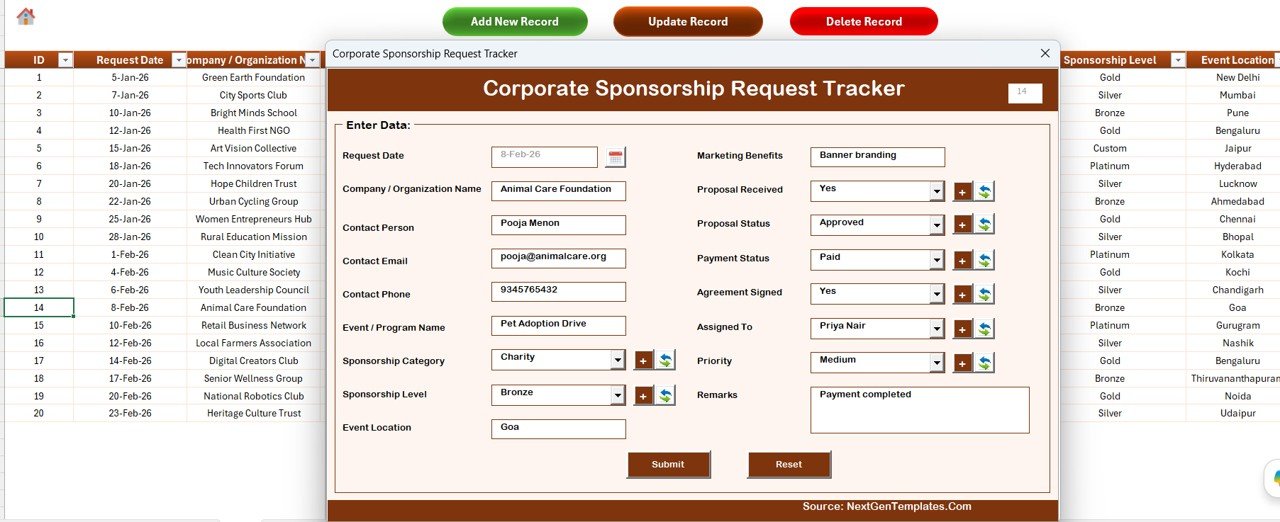
Data Sheet with Add/Update/Delete Action Buttons
The Data Sheet stores all sponsorship request records in a structured table. Three VBA action buttons at the top of the sheet handle all CRUD operations. Selecting the Add New Record button opens a clean input form for capturing full sponsorship details. Update Record opens a pre-filled form for the selected record ID. Delete Record confirms then removes the entry and refreshes the dashboard instantly.
VBA Data Entry Form — Add and Update Records
5. List Sheet
List Sheet — Dropdown Values for the Data Entry Form
The List sheet is where administrators define all dropdown values used in the data entry form — sponsor categories, request statuses, regions, event types, and assigned staff. Simply add or remove rows; the form combo boxes update automatically. No formula knowledge required.
6. Support Sheet
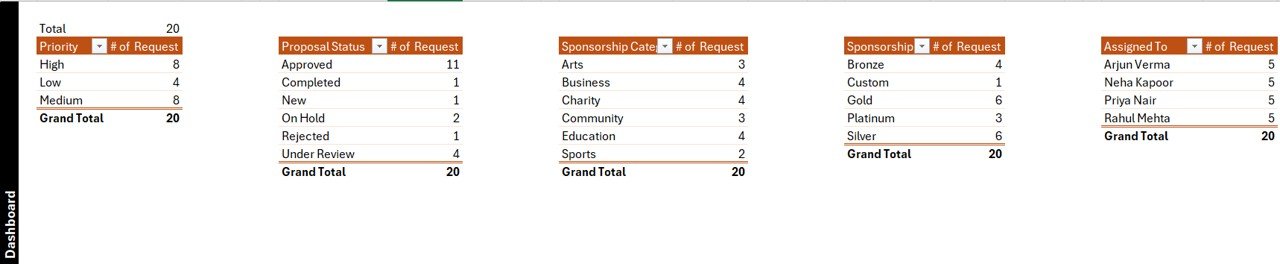
Support Sheet — Pivot Tables Powering the Dashboard
The Support sheet contains the pivot tables that feed every chart on the Dashboard. It is hidden by default but can be unhidden for advanced customization or troubleshooting. Teams that want to add new chart types or custom aggregations can extend this sheet without breaking the existing dashboard structure.
7 & 8. Settings Sheet and User Management
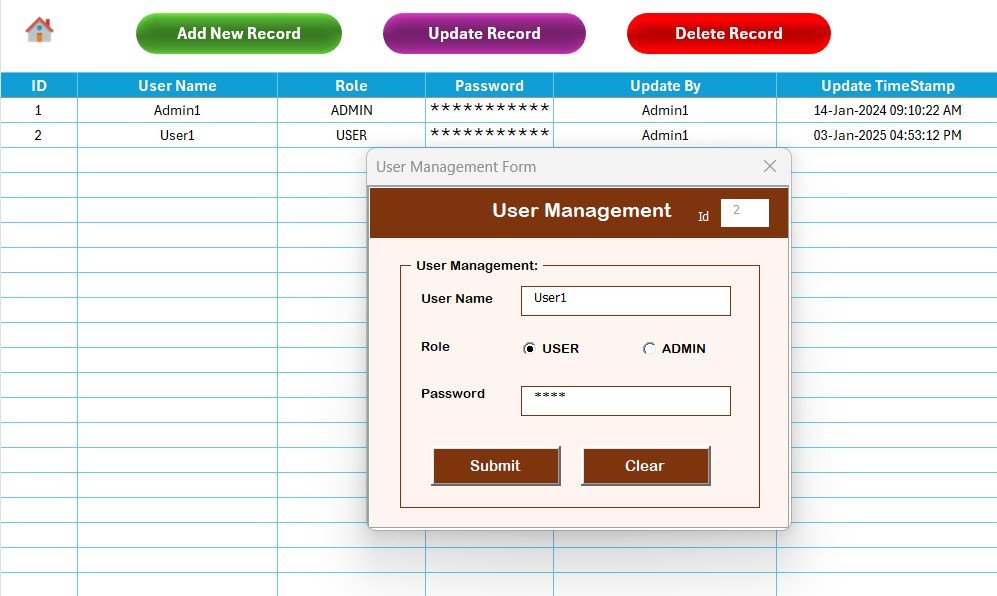
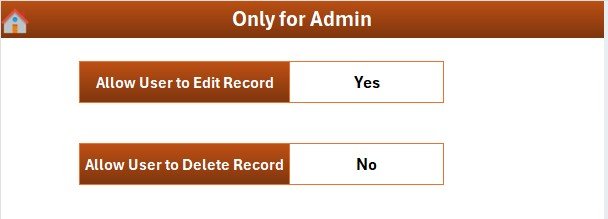
Settings and User Management Sheets
The Settings sheet manages system-level configurations including auto-refresh behavior and display defaults. The User Management sheet is the admin panel for managing who has access — adding new users, updating passwords, and removing inactive accounts. Together these two sheets make the Corporate Sponsorship Request Tracker in Excel a multi-user-ready tool that scales with team growth.
👉 Click here to Purchase the Corporate Sponsorship Request Tracker in Excel
Corporate Sponsorship Request Tracker in Excel vs. Google Sheets Equivalent vs. Salesforce CRM — Feature Comparison
| Feature | Corporate Sponsorship Request Tracker in Excel | Google Sheets Equivalent | Salesforce / HubSpot CRM |
|---|---|---|---|
| Cost | $6.99 one-time | Free (manual build) | $25–$150 / user / month |
| Platform | Microsoft Excel (offline) | Google Sheets (cloud) | Cloud SaaS |
| Setup time | Under 5 minutes | 4–10 hours to build | 3–10 days (onboarding) |
| Secure login & multi-user | ✅ VBA login system | ❌ No native login | ✅ Native SSO |
| Data entry forms | ✅ Add / Update / Delete | ❌ Manual row entry | ✅ Locked SaaS forms |
| Real-time charts & slicers | ✅ 5 charts, 4 slicers | Partial (manual) | ✅ Full BI reporting |
| Offline access | ✅ 100% offline | ❌ Requires internet | ❌ Requires internet |
| Year-1 cost at 5 users | $6.99 total | $0 + hours of build time | $1,500–$9,000 |
For corporate and nonprofit teams that need secure, offline sponsorship tracking without paying $150+/month for CRM licenses, the Corporate Sponsorship Request Tracker in Excel sits in the sweet spot.
Who Should Use This Template
Perfect for:
- Corporate CSR and community relations managers handling 10–500 sponsorship requests annually
- Events coordinators managing inbound sponsorship applications for conferences, sports events, or galas
- Nonprofit development teams needing a structured intake and approval workflow
- Small to mid-size organizations that prefer Excel over cloud-based CRM tools
- Admin teams requiring secure multi-user access with VBA role-based login
Not a fit if:
- You need Salesforce-level CRM with automated workflows and API integrations
- You need real-time collaborative editing for 10+ simultaneous users
- You require a mobile-first or web-based sponsorship portal
Real-World Use Cases
👉 Click here to Purchase the Corporate Sponsorship Request Tracker in Excel
Priya manages corporate partnerships at a mid-size technology company. Each quarter she receives 80–120 sponsorship requests from universities, nonprofit events, and industry conferences. Before adopting the Corporate Sponsorship Request Tracker in Excel, her team tracked everything in a shared Google Sheet with no version control. Now she uses the Add New Record form to log each request in under 60 seconds, and the Dashboard’s status slicer lets her instantly filter all “Pending Review” requests during weekly pipeline calls — without a $99/month CRM subscription.
Marcus runs a regional sports foundation. He uses the tracker to manage incoming requests from local businesses, track approval timelines, and report monthly to the board on sponsorship pipeline value. The 5 dashboard charts give him a one-page visual overview he can screenshot and paste directly into board meeting slides.
Sandra leads community engagement at a nonprofit hospital network. Her 3-person team shares one Excel file stored on a network drive. The VBA login system ensures only authorized team members can add or modify records, and the User Management sheet lets her onboard or offboard staff in under 2 minutes.
Advantages of the Corporate Sponsorship Request Tracker in Excel
🔹 Eliminates scattered tracking — All sponsorship requests, statuses, approvals, and contacts live in one structured, searchable workbook rather than across email threads, spreadsheets, and notepads.
🔹 No CRM license costs — A one-time $6.99 investment replaces $25–$150 per user per month for sponsorship or grant management SaaS tools. For a 5-person team over 1 year, the savings are $1,500–$9,000.
👉 Click here to Purchase the Corporate Sponsorship Request Tracker in Excel
🔹 Reduces data entry errors — VBA forms with dropdown combo boxes enforce consistent data entry. Sponsorship types, statuses, and regions are always spelled identically, which makes pivot charts and slicers reliable.
🔹 Supports multi-user workflows — The User Management sheet allows the admin to add team members with individual login credentials, enabling accountability and access control without an external identity provider.
🔹 Dashboard refreshes automatically — Every time a record is added, updated, or deleted, the VBA macro triggers a pivot refresh that updates all 5 charts and recalculates slicer values. Managers always see current data.
Opportunities for Improvement
The Corporate Sponsorship Request Tracker in Excel is optimized for individual-user or shared-drive multi-user access. For teams needing true simultaneous real-time editing (where multiple users type into the same cell at the same moment), Microsoft 365’s co-authoring mode may have partial conflicts with VBA macro execution — SharePoint co-authoring and VBA macros don’t always interact smoothly. Teams in this scenario should consider storing a read-only reference copy on SharePoint and keeping the master file on a single editor’s machine or a shared drive. Additionally, the tracker’s reporting is focused on operational pipeline visibility; teams needing advanced financial modeling (ROI per sponsorship tier, multi-year commitment tracking, contract value amortization) would benefit from adding custom columns and modifying the Support sheet pivot tables to extend the analysis.
Best Practices
🔹 Update dropdown lists before your first real entry — Open the List sheet and replace sample values (sponsor categories, statuses, regions) with your actual organization’s taxonomy. Consistent dropdown values are what make the slicer filtering on the dashboard reliable.
🔹 Assign one master file owner — Designate one person responsible for the master file. Team members can submit request details via a shared intake form (even a simple email template) and the file owner enters them into the tracker. This keeps the master file’s macro state clean.
👉 Click here to Purchase the Corporate Sponsorship Request Tracker in Excel
🔹 Review the Dashboard weekly — A quick 10-minute dashboard review each Monday surfaces requests that have been “Pending Review” for more than 2 weeks, high-value requests waiting on a single approver, and category-level request volumes that signal emerging partnership interest.
🔹 Back up the file monthly — Save a dated copy (e.g., Corporate-Sponsorship-Tracker-2026-05.xlsm) on the first of each month for historical auditing. VBA workbooks don’t have built-in version history unless stored in SharePoint or OneDrive with versioning enabled.
🔹 Read Microsoft’s VBA documentation on getting started with VBA in Office if you want to extend the tracker with custom macros or additional automation beyond the built-in Add/Update/Delete forms.
Explore Relevant Templates
🔹 Donation Request Tracker in Excel — A VBA-powered tracker with the same login, dashboard, and form architecture for managing nonprofit and CSR donation requests.
🔹 Browse the complete Excel Trackers catalog for 100+ ready-to-use tracking templates covering HR, finance, sales, operations, and more.
🔹 Browse the Excel VBA Tools collection for automation-ready workbooks with login forms, dashboards, and data entry forms.
🔹 Browse the Sales and Marketing templates for additional tools covering CRM tracking, campaign management, and sponsorship analytics.
Frequently Asked Questions
What does the Corporate Sponsorship Request Tracker in Excel include?
The Corporate Sponsorship Request Tracker in Excel includes 8 worksheets: Login Form, Home Page, Dashboard with 5 charts and 4 slicers, Data Sheet with Add/Update/Delete VBA forms, List Sheet for dropdown management, Support Sheet with pivot tables, Settings Sheet, and User Management Sheet. The file is a macro-enabled .xlsm workbook that works with Microsoft Excel 2016 or later.
Do I need VBA programming knowledge to use this tracker?
👉 Click here to Purchase the Corporate Sponsorship Request Tracker in Excel
No. The Corporate Sponsorship Request Tracker in Excel is built for everyday users who have no VBA experience. All data operations are triggered through clearly labeled form buttons — the VBA runs automatically in the background. You only need basic Excel familiarity to add records, use slicers, and navigate the dashboard.
How does this compare to using Salesforce or HubSpot for sponsorship tracking?
The Corporate Sponsorship Request Tracker in Excel is a one-time $6.99 purchase with full offline access and no per-user fees. Salesforce and HubSpot CRM plans start at $25–$150 per user per month. For a team of 5 managing sponsorship requests, the Excel tracker delivers the core intake, status-tracking, and reporting workflow at a fraction of the cost — saving $1,500–$9,000 in Year-1 CRM subscription costs.
How long does setup take?
Setup takes under 5 minutes. Download and unzip the file, open in Excel, click Enable Content for macros, log in with the default credentials, and customize dropdown values in the List Sheet. The dashboard starts populating automatically as soon as you enter your first record using the Add New Record form on the Data Sheet.
Can multiple team members use this tracker at the same time?
The Corporate Sponsorship Request Tracker in Excel supports sequential multi-user access via the User Management sheet — each team member has their own login. Simultaneous editing by multiple users on a shared drive is possible but not recommended for VBA workbooks; the safest setup is designating one active editor at a time while others view a read-only copy.
What version of Excel is required?
Microsoft Excel 2016 or later is required. The tracker uses VBA macros and pivot tables that are not supported in Excel for the web or Google Sheets. When opening the file for the first time, click “Enable Content” in Excel’s security bar to activate the macros.
Is there a limit on how many requests I can track?
There is no practical limit. Excel’s row capacity exceeds 1 million rows, far beyond the typical sponsorship request volume for any organization. The VBA forms and dashboard pivot tables handle thousands of records without performance degradation in most Excel environments.
About the Author
Built by PK — Microsoft Certified Professional with 15+ years of Excel, Google Sheets, and Power BI experience. Founder of NextGenTemplates, reaching 300K+ subscribers across YouTube channels. Every template is hand-built and tested before release.
Conclusion
If your team manages inbound sponsorship requests — whether you’re a corporate CSR function, a nonprofit development office, or an events company fielding partner applications — the Corporate Sponsorship Request Tracker in Excel gives you 8 worksheets, 5 real-time charts, 4 slicers, VBA login security, and a full Add/Update/Delete form suite for a one-time $6.99 investment.
👉 Click here to Purchase the Corporate Sponsorship Request Tracker in Excel
✅ Instant download · One-time payment · No subscription
📅 Last updated: May 2026
🎥 Visit our YouTube channel for step-by-step video tutorials: Youtube.com/@PK-AnExcelExpert