Hydropower projects bring together civil engineering, plant operations, finance, construction monitoring, developers, river basin planning, and renewable energy reporting. A single portfolio can include many countries, plant types, turbine types, construction phases, funding sources, risk levels, budget plans, and generation targets. When these records are reviewed only in spreadsheets, reporting can become slow and important cost or generation signals can stay hidden.
The Hydropower Projects Dashboard in Power BI gives teams a ready-to-use PBIX report for tracking Total Revenue, Total Planned Budget, Total Actual Generation, Total Actual Cost, Net Budget Variance, availability rate, revenue movement, cost distribution, project status, construction phase, location, risk, funding source, turbine type, and generation attainment. Users can replace the sample data, refresh the report, and review multiple dashboard pages with interactive slicers and visuals.
Click here to view the Hydropower Projects Dashboard in Power BI.
Key Features of Hydropower Projects Dashboard in Power BI
This Power BI dashboard is designed for hydropower project managers, renewable energy analysts, finance teams, operations leaders, developers, EPC teams, and consultants who need a cleaner way to review project and plant performance. It includes 5 report pages: Overview, Project Trend, Location, Risk, and Operations.
- 5 KPI cards for Total Revenue, Total Planned Budget, Total Actual Generation, Total Actual Cost, and Net Budget Variance.
- Interactive slicers for quick filtering across project, location, phase, status, plant, risk, and operating dimensions.
- Financial analysis for revenue, budget, actual cost, and budget variance.
- Operational analysis for availability rate, turbine generation, and generation attainment.
- Location analysis for country, river basin, and plant type reporting.
- Editable PBIX file so users can customize visuals, pages, measures, and model logic in Power BI Desktop.
Dashboard Pages Explanation
1. Overview Page
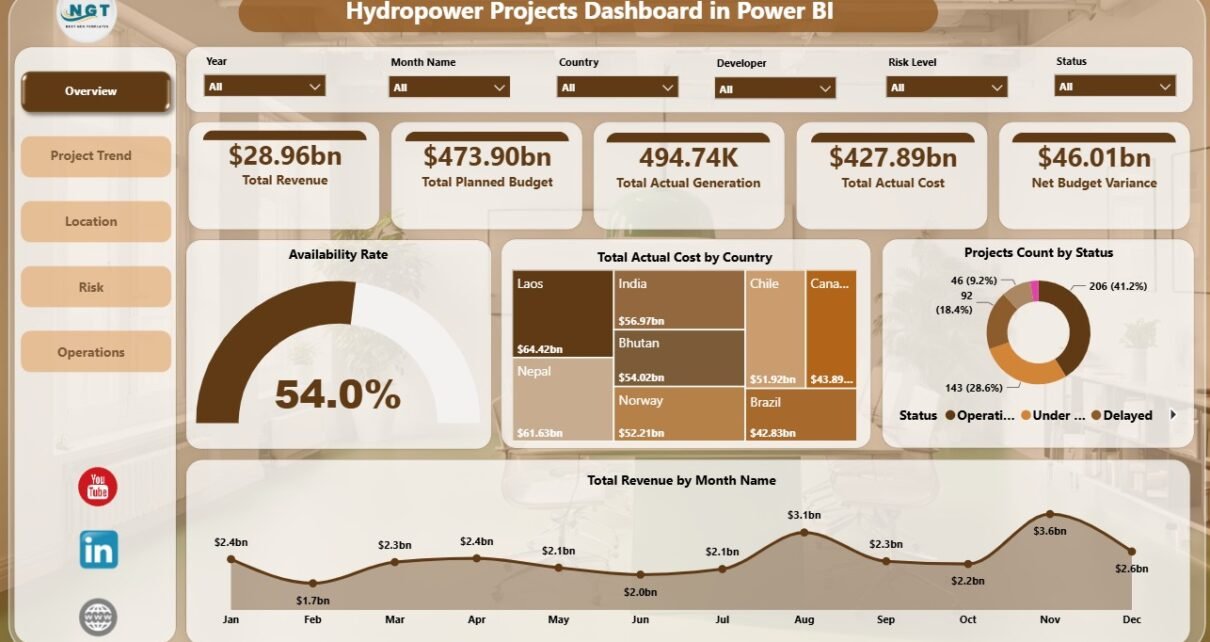
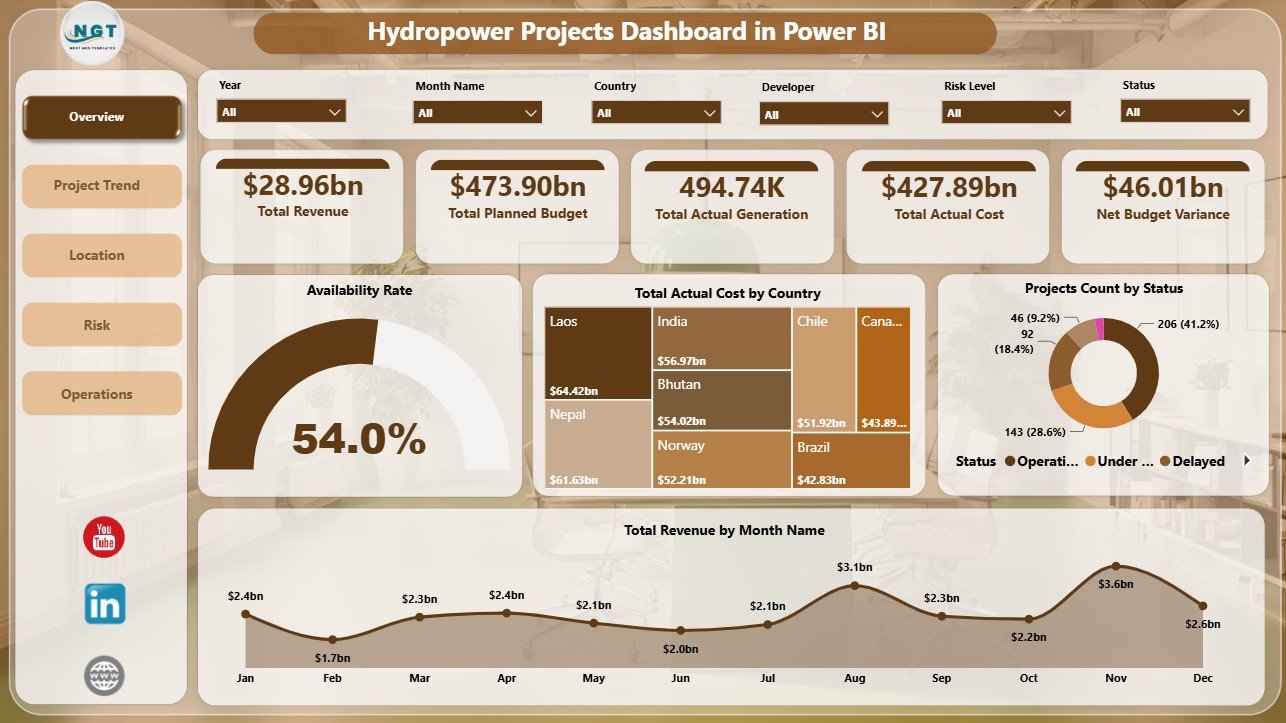
The Overview Page gives leadership a high-level view of the hydropower project portfolio. Cards at the top show Total Revenue, Total Planned Budget, Total Actual Generation, Total Actual Cost, and Net Budget Variance, so users can understand financial scale, production output, and budget position in one view.
Availability Rate: This visual shows how reliably projects or plants are performing. It helps operations teams connect project progress with readiness and plant performance.
Total Actual Cost by Country: This chart compares cost across countries. It helps finance teams identify locations with higher project execution cost.
Projects Count by Status: This chart shows how many projects are active, delayed, completed, or sitting in another reporting status. It gives managers a fast portfolio health check.
Total Revenue by Month Name: This chart shows revenue movement across months. It helps users identify stronger months, weaker periods, and trends that need commentary.
2. Project Trend
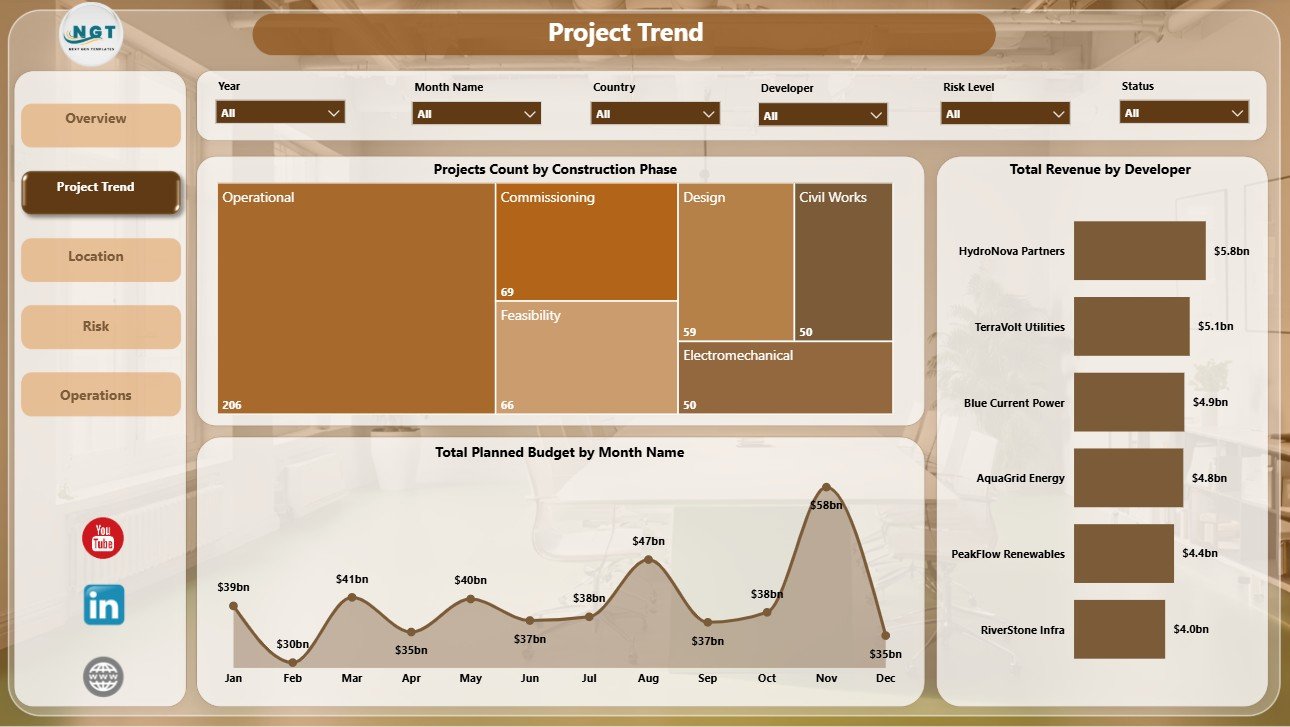
The Project Trend page focuses on pipeline movement, monthly budget planning, and developer-level revenue. It is useful for steering committee reporting, budget reviews, and project delivery discussions.
Projects Count by Construction Phase: This visual shows how many projects sit in each phase. It helps leaders understand whether the portfolio is weighted toward planning, construction, commissioning, or operations.
Total Planned Budget by Month Name: This chart shows how planned budget is distributed across months. It supports cash flow review and helps finance teams prepare monthly budget commentary.
Total Revenue by Developer: This chart compares developer-level contribution. It helps users identify which developers or partners are linked with the highest revenue.
3. Location
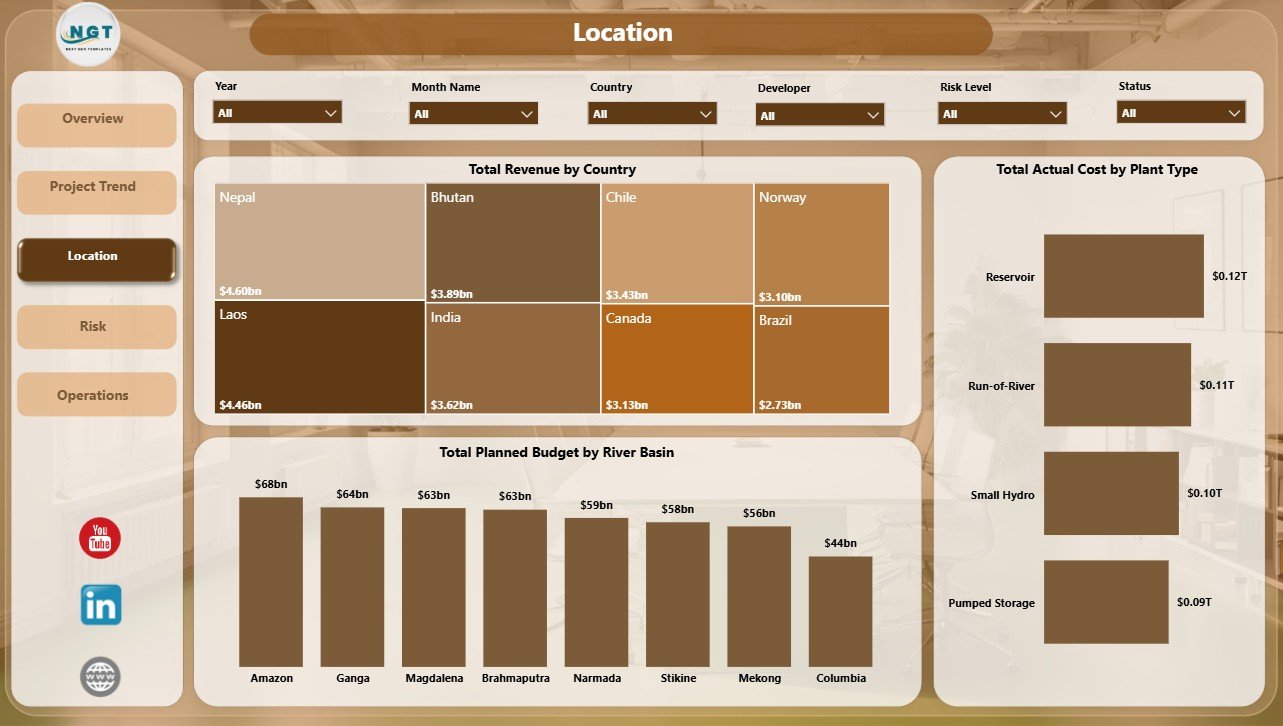
The Location page supports geographic and asset-structure analysis. Hydropower projects are strongly tied to country, basin, terrain, plant type, and local delivery conditions, so this page helps users compare project performance from multiple location angles.
Total Revenue by Country: This chart identifies countries that generate the highest revenue. It helps leadership compare market contribution and prioritize review attention.
Total Planned Budget by River Basin: This chart shows planned budget by river basin. It supports basin-level investment planning and stakeholder reporting.
Total Actual Cost by Plant Type: This chart compares actual cost across plant types. It helps users see whether certain plant structures are more expensive to develop or operate.
4. Risk
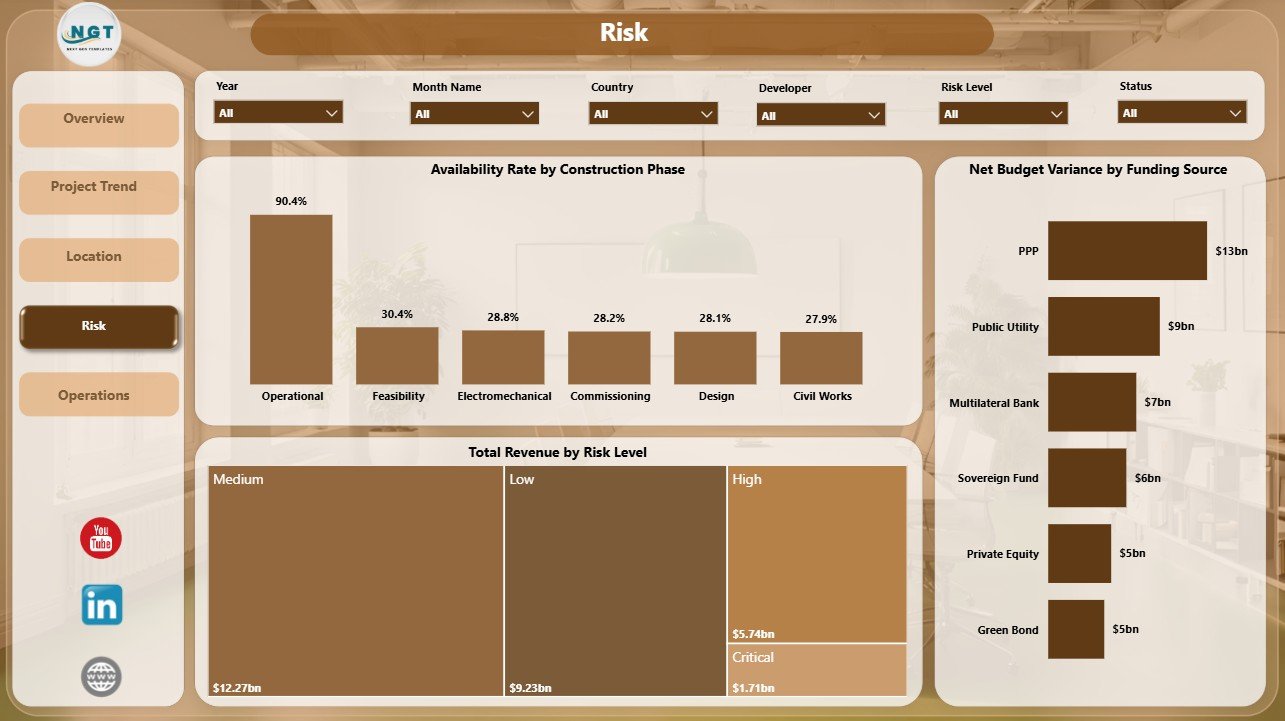
The Risk page is designed for governance, funding review, and execution monitoring. It connects availability, construction phase, risk level, revenue, funding source, and budget variance.
Availability Rate by Construction Phase: This visual compares availability across construction phases. It helps teams understand how project maturity relates to operational readiness or performance.
Total Revenue by Risk Level: This chart shows how much revenue is tied to each risk category. It helps leaders see whether high-value projects also carry higher delivery or operational risk.
Net Budget Variance by Funding Source: This chart compares budget variance across funding sources. It helps finance and governance teams identify funding groups that need closer cost control.
5. Operations
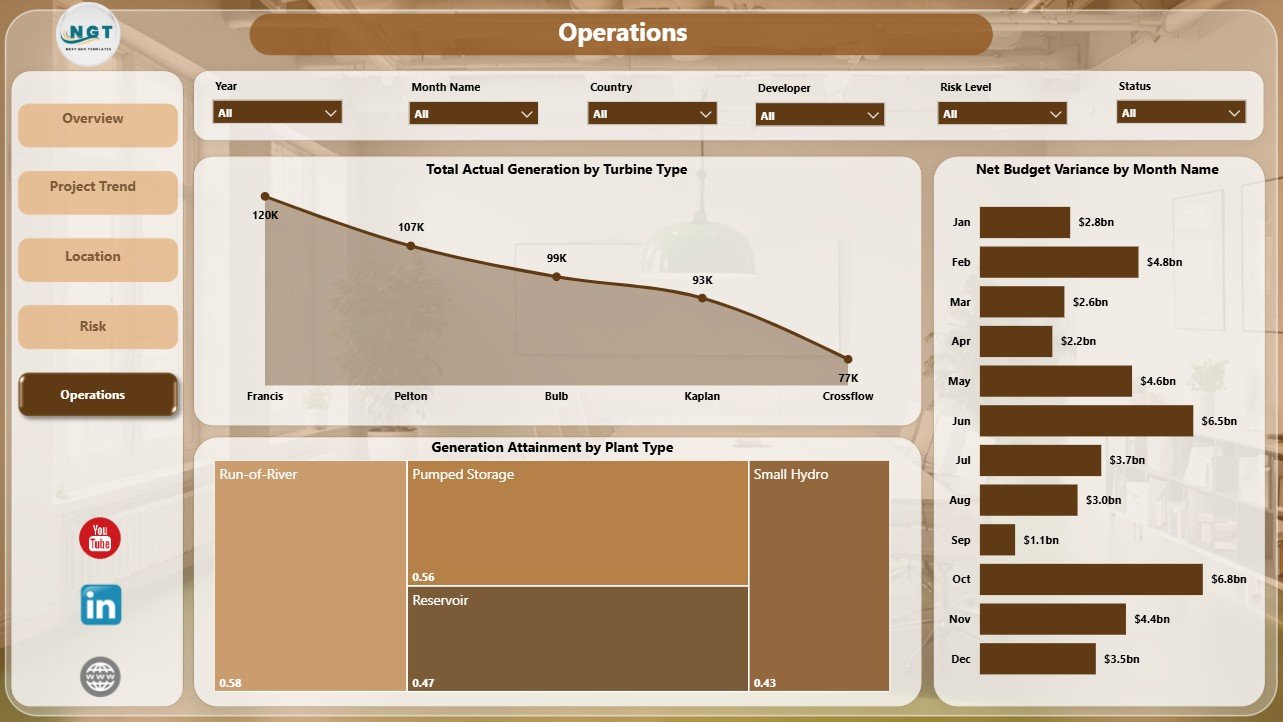
The Operations page helps teams review plant performance, turbine output, generation attainment, and monthly budget variance. It is useful for operations managers, energy analysts, and plant performance teams.
Total Actual Generation by Turbine Type: This chart shows generation output by turbine type. It helps teams compare turbine groups and understand which technologies contribute the most production.
Generation Attainment by Plant Type: This chart compares generation attainment across plant types. It helps identify plant categories that are closer to or further from expected output.
Net Budget Variance by Month Name: This visual shows budget variance across months. It helps teams spot periods where actual cost and planned budget need deeper review.
Hydropower Projects Dashboard in Power BI vs. Tableau vs. Paid Project SaaS – Feature Comparison
| Feature | Hydropower Projects Dashboard in Power BI | Tableau alternative | Paid project SaaS |
|---|---|---|---|
| Cost | $17.99 one-time template | Requires Tableau setup and licensing | Monthly or annual subscription |
| Platform | Power BI Desktop and Power BI Service | Tableau Desktop or Tableau Cloud | Vendor-hosted platform |
| Setup time | Replace source data and refresh | Rebuild or adapt workbook | Configuration and onboarding |
| Real-time team collaboration | Available through Power BI Service when configured | Available through Tableau Cloud | Usually included |
| Mobile access | Available after publishing to Power BI Service | Available after publishing | Usually included |
| Customizable fields | Editable PBIX model and visuals | Customizable by Tableau users | Often limited by vendor schema |
| Share with link | Available through Power BI Service | Available through Tableau Cloud | Usually login controlled |
| Year-1 cost at 5 users | $17.99 plus Power BI licensing if needed | Higher BI licensing cost | Often hundreds or thousands |
| Hydropower report pages | Included across five pages | Custom dashboard required | Depends on selected module |
Who Should Use This Template
This template is ideal for hydropower project managers, renewable energy analysts, project finance leads, EPC teams, developers, operations managers, plant performance analysts, investment teams, and consulting teams that need a practical Power BI report for recurring reviews.
It is especially helpful when teams already export project records from another system and need a clean Power BI layer for leadership reporting. It is not a live SCADA system, engineering design tool, document repository, ERP system, or automatic regulatory reporting portal.
Real-World Use Cases
Arjun, hydropower project manager: Arjun reviews budget variance, status, construction phase, and generation before monthly steering committee meetings.
Meera, renewable energy analyst: Meera compares revenue by country, planned budget by river basin, actual generation by turbine type, and generation attainment by plant type.
Daniel, infrastructure finance lead: Daniel monitors planned budget, actual cost, net budget variance, and funding-source exposure before project finance reviews.
Advantages of Hydropower Projects Dashboard in Power BI
It combines finance, project, location, risk, and operations in one report. Instead of reviewing separate files for budget, revenue, status, generation, and risk, users can move across five connected Power BI pages.
It is interactive. Slicers let users filter the report quickly during management meetings and move from high-level cards to a focused country, developer, basin, funding source, plant type, or turbine type view.
It is editable. Analysts can update measures, visuals, report pages, themes, and model relationships inside Power BI Desktop.
Opportunities for Improvement
This is a Power BI reporting template, so it depends on clean source data. Country names, developers, construction phases, funding sources, risk levels, plant types, and turbine types should be standardized before refresh. Teams that need live meter feeds, automatic work orders, or engineering calculations may need a custom Power BI model connected to operational systems.
Best Practices
Keep source columns consistent, refresh the report on a fixed monthly cycle, standardize dimension values, and review budget variance together with generation and availability metrics. For official guidance on Power BI Desktop, see Microsoft Learn: What is Power BI Desktop?.
Explore Relevant Templates
You can download the Hydropower Projects Dashboard in Power BI from NextGenTemplates. You may also like the Hydropower Projects Dashboard in Excel, the Hydropower Projects KPI Dashboard in Power BI, and the Geothermal Energy Dashboard in Excel. Browse more Power BI Dashboard templates.
Frequently Asked Questions
What does the Hydropower Projects Dashboard in Power BI track?
It tracks revenue, planned budget, actual generation, actual cost, net budget variance, project status, construction phase, country, river basin, plant type, turbine type, risk level, funding source, availability rate, and generation attainment.
Do I need Power BI Desktop?
Yes. The PBIX file opens in Power BI Desktop. You can also publish the report to Power BI Service if your organization uses it.
Can I replace the sample data?
Yes. Replace the sample source with your hydropower project records, refresh the model, and review the updated visuals.
Can I customize the pages?
Yes. Since this is an editable PBIX file, you can change visuals, measures, slicers, colors, fields, and report pages.
Is this a hydropower operations system?
No. It is a reporting dashboard template. It does not replace SCADA, ERP, maintenance, engineering, or regulatory systems.
Is this a one-time purchase?
Yes. The template is sold as a one-time download from NextGenTemplates.
About the Author
Built by PK – Microsoft Certified Professional with 15+ years of Excel, Google Sheets, and Power BI experience. Founder of NextGenTemplates, reaching 300K+ subscribers across YouTube channels. Every template is hand-built and tested before release.
Conclusion
The Hydropower Projects Dashboard in Power BI gives renewable energy teams a focused way to review project revenue, planned budget, actual generation, actual cost, budget variance, location performance, risk exposure, and operations metrics from one report. It is best used as an editable reporting layer for structured hydropower project data.
Click here to purchase the Hydropower Projects Dashboard in Power BI.
Visit our YouTube channel to learn step-by-step Excel, Power BI, and dashboard tutorials.