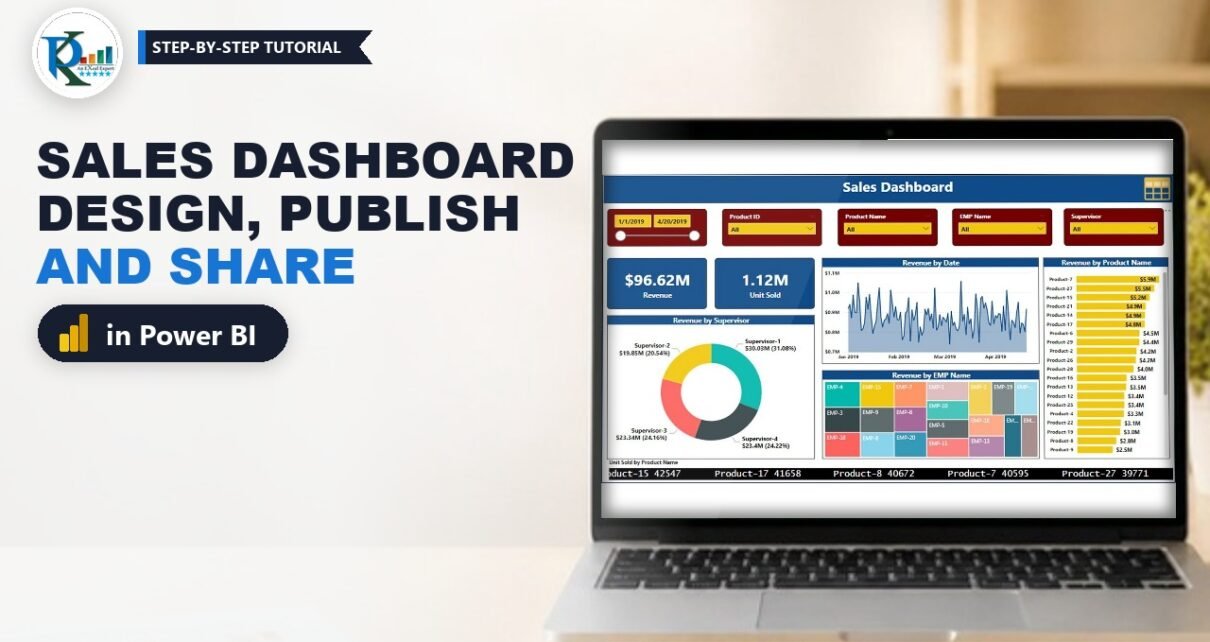
A sales dashboard in Power BI turns three plain Excel tables into an interactive report your team can open in a browser. In this tutorial you build the full project from PK’s two-part video: load the data, relate the tables, add a Revenue column with RELATED, and design the dashboard. Then you add a bookmarked table view, publish the report, share it and pin visuals to a dashboard.
⬇️ Download the Practice Files
ZIP (about 470 KB) · My Sales Dashboard.pbix + Sales Data.xlsx · Power BI Desktop
Watch the Video Tutorial
Part 1 loads the data, builds the model and the Revenue column, and designs the dashboard page.
Part 2 adds the table-view page and bookmark, then publishes, shares and pins the report in the Power BI Service.
Try the Live Report
This sample uses dummy data and is shared with Publish to web, so anyone can see it. Never do that with real company data.
What You Will Build
- A data model: a Sales Data fact table linked to Product Master and Emp Master.
- A Revenue column that multiplies units by price with RELATED.
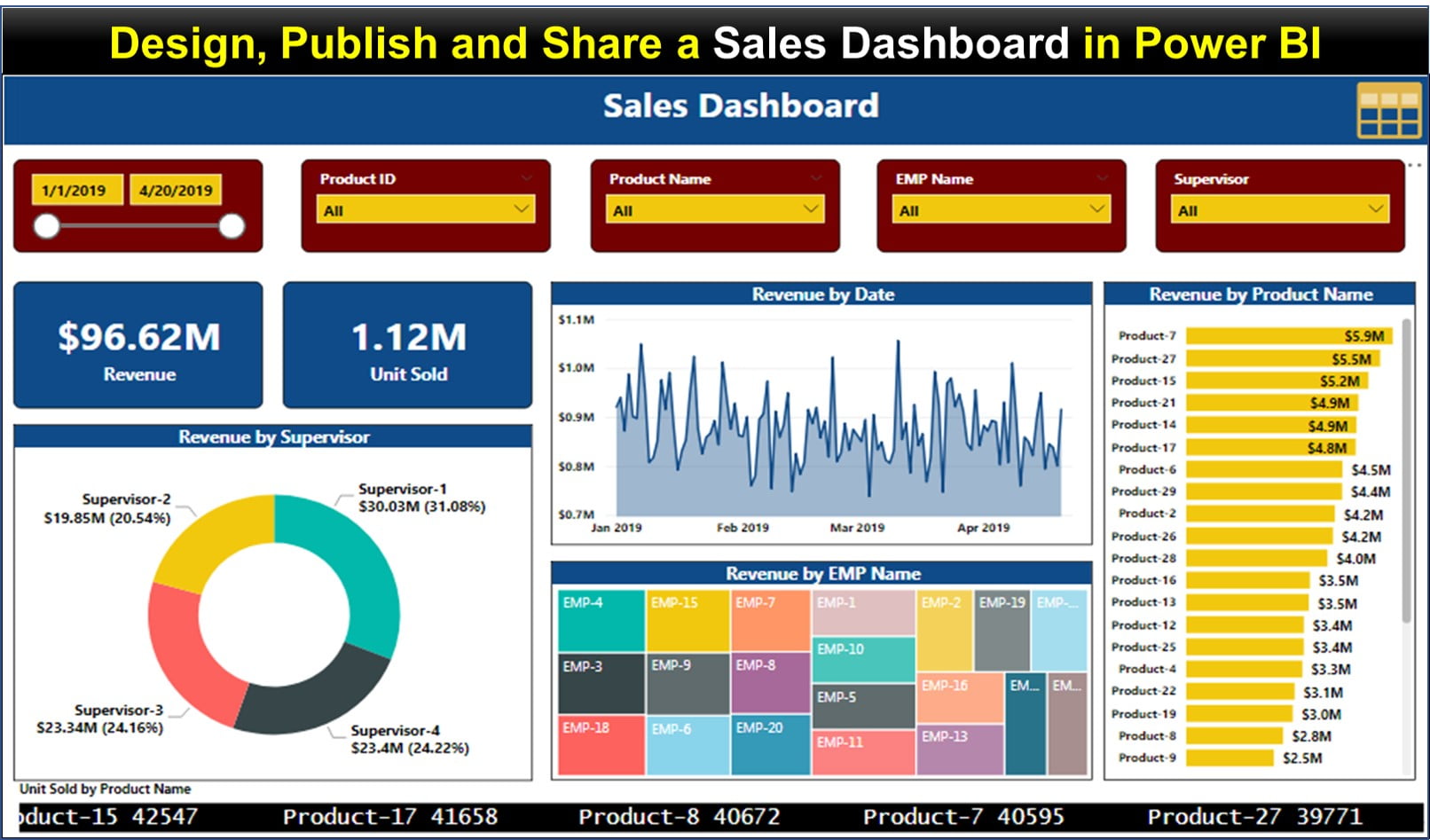
- A dashboard page with five slicers, two cards, four charts and a scrolling ticker.
- A hidden Table View page with data bars, opened through a bookmark.
- A published report, shared by email and pinned to a dashboard.
Part 1: Load the Data and Build the Model
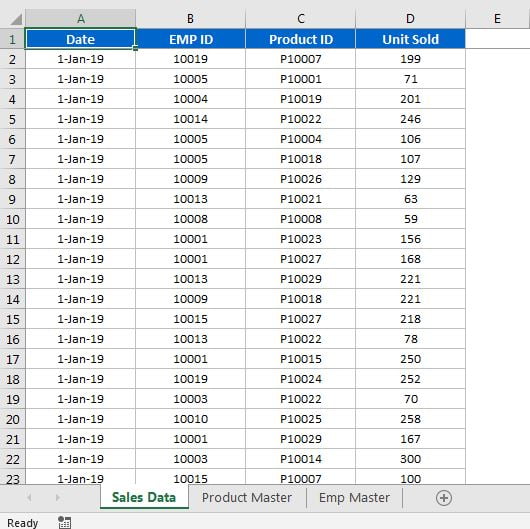
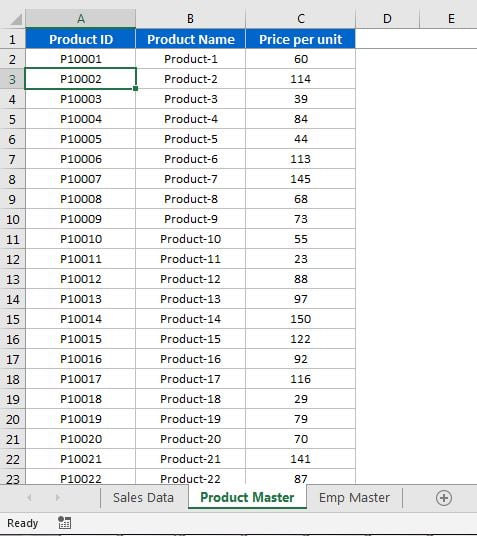
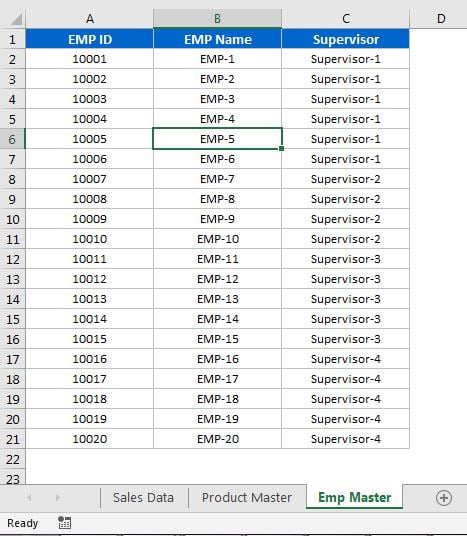
Sales Data.xlsx has three sheets: Sales Data (Date, EMP ID, Product ID, Unit Sold; 6,490 rows for January to April 2019), Product Master (Product ID, Product Name, Price per unit for 30 products) and Emp Master (EMP ID, EMP Name, Supervisor for 20 employees under 4 supervisors).
Step 1: Import and check the three sheets
In Power BI Desktop choose Get data > Excel workbook, pick the file, tick all three sheets and click Transform Data (older versions: Edit). In Power Query check that Date is a date, EMP ID and Unit Sold are whole numbers and Product ID is text. Set Price per unit to Fixed decimal number, then click Close & Apply.
Step 2: Create the relationships
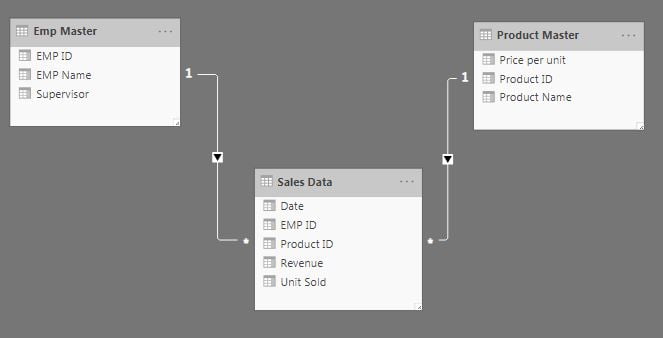
In Model view Power BI usually links Product ID to Product ID and EMP ID to EMP ID on its own. If not, drag each ID from the master table onto the same field in Sales Data. Both links are one-to-many, filtering from the master table to the fact table.
Step 3: Add the Revenue calculated column
Units live in Sales Data but prices live in Product Master. Right-click Sales Data, choose New column and enter:
Revenue = 'Sales Data'[Unit Sold] * RELATED('Product Master'[Price per unit])How the formula works: a calculated column runs once per row of Sales Data. 'Sales Data'[Unit Sold] reads that row’s units, and RELATED() follows the relationship to Product Master and returns that product’s price. The product is the revenue of each sale, which any visual can then sum.
Part 2: Design the Sales Dashboard Page
Step 4: Title bar and slicers
Insert a Rectangle across the top with no border and a dark blue fill (PK pastes hex codes from a colour website into Custom color), and a text box reading Sales Dashboard in white, about 28 to 32 pt.
Add five slicers with a dark red background and a black border with rounded corners (radius about 7; in today’s Format pane: General > Effects > Visual border):
- Date in the Between style, with yellow date boxes and black 10 pt text.
- Product ID, Product Name, EMP Name and Supervisor as Dropdown slicers (Slicer settings > Options > Style), with amber items and a white header.
- Turn on More options (…) > Search for the three long lists. Supervisor has only four values, so it needs no search.
Step 5: Revenue and Unit Sold cards
Insert a Card with Revenue: blue background, white bold labels and the same rounded border. Copy it, swap in Unit Sold and set 2 decimal places so it reads 1.12M. The sample shows $96.62M revenue.
Step 6: Donut chart with drill-down
Insert a Donut chart with Supervisor and then EMP Name in Legend and Revenue in Values. Two legend fields create a hierarchy, so drill-down (the single down arrow) shows each supervisor’s employees. Give the title white text on blue.
Step 7: Area chart, treemap and bar chart
- Revenue by Date: an Area chart with Date and Revenue. Switch the axis from the date hierarchy to plain Date to see daily values.
- Revenue by EMP Name: a Treemap with EMP Name and Revenue.
- Revenue by Product Name: a Clustered bar chart with yellow bars, data labels on and the X-axis off.
Use Format painter to copy the donut’s title and border style to each new chart.
Step 8: Scrolling ticker of units sold
The bottom ticker is the Scroller custom visual. In the Visualizations pane choose More options (…) > Get more visuals, search for Scroller and click Add. Put Product Name in Category and Unit Sold in Measure Absolute.
Part 3: Table View Page with a Bookmark
Step 9: Duplicate the page and add the table
Right-click the page tab, choose Duplicate page and rename it Table View. Keep the title bar and slicers and delete the rest. Insert a Back button (Insert > Buttons > Back) at the top left, then a Table with Date, EMP ID, EMP Name, Supervisor, Product ID, Product Name, Unit Sold and Revenue. Give Date a short format under Column tools > Format.
Make the headers white on blue with a Frame outline, set the values to black 9 to 10 pt, add Conditional formatting > Data bars to Revenue and sort by Revenue, highest first.
Step 10: Bookmark, icon action and hidden page
On Table View open View > Bookmarks, click Add and rename it Table View. In its More options (…) menu untick Data, so the bookmark switches page without resetting the reader’s slicers.
On the Dashboard page, select the table icon image, turn Action on, set Type to Bookmark, pick Table View and add the tooltip Click to see table view. Finally right-click the Table View tab and choose Hide page. In Desktop, Ctrl+click the icon to test it.
Part 4: Publish and Share the Sales Dashboard in Power BI
Step 11: Publish to the Power BI Service
Save the file (PK uses My Sales Dashboard), click Home > Publish, choose a workspace such as My workspace and click Select. When the dialog shows Success!, click the link to open the report. The service creates a report plus a semantic model (formerly called a dataset).
On Table View, use the table’s More options (…) > Export data to download rows to Excel. PK picks summarized data; the current dialog offers Summarized data and Data with current layout.
Step 12: Share the report
Open the report and click Share. In the Send link dialog choose who the link works for (for example Specific people), enter the email addresses and click Send, or use Copy link.
Licensing note (addition, not in the original video):
- Sharing needs a Power BI Pro or Premium Per User (PPU) licence.
- Recipients need a matching paid licence (Pro users share with Pro users, and PPU content is shared with PPU users), unless the workspace is on Premium capacity or a Fabric F64 or larger capacity, where free users can view.
- A free licence lets you create content for your own use in My workspace, but not share it.
- Publish to web creates a public link anyone can open without signing in, and admins can disable it. Use it only for sample data.
Check the current rules on Microsoft’s Power BI licence types page.
Step 13: Build a dashboard and pin visuals
PK first creates an empty dashboard named My Dashboard; today that is + New item > Dashboard in your workspace (the video shows + Create). Then hover over a report visual, click Pin visual, choose the dashboard and click Pin. PK pins the supervisor donut and the Revenue by Date chart. Clicking a tile opens its source report.
Step 14: Ask questions about your data
On the dashboard, PK types questions into the Ask a question about your data box (Q&A), such as top three employee name by revenue, and Power BI answers with a chart. Addition: the Q&A box may look different or be missing in newer versions of the Power BI Service, where Microsoft now promotes Copilot for natural-language questions. Check what your tenant offers.
Common Errors & Fixes
- RELATED returns an error. The relationship is missing or the Product ID types differ. Fix the types in Power Query and relink.
- The area chart shows only a few points. The date hierarchy is grouping by month. Switch the axis to plain Date.
- The table icon resets my slicers. The bookmark still stores data. Untick Data and update the bookmark.
- Share is greyed out. You are on a free licence or lack workspace permission. See the licensing note.
Tips
- Keep prices in Product Master only. One change updates every Revenue value after a refresh.
- Keep the Excel file on OneDrive or SharePoint and schedule a refresh so the published report stays current.
- Microsoft’s guide to bookmarks in Power BI explains the Data, Display and Current page options.
Want It Ready-Made?
Want a finished report you can drop your own data into? The Sales Dashboard in Power BI template on NextGenTemplates.com is ready to use. You can also browse all Power BI dashboard templates.
Related Tutorials
- Power BI drillthrough: filtered detail pages step by step
- Format and create report page tooltips in Power BI
- Dynamic conditional formatting in Power BI
- Calculated columns with LOOKUPVALUE vs RELATED
- Power BI dashboard design that looks like an app
FAQ
How do I calculate revenue when prices are in a different table?
Relate the tables on Product ID, then add a calculated column that multiplies Unit Sold by RELATED of Price per unit. Step 3 shows the formula.
What is the difference between a report and a dashboard in Power BI?
A report is the multi-page file you design in Desktop and publish. A dashboard lives only in the Power BI Service and is one page of tiles pinned from one or more reports.
Can I share a Power BI report with a free licence?
No. Sharing needs Pro or Premium Per User, and recipients need a matching paid licence unless the workspace is on Premium or Fabric F64 or larger capacity, where free users can view.
Is Publish to web safe for company data?
No. It creates a public link anyone can view without signing in. Use Share or a workspace app for confidential data.
How does the table icon open the hidden page?
The icon is an image whose Action is a bookmark. The bookmark switches to the hidden page, and with Data unticked your slicer choices stay in place.
About the Author
PK is a Microsoft Excel expert and trainer and the founder of PK: An Excel Expert and NextGenTemplates.com. He has been teaching Excel, Power Query and Power BI since 2016 on his YouTube channel.
Conclusion
A sales dashboard in Power BI comes together in four parts: a clean three-table model, one RELATED formula for revenue, a well-formatted dashboard page and a bookmarked table view. Publish it, share it with the right licence in place and pin the key visuals to a dashboard. Download the practice files, follow the two videos and build your own.