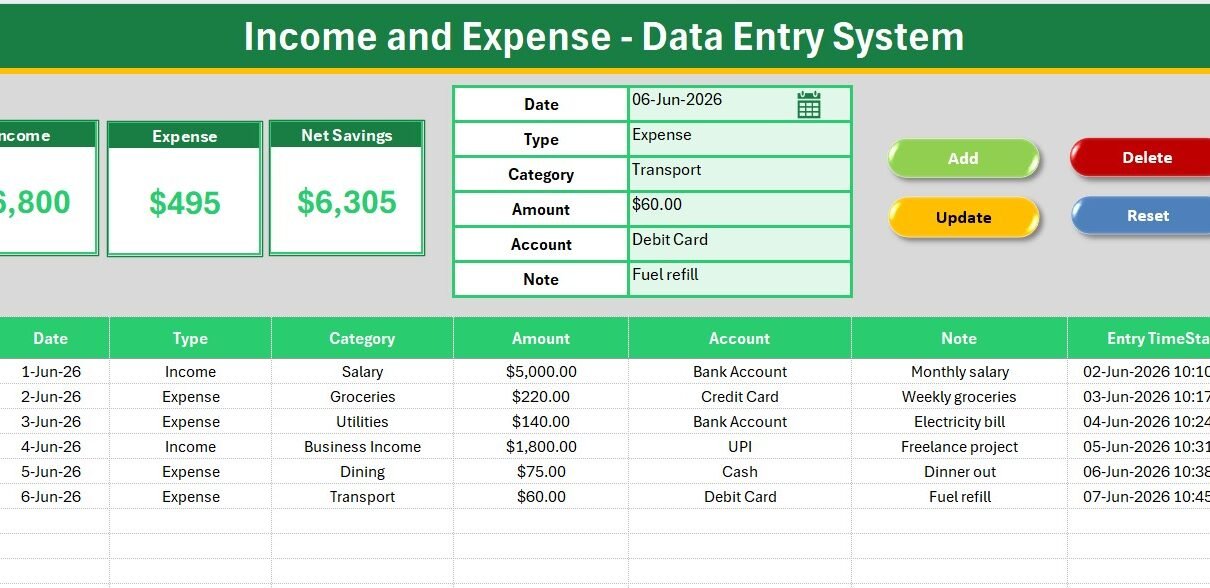
The Income and Expense Data Entry System in Excel captures six fields per transaction, shows three live KPI cards (Income, Expense, and Net Savings), and stores up to 200 preformatted records with timestamps. Income and Expense are calculated with SUMIF on the Type column, and Net Savings is Income minus Expense, so a single mislabelled row never distorts your totals.
Most people track money in a blank spreadsheet, then lose track of which column means what and whether a number is income or spending. This Income and Expense Data Entry System in Excel fixes that with a guided form, conditional-sum KPIs, and one-click VBA buttons, so every entry is consistent and every total is current. Setup takes under five minutes.
Key Features of the Income and Expense Data Entry System in Excel
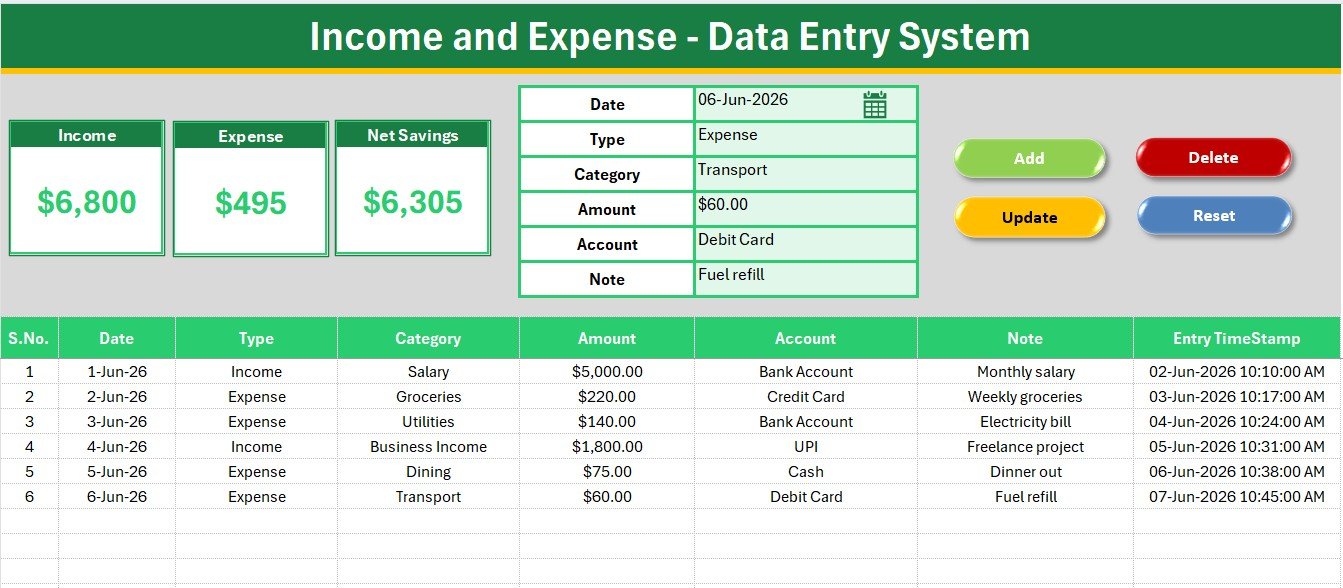
This template records Date, Type (Income or Expense), Category, Amount, Account, and Note for every entry. The three KPI cards on the Data Entry sheet recalculate automatically as records are added or edited.
- Guided entry form with bold labels and tinted input cells that keep records consistent and stop missed fields.
- Live Income, Expense, and Net Savings cards. Income and Expense are SUMIF totals on the Type column; Net Savings is Income minus Expense, never a plain column sum.
- One-click VBA buttons for Add, Update, Delete, and Reset, so you never copy and paste rows by hand.
- Editable dropdown lists for Type, 16 categories, and 8 accounts, all stored on the Setting sheet and wired through named ranges.
- Any currency. The template ships with dollar formatting and switches to rupee, euro, or pound in one Format Cells change.
- Audit-ready records with auto-numbered rows and entry timestamps for a clean history of both income and spending.
Template Structure Explained
The workbook contains four sheets: Data Entry, Setting, Instructions, and Get More Templates. The three views below walk through the everyday workflow of the Income and Expense Data Entry System in Excel.
Data Entry Dashboard
The home screen pairs the six-field entry form with the three KPI cards for Income, Expense, and Net Savings, plus the Add, Update, Delete, and Reset buttons for every record action.
Income and Expense Records Table
Every saved entry drops into an auto-numbered records table with a timestamp. As rows are added, the KPI cards above recalculate so your running Net Savings is always correct.
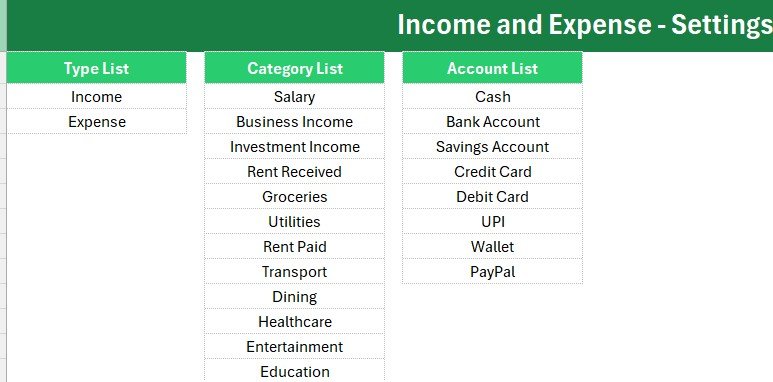
Setting Sheet with Editable Dropdowns
The Setting sheet holds the Type, Category, and Account lists. Add or remove a value here and every dropdown updates automatically, with no formula edits required.
Income and Expense System (Excel) vs Google Sheets vs Quicken or Zoho Expense
| Feature | Income and Expense System (Excel) | Google Sheets Tracker | Quicken / Zoho Expense |
|---|---|---|---|
| Cost | $5.99 one-time | Free but build it yourself | $5-18 / user / month |
| Platform | Microsoft Excel | Browser + Google account | Web + mobile app |
| Setup time | Under 5 minutes | Hours to design | Account + onboarding |
| Works fully offline | Yes | No | No |
| One-click Add / Update / Delete | Yes, VBA buttons | Manual rows | Yes |
| Live Income / Expense / Net Savings cards | Yes | Build formulas yourself | Yes |
| Editable dropdown lists | Yes | Manual setup | Fixed categories |
| Data stays on your device | Yes | Cloud | Cloud |
| Year-1 cost at 3 users | $5.99 total | $0 + your time | $180-648 |
For individuals and small teams that want quick, private income and expense tracking without a monthly bill, the Income and Expense Data Entry System in Excel sits in the sweet spot.
Who Should Use This Template
Perfect for:
- Individuals and households tracking monthly income and expenses without a paid app.
- Freelancers and solo business owners who need a private cash log with a clear savings figure.
- Small shops and offices that want a structured entry form instead of a blank sheet.
Not a fit if:
- You need multi-user cloud access with live collaboration.
- You require automatic bank-feed imports or receipt scanning.
- Your organization blocks macros and cannot enable VBA.
Real-World Use Cases
Anjali runs a freelance design studio. She logs every client payment as Income and every software, travel, and printing cost as Expense, then reads her monthly Net Savings off the KPI card before filing taxes, without paying for a subscription tool.
Ravi manages a small grocery shop. He records daily takings as Income and supplier payments as Expense through the form, uses the Account dropdown to separate cash from UPI, and reviews the records table each weekend to see whether he saved or overspent.
Meera tracks household money. She enters salary, rent, groceries, and utilities, switches the currency to rupee in one click, and uses Net Savings to decide how much to move into savings each month.
Advantages of the Income and Expense Data Entry System in Excel
The biggest advantage is reliable totals. Because Income and Expense use SUMIF on the Type column, you can record both sides of your cash flow in one table and still get accurate figures. The VBA buttons remove manual row work, and the editable dropdowns keep categories consistent so your records stay clean enough to filter, sort, or pivot later. As a one-time $5.99 purchase that works offline, it replaces $180-648 per year of subscription expense tools for a small team.
Opportunities for Improvement
This is an honest single-file Excel tool, not a cloud platform. It has no automatic bank-feed import, no receipt scanning, and no built-in mobile app, so on-the-go capture means typing entries later. It also relies on macros, so environments that block VBA will lose the one-click buttons (you can still type directly into the table). For multi-user, real-time collaboration, a Google Sheets or web-app version is a better fit.
Best Practices
- Enter the Type first so the Income and Expense cards always classify the row correctly.
- Keep your category list short and meaningful on the Setting sheet so reporting stays clean.
- Use the Account dropdown consistently (Cash, Bank, UPI) to reconcile against statements later.
- Save a fresh copy at the start of each month or year to keep files manageable and archived.
Explore Relevant Templates
If you want day-by-day spending only, see the Daily Expense Tracker Data Entry System in Excel. For monthly planning, the Monthly Budgeting Calendar in Excel and the Budget Calculator in Excel pair well with this system. To track recurring outgoings, the Subscription and SaaS Renewal Calendar in Excel is handy. For a full finance toolkit, the FP&A Financial Planning & Analysis Pack bundles nine premium templates. The conditional-sum logic here is built on the standard Excel SUMIF function (Microsoft SUMIF documentation).
Frequently Asked Questions
What does the Income and Expense Data Entry System in Excel track?
It tracks Date, Type, Category, Amount, Account, and Note for every transaction, with live Income, Expense, and Net Savings cards that update automatically as you add records.
How long does setup take?
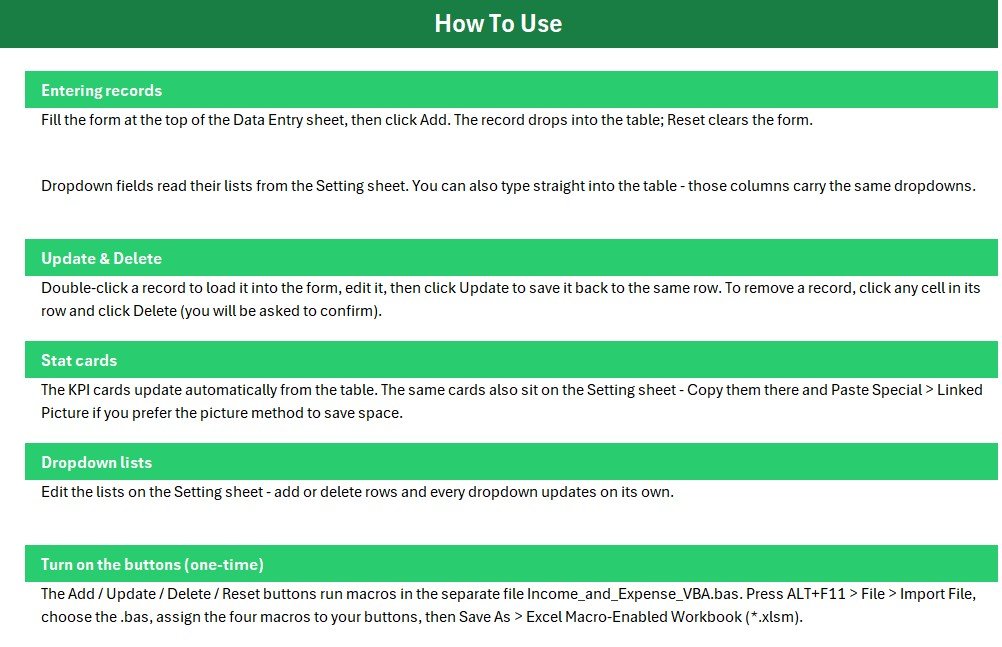
Under five minutes. Enable macros, import the VBA module once, assign the four buttons, save as a macro-enabled workbook, and start entering transactions.
How is Net Savings calculated?
Net Savings in the Income and Expense Data Entry System in Excel is Income minus Expense. Income and Expense are SUMIF totals on the Type column, so one mislabelled row never distorts your savings figure.
Can I change the currency?
Yes. The template ships with dollar formatting and switches to rupee, euro, pound, or any symbol through Format Cells in seconds.
How does this compare to Quicken or Zoho Expense?
Quicken and Zoho Expense charge $5 to $18 per user per month. This Income and Expense Data Entry System in Excel is a one-time $5.99 purchase that works offline and keeps your data on your own device, though it has no bank feeds or mobile apps.
Do I need macros enabled?
Yes. The Add, Update, Delete, and Reset buttons run a small VBA module, so macros must be enabled. You can still type directly into the table if macros are blocked, but the buttons will not work.
About the Author
Built by PK a Microsoft Certified Professional with 15+ years of Excel, Google Sheets, and Power BI experience. Founder of NextGenTemplates, reaching 300K+ subscribers across YouTube channels. Every template is hand-built and tested before release. Visit YouTube.com/@PK-AnExcelExpert for step-by-step video tutorials.
Conclusion
If you want one clean place to record both income and expenses and instantly see what you saved, the Income and Expense Data Entry System in Excel does exactly that with a guided form, SUMIF-driven KPIs, and one-click buttons. Click here to purchase the Income and Expense Data Entry System in Excel.
Instant download · One-time payment · No subscription
Last updated: June 2026