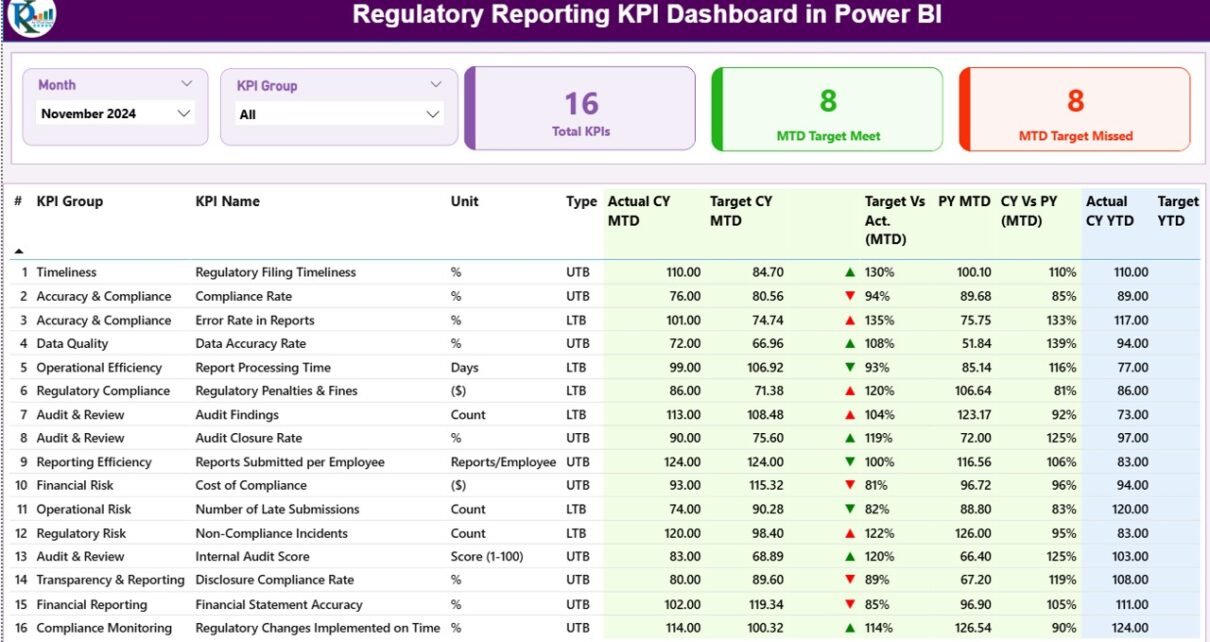
The Regulatory Reporting KPI Dashboard in Power BI gives compliance, audit, and regulatory teams a single Power BI report to track every KPI against monthly and year-to-date targets — with previous-year comparison and drill-through to each KPI’s formula. The full dashboard sits in 3 pages and is driven by a simple Excel file with 3 input sheets, so anyone on your team can refresh the numbers without touching DAX or visuals.
🌍 Join 8,400+ teams in 40+ countries using NextGenTemplates to replace paid SaaS tools with one-time-purchase Excel, Google Sheets, Power BI, and HTML templates. Instant download · one-time payment · no subscription.
Introduction
Regulatory reporting has three constant pains: too many KPIs, too many source spreadsheets, and not enough time before the next committee. Most teams keep a patchwork Excel tracker for filings, KYC, audit observations, and SLA adherence — and then rebuild a slide-deck version every month for leadership. The Regulatory Reporting KPI Dashboard in Power BI collapses that workflow into one .pbix file and one Excel workbook: define your KPIs once, enter actuals and targets each month, and every chart, card, and drill-through updates in seconds.
This dashboard is built for finance, risk, and compliance teams at banks, NBFCs, insurance firms, pharma companies, and fintech scale-ups. It gives you MTD and YTD visibility on every KPI from one scoreboard, with red and green direction icons that respect the LTB/UTB (Lower the Better / Upper the Better) logic that regulatory KPIs actually need. It’s a fraction of the cost of a full GRC platform and runs on the free Power BI Desktop application.
Key Features of Regulatory Reporting KPI Dashboard in Power BI
📌 3-Page Power BI Report: Summary Page for the full scoreboard, KPI Trend page for historical comparison, and a hidden KPI Definition page for drill-through. All three are driven by a single Excel source.
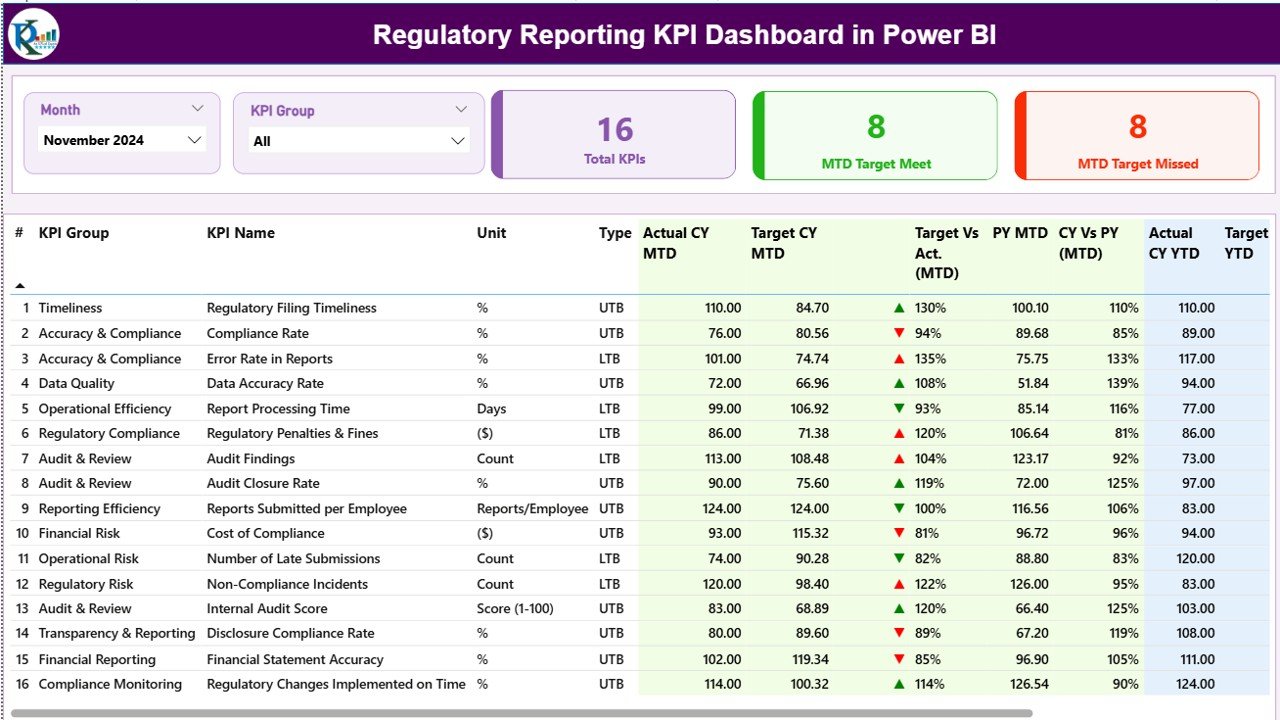
📌 Month & KPI Group Slicers: Two slicers on the Summary Page let you filter by any month and by KPI Group (e.g., Filings, KYC, Audit, SLA). Every card and row updates instantly.
📌 MTD & YTD on One Row: Each KPI shows Actual CY, Target CY, Previous Year, and variance percentage for both MTD and YTD — four performance lenses on a single line.
📌 LTB / UTB Direction Icons: The template reads the Type column in your KPI Definition sheet and applies the correct red or green ▲ / ▼ icon — no manual conditional formatting needed.
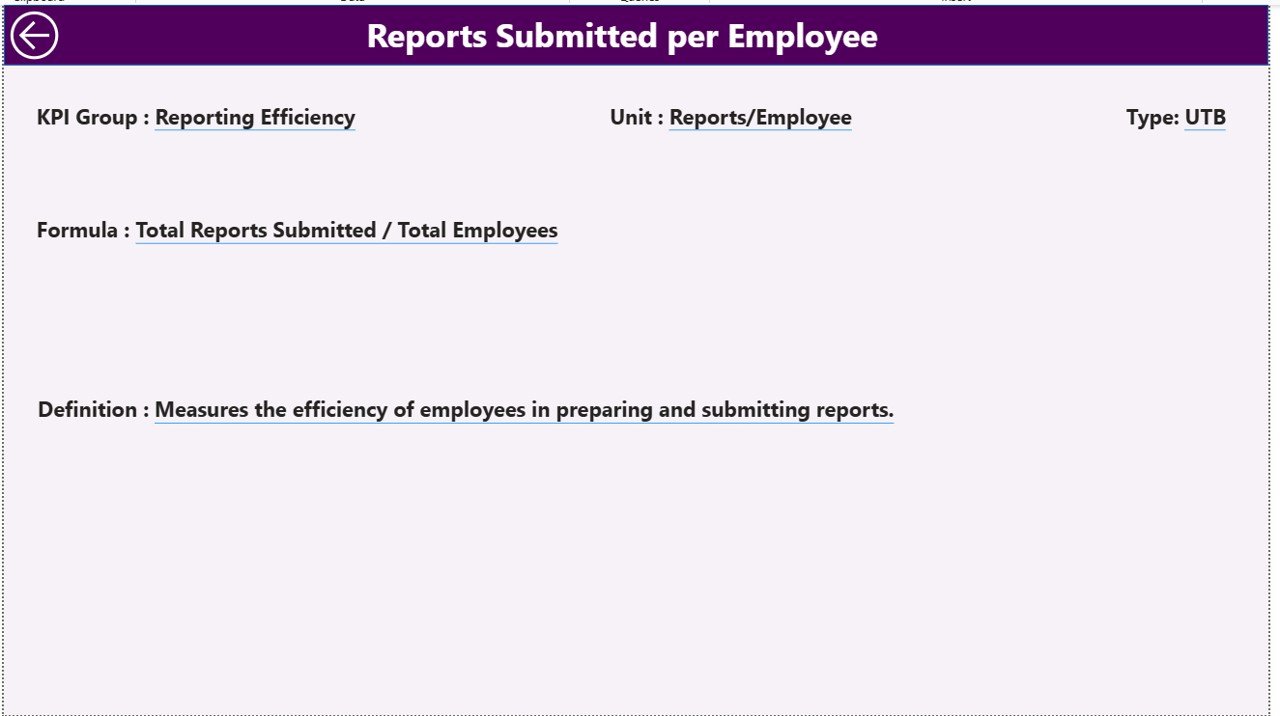
📌 Drill-Through to KPI Definition: Right-click any KPI on the Summary Page and drill through to a hidden page showing the KPI number, formula, unit, and definition. A back button returns you to the main view.
📌 Excel-Based Input Model: Fill 3 input sheets (Input_Actual, Input_Target, KPI Definition), save the Excel file, click Refresh in Power BI Desktop, and the dashboard updates end-to-end.
Dashboard Pages Explanation
Page 1 — Summary Page: The main page of the dashboard. At the top, a Month slicer and a KPI Group slicer let you focus the view. Three summary cards show Total KPIs, MTD Target Met, and MTD Target Missed. Below the cards, the detailed KPI table displays KPI Number, KPI Group, KPI Name, Unit, Type (LTB/UTB), Actual CY MTD, Target CY MTD, MTD Icon, Target Vs. Act. (MTD) %, PY MTD, CY Vs. PY (MTD) %, Actual CY YTD, Target CY YTD, YTD Icon, Target Vs. Act. (YTD) %, PY YTD, and CY Vs. PY (YTD) %.
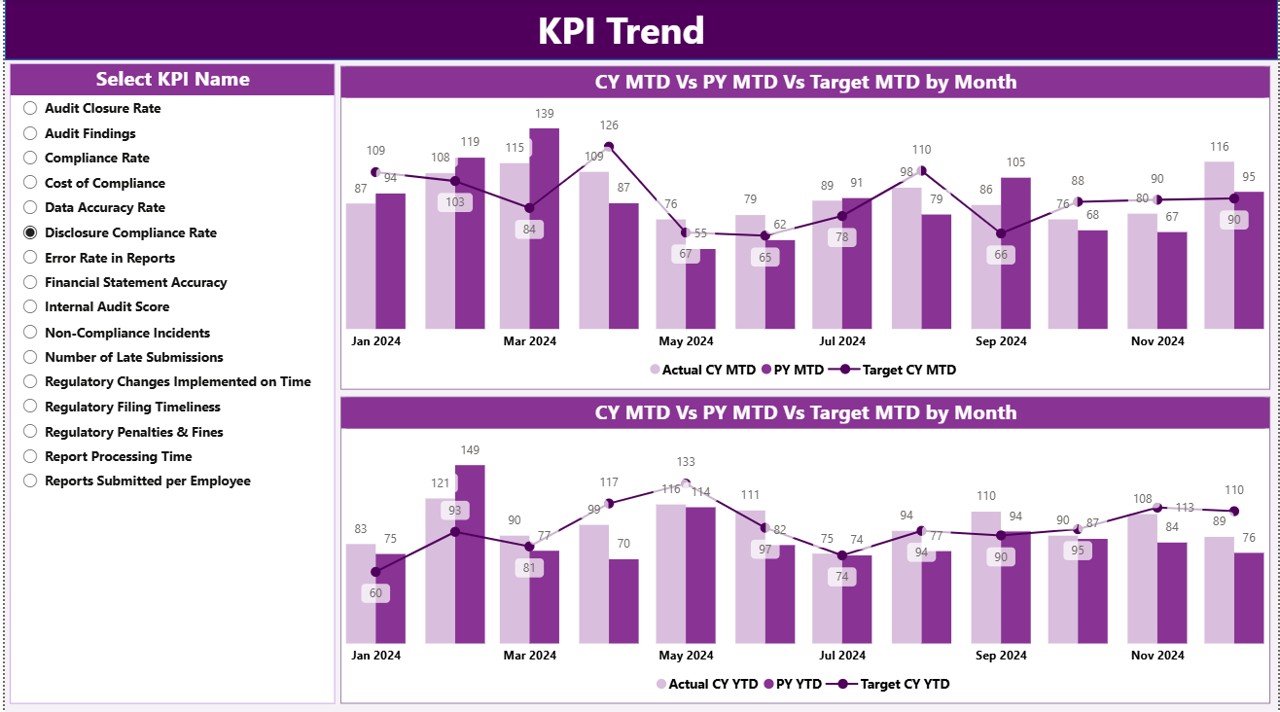
Page 2 — KPI Trend: A KPI Name slicer on the left plus two combo charts on the right. The first combo chart plots Actual CY, Actual PY, and Target for MTD across months. The second chart plots the same three series for YTD. Pick any regulatory KPI from the slicer and the charts redraw instantly — ideal for month-over-month narrative in committee decks.
Page 3 — KPI Definition (Hidden Drill-Through): This page stays hidden from the main navigation and is accessible only via right-click drill-through from the Summary Page. It displays the KPI Number, KPI Group, KPI Name, Unit, Formula, Definition, and Type — giving auditors and new team members full context on what each KPI measures and how it’s calculated. A back button in the top-left corner returns to the Summary Page.
Excel Data Source — 3 Input Sheets
The data behind the dashboard lives in a single Excel file with 3 sheets:
🧾 Input_Actual: Enter the KPI Name, Month (use the first date of the month), MTD number, and YTD number for each row.
🧾 Input_Target: Same 4-column structure as Input_Actual, but with your monthly targets instead of actuals.
🧾 KPI Definition: Enter KPI Number, KPI Group, KPI Name, Unit, Formula, Definition, and Type (LTB or UTB). This sheet powers both the direction icons and the drill-through page.
Because the model is driven entirely by these three sheets, anyone on your team can add, rename, or retire KPIs without rebuilding the Power BI visuals. See Microsoft’s guide to connecting Power BI to Excel if you want to repoint the source to a different workbook.
Regulatory Reporting KPI Dashboard in Power BI vs. Tableau / Qlik vs. Paid GRC SaaS — Feature Comparison
| Feature | Regulatory Reporting KPI Dashboard in Power BI | Tableau / Qlik Alternative | Paid GRC SaaS (MetricStream / LogicGate / AuditBoard) |
|---|---|---|---|
| Cost | $11.99 one-time | $70+ / user / month | $30,000–$150,000 / year |
| Platform | Power BI Desktop (free) + Excel | Tableau Desktop / Qlik Sense | Proprietary web SaaS |
| Setup time | Under 10 minutes ✅ | 2–4 hours | 4–12 weeks |
| MTD + YTD + Target + PY on one row | Built-in ✅ | Custom calc fields | Yes (module) |
| Drill-through to KPI Definition | Built-in ✅ | Manual | Yes |
| LTB / UTB direction logic | Pre-configured ✅ | Custom DAX | Configurable |
| Year-1 cost at 5 users | $11.99 | $4,200+ | $30,000+ |
| Lifetime access, no subscription | Yes ✅ | Subscription | Subscription |
For compliance teams that want MTD/YTD KPI visibility without paying six figures a year for a full GRC platform, the Regulatory Reporting KPI Dashboard in Power BI hits the sweet spot.
Who Should Use This Template
Perfect for:
- Compliance and regulatory reporting managers at banks, NBFCs, insurance firms, and pharma companies
- Internal audit leads tracking observation aging, SLA adherence, and filing deadlines
- Risk & Compliance analysts already working in Excel who need a polished Power BI layer
- Big 4 / Big 6 consultants building regulatory scorecards for client engagements
Not a fit if:
- You need SOC 2 Type II, audit-trail-grade logs, or regulator-submitted reporting workflows
- You require real-time API feeds from GRC or case-management platforms
- You have no one on the team who can open Power BI Desktop
Real-World Use Cases
Anjali — Regulatory Reporting Lead, mid-size NBFC. Anjali tracks 22 KPIs across RBI filings, KYC coverage, audit observations, and loan-classification accuracy. Every month she fills the three Excel input sheets with fresh actuals and targets, refreshes the Power BI file, and presents a single Summary Page snapshot at the compliance committee — replacing a 14-tab manual tracker and skipping a $42,000 GRC subscription her board declined to approve.
Daniel — Internal Audit Manager, regional bank. Daniel’s KPIs are SLA-heavy: average audit-observation closure time, finding aging buckets, and regulatory-deadline adherence. He uses LTB logic for observation age (lower is better) and UTB logic for closure rate (higher is better). When his Chief Audit Executive asks for a trend view, Daniel switches to the KPI Trend page, picks the KPI from the slicer, and drops the chart straight into the next board pack.
Priya — Big 4 compliance consultant. Priya configures 28 GxP and FDA-related KPIs in the KPI Definition sheet for a pharma client, keeps the Power BI visuals untouched, and delivers a drill-through dashboard in a single engagement week. The client keeps the template after the project — repeat billable work.
Advantages of Regulatory Reporting KPI Dashboard in Power BI
💰 One-time $11.99 vs. $30K+ annual GRC subscriptions. The math is brutal: three months of a paid GRC license pays for a decade of this template.
⚡ Under 10-minute setup. If your KPIs are already in a spreadsheet, you paste them into the 3 input sheets and refresh. No consultants. No implementation fees.
🧠 No DAX required. All direction logic, variance calculations, and drill-throughs are pre-built. Add or remove KPIs without touching the visuals.
🔒 Data stays on your machine. Unlike cloud GRC tools, your regulatory numbers never leave your laptop unless you publish to Power BI Service.
Opportunities for Improvement
Honest limitations so you can decide if the fit is right:
⚠️ Not a workflow tool. This dashboard visualizes KPIs; it doesn’t assign tasks, run approvals, or store evidence files. Pair it with a case-management tool if you need workflow.
⚠️ Windows-only. Power BI Desktop runs on Windows. Mac users need a VM or the Power BI Service (paid license) to open the .pbix file.
⚠️ Manual data entry for now. The Excel input model is easy but manual. If you want an automated SQL or API feed, you’ll need to reconfigure the data source.
Best Practices
✅ Lock the KPI Definition sheet. Once your KPI list is stable, protect the sheet so monthly data entry doesn’t accidentally overwrite formulas or types.
✅ Use the first date of the month consistently. The Month column must be a real date (01-Jan-2026, not “Jan”), otherwise slicers won’t sort chronologically.
✅ Review LTB/UTB tagging quarterly. Misclassifying a KPI’s direction flips the whole red/green logic. Audit the Type column whenever you add a new metric.
✅ Publish a snapshot, keep the source private. Export the Summary Page as PDF for committee decks; keep the raw .pbix and Excel on a secure drive.
Explore Relevant Templates
📌 Compliance and Audit Dashboard in Power BI — broader compliance + audit observation tracking.
📌 ESG Environmental Dashboard in Power BI — sibling KPI scoreboard for sustainability reporting.
📌 Compliance and Audit Dashboard in Excel — Excel-native alternative for teams without Power BI.
📌 Buy the template here: Regulatory Reporting KPI Dashboard in Power BI on NextGenTemplates.
Frequently Asked Questions
What KPIs does the Regulatory Reporting KPI Dashboard in Power BI track?
The Regulatory Reporting KPI Dashboard in Power BI tracks any KPI you define in the Excel KPI Definition sheet — typical examples include regulatory filing on-time rate, KYC completeness, audit observation closure rate, incident breach count, and SLA adherence. Each KPI shows MTD and YTD actual, target, and previous-year comparison automatically.
Do I need a Power BI Pro license?
No. The Regulatory Reporting KPI Dashboard in Power BI runs entirely in the free Power BI Desktop application on Windows. You only need a Pro license if you want to publish the report to Power BI Service and share it with other users inside your organization.
How long does setup take?
Setup for the Regulatory Reporting KPI Dashboard in Power BI takes under 10 minutes if your KPI list and monthly numbers already exist in a spreadsheet. Paste your values into the 3 Excel input sheets, save, then click Refresh inside Power BI Desktop — the Summary, KPI Trend, and drill-through pages update end-to-end.
How does this compare to AuditBoard or MetricStream?
AuditBoard and MetricStream are full GRC platforms priced at $30,000–$150,000 per year and built for enterprise audit workflows. The Regulatory Reporting KPI Dashboard in Power BI costs $11.99 one-time and focuses purely on KPI visibility — ideal when you need dashboarding without the heavy GRC workflow engine.
Can I add more KPIs later?
Yes. Add new rows to the Input_Actual, Input_Target, and KPI Definition sheets in Excel, save, and click Refresh in Power BI Desktop. The Regulatory Reporting KPI Dashboard in Power BI scales without any DAX or visual edits — the slicers and tables automatically pick up new KPIs and KPI groups.
Does the template support LTB and UTB KPI logic?
Yes. The KPI Definition sheet has a Type column where each KPI is tagged LTB (Lower the Better — e.g., breach count) or UTB (Upper the Better — e.g., filing on-time rate). The Regulatory Reporting KPI Dashboard in Power BI uses this flag to show the correct red or green ▲ / ▼ icon automatically on both MTD and YTD rows.
About the Author
Built by PK — Microsoft Certified Professional with 15+ years of Excel, Google Sheets, and Power BI experience. Founder of NextGenTemplates, reaching 300K+ subscribers across YouTube channels. Every template is hand-built and tested before release.
Conclusion
The Regulatory Reporting KPI Dashboard in Power BI turns monthly compliance reporting from a 14-tab Excel ordeal into a 3-page Power BI view that anyone on the team can maintain. At $11.99 one-time, it’s the fastest way to get MTD/YTD scoreboards, LTB/UTB direction logic, and drill-through KPI definitions without committing to a GRC subscription.
👉 Click here to Purchase the Regulatory Reporting KPI Dashboard in Power BI
✅ Instant download · One-time payment · No subscription · Lifetime access
🎥 For step-by-step video tutorials, visit Youtube.com/@PK-AnExcelExpert.
Last updated: April 2026