The Teacher Training Institutes KPI Dashboard in Excel monitors KPIs across 7 worksheets, covering Month-to-Date and Year-to-Date performance with target vs. actual and previous year comparisons. According to a 2025 Microsoft Learn report on data modeling, organizations that track training outcomes with structured KPIs see 30–40% faster decision cycles. This ready-to-use Excel template brings that structure to teacher training institutes with conditional formatting arrows, individual KPI trend charts, and a dedicated KPI definition sheet — all for a one-time $14.99 download.
Whether you manage a standalone B.Ed college, a chain of teacher certification centers, or coordinate professional development across a school district, tracking KPIs manually in spreadsheets without a standard framework leads to inconsistent reporting and missed targets. This dashboard gives you a single workbook with 7 organized sheets where data entry, target setting, and visual analysis are separated cleanly — no macros, no VBA, no formulas to build from scratch.
Key Features of the Teacher Training Institutes KPI Dashboard in Excel
👉 Click here to Purchase the Teacher Training Institutes KPI Dashboard in Excel
The Teacher Training Institutes KPI Dashboard in Excel tracks KPIs across 7 worksheets with MTD and YTD views, target vs. actual comparisons, previous year benchmarking, and individual KPI trend analysis. Here are the features that make it work:
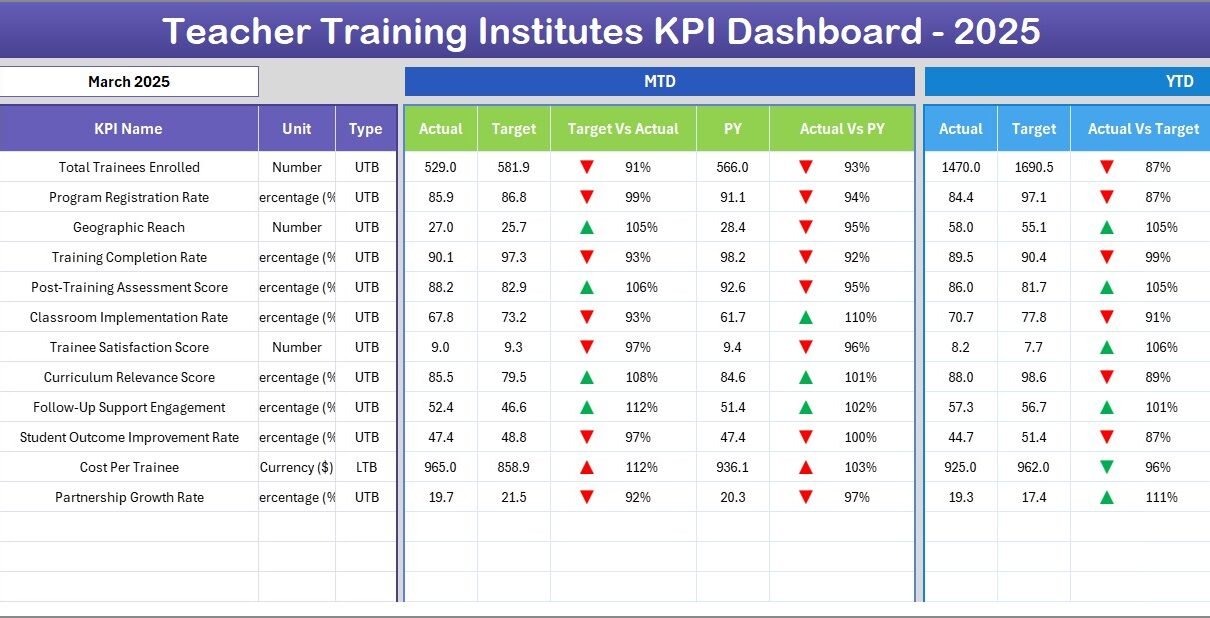
MTD and YTD Tracking with Target and PY Comparison — The Dashboard sheet displays Month-to-Date Actual, Target, and Previous Year figures side by side. YTD equivalents sit next to them. Conditional formatting up/down arrows instantly show whether each KPI is trending above or below targets and prior-year benchmarks. This eliminates the guesswork in monthly reporting.
Individual KPI Trend Analysis — The KPI Trend sheet lets you select any KPI from a dropdown (cell C3) to view its MTD and YTD trend charts plotting Actual, Target, and Previous Year lines. Each KPI also displays its group, unit, type (Lower the Better or Upper the Better), formula, and definition — so anyone reviewing the chart understands the context.
Structured Data Input Across 3 Dedicated Sheets — Separate input sheets for Actual Numbers, Target Numbers, and Previous Year Numbers keep data organized. Enter values for each KPI by month, and the dashboard calculates everything automatically. No tangled formulas or circular references.
KPI Definition Sheet — Define each KPI’s name, group, unit, formula, definition, and type (LTB or UTB) in one central location. This ensures every stakeholder — from department heads to board members — understands what each metric measures.
Home Navigation Sheet — Six quick-jump buttons take you directly to any worksheet without scrolling through tabs. This is especially useful during live presentations or board meetings.
Dynamic Month Selection — Select any month from the dropdown on the Dashboard sheet (D3), and all MTD and YTD numbers update instantly. No manual recalculation needed.
Dashboard Pages Explanation
The workbook contains 7 worksheets, each serving a distinct function in the KPI tracking workflow:
1. Home Sheet
This is the index sheet with 6 navigation buttons that jump directly to the Dashboard, KPI Trend, Actual Numbers, Target Numbers, Previous Year Numbers, and KPI Definition sheets. It serves as a control panel for the entire workbook.
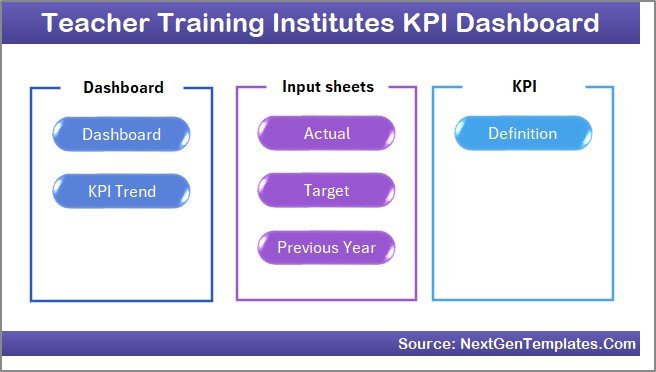 Home Page
2. Dashboard Sheet
The main analytics view. Select a month from the dropdown on cell D3 and the entire sheet refreshes to show MTD Actual, Target, Previous Year data alongside Target vs Actual and PY vs Actual comparisons. Conditional formatting arrows (up/down) highlight whether each KPI is on track, exceeding targets, or falling behind. This is the sheet you’ll share with leadership.
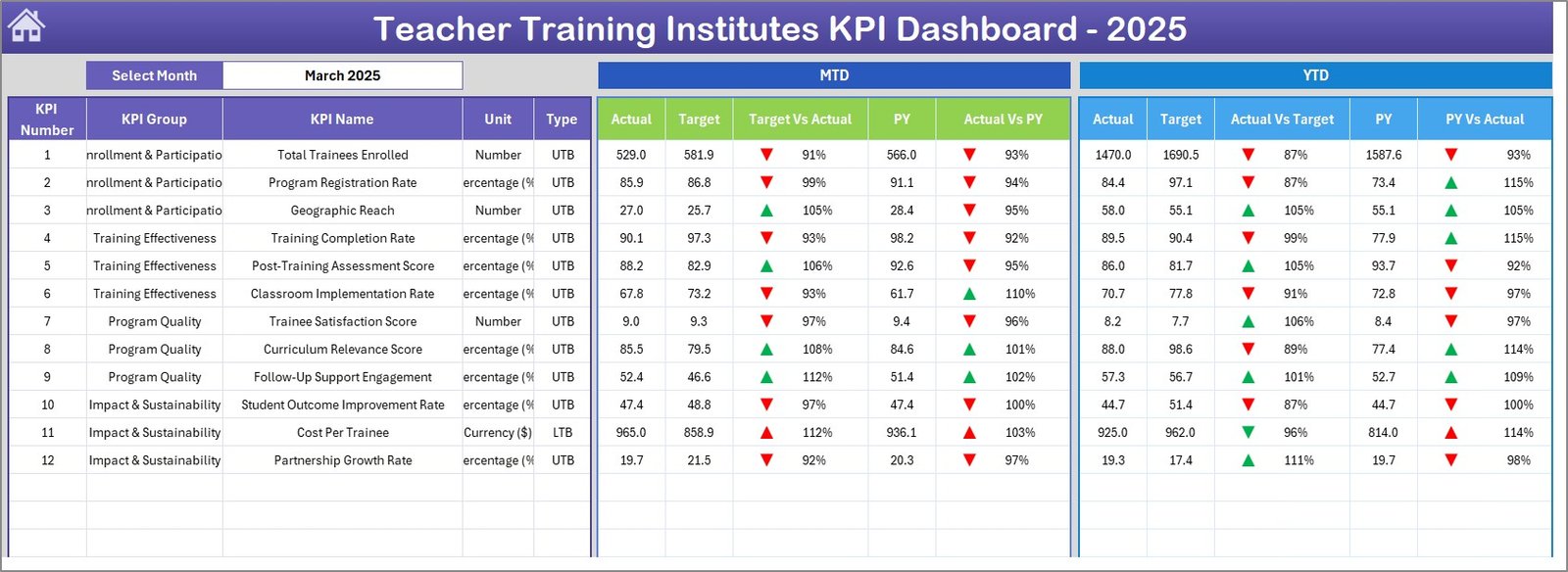 Teacher Training Institutes KPI Dashboard in Excel
3. KPI Trend Sheet
Select any KPI from the dropdown on cell C3 to view its KPI Group, Unit, Type (LTB/UTB), Formula, and Definition. Below, MTD and YTD trend charts plot Actual, Target, and Previous Year numbers across all 12 months. This sheet is ideal for drilling into individual metrics during quarterly reviews. If you also work with Power BI, check out the Teacher Training Institutes Dashboard in Power BI for interactive drill-through analysis.
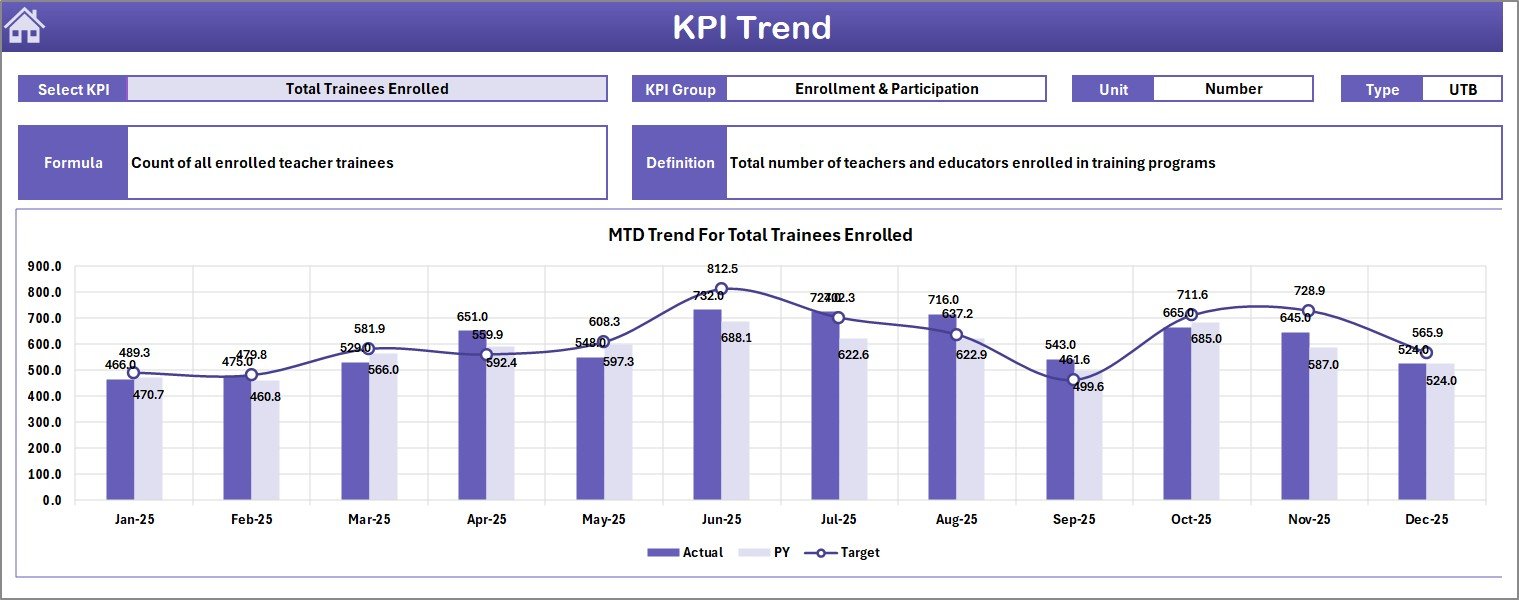 KPI Trend Sheet
4. Actual Numbers Input Sheet
Enter your MTD and YTD actual numbers for each KPI by month here. You can change the fiscal year starting month on range E1 to align with your academic or financial calendar. The dashboard reads from this sheet automatically.
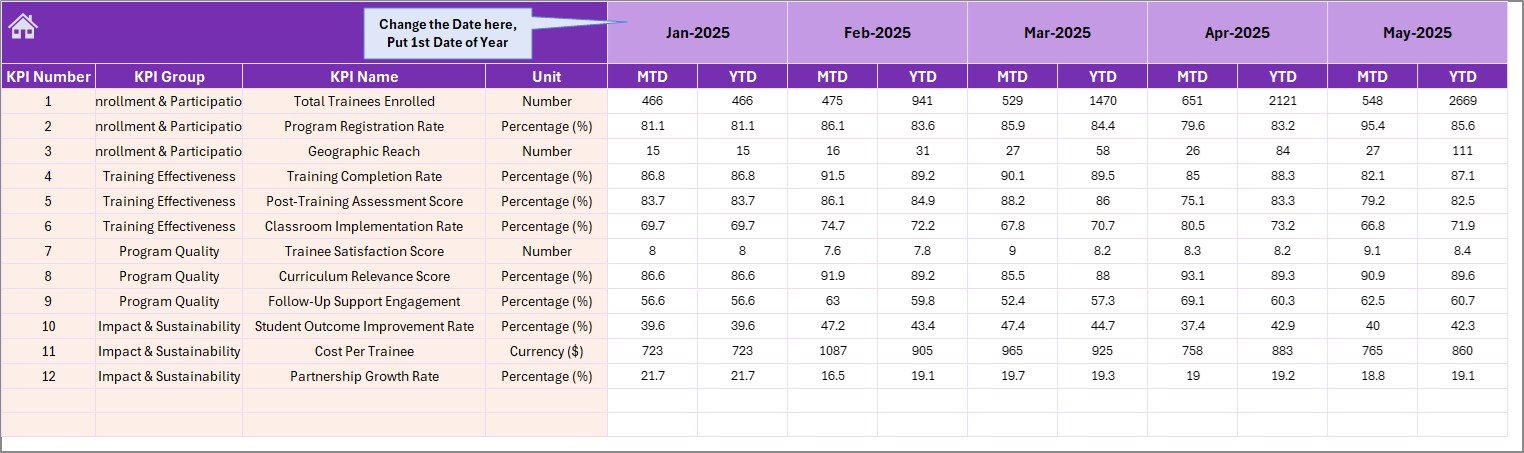 Actual Numbers Input Sheet
5. Target Number Input Sheet
Enter target numbers for each KPI as both MTD and YTD values for every month. These targets appear on the Dashboard sheet for comparison against actual numbers. For related education KPI tracking, see the Secondary Schools KPI Dashboard in Power BI.
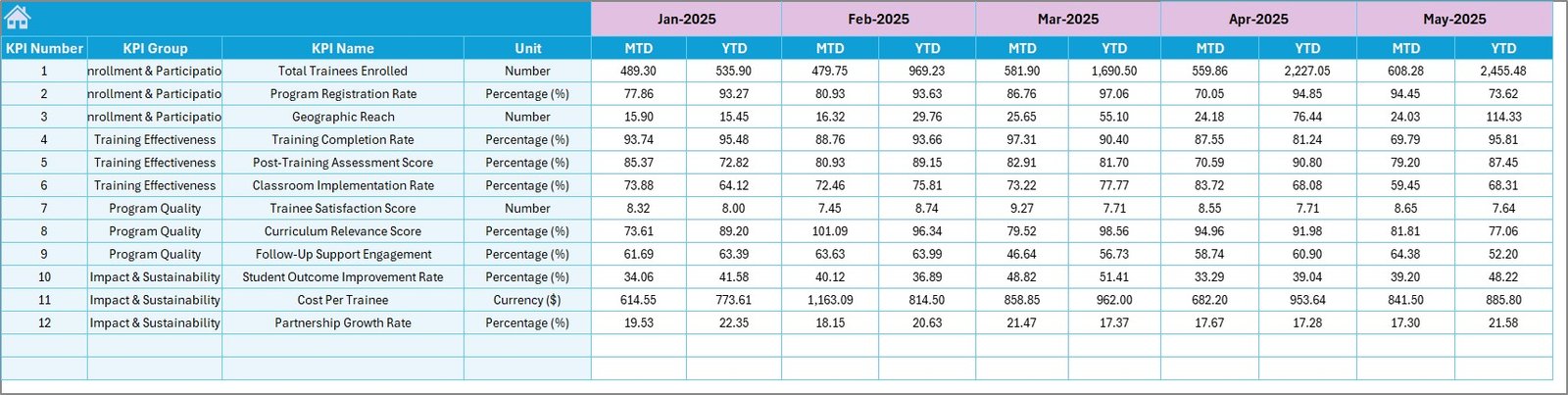 Target Number Input Sheet
6. Previous Year Number Sheet
Enter previous year data in the same format as the current year. This enables the year-over-year comparison columns on the Dashboard sheet, helping you track progress against historical benchmarks.
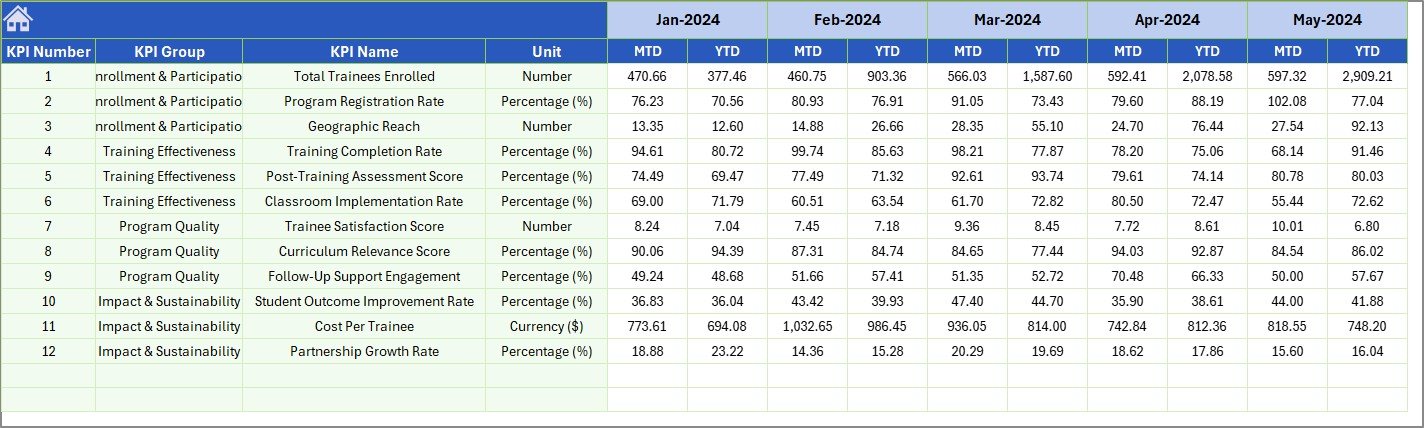 Previous Year Number Input Sheet
7. KPI Definition Sheet
Define each KPI’s Name, Group, Unit, Formula, Definition, and Type (LTB or UTB). This sheet feeds the KPI Trend page and maintains consistency across the entire workbook. It’s also useful as a reference document when onboarding new staff or explaining metrics to external auditors.
 KPI Definition Sheet
Teacher Training Institutes KPI Dashboard vs. Google Sheets Alternative vs. TalentLMS — Feature Comparison
| Feature | Teacher Training Institutes KPI Dashboard in Excel | Google Sheets KPI Tracker | TalentLMS / Absorb LMS |
|---|---|---|---|
| Cost | $14.99 one-time | Free (manual build) | $59–$399/month |
| Platform | Microsoft Excel (desktop + online) | Google Sheets (browser) | Cloud SaaS |
| Setup Time | Under 10 minutes | 4–8 hours (build from scratch) | 2–4 weeks onboarding |
| KPI Definitions Built-In | ✅ Yes — dedicated sheet | ❌ Manual | Partial |
| MTD + YTD with PY Comparison | ✅ Automatic | ❌ Manual formulas | ✅ Yes |
| Trend Charts per KPI | ✅ Dynamic dropdown | ❌ Build each chart | ✅ Built-in |
| Customizable KPIs | ✅ Unlimited | ✅ Manual | Limited to platform fields |
| Year-1 Cost (5 users) | $14.99 total | $0 (DIY effort) | $708–$4,788 |
| Works Offline | ✅ Full offline access | ❌ Requires internet | ❌ Requires internet |
For training institutes that want structured KPI tracking without monthly LMS subscription fees, the Teacher Training Institutes KPI Dashboard in Excel sits in the sweet spot between free-but-manual and expensive-but-automated.
Who Should Use This Template
Perfect for:
- Training institute directors and program coordinators tracking 10–50 KPIs across certification, attendance, and faculty performance
- Education consultants reporting quarterly training outcomes to school boards or government bodies
- Small to mid-size teacher training centers (5–200 staff) that need structured reporting without enterprise LMS costs
- Academic administrators managing B.Ed, D.El.Ed, or continuing education programs
Not a fit if:
- You need LMS integration with SSO, API access, and real-time student portals — consider TalentLMS or Moodle
- You require automated data feeds from HRIS or Student Information Systems — this template uses manual data entry
- Your organization has 500+ training staff needing concurrent real-time collaboration — a cloud-based BI tool would serve better
Real-World Use Cases
👉 Click here to Purchase the Teacher Training Institutes KPI Dashboard in Excel
Ravi manages a teacher training institute in Pune with 45 faculty members. He uses the Teacher Training Institutes KPI Dashboard in Excel to track certification pass rates, trainer utilization, and session feedback scores by month. Each quarter, he exports the Dashboard sheet as a PDF for his board review — replacing a 3-hour manual report with a 10-minute data update.
Maria coordinates professional development for 12 schools in Texas. She enters target and actual numbers for teacher attendance, curriculum completion, and post-training assessment scores. The PY comparison helps her demonstrate year-over-year improvement to district administrators without subscribing to a $200/month analytics platform. She also uses the Education Services Dashboard in Excel for broader operational metrics.
Ahmed runs a private B.Ed college in Lahore. He tracks enrollment rates, dropout percentages, faculty-student ratios, and placement rates. The LTB/UTB classification on the KPI Definition sheet helps his team distinguish which metrics to minimize (dropout rate) vs. maximize (placement rate).
Advantages of the Teacher Training Institutes KPI Dashboard in Excel
Zero recurring cost — $14.99 one-time payment covers unlimited users. Compare this to $708–$4,788 per year for cloud LMS platforms at 5 users.
Full offline access — Works in Microsoft Excel without an internet connection. Ideal for training centers in areas with unreliable connectivity.
Flexible fiscal year alignment — Change the starting month on range E1 in the Actual Numbers sheet, and all monthly columns adjust. Academic institutions running April–March or September–August fiscal years can adapt instantly.
No technical skills required — No VBA, no macros, no complex formulas to maintain. If you can type numbers into cells, you can run this dashboard. For more advanced education analytics, explore the Special Education Dashboard in Excel.
Opportunities for Improvement
👉 Click here to Purchase the Teacher Training Institutes KPI Dashboard in Excel
Manual data entry — This dashboard does not pull data from external systems automatically. If your institute uses an HRIS or SIS, you will need to export data and paste it into the input sheets manually each month.
No real-time collaboration — Multiple users cannot edit simultaneously the way Google Sheets or cloud BI tools allow. If you need collaborative editing, consider using Excel Online or SharePoint.
Static chart types — The trend charts use standard Excel line charts. For advanced interactivity like drill-through, cross-filtering, or custom tooltips, the Teacher Training Institutes Dashboard in Power BI is a better fit.
Best Practices
Start with the KPI Definition sheet. Before entering any numbers, define all your KPIs with clear names, formulas, units, and LTB/UTB classifications. This prevents confusion later when reviewing the Dashboard or Trend sheets.
Update actual numbers on the same day each month. Consistency in data entry timing ensures MTD and YTD comparisons are accurate and meaningful. Set a calendar reminder for the first or last business day of each month.
Use the PY sheet as a benchmark, not a target. Previous year numbers show where you were — targets show where you want to be. Keep both, and let the Dashboard’s conditional formatting arrows tell you whether you’re improving against both benchmarks simultaneously.
Export the Dashboard sheet as a PDF for stakeholder presentations. The one-page layout with conditional formatting prints cleanly and makes a strong visual impression without needing PowerPoint slides.
Explore Relevant Templates
📌 Teacher Training Institutes Dashboard in Power BI — Interactive Power BI version with slicers and drill-through for the same training institute metrics.
📌 Teacher Training Institutes Dashboard in Excel — Pivot-table-based Excel dashboard for branch, program, and instructor analysis.
📌 Vocational Schools KPI Dashboard in Excel — Track vocational education KPIs with the same MTD/YTD/PY structure.
📌 Secondary Schools KPI Dashboard in Excel — K-12 student performance and attendance KPI tracking.
📌 Education and Learning Process Improvement KPI Dashboard in Excel — Learning process improvement metrics for educational institutions.
Frequently Asked Questions
👉 Click here to Purchase the Teacher Training Institutes KPI Dashboard in Excel
What KPIs can I track with the Teacher Training Institutes KPI Dashboard in Excel?
You can track any KPI relevant to teacher training — certification pass rates, trainer utilization, session feedback scores, enrollment rates, dropout rates, placement rates, and more. The KPI Definition sheet lets you add unlimited custom KPIs with their formulas and definitions.
Does this dashboard work with Excel for Mac?
Yes. The Teacher Training Institutes KPI Dashboard in Excel uses standard formulas, conditional formatting, and charts. It works on Microsoft 365, Excel 2019, Excel 2021, Excel for Mac, and Excel Online without macros or VBA.
How long does it take to set up this KPI dashboard?
Setup takes under 10 minutes. Define your KPIs in the KPI Definition sheet, enter target and previous year numbers, then update actual numbers monthly. The Dashboard and KPI Trend sheets update automatically.
Can I add more KPIs beyond the sample ones included?
Yes. Add new rows in the KPI Definition sheet and corresponding rows in the Actual, Target, and Previous Year input sheets. The dashboard formulas pick up new KPIs automatically with no structural changes needed.
How does this compare to TalentLMS or Absorb LMS for tracking training KPIs?
TalentLMS and Absorb LMS cost $59–$399 per month and focus on course delivery. The Teacher Training Institutes KPI Dashboard in Excel costs $14.99 one-time and focuses specifically on KPI monitoring with MTD, YTD, target, and previous year tracking — ideal for institutes that already have a separate LMS.
What does LTB and UTB mean in the KPI Definition sheet?
LTB stands for Lower the Better (e.g., dropout rate, cost per trainee). UTB stands for Upper the Better (e.g., pass rate, placement rate). This classification helps the dashboard apply correct conditional formatting arrows for each metric.
Can I change the fiscal year start month?
Yes. On the Actual Numbers Input sheet, change the value on range E1 to your preferred starting month. All monthly columns across the input sheets will adjust accordingly.
About the Author
Built by PK — Microsoft Certified Professional with 15+ years of Excel, Google Sheets, and Power BI experience. Founder of NextGenTemplates, reaching 300K+ subscribers across YouTube channels. Every template is hand-built and tested before release.
Conclusion
The Teacher Training Institutes KPI Dashboard in Excel gives training institute directors, program coordinators, and education consultants a structured way to track MTD and YTD performance against targets and previous year benchmarks — all within a single Excel workbook with 7 organized sheets. No macros, no subscriptions, no per-user fees.
👉 Click here to Purchase the Teacher Training Institutes KPI Dashboard in Excel
✅ Instant download · One-time payment · No subscription · Lifetime access
🎥 Visit our YouTube channel for step-by-step tutorials: Youtube.com/@PK-AnExcelExpert