Managing financial activities requires precision, planning, and consistency. However, many businesses and professionals still rely on scattered spreadsheets, emails, or manual reminders to track financial schedules. As a result, deadlines get missed, responsibilities become unclear, and financial operations lose efficiency.
Therefore, organizations increasingly adopt structured digital tools that simplify financial planning. One of the most effective solutions is the Financial Scheduling Checklist in Excel — a ready-to-use template designed to organize financial tasks, monitor progress, and ensure timely execution.
In this comprehensive guide, you will learn everything about the Financial Scheduling Checklist in Excel, including its features, structure, advantages, best practices, and frequently asked questions. Moreover, you will understand how this simple Excel solution can significantly improve financial management.
Click to buy Financial Scheduling Checklist in Excel
What Is a Financial Scheduling Checklist in Excel?
A Financial Scheduling Checklist in Excel is a structured task-management tool that helps individuals and organizations plan, track, and complete financial activities using an organized checklist format.
Instead of managing financial responsibilities across multiple systems, users can maintain all schedules in one centralized Excel file. Consequently, teams stay aligned, deadlines remain visible, and managers gain better control over financial workflows.
This checklist allows users to:
- Schedule financial tasks clearly
- Assign responsibilities efficiently
- Monitor completion status in real time
- Track deadlines without confusion
- Improve accountability across teams
Because Excel remains widely accessible, organizations can implement this system immediately without additional software investment.
Why Do Businesses Need a Financial Scheduling Checklist?
Financial operations involve recurring tasks such as reporting, payments, audits, compliance checks, and budgeting. However, without proper tracking, even experienced teams face operational delays.
Common Challenges Without a Checklist
- Missed payment deadlines
- Poor responsibility allocation
- Lack of task visibility
- Manual follow-ups
- Compliance risks
- Disorganized financial records
Therefore, a structured checklist becomes essential. It transforms financial planning into a systematic and predictable process.
How Does a Financial Scheduling Checklist Improve Workflow?
A checklist introduces clarity and structure into financial management. Instead of reacting to deadlines, teams proactively plan tasks.
Key Workflow Improvements
- Clearly defined financial activities
- Transparent task ownership
- Easy progress tracking
- Reduced communication gaps
- Faster decision-making
Moreover, managers can instantly understand task status without asking for updates repeatedly.
Key Features of Financial Scheduling Checklist in Excel
The Financial Scheduling Checklist in Excel Template comes ready to use. Users only need to enter task information and update status indicators.
The template contains two worksheets, each designed to perform a specific function.
Worksheet 1: Financial Scheduling Checklist Sheet (Main Dashboard)
This sheet acts as the central workspace where users capture and manage all checklist information.
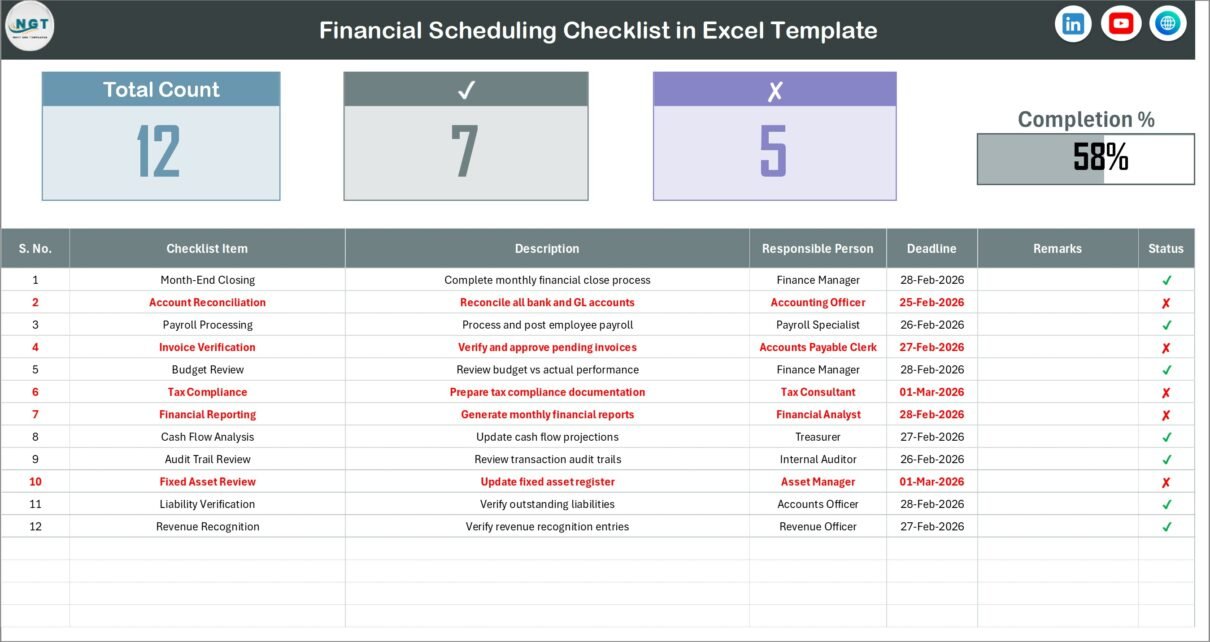
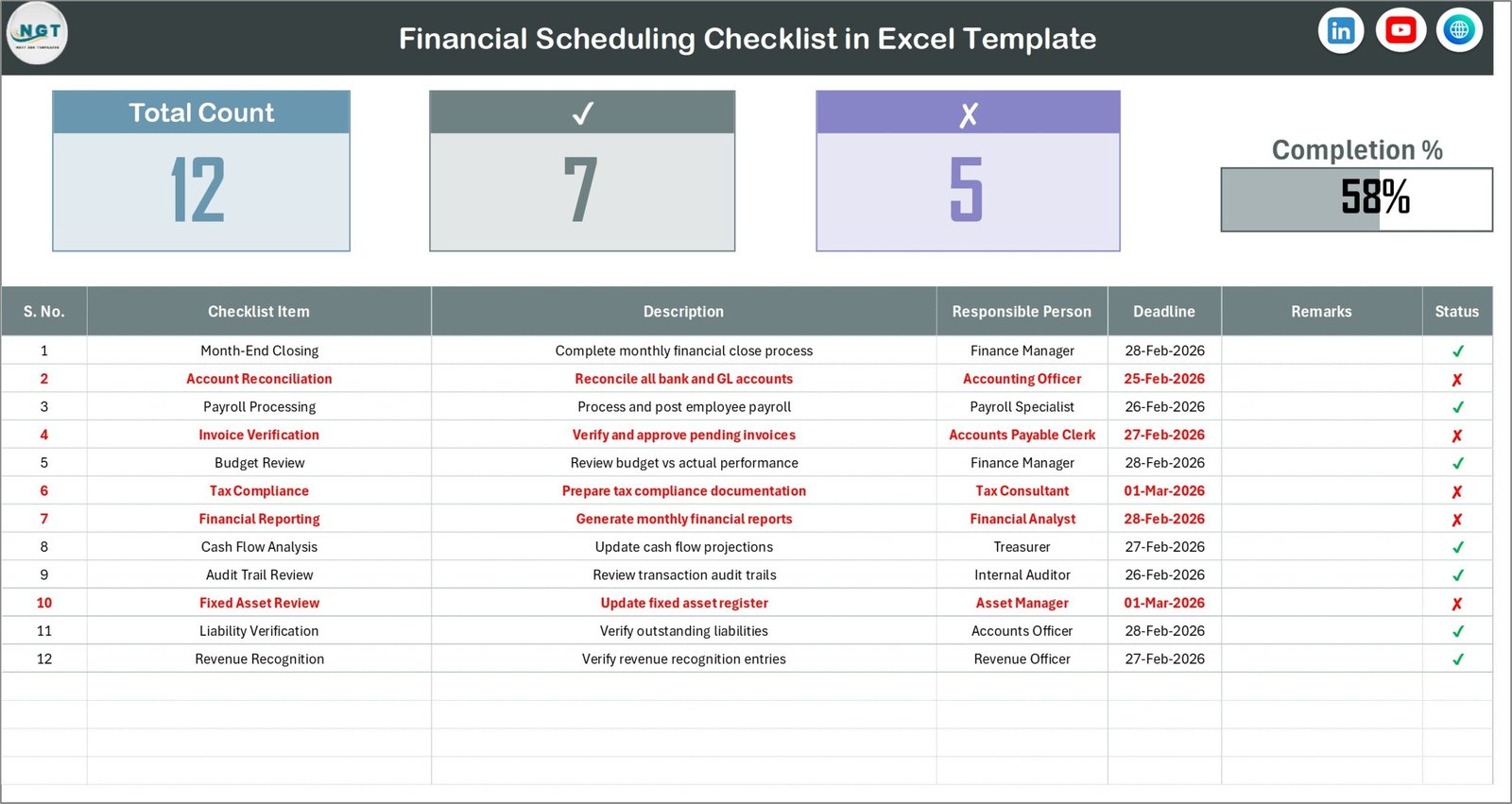
Top Section – Financial Scheduling Overview
At the top section, the template displays summarized financial scheduling information. This area provides quick insights into task progress.
It includes:
- Total Count – Total number of checklist items
- Checked Count – Completed tasks
- Crossed Count – Pending or incomplete tasks
- Progress Bar – Visual representation of completion percentage
Because of this visual summary, users instantly understand overall progress without analyzing the entire table.
Checklist Table Structure
The checklist table forms the core of the template. Users update task status directly within this table.
Columns Included in the Checklist
- Serial No. – Unique number assigned to each task
- Checklist Item – Name of financial activity
- Description – Detailed explanation of the task
- Responsible Person – Assigned team member
- Deadline – Task due date
- Remarks – Additional notes or updates
- Status – Mark ✔ for completed or ✘ for pending
Because the table follows a structured format, it supports filtering, sorting, and reporting easily.
Click to buy Financial Scheduling Checklist in Excel
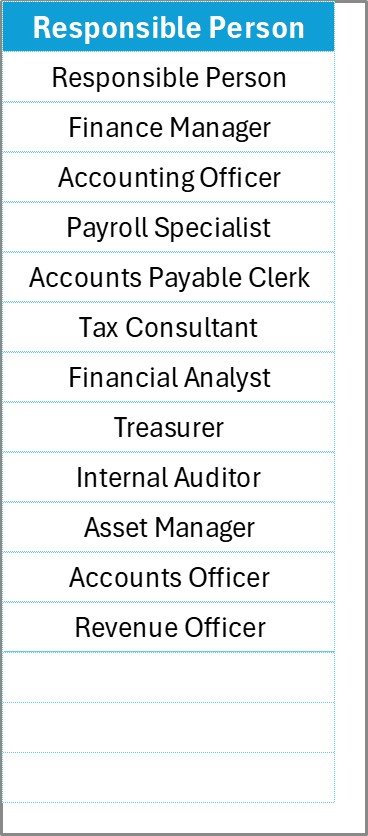
Worksheet 2: List Sheet Tab (Support Data Sheet)
The second worksheet supports automation within the checklist.
Purpose of the List Sheet
This sheet captures a unique list of Responsible Persons. Excel uses this list to create dropdown selections in the main checklist table.
Benefits of Using the List Sheet
- Prevents manual typing errors
- Standardizes team member names
- Enables dropdown selection
- Improves data accuracy
- Simplifies updates
Whenever a new team member joins, users only need to update this list once.
Click to buy Financial Scheduling Checklist in Excel
What Financial Tasks Can You Track Using This Checklist?
The flexibility of this Excel template allows organizations to manage various financial activities.
Examples of Financial Scheduling Tasks
- Monthly financial closing
- Invoice processing
- Vendor payments
- Tax filings
- Budget preparation
- Payroll verification
- Financial audits
- Compliance reporting
- Expense approvals
- Forecast updates
Therefore, both small businesses and large enterprises can customize the checklist easily.
How to Use the Financial Scheduling Checklist in Excel?
Using this template remains simple and intuitive.
Step-by-Step Process
- Open the Excel template.
- Add responsible persons in the List sheet.
- Enter financial tasks in the checklist table.
- Assign deadlines and owners.
- Update remarks when necessary.
- Mark ✔ when tasks complete.
- Monitor progress through the top summary section.
As soon as users update status values, the progress bar updates automatically.
Advantages of Financial Scheduling Checklist in Excel
Using a structured financial checklist provides multiple operational benefits.
Improved Organization
Teams keep all financial activities in one centralized location.
Better Accountability
Each task includes a responsible person, which eliminates confusion.
Time Savings
Users stop tracking tasks manually through emails or notes.
Real-Time Progress Tracking
Visual indicators instantly show completion levels.
Error Reduction
Dropdown lists minimize data entry mistakes.
Cost-Effective Solution
Organizations use Excel without purchasing additional software.
Easy Customization
Users modify columns, tasks, or workflows according to needs.
Why Excel Is Perfect for Financial Scheduling?
Many organizations prefer Excel because it combines simplicity with powerful functionality.
Excel Advantages
- Familiar interface
- No learning curve
- Flexible customization
- Built-in formulas
- Data validation options
- Visual dashboards
Furthermore, Excel works both online and offline, which increases accessibility.
Best Practices for the Financial Scheduling Checklist
Following best practices ensures maximum efficiency and accuracy.
- Define Tasks Clearly
Write checklist items using clear and actionable descriptions.
- Assign Responsibility Immediately
Always assign an owner when creating a task.
- Update Status Regularly
Encourage team members to update progress daily or weekly.
- Review Deadlines Frequently
Managers should monitor upcoming deadlines proactively.
- Use Remarks Section Effectively
Add updates or issues to maintain communication history.
- Maintain the Responsible Person List
Keep dropdown lists updated to avoid outdated entries.
- Perform Weekly Reviews
Regular reviews prevent delays and missed activities.
How Does This Checklist Improve Financial Compliance?
Compliance requires consistent tracking and documentation. Fortunately, this checklist supports compliance management effectively.
Compliance Benefits
- Maintains task history
- Tracks deadlines systematically
- Assigns clear accountability
- Ensures recurring activities occur on time
Therefore, organizations reduce audit risks significantly.
Who Can Benefit from a Financial Scheduling Checklist?
This template serves a wide range of users.
Ideal Users Include:
- Finance managers
- Accountants
- Small business owners
- Corporate finance teams
- Consultants
- Auditors
- Startups
- Nonprofit organizations
Because the template remains flexible, users from any industry can adopt it.
How Does a Checklist Increase Team Productivity?
Structured workflows reduce uncertainty. When teams know what to do and when to do it, productivity improves naturally.
Productivity Improvements
- Less follow-up communication
- Faster task completion
- Clear priorities
- Reduced stress
- Better coordination
Consequently, teams spend more time on analysis rather than administration.
How Can You Customize the Financial Scheduling Checklist?
Excel allows easy customization according to business needs.
Customization Ideas
- Add priority column
- Include department field
- Add automated reminders
- Create charts for progress tracking
- Add monthly filters
Because Excel supports formulas and formatting, customization remains unlimited.
Future Scope of Financial Scheduling Using Excel
Although advanced financial systems exist, Excel continues to evolve.
Organizations increasingly combine Excel checklists with:
- Power BI dashboards
- Automation workflows
- VBA forms
- Cloud collaboration
Therefore, Excel remains a powerful foundation for financial planning.
Conclusion
Financial activities demand organization, accuracy, and timely execution. However, manual tracking methods often create confusion and delays. The Financial Scheduling Checklist in Excel provides a practical and efficient solution that simplifies financial management.
By centralizing tasks, assigning responsibilities, and visualizing progress, this template improves accountability and operational efficiency. Moreover, its simplicity ensures quick adoption across organizations of all sizes.
If you want better financial control, fewer missed deadlines, and improved team coordination, implementing a structured financial checklist becomes a smart decision.
Frequently Asked Questions (FAQs)
- What is a Financial Scheduling Checklist in Excel used for?
It helps organizations plan, track, and manage financial tasks while monitoring progress and deadlines in one centralized file.
- Do I need advanced Excel skills to use this template?
No. The template uses simple inputs and dropdown selections, so beginners can use it easily.
- Can I customize the checklist?
Yes. You can add columns, modify tasks, or include automation features based on your workflow.
- Is this checklist suitable for small businesses?
Yes. Small businesses benefit greatly because the template improves organization without extra cost.
- How does the progress bar work?
The progress bar automatically updates based on completed tasks marked with ✔.
- Can multiple users work on the checklist?
Yes. Teams can share the Excel file through cloud platforms like OneDrive or Google Drive.
- How often should I update the checklist?
You should update task status regularly — preferably daily or weekly — to maintain accurate tracking.
Watch the step-by-step video tutorial:
Visit our YouTube channel to learn step-by-step video tutorials
Click to buy Financial Scheduling Checklist in Excel