Financial management does not stop during holidays. Businesses, finance teams, and individuals must still monitor payments, approvals, reporting deadlines, and compliance activities even when offices operate with reduced staff. However, without proper planning, important financial tasks often get delayed, overlooked, or completed incorrectly.
Therefore, organizations need a structured and simple system to track financial responsibilities during holiday periods. The Financial Holiday Checklist in Excel provides a ready-to-use solution that helps users organize, monitor, and complete financial tasks efficiently.
In this detailed guide, you will learn what a Financial Holiday Checklist is, why it matters, how the Excel template works, its features, benefits, best practices, and how it improves financial workflow management.
Click to Purchases Financial Holiday Checklist in Excel
What Is a Financial Holiday Checklist in Excel?
A Financial Holiday Checklist in Excel is a structured task-tracking template designed to manage financial activities during holidays, year-end breaks, or planned office closures.
Instead of relying on emails or manual reminders, users maintain a centralized checklist where they assign responsibilities, track deadlines, and monitor completion status.
As a result:
-
Financial tasks remain organized.
-
Teams avoid missed deadlines.
-
Accountability improves.
-
Work continues smoothly during holidays.
Moreover, Excel makes the checklist easy to use and customize without requiring specialized software.
Why Is a Financial Holiday Checklist Important?
Holiday periods often create operational risks because fewer employees remain available. Meanwhile, financial obligations such as payroll, vendor payments, tax filings, and reconciliations still require attention.
Without structured tracking, organizations face several challenges.
Common Problems Without a Checklist
-
Missed payment deadlines
-
Delayed financial approvals
-
Compliance risks
-
Poor task visibility
-
Lack of responsibility tracking
-
Confusion among team members
Therefore, a checklist ensures continuity and financial control.
Click to Purchases Financial Holiday Checklist in Excel
Key Features of Financial Holiday Checklist in Excel
This ready-to-use template contains two worksheets, designed for simplicity and efficiency.
1. Financial Holiday Checklist Sheet – Main Working Area
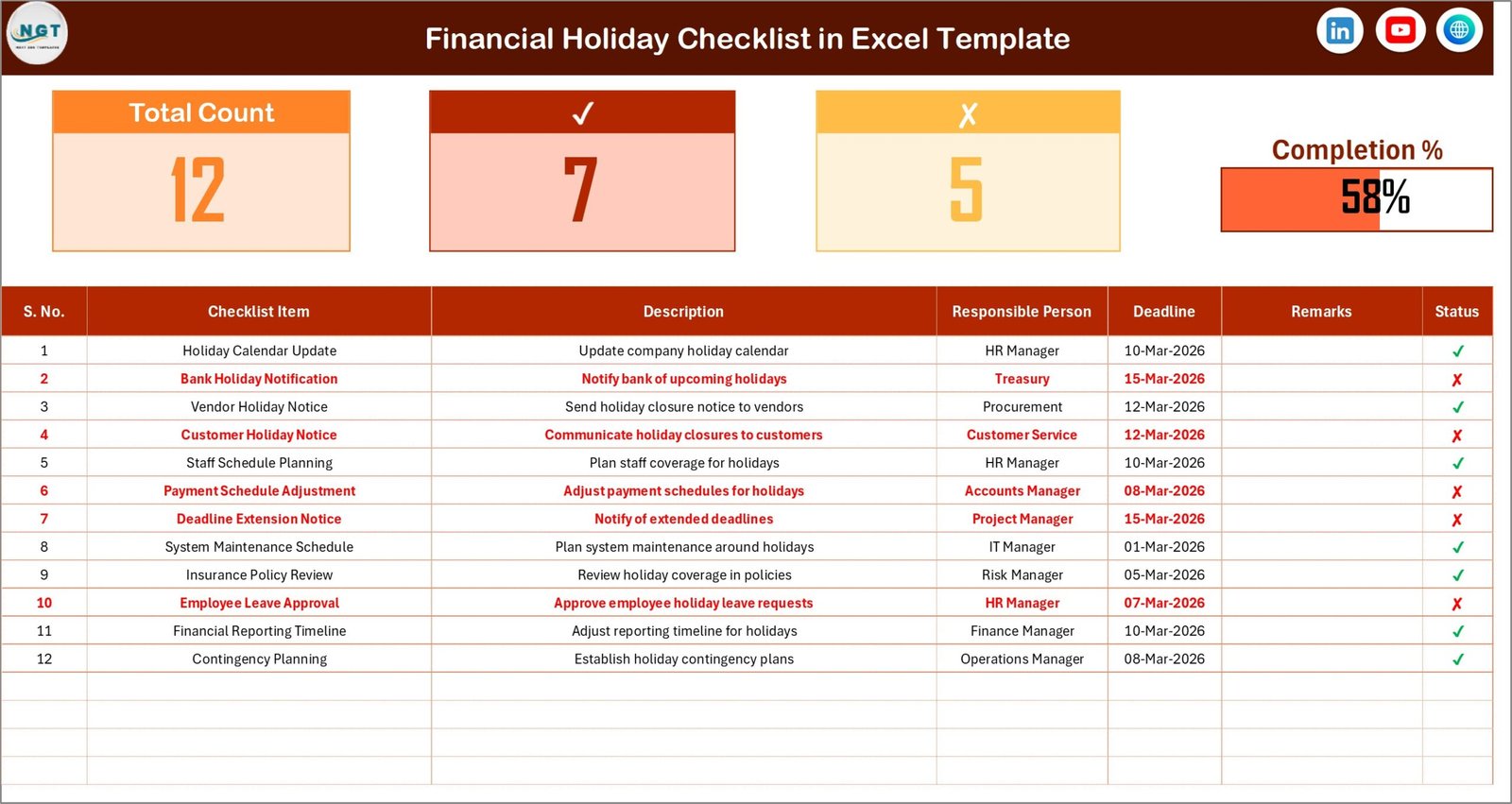
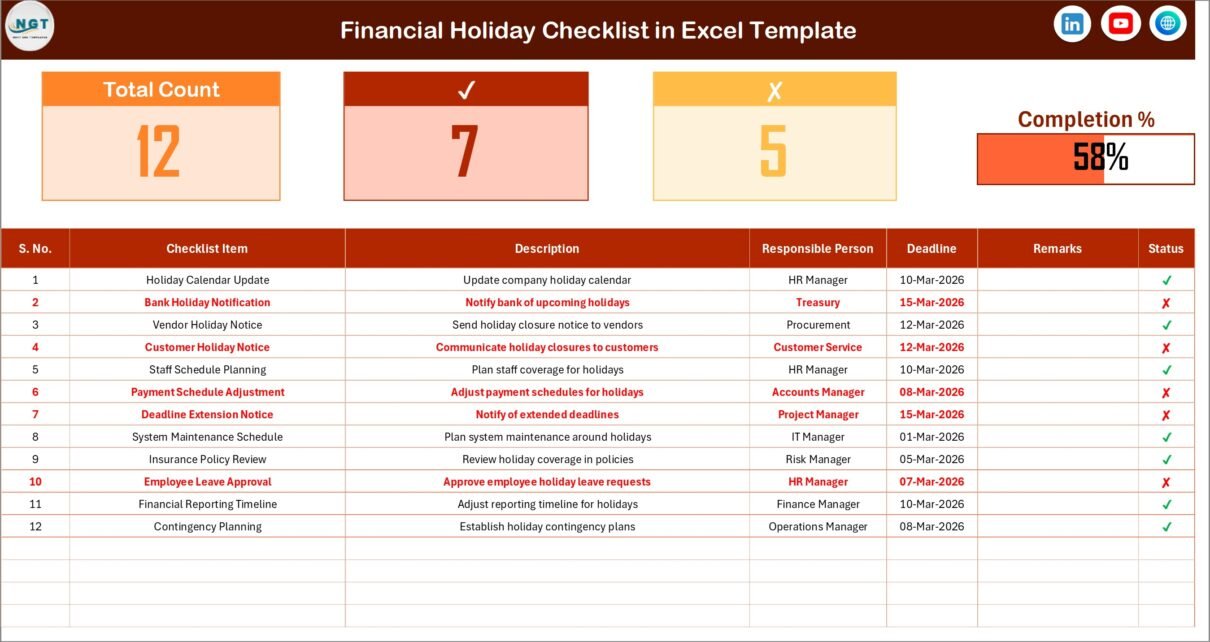
The Financial Holiday Checklist Sheet serves as the central workspace where users manage all checklist activities.
Top Section – Performance Summary
At the top of the sheet, users see a dashboard-style summary.
It includes:
-
Total Count – Total number of checklist tasks
-
Checked Count – Completed tasks
-
Crossed Count – Pending or incomplete tasks
-
Progress Bar – Visual representation of completion percentage
Therefore, users instantly understand overall progress.
Checklist Table Structure
The checklist table forms the core of the template.
Users update task status using simple symbols:
-
✔ for completed tasks
-
✘ for pending tasks
Columns Included:
-
Serial No. – Task sequence number
-
Checklist Item – Name of financial task
-
Description – Short explanation of the task
-
Responsible Person – Assigned owner
-
Deadline – Task due date
-
Remarks – Additional notes or updates
-
Status – Completion indicator (✔ / ✘)
Because of this structured layout, teams maintain clarity and accountability.
Click to Purchases Financial Holiday Checklist in Excel
2. List Sheet – Responsible Person Database
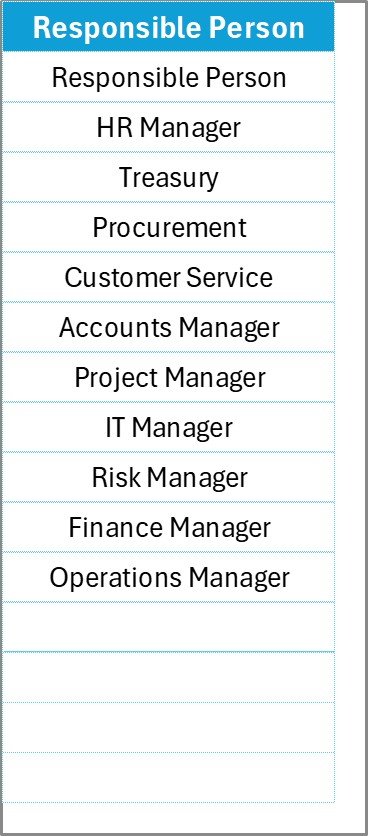
The List Sheet stores a unique list of responsible persons.
This list automatically creates dropdown selections in the main checklist table.
Benefits of Dropdown Lists
-
Prevents spelling errors
-
Maintains standardized names
-
Improves reporting accuracy
-
Saves data entry time
Consequently, task assignments remain consistent across the checklist.
Click to Purchases Financial Holiday Checklist in Excel
How Does the Financial Holiday Checklist Work?
The template follows a simple workflow.
Step 1: Add Checklist Items
Enter financial tasks in the checklist table.
Step 2: Assign Responsibilities
Select responsible persons using dropdown lists.
Step 3: Define Deadlines
Add due dates for each task.
Step 4: Update Status
Mark tasks ✔ when completed or ✘ when pending.
Step 5: Monitor Progress
Review progress bar and counts at the top.
Therefore, users track work completion in real time.
Which Financial Tasks Should Be Included?
Organizations can customize the checklist based on operational needs.
Common Financial Holiday Tasks
Accounting Tasks
-
Bank reconciliation
-
Ledger closing
-
Expense verification
-
Journal entry review
Payment Management
-
Vendor payments
-
Employee payroll
-
Subscription renewals
-
Loan repayments
Compliance Tasks
-
Tax filings
-
Regulatory reporting
-
Audit documentation
Planning Tasks
-
Budget review
-
Financial forecasting
-
Cash flow monitoring
Including these tasks ensures uninterrupted financial operations.
Click to Purchases Financial Holiday Checklist in Excel
Advantages of Financial Holiday Checklist in Excel
✅ Centralized Task Tracking
All financial activities remain in one location.
✅ Improved Accountability
Every task includes a responsible person.
✅ Visual Progress Monitoring
Progress bar simplifies performance tracking.
✅ Deadline Management
Users easily track due dates.
✅ Error Reduction
Dropdown lists prevent inconsistent entries.
✅ Easy Customization
Users modify tasks according to needs.
✅ No Software Cost
Excel provides a cost-effective solution.
How Does This Checklist Improve Financial Productivity?
A structured checklist changes how teams manage work.
Instead of reacting to missed deadlines, teams plan proactively.
Benefits include:
-
Faster task completion
-
Better coordination
-
Reduced financial risks
-
Improved transparency
-
Clear responsibility ownership
Therefore, productivity improves significantly.
Click to Purchases Financial Holiday Checklist in Excel
Best Practices for the Financial Holiday Checklist
To maximize effectiveness, follow these best practices.
✔ Plan Before Holidays Begin
Create checklist at least one week before holidays.
✔ Assign Backup Owners
Ensure tasks continue even if someone remains unavailable.
✔ Keep Descriptions Clear
Use short and specific task explanations.
✔ Review Progress Daily
Monitor completion status regularly.
✔ Update Status Immediately
Mark tasks completed as soon as finished.
✔ Maintain Responsible Person List
Keep dropdown list updated.
✔ Archive Completed Checklists
Store records for future reference.
Who Can Use This Financial Holiday Checklist?
This template works for various users.
Finance Teams
Track operational financial activities.
Small Business Owners
Manage payments and obligations.
Accountants
Monitor deadlines and reconciliations.
Corporate Finance Departments
Coordinate multi-person responsibilities.
Freelancers and Consultants
Organize financial commitments during vacations.
Click to Purchases Financial Holiday Checklist in Excel
Why Choose Excel for Financial Checklists?
Excel remains the preferred tool because:
-
It is widely available.
-
Users already understand it.
-
It allows customization.
-
It supports formulas and automation.
-
It works offline.
Therefore, organizations adopt checklist systems quickly.
How Does Holiday Planning Reduce Financial Risks?
When organizations plan financial activities:
-
Payments occur on time.
-
Compliance risks decrease.
-
Cash flow remains stable.
-
Operational stress reduces.
-
Teams maintain control even during absence.
Thus, structured planning protects financial health.
Future Enhancements for Financial Checklist Templates
Modern checklist systems may evolve with:
-
Automated reminders
-
Cloud collaboration
-
Mobile updates
-
Integration with accounting software
-
AI-based risk alerts
However, Excel templates already provide a practical and powerful starting point.
Conclusion
The Financial Holiday Checklist in Excel offers a simple yet highly effective solution for managing financial responsibilities during holiday periods. By combining structured task tracking, responsibility assignment, and visual progress monitoring, this template ensures that critical financial activities never get missed.
Moreover, its easy-to-use interface allows teams to maintain accountability while reducing operational stress. As a result, organizations achieve smoother financial operations even during reduced working periods.
Therefore, whether you manage corporate finances, run a small business, or handle accounting responsibilities, this checklist becomes an essential productivity tool.
Click to Purchases Financial Holiday Checklist in Excel
Frequently Asked Questions (FAQs)
What is a Financial Holiday Checklist?
It is an Excel-based checklist used to track financial tasks during holidays or office closures.
Can I customize checklist items?
Yes. You can add or modify tasks anytime.
How do I mark tasks completed?
Change the status column to ✔ for completed tasks.
Can multiple users use this template?
Yes. Teams can share and update the file collaboratively.
Does the template calculate progress automatically?
Yes. The progress bar updates based on completed tasks.
Is this checklist suitable for personal finance?
Yes. Individuals can use it for bill payments and budgeting tasks.
Click to Purchases Financial Holiday Checklist in Excel
Visit our YouTube channel to learn step-by-step video tutorials