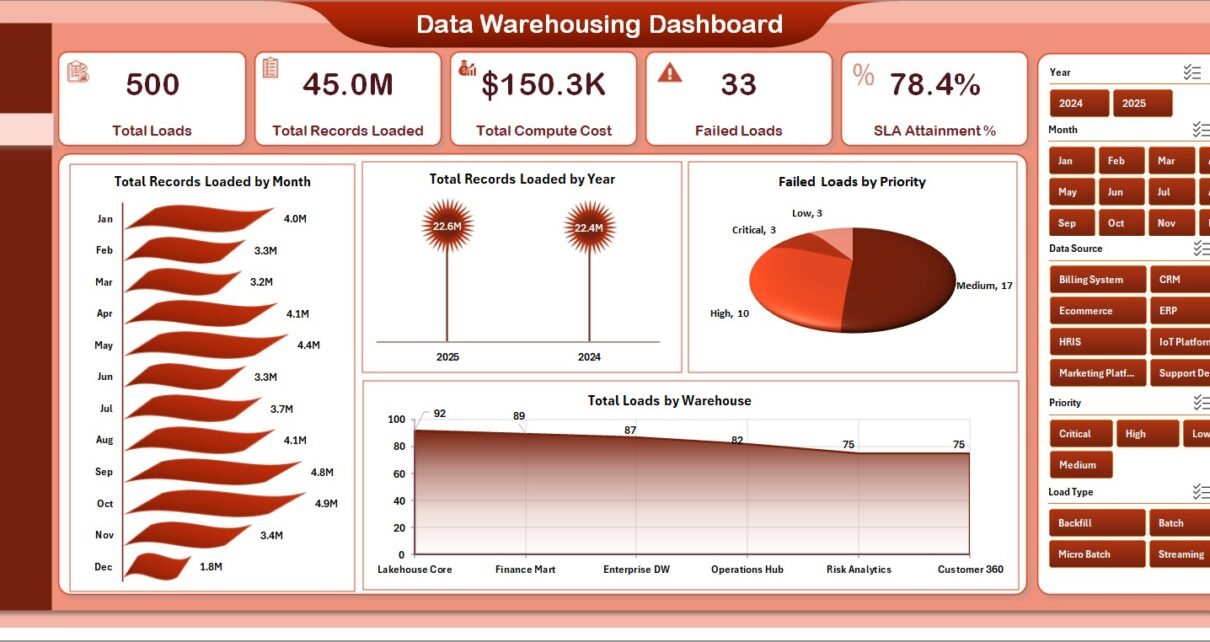
The Data Warehousing Dashboard in Excel tracks 5 core KPIs across 5 interactive report pages, backed by 19 pre-built charts and native slicers that re-filter every visual with one click. Because it runs on standard Excel PivotTables, the entire setup takes under 10 minutes — paste your load logs into the Data sheet, press Refresh All, and every chart, pivot, and KPI recalculates automatically.
Most data teams either rebuild a load-monitoring report by hand every week or pay $15 to $100 per user each month for an observability platform they only open periodically. The Data Warehousing Dashboard in Excel gives data engineers, analytics leads, and consultants a refreshable view of loads, records, compute cost, data quality, and SLA attainment — without writing code or standing up a full BI stack.
Key Features of the Data Warehousing Dashboard in Excel
The template is built around the five things data teams actually report on: volume, reliability, quality, cost, and SLA performance.
- Five-KPI Overview: Total Loads, Total Records Loaded, Total Compute Cost, Failed Loads, and SLA Attainment % sit as cards at the top so you can read pipeline health in seconds.
- 19 pre-built charts across 5 pages: monthly and yearly volume trends, load types, quality pass rates, compute-cost breakdowns, and SLA attainment by team and priority are all ready out of the box.
- Native Excel slicers: filter the whole dashboard by warehouse, environment, data domain, priority, or owner team without editing a single formula.
- Refresh All workflow: the workbook reads from one Data sheet and a hidden Support sheet of PivotTables, so one click updates every visual.
- Compute-cost visibility: Total Compute Cost by Environment and by Data Domain show exactly which pipelines drive your cloud bill.
- Fully offline: no add-ins, no logins, and no cloud connection, so sensitive load metadata stays on your machine.
The charts are powered by native Excel PivotTables. If you are new to them, Microsoft’s guide to creating a PivotTable and to using slicers to filter data are useful references.
Dashboard Pages Explanation
Page 1: Overview
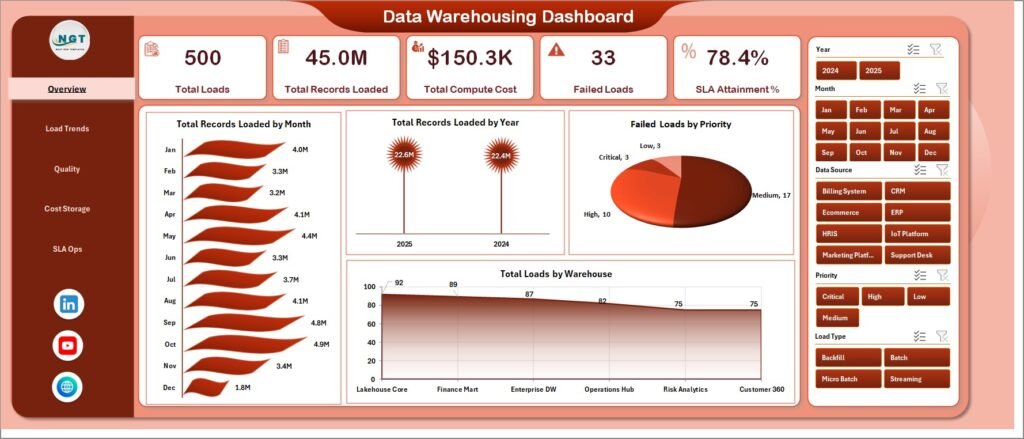
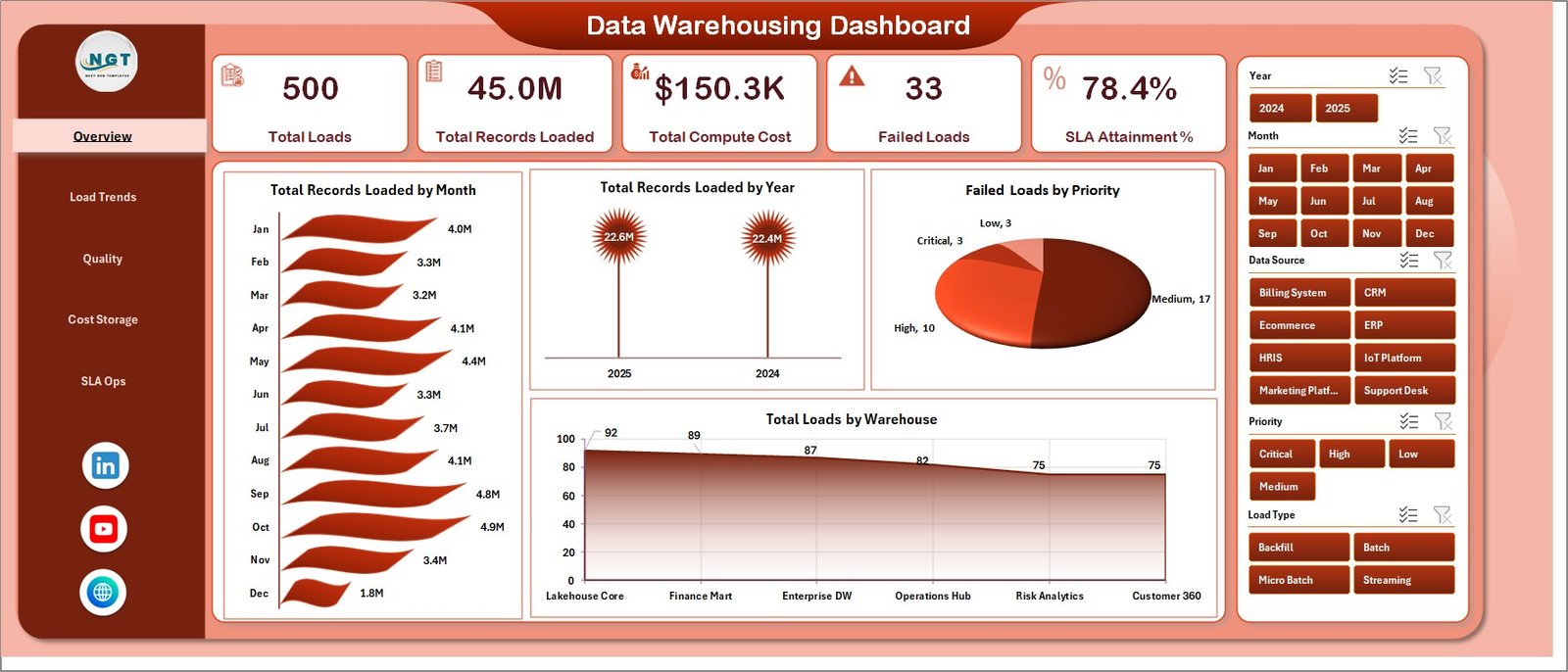
The Overview page is the executive summary. Five KPI cards report Total Loads, Total Records Loaded, Total Compute Cost, Failed Loads, and SLA Attainment %, while four charts — Total Records Loaded by Month, Total Records Loaded by Year, Failed Loads by Priority, and Total Loads by Warehouse — reveal trends, breakage hot spots, and load distribution. Slicers across the top refocus the page on any warehouse, team, or domain.
Page 2: Load Trends
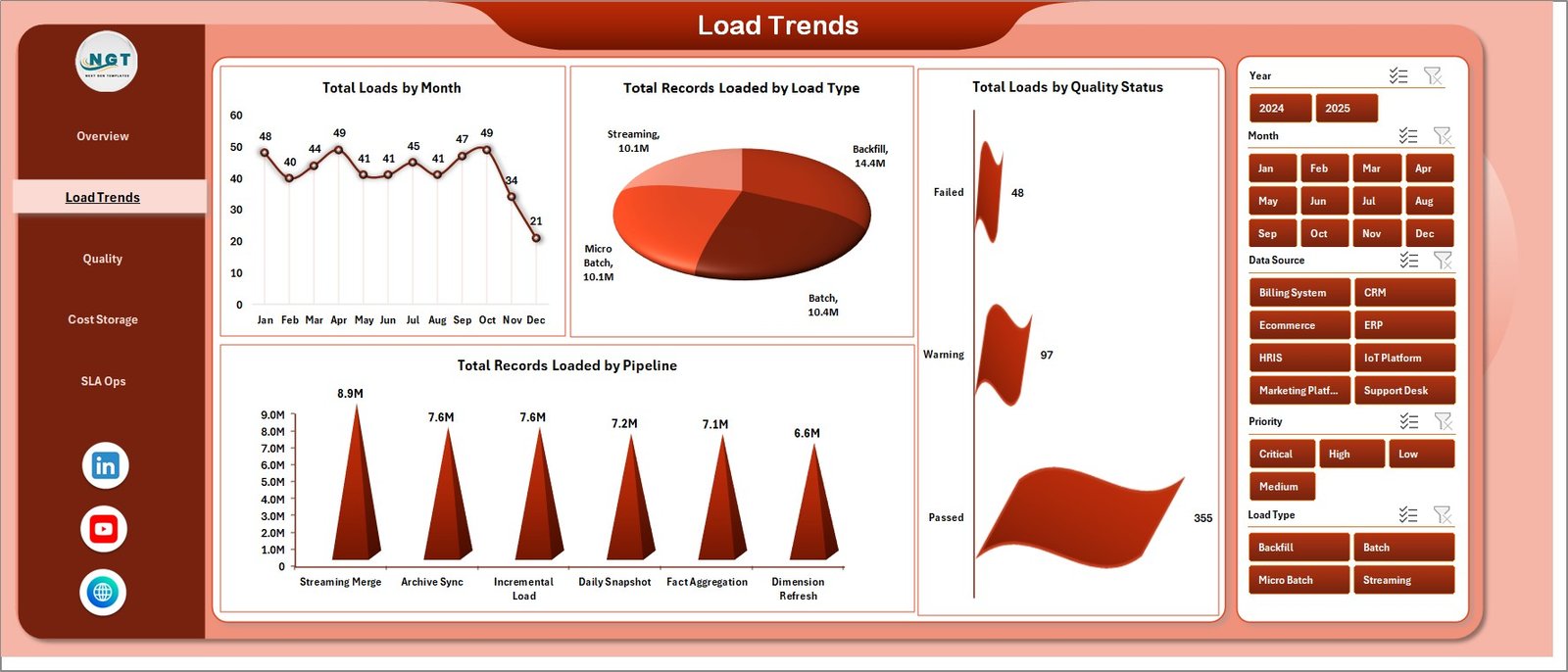
This page explains how loads behave over time and by type. Total Loads by Month tracks run frequency, Total Records Loaded by Load Type compares full versus incremental jobs, Total Loads by Quality Status separates clean from flagged runs, and Total Records Loaded by Pipeline shows which pipelines move the most data.
Page 3: Quality
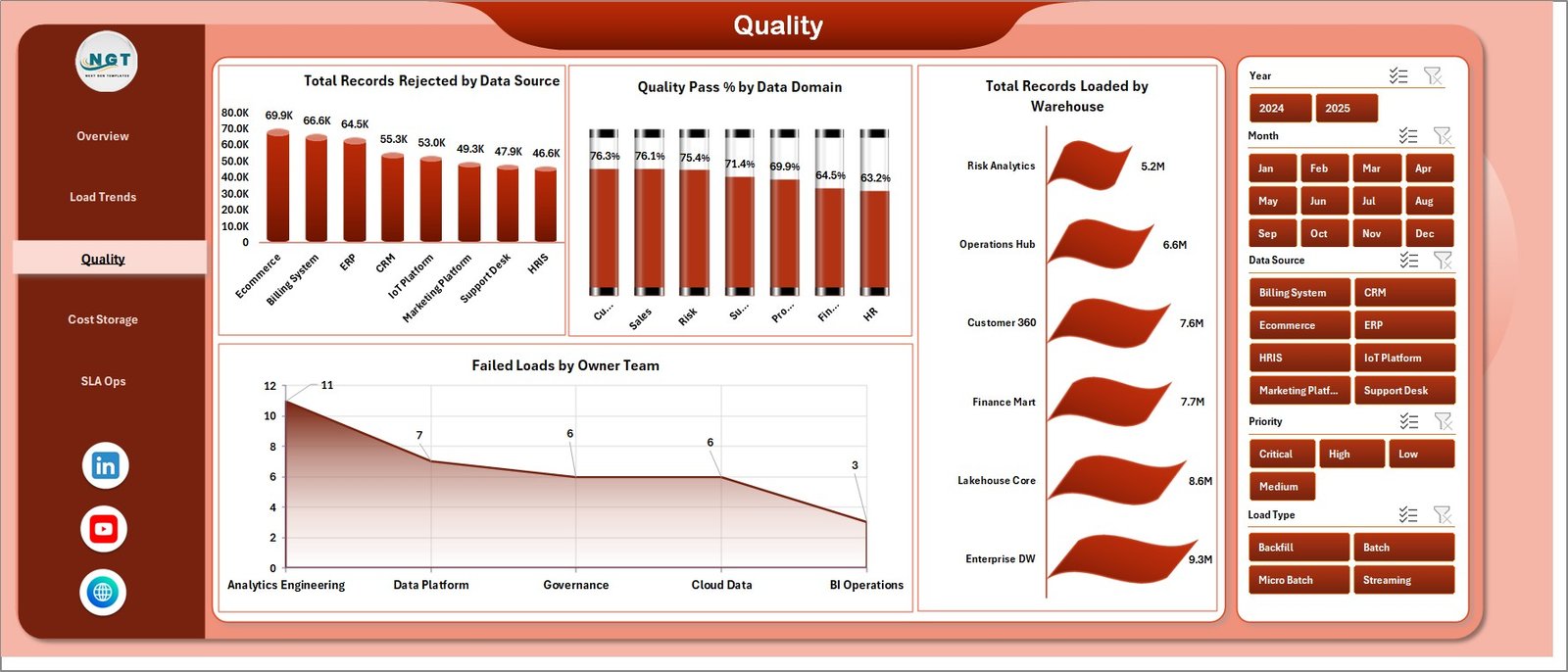
The Quality page is about trust in the data. Total Records Rejected by Data Source pinpoints problem feeds, Quality Pass % by Data Domain scores reliability per subject area, Total Records Loaded by Warehouse confirms where clean data lands, and Failed Loads by Owner Team assigns clear accountability for breakages.
Page 4: Cost & Storage
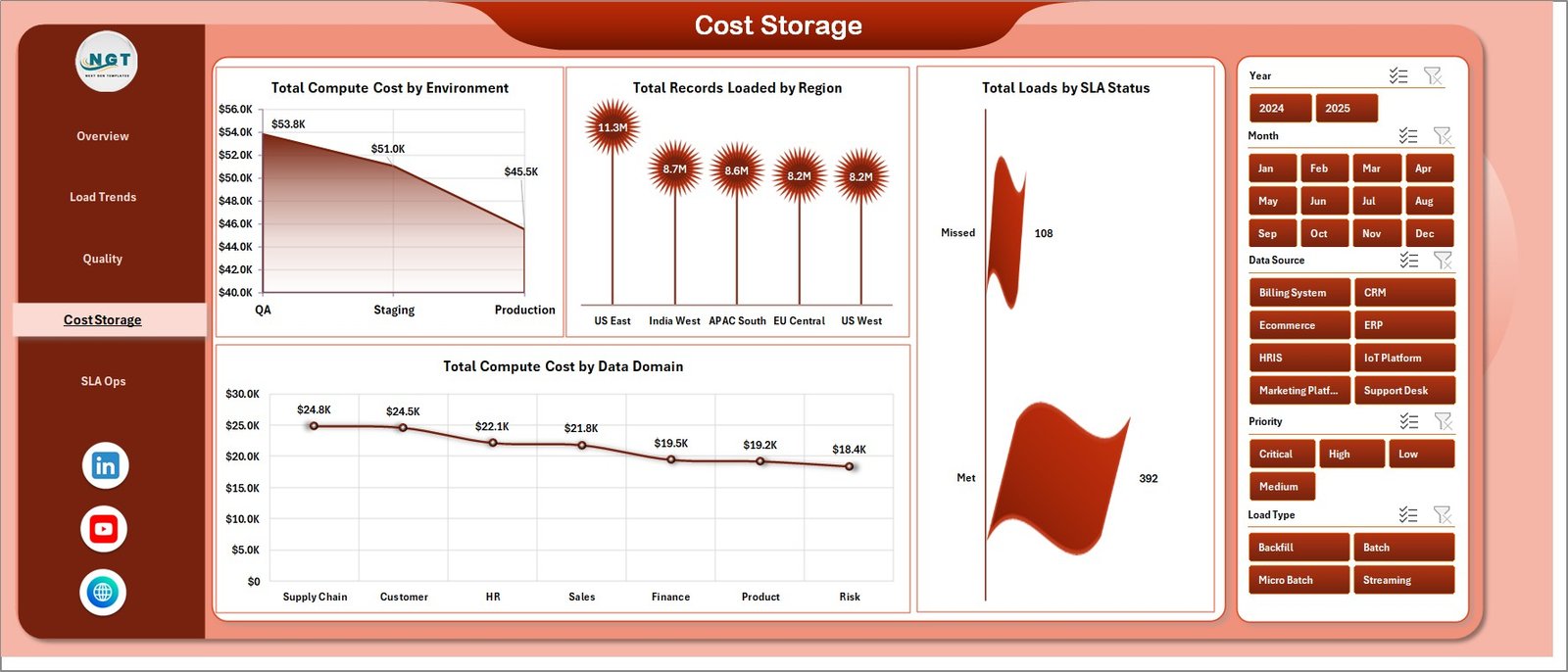
This page converts usage into dollars. Total Compute Cost by Environment compares dev, test, and prod spend, Total Records Loaded by Region maps volume geographically, Total Loads by SLA Status shows how many runs hit their windows, and Total Compute Cost by Data Domain reveals the most expensive domains.
Page 5: SLA Ops
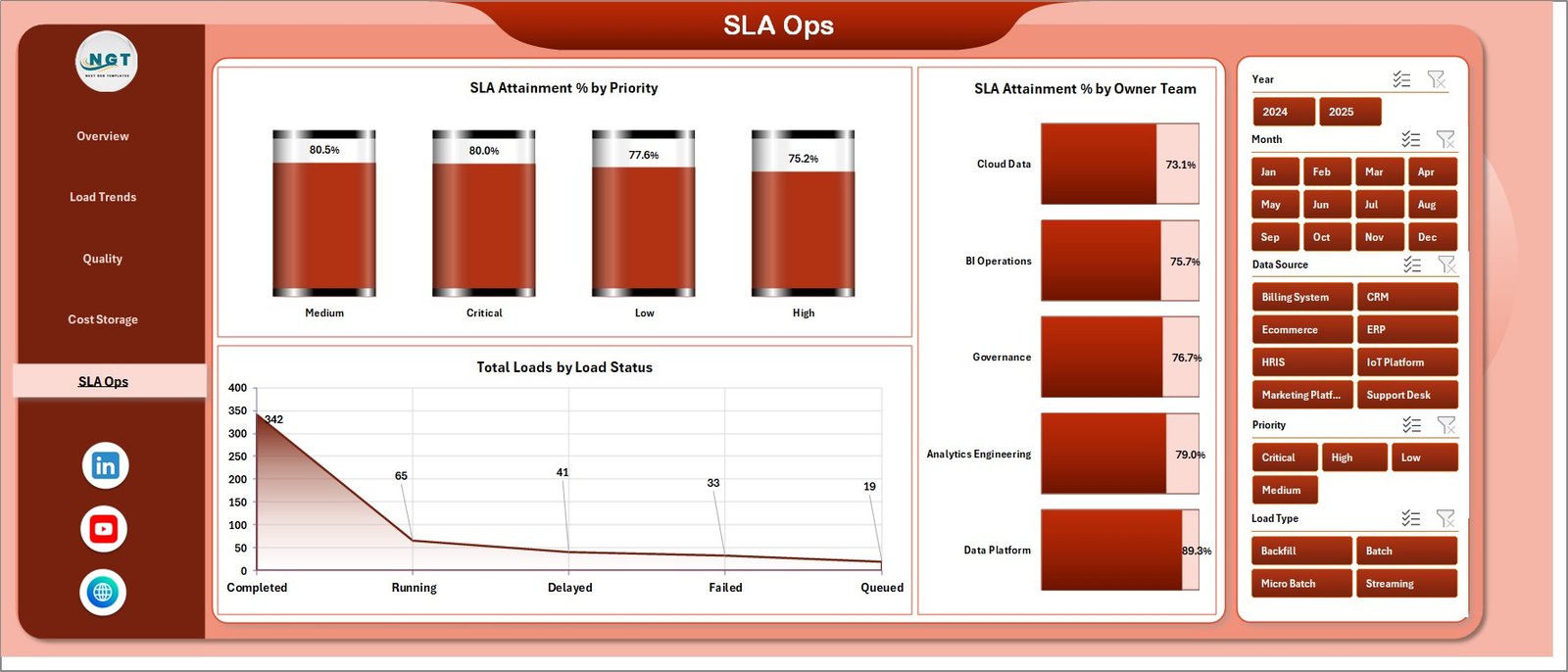
The SLA Ops page is the reliability scorecard. SLA Attainment % by Priority and SLA Attainment % by Owner Team show who is meeting targets, and Total Loads by Load Status summarizes succeeded, failed, and running jobs for a fast operational read.
Data Sheet Tab
The Data sheet is the single input surface. Paste your warehouse load records in the same column order as the sample — load date, pipeline, warehouse, records, compute cost, quality status, priority, owner team, and SLA status — and the rest of the workbook reads from here.

Support Sheet Tab
The Support sheet holds every PivotTable that drives the dashboard. After updating the Data sheet, open the Data tab in the ribbon and click Refresh All so all pivots and charts refresh together. You can keep this sheet hidden during day-to-day use.

Data Warehousing Dashboard in Excel vs. Power BI vs. Paid Data-Observability SaaS — Feature Comparison
| Feature | Data Warehousing Dashboard in Excel | Power BI / BI Tool build | Datadog / Monte Carlo |
|---|---|---|---|
| Cost | $17.99 one-time | Free tier, but build time + Pro seats | $15–100+ / user / month |
| Platform | Microsoft Excel (offline) | Power BI Desktop + Service | Cloud SaaS only |
| Setup time | Under 10 minutes | Hours to model and publish | Days of connector setup |
| Pipeline & SLA monitoring | Built in | With custom DAX | Advanced |
| Compute-cost tracking | By environment & domain | Manual modeling | Add-on modules |
| Works offline | Yes | Service needs cloud | No |
| Customizable fields | Full control | Full control | Vendor-defined |
| Share with link | File-based | Yes | Yes |
| Year-1 cost at 5 users | $17.99 total | ~$600+ (Pro seats) | $900–6,000+ |
For data teams that want pipeline, quality, cost, and SLA visibility without standing up a BI stack or paying per-seat observability fees, the Data Warehousing Dashboard in Excel sits in the sweet spot.
Who Should Use This Template
Perfect for:
- Data engineers and analytics leads who need a fast load-monitoring and SLA report without building one in Power BI
- Small and mid-size data teams (1–50 people) running ETL/ELT jobs across one or more warehouses
- Consultants and agencies who want a ready-made client deliverable for data-pipeline reporting
Not a fit if:
- You need real-time, automated alerting on live pipelines — a dedicated observability platform is the better choice
- You require direct API connections to Snowflake, BigQuery, or Redshift instead of a manual data paste
- You do not have Microsoft Excel installed
Real-World Use Cases
Arjun leads a 6-person data engineering team at a fintech startup. Every Monday he pastes the week’s load logs into the Data sheet, clicks Refresh All, and walks leadership through SLA Attainment % by Owner Team and Failed Loads by Priority — a report he used to rebuild by hand for two hours each week.
Lena is a freelance analytics consultant. She ships the Data Warehousing Dashboard in Excel as a polished deliverable to clients who run dbt and Airflow but have no BI tool, charging for the insight without paying for a $900-a-year observability subscription herself.
Marcus manages cloud spend at a mid-size retailer. Using Total Compute Cost by Environment and by Data Domain, he discovered that a single staging pipeline was responsible for 30% of monthly compute, then rescheduled it to cut the bill.
Advantages of the Data Warehousing Dashboard in Excel
- Cost: a one-time $17.99 purchase replaces recurring per-seat fees that add up to hundreds or thousands of dollars a year.
- Speed: under 10 minutes from download to a working report, versus hours of modeling in a BI tool.
- Familiarity: everything is standard Excel, so any analyst can extend it without learning a new platform.
- Portability: a single file you can email, archive, or version, with no cloud dependency.
- Accountability: owner-team and priority breakdowns make it easy to assign and track responsibility for failed loads.
Opportunities for Improvement
The Data Warehousing Dashboard in Excel is built for periodic reporting, not live monitoring, so it does not connect directly to your warehouse or send automated alerts — you refresh it on your own schedule after pasting fresh data. Very large log volumes (hundreds of thousands of rows) will feel heavier in Excel than in a columnar BI engine, and multi-user, simultaneous editing is limited because it is a file rather than a shared service. Teams that outgrow these constraints can pair it with a Power BI version for connected refresh.
Best Practices
- Keep the Data sheet column order identical to the sample so every PivotTable refreshes cleanly.
- Standardize values for warehouse, environment, data domain, priority, and owner team so slicers stay tidy.
- Refresh and save a dated copy each reporting cycle to build a simple historical archive.
- Hide the Support sheet for end users to keep the workbook clean and prevent accidental edits.
Explore Relevant Templates
If you manage data and IT operations, these related dashboards pair well with this one:
- Clinical Data Management Dashboard in Excel — track data capture, query resolution, and reconciliation.
- Cybersecurity Operations Center Dashboard in Excel — monitor incidents, alerts, and response times.
- Cloud Hosting Services Dashboard in Excel — track uptime, usage, and hosting revenue.
- Data Privacy Office Dashboard in Excel — manage DSARs, consent, and compliance.
You can also browse the full library of Excel Dashboard Templates on NextGenTemplates, or grab a connected, refreshable build from the Power BI Dashboards collection.
Frequently Asked Questions
What KPIs does the Data Warehousing Dashboard in Excel track?
The Data Warehousing Dashboard in Excel tracks five headline KPIs — Total Loads, Total Records Loaded, Total Compute Cost, Failed Loads, and SLA Attainment % — plus 19 supporting charts covering load trends, data quality, compute cost, and SLA performance.
How long does setup take?
Setup takes under 10 minutes. Paste your warehouse load records into the Data sheet using the sample column format, then click Data → Refresh All. Every PivotTable, chart, and KPI in the Data Warehousing Dashboard in Excel updates automatically.
Do I need any add-ins or an internet connection?
No. The Data Warehousing Dashboard in Excel runs entirely inside Microsoft Excel with no add-ins, plugins, or logins, and works fully offline so your load metadata never leaves your computer.
How does this compare to Datadog or Monte Carlo?
Paid observability tools like Datadog and Monte Carlo offer live alerting but cost $15–100+ per user monthly. The Data Warehousing Dashboard in Excel is a one-time $17.99 purchase for periodic reporting on loads, quality, cost, and SLA — ideal when you need insight rather than real-time monitoring.
Can I customize the charts and fields?
Yes. Because the Data Warehousing Dashboard in Excel is built on standard Excel PivotTables and slicers, you can add fields, change groupings, and restyle charts with familiar Excel tools and no code.
Is this a one-time purchase?
Yes. The Data Warehousing Dashboard in Excel is a one-time payment with lifetime access, instant download, no subscription, and no per-user fees.
About the Author
Built by PK — Microsoft Certified Professional with 15+ years of Excel, Google Sheets, and Power BI experience. Founder of NextGenTemplates, reaching 300K+ subscribers across YouTube channels. Every template is hand-built and tested before release.
Conclusion
The Data Warehousing Dashboard in Excel turns raw load logs into a clear, refreshable report on volume, quality, cost, and SLA performance — in the tool your team already owns, with no subscription and no per-user fees. Click here to purchase the Data Warehousing Dashboard in Excel and start monitoring your pipelines in minutes.
Instant download · One-time payment · No subscription.
For step-by-step video tutorials, visit YouTube.com/@PK-AnExcelExpert.
Last updated: June 2026