Export promotion councils manage a wide mix of applications, participants, grants, markets, sectors, regions, compliance checks, and export outcomes. When this information is scattered across reports, monthly reviews become slow and inconsistent. The Export Promotion Councils Dashboard in Excel solves that reporting gap with 7 worksheet tabs, 5 high-level cards, 20 chart views, multiple slicers, a structured Data Sheet, and a pivot-based Support Sheet.
This Excel dashboard is designed for trade promotion bodies, export councils, government teams, chambers of commerce, grant managers, and analysts who need a clear reporting layer without building a dashboard from scratch. It helps teams review Total Export Value, Total Lead Value, Total Participants, Total Applications, Avg. Compliance Score, approval rates, grant value, satisfaction score, sector performance, regional results, and funding trends in one workbook.
Click here to purchase Export Promotion Councils Dashboard in Excel
Key Features of Export Promotion Councils Dashboard in Excel
- 7 worksheet tabs: Overview, Council Analysis, Market Insights, Funding Trend, Compliance, Data Sheet, and Support Sheet.
- 5 KPI cards: Total Export Value, Total Lead Value, Total Participants, Total Applications, and Avg. Compliance Score.
- 20 chart views: Analyze applications, councils, months, approval rate, compliance score, target markets, grant value, event types, sectors, regions, quarters, status, and satisfaction score.
- Multiple slicers: Filter the dashboard quickly during council reviews and stakeholder meetings.
- Structured Data Sheet: Replace sample data with your own records in the same format.
- Pivot-driven Support Sheet: Refresh all pivots and charts using Excel Refresh All.
- Editable workbook: Customize fields, colors, chart titles, slicers, and layout to match your reporting needs.
Dashboard Pages Explanation
1. Overview Page
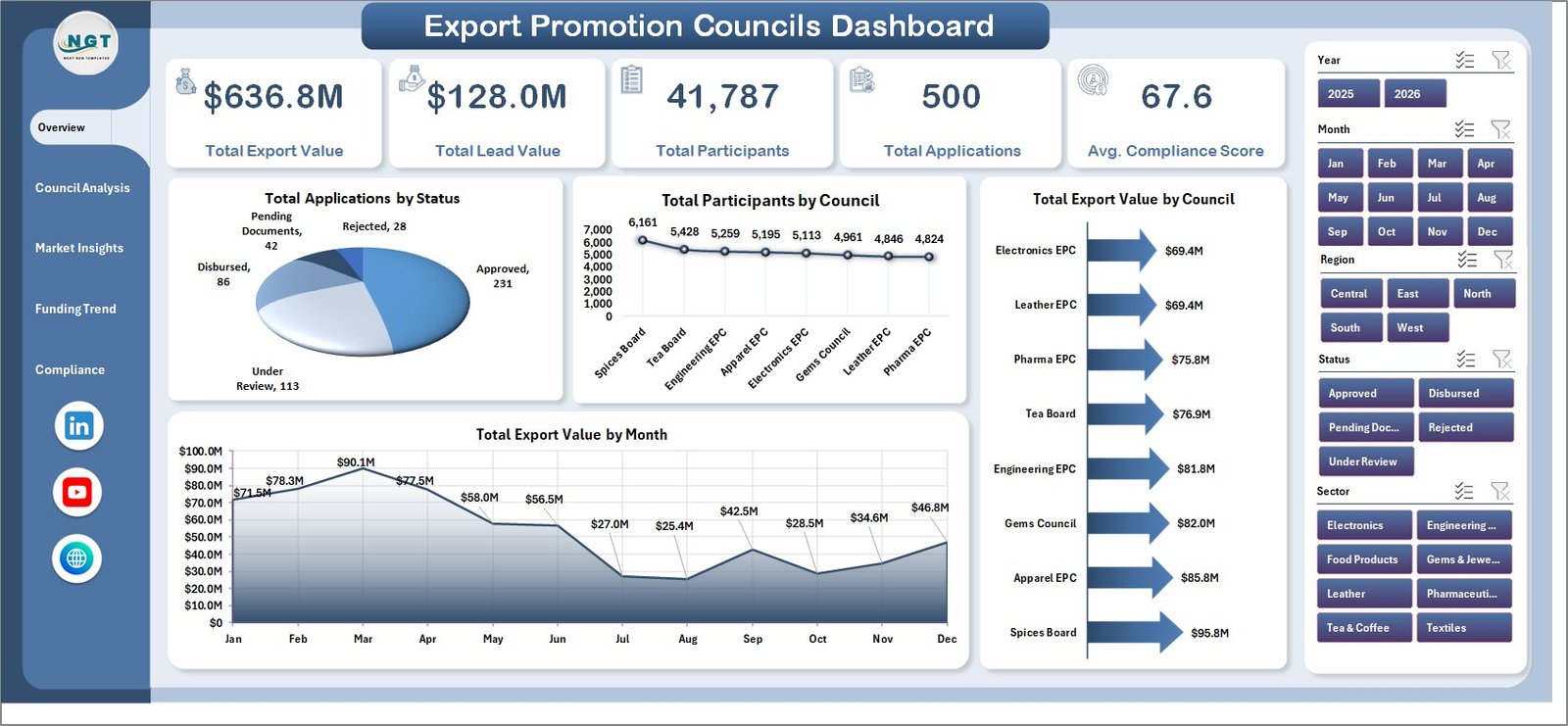
The Overview Page gives users a leadership-level snapshot of export promotion performance. The top cards show Total Export Value, Total Lead Value, Total Participants, Total Applications, and Avg. Compliance Score, helping decision-makers understand scale, pipeline, engagement, applications, and governance quality at a glance.
Total Applications by Status: This chart separates applications by status so teams can quickly see approved, pending, rejected, or other workflow stages. It helps identify where application processing may need attention.
Total Participants by Council: This chart compares participant reach across councils. It helps teams spot high-engagement councils and areas where outreach may need improvement.
Total Export Value by Council: This visual shows which councils contribute the most export value. It is useful for council-level performance reviews and resource allocation discussions.
Total Export Value by Month: This trend shows how export value changes month by month. It helps teams detect growth, seasonality, and months that require follow-up analysis.
2. Council Analysis
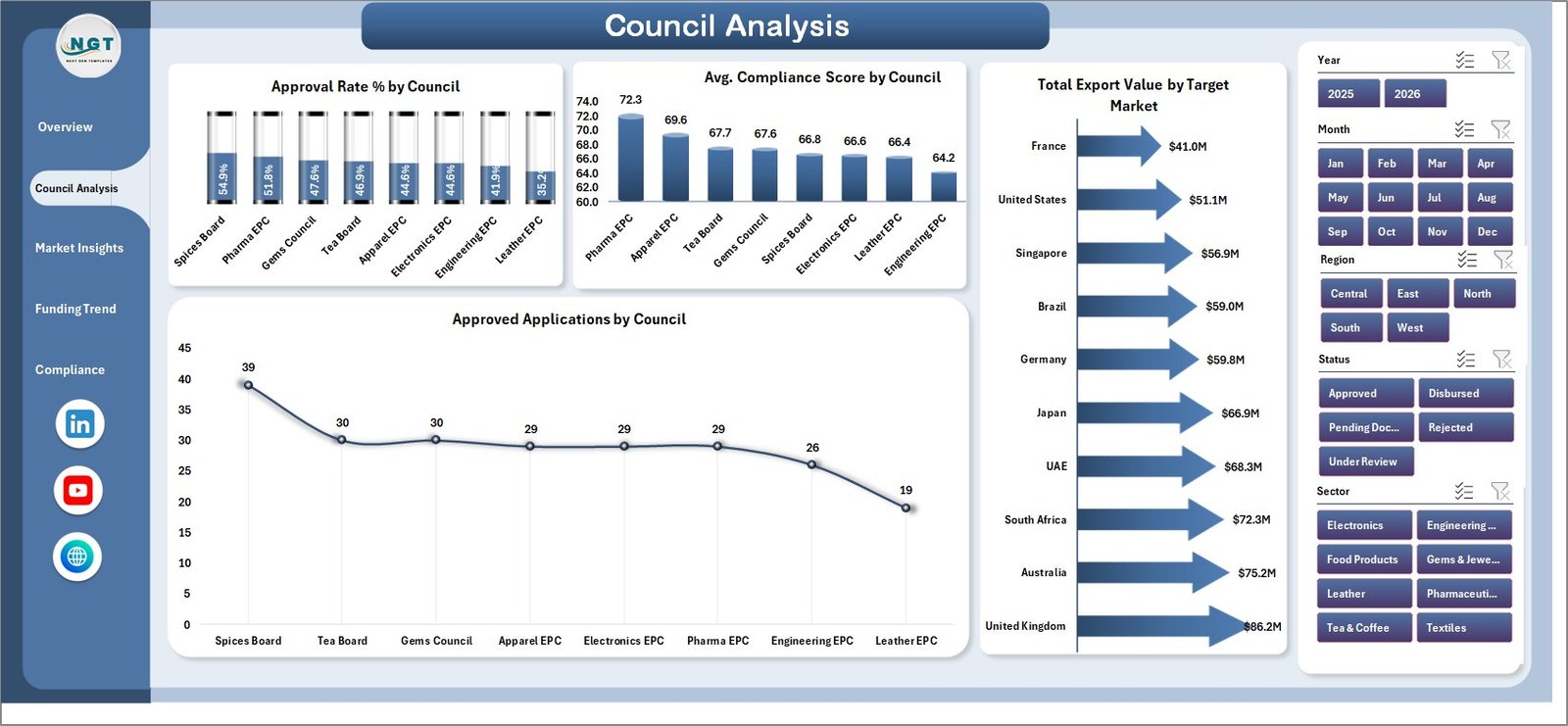
The Council Analysis tab focuses on approval rate, compliance score, target markets, and approved applications. Approval Rate % by Council compares how effectively each council converts applications into approvals. Avg. Compliance Score by Council helps identify whether governance quality is consistent across councils. Total Export Value by Target Market explains which export destinations are generating value. Approved Applications by Council shows approved workload and council contribution.
3. Market Insights
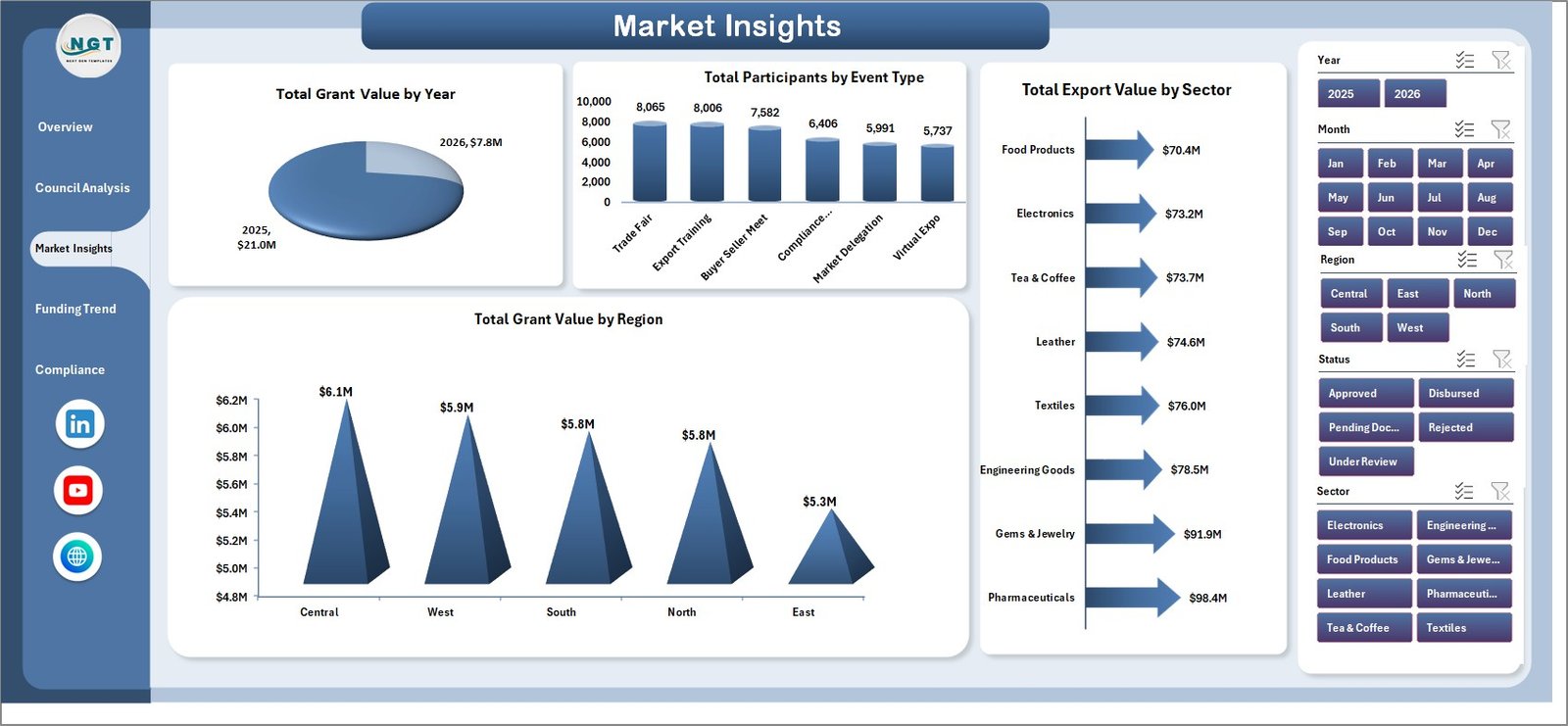
The Market Insights page explains where export promotion activity is concentrated. Total Grant Value by Year shows long-term funding movement. Total Participants by Event Type helps compare trade fairs, webinars, buyer-seller meets, missions, or other event categories. Total Export Value by Sector identifies sectors contributing the highest value, while Total Grant Value by Region helps teams understand regional funding distribution.
4. Funding Trend
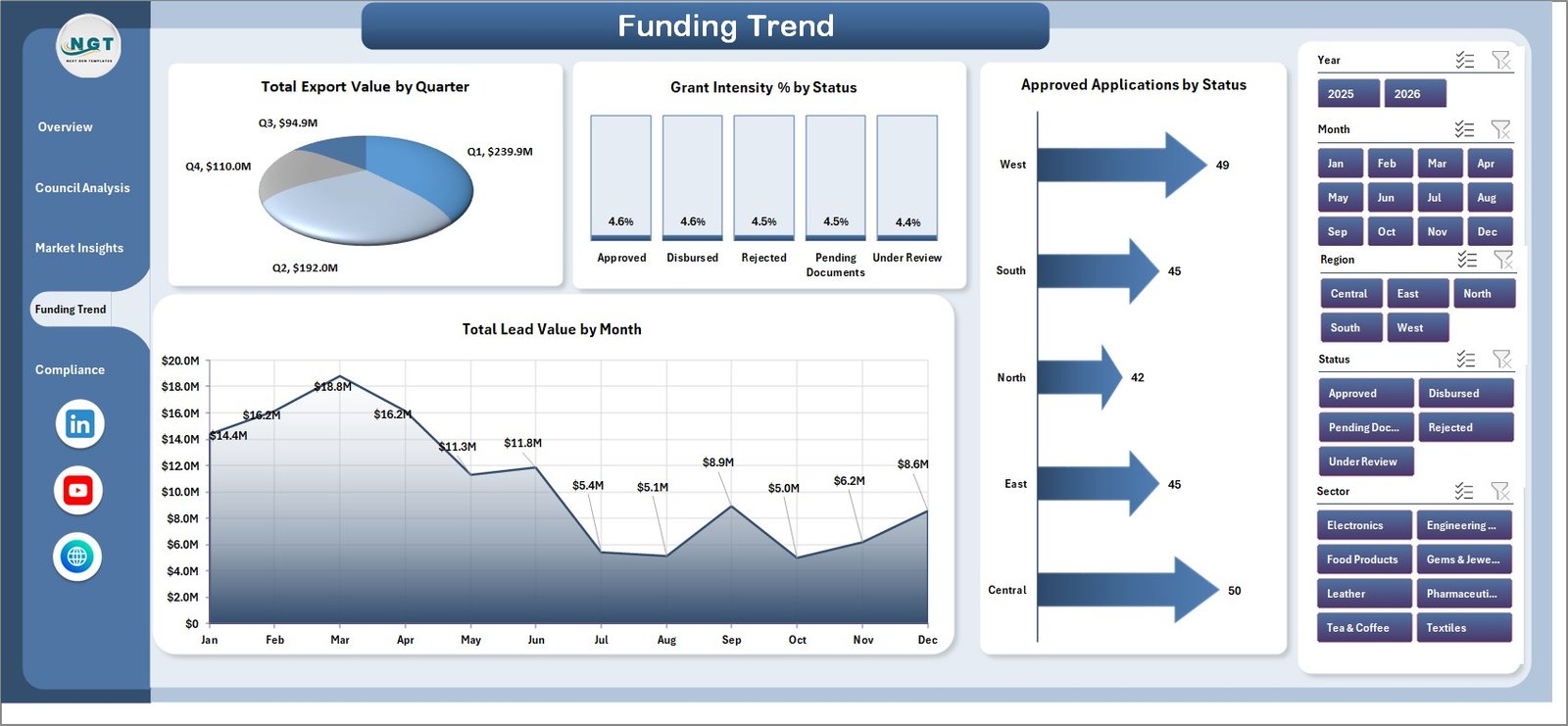
The Funding Trend tab is built for grant and lead value review. Total Export Value by Quarter helps users compare short-term performance periods. Grant Intensity % by Status shows how grant support varies across statuses. Approved Applications by Status validates application outcomes, and Total Lead Value by Month highlights pipeline movement over time.
5. Compliance
The Compliance page connects governance, sector performance, grant value, and satisfaction. Approval Rate % by Region helps compare regional processing outcomes. Avg. Compliance Score by Sector shows whether specific sectors need stronger documentation or follow-up. Total Grant Value by Event Type compares event funding, and Avg. Satisfaction Score by Event Type helps teams connect program delivery with participant experience.

6. Data Sheet Tab
The Data Sheet is the input layer of the workbook. Add your export promotion data in the same format, keep headers consistent, and refresh the workbook. This structure keeps recurring reporting simple because users do not need to rebuild formulas or charts each month.

7. Support Sheet
The Support Sheet contains multiple pivot tables used to create the dashboard dynamically. After updating the Data Sheet, go to the Data tab in the Excel Ribbon and click Refresh All. All pivots and charts refresh together. You can keep this sheet hidden in user-facing copies.

Export Promotion Councils Dashboard in Excel vs. Google Sheets vs. Paid CRM/SaaS – Feature Comparison
| Feature | This Excel Dashboard | Google Sheets Alternative | Paid CRM/SaaS |
|---|---|---|---|
| Cost | $17.99 one-time | Low software cost, manual build time | Monthly or annual subscription |
| Platform | Microsoft Excel | Google Sheets | Vendor cloud platform |
| Setup time | Replace data and refresh pivots | Build charts, formulas, and slicers manually | Configuration and onboarding |
| Collaboration | Available through OneDrive or SharePoint | Native collaboration | Usually included by license |
| Customizable fields | Fully editable workbook | Editable if built manually | Limited by vendor settings |
| Export council analytics | Included across 5 dashboard pages | Requires custom build | Depends on plan and configuration |
| Year-1 cost at 5 users | $17.99 plus existing Excel access | Low software cost, higher setup effort | Often hundreds or thousands |
Who Should Use This Template
This template is useful for export promotion councils, trade promotion agencies, government export departments, chambers of commerce, sector councils, grant managers, program managers, and analysts who need recurring reporting on applications, export value, grant value, participants, approval rates, compliance, markets, regions, sectors, and events.
It is not designed to replace a live application portal, grant disbursement system, CRM, trade compliance platform, or automated case management workflow. It works best as a reporting layer for structured export promotion data.
Real-World Use Cases
Export council program manager: A program manager uses the Overview and Council Analysis pages before monthly reviews to explain export value, participant reach, applications, approval rate, and compliance score.
Trade data analyst: An analyst updates the Data Sheet each month, clicks Refresh All, and uses Market Insights to identify high-value sectors, target markets, event types, and regions.
Grant operations lead: A grant lead uses Funding Trend and Compliance pages to connect grant value, lead value, application status, satisfaction score, and compliance results before funding review meetings.
Advantages of Export Promotion Councils Dashboard in Excel
- It saves time compared with building an export promotion dashboard from scratch.
- It keeps council, market, funding, compliance, and data-entry views in one workbook.
- It supports recurring reporting through a clear Data Sheet and Refresh All workflow.
- It is editable, so teams can adapt chart labels, colors, slicers, and fields.
- It works in Microsoft Excel without a separate dashboard subscription.
Opportunities for Improvement
Larger organizations can extend the workbook by adding Power Query connections, automated source exports, additional regional hierarchy, exporter size, product category, policy program, or beneficiary-level fields. Advanced users can also connect the structured data to Power BI for online sharing and deeper modeling.
Best Practices
- Keep council names, sectors, regions, target markets, event types, and statuses consistent.
- Validate Total Export Value, Total Lead Value, and Total Applications after every refresh.
- Use slicers during meetings to answer stakeholder questions quickly.
- Review compliance score and satisfaction score together for a fuller program-quality view.
- Keep the Support Sheet hidden for regular users, but do not delete it because it powers the dashboard.
Explore Relevant Templates
- Export Promotion Councils Dashboard in Excel
- Export Promotion Councils KPI Dashboard in Excel
- ERP SaaS Startups Dashboard in Excel
- Excel Dashboard Templates
Frequently Asked Questions
What KPI cards are included?
The Overview Page includes Total Export Value, Total Lead Value, Total Participants, Total Applications, and Avg. Compliance Score.
How many tabs are included?
The workbook includes seven tabs: Overview, Council Analysis, Market Insights, Funding Trend, Compliance, Data Sheet, and Support Sheet.
Can I use my own export promotion data?
Yes. Replace the sample rows in the Data Sheet, keep the same format, and refresh the workbook.
Does this dashboard require macros?
No. It is built with Excel tables, pivot tables, slicers, cards, and charts.
How do I refresh the charts?
After updating the Data Sheet, go to the Excel Data tab and click Refresh All. The Support Sheet pivots and dashboard charts update together.
Can this be customized?
Yes. You can edit visuals, sheet names, slicers, pivot fields, colors, labels, and formulas. Microsoft also provides guidance for Excel tables, pivots, and charts in Microsoft Excel Help & Learning.
About the Author
Built by PK – Microsoft Certified Professional with 15+ years of Excel, Google Sheets, and Power BI experience. Founder of NextGenTemplates, reaching 300K+ subscribers across YouTube channels. Every template is hand-built and tested before release.
Conclusion
The Export Promotion Councils Dashboard in Excel gives trade promotion teams a practical way to turn council activity, export value, grants, applications, compliance, markets, sectors, and regions into clear reporting. With KPI cards, slicers, 5 dashboard pages, a Data Sheet, and a pivot-based Support Sheet, it helps teams refresh recurring reports without starting from a blank workbook.
Visit our YouTube channel to learn step-by-step Excel, Power BI, and dashboard tutorials.
Click to Purchase Export Promotion Councils Dashboard in Excel