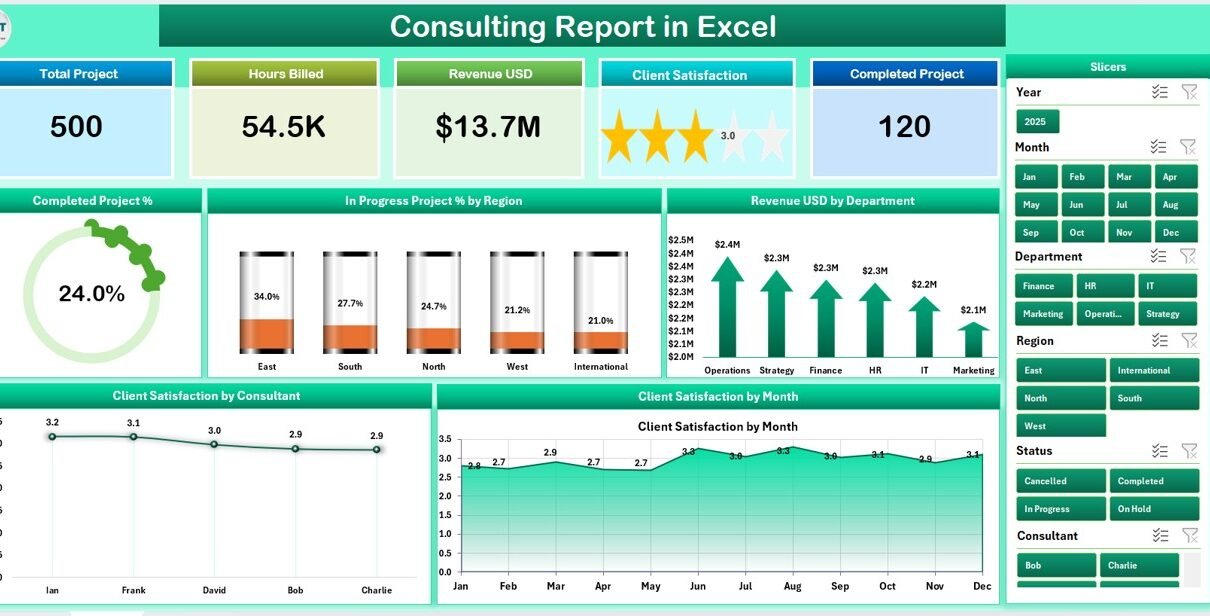
The Consulting Report in Excel tracks 5 core consulting KPIs across 4 structured sheets, with 5 pre-built charts and two slicers covering Completed Project %, In Progress Project % by Region, Revenue by Department, Client Satisfaction by Consultant, and Client Satisfaction by Month. Setup takes under 10 minutes — paste your project records into the Data Sheet and every chart, KPI card, and report table refreshes automatically.
For consulting firm partners, engagement managers, and operations leads, tracking project pipeline, consultant utilization, and client satisfaction through scattered spreadsheets or paid Professional Services Automation (PSA) software is costly and fragmented. This Excel-based report consolidates project status, region-wise revenue, and consultant-level client satisfaction into a single workbook with slicer-driven filters, a record-level information table, and structured data entry. If you want complete consulting performance visibility without paying $25–150 per user per month for Mavenlink, Scoro, or BigTime, the Consulting Report in Excel delivers exactly that.
Key Features of Consulting Report in Excel
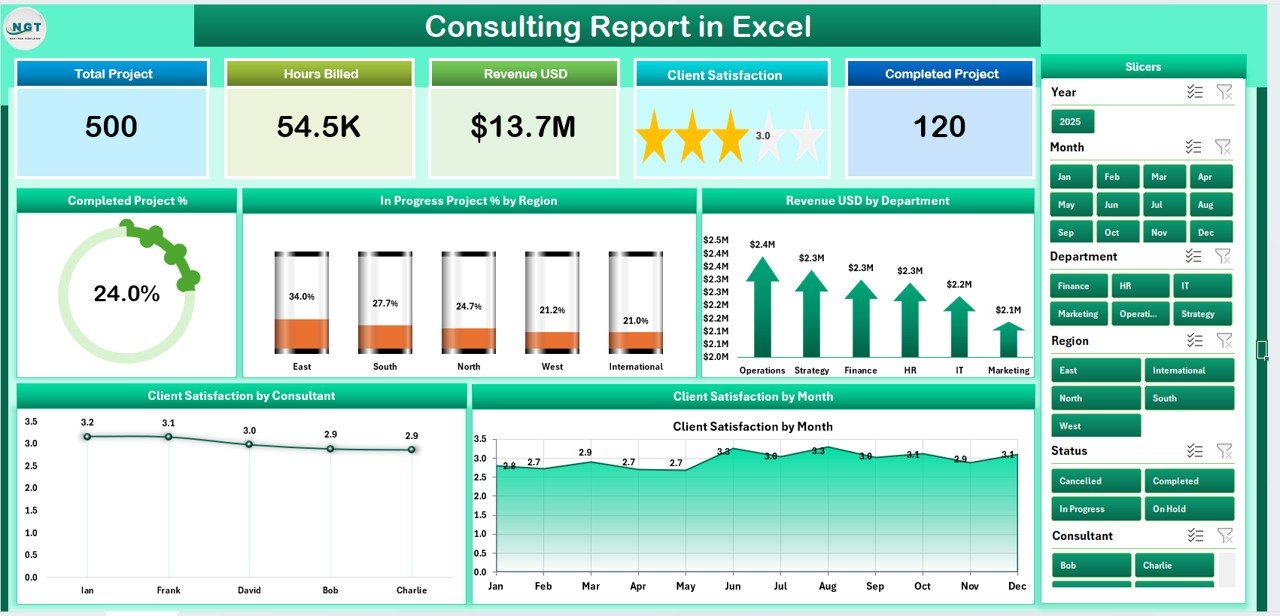
📊 5 KPI Cards on Summary Page — The top of the Summary Page displays 5 interactive KPI cards covering Total Projects, Completed Projects, In Progress Projects, Total Revenue, and Average Client Satisfaction. Each card recalculates instantly when you filter using the right-side slicer.
📈 5 Interactive Charts — The Summary Page visualizes Completed Project %, In Progress Project % by Region, Revenue by Department, Client Satisfaction by Consultant, and Client Satisfaction by Month in one consolidated view. All charts connect to the right-side slicer.
🔍 Dedicated Report Page with Information Table — A separate Report Page shows a record-level information table with a left-side slicer for drilling into individual project records by client, consultant, region, department, or status.
📋 Structured Data Sheet — A dedicated Data sheet stores all consulting project records in a clean, repeatable format. Fields typically include Project ID, Client Name, Consultant, Department, Region, Project Status, Start Date, End Date, Revenue, and Client Satisfaction Score.
🛠️ Support Sheet for Configuration — A Support Sheet stores lookup lists, helper calculations, and dropdown values that feed the dashboard. Extend consultants, departments, regions, and project statuses here without touching any formulas.
☁️ Works Offline — Full Excel desktop functionality on Windows and Mac. No internet required, no subscription fees, no per-user licensing.
Sheets Explanation
1️⃣ Summary Page
The Summary Page is the main operational view of the consulting report. It displays 5 KPI cards across the top — Total Projects, Completed Projects, In Progress Projects, Total Revenue, and Average Client Satisfaction — followed by 5 interactive charts: Completed Project %, In Progress Project % by Region, Revenue by Department, Client Satisfaction by Consultant, and Client Satisfaction by Month. A right-side slicer filters every KPI and chart simultaneously, giving consulting partners a real-time snapshot of firm-wide performance across every active client engagement.
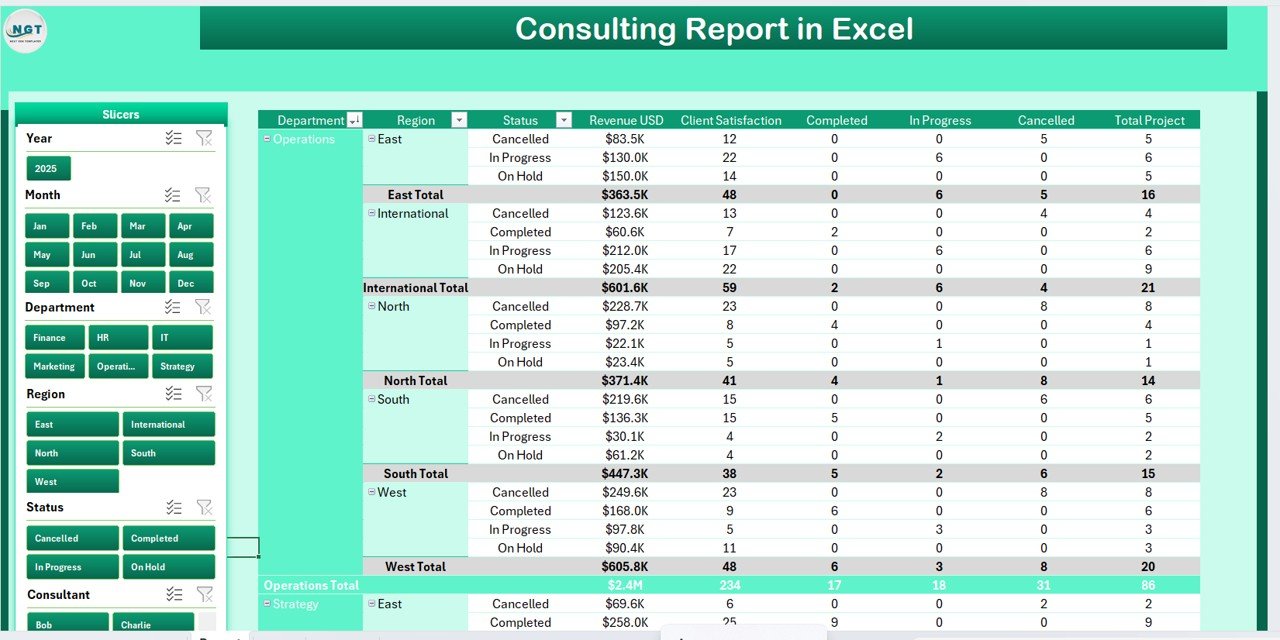
2️⃣ Report Page
The Report Page is built for record-level analysis. It features a left-side slicer and a full information table listing every project in the dataset. Engagement managers use this page to filter projects by client, consultant, region, department, or status, and drill into individual project records for billing review, scope tracking, and engagement follow-up. This page complements the Summary Page by moving from aggregate KPIs to actionable project-level detail.
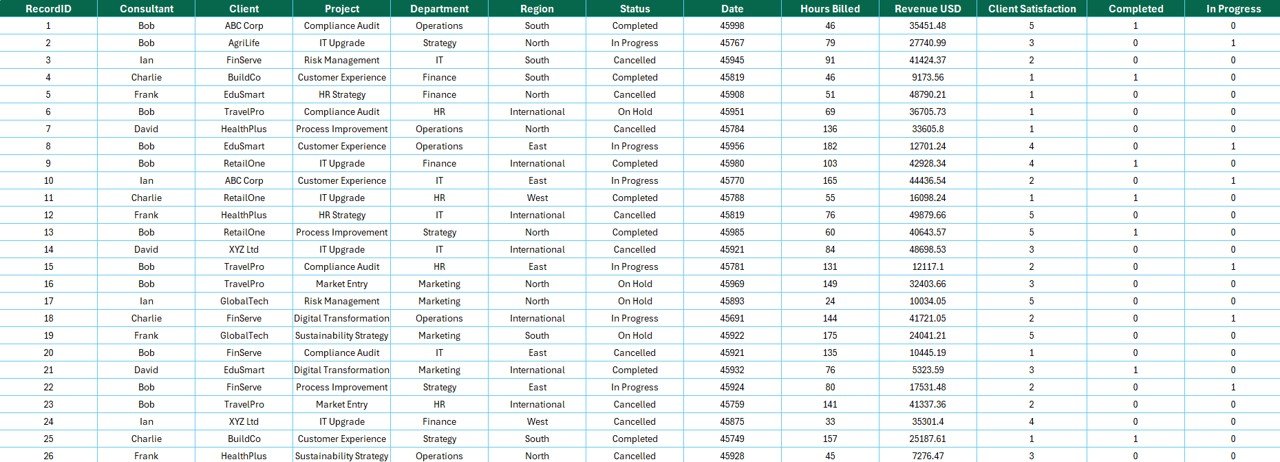
3️⃣ Data Sheet
The Data Sheet is the raw data entry tab where you add consulting project records in the structured format used throughout the report. Fields typically include Project ID, Client Name, Consultant, Department, Region, Project Status (Pending, In Progress, Completed), Start Date, End Date, Revenue, and Client Satisfaction Score. Paste your own data in the same structure and every chart, KPI card, and report table updates automatically.
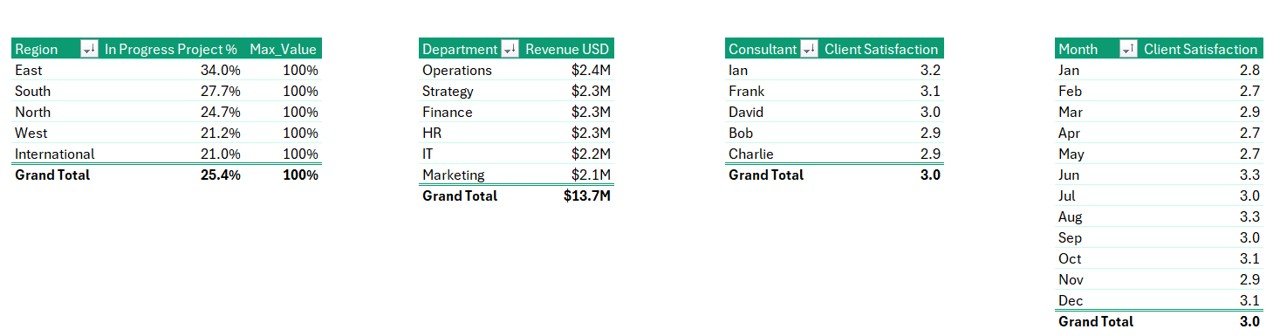
4️⃣ Support Sheet
The Support Sheet stores lookup lists — consultant names, department categories, region names, project status values — and any helper calculations that feed the dashboard. Edit this sheet to customize categories, add new consultants or regions, or adjust department definitions, and the entire report respects the updated configuration automatically.
Consulting Report in Excel vs. Google Sheets vs. Mavenlink / Scoro / BigTime — Feature Comparison
| Feature | Consulting Report in Excel | Google Sheets Equivalent | Mavenlink / Scoro / BigTime |
|---|---|---|---|
| Cost | $7.99 one-time | $6.99 one-time | $25–150 / user / month |
| Platform | Microsoft Excel (desktop) | Google Sheets (browser) | Web SaaS (subscription) |
| Setup Time | Under 10 minutes | Under 10 minutes | 2–8 weeks onboarding |
| Offline Access | ✅ Full offline use | Requires internet | ❌ Cloud-only |
| Slicer Filtering | ✅ Native Excel slicers | Filter views only | Built-in filters |
| Customizable Fields | ✅ Fully editable | ✅ Fully editable | Limited |
| Year-1 Cost (5 users) | $7.99 total | $6.99 total | $1,500–$9,000 / year |
| Client Satisfaction Tracking | ✅ Built-in (consultant + month) | Varies by template | ✅ Survey-integrated |
For consulting firms that want a complete project, revenue, and client satisfaction report without paying $25–150 per user per month for Mavenlink, Scoro, or BigTime, the Consulting Report in Excel sits in the sweet spot.
Who Should Use This Template
Perfect for:
- Consulting firm partners and managing directors tracking project pipeline, revenue, and consultant utilization across 5–500 active engagements
- Engagement managers running multi-region practices who need region-wise revenue and consultant-level client satisfaction in one workbook
- Solo consultants and 2–10 person boutique firms who want PSA-style reporting without paying $50+ per user per month
- Operations leads at professional services firms preparing monthly partner-meeting reports with Revenue by Department and Client Satisfaction trend charts
- Finance teams in consulting firms needing a single Excel file covering project status, revenue mix, and client experience metrics
Not a fit if:
- You need full PSA workflows with timesheet ingestion, automated invoicing, and SOC 2 / ISO 27001 audit trails
- Your workflow requires real-time two-way sync with Jira, HubSpot, or QuickBooks (this report uses paste-based data entry)
- You already live entirely in Google Workspace — consider a Google Sheets dashboard equivalent for browser-native collaboration
Real-World Use Cases
Priya runs a 22-person management consulting firm in Bengaluru. She uses the Consulting Report in Excel to track 60+ active client engagements across 4 regions, monitor Revenue by Department week over week, and present a monthly partner-meeting report on Client Satisfaction by Consultant. The slicer-driven Summary Page lets her switch from firm-wide view to a single department in one click — saving her roughly 4 hours per week of manual pivot-table rebuilding before partner meetings.
Daniel leads a boutique strategy consultancy of 6 people in Toronto. He replaced 3 separate spreadsheets — one for project status, one for revenue, one for client feedback — with this single workbook. During his Friday review, he filters by “In Progress” status using the slicer and walks his team through the Client Satisfaction by Consultant chart. The Client Satisfaction by Month visual became his core retention metric, and he now shares the Summary Page snapshot with his investors quarterly.
Sofia is an independent IT consultant working with 8 mid-size clients across Europe. She duplicates this template per client portfolio, customizes the Support Sheet with their department, region, and project status lists, and delivers a branded consulting performance report every quarter — turning a $7.99 template into a recurring deliverable that previously required a $400/month BigTime license per client.
Advantages of Consulting Report in Excel
✅ One-Time Cost — $7.99 with lifetime access compared to $1,500–$9,000 per year for paid PSA SaaS at 5 users.
✅ Slicer-Based Filtering — Two slicers (right on Summary, left on Report) filter KPIs, charts, and the information table simultaneously, reducing manual pivot-table work by several hours per week.
✅ Record-Level Drilldown — The Report Page information table lets engagement managers move from aggregate Revenue by Department metrics to individual project records for billing follow-up within seconds.
✅ Works Offline — Full Excel desktop functionality on Windows and Mac. No internet, no subscription, no per-user fees.
✅ Fully Customizable — Edit the Support Sheet to add consultants, departments, regions, or project statuses, and every other sheet respects the changes automatically.
✅ Professional Output — Copy the Summary Page as an image or export to PDF for monthly partner-meeting reviews with zero extra formatting work.
Opportunities for Improvement
Honest limitations worth knowing before you buy:
- Manual data entry — The report does not automatically ingest data from a CRM, timesheet system, or invoicing API. You paste or type your project records into the Data Sheet.
- Single-user editing — Excel desktop handles one concurrent editor. For real-time multi-user collaboration, a Google Sheets equivalent is a better fit.
- No automated billing reconciliation — The report tracks revenue and project status, but does not auto-calculate invoicing or accounts receivable. Larger consulting firms should pair this with a dedicated finance system.
- Static data model — Adding entirely new fields (e.g., timesheet hours, billing rate, client industry) requires Excel editing. The template supports the core consulting fields listed in the Data Sheet out of the box.
Best Practices
🎯 Update the Data Sheet weekly — Consulting firms that add new project records every Monday get the cleanest trend lines on the Client Satisfaction by Month visual.
🎯 Customize the Support Sheet first — Before pasting your data, edit consultant names, department lists, and region categories in the Support Sheet to match your firm. This keeps the slicer and dropdown menus clean.
🎯 Use the Report Page for partner reviews — Filter by “In Progress” status during weekly partner reviews to focus discussion on engagements needing attention. Filter by individual consultant during one-on-one performance reviews.
🎯 Export Summary Page snapshots monthly — Copy the Summary Page as an image or export to PDF for monthly partner-meeting reviews. Learn more about how Excel slicers work on Microsoft’s official documentation.
🎯 Duplicate per client portfolio — Independent consultants and multi-entity firms can save copies per client, region, or service line, and use the Support Sheet to swap category lists.
Explore Relevant Templates
📊 Technology Report in Excel — A sibling Excel report focused on technology operations, with the same Summary Page + Report Page + Data Sheet + Support Sheet structure.
📊 Administration Report in Excel — Track service requests, escalations, and completion percentages across departments and regions in the same 4-sheet report format.
📊 Data Analytics Dashboard Report in Excel — A complementary Excel report ideal for consulting firms running data analytics service lines for clients.
📊 Compliance and Audit Dashboard in Power BI — Step up to Power BI when you need richer interactivity and cross-report drillthrough on consulting compliance data.
📊 Browse all Excel Dashboard Templates →
Frequently Asked Questions
What KPIs does the Consulting Report in Excel track?
The Consulting Report in Excel tracks 5 core KPIs on the Summary Page: Total Projects, Completed Projects, In Progress Projects, Total Revenue, and Average Client Satisfaction. All metrics update automatically when you replace the sample data with your own consulting project records in the Data Sheet.
Can I filter the report by consultant, region, or department?
Yes. The Summary Page has a right-side slicer and the Report Page has a left-side slicer. Both let you filter by consultant, region, department, project status, or client. All KPI cards, charts, and the information table update simultaneously when a filter is applied.
How does this compare to Mavenlink, Scoro, or BigTime?
The Consulting Report in Excel costs $7.99 one-time versus $25–150 per user per month for Mavenlink, Scoro, or BigTime. It covers the same project status, revenue, and client satisfaction reporting without subscription costs or lengthy onboarding, and works fully offline on Windows and Mac.
How long does setup take?
Setup for the Consulting Report in Excel takes under 10 minutes. Open the file, paste your project data into the Data Sheet, update the Support Sheet dropdowns if needed, and every chart, KPI card, and report table updates automatically.
Can I add more consultants or departments?
Yes. The Support Sheet holds all consultant, department, region, and project status lookup lists. Add rows to extend these lists, and the Summary Page charts, Report Page table, and slicers respect the updated configuration immediately.
Does this template work on Mac?
Yes. The Consulting Report in Excel works on both Windows and Mac versions of Microsoft Excel. Slicers, charts, and formulas all function natively without add-ins. Excel for the web also supports viewing the report.
Can I track Client Satisfaction by individual consultant?
Yes. The Consulting Report in Excel includes a dedicated Client Satisfaction by Consultant chart on the Summary Page. Apply the slicer by region or department to view satisfaction scores for a subset of consultants, helping partners identify both top performers and engagement-quality risks.
About the Author
Built by PK — Microsoft Certified Professional with 15+ years of Excel, Google Sheets, and Power BI experience. Founder of NextGenTemplates, reaching 300K+ subscribers across YouTube channels. Every template is hand-built and tested before release.
Conclusion
The Consulting Report in Excel gives consulting firm partners, engagement managers, and operations leads a complete project, revenue, and client satisfaction tracking system — 5 KPI cards, 5 charts, a record-level information table, and two slicers — in a single Excel workbook for $7.99 one-time. Replace scattered project spreadsheets, stop paying per-user PSA fees, and start running your consulting performance reporting from a single file that works offline on Windows and Mac.
📖 Click here to Purchase Consulting Report in Excel
✅ Instant download · One-time payment · No subscription
🎥 Visit our YouTube channel for step-by-step video tutorials: Youtube.com/@PK-AnExcelExpert
📅 Last updated: April 2026