• Excel and VBA
    • VBA Course
    • Shortcut Keys
    • Useful Formulas
    • Basic Charts
    • Advanced Chart
    • Sort and Filter
    • Pivot Table
    • Data Validation
    • Conditional Formatting
    • Auto Fill and Flash Fill
    • Find and Replace
  • Charts
    • Progress Charts
    • Info-graphics
    • Animated Charts
    • Comparisons
    • Gantt Charts
    • Heatmaps
    • Speedometers
    • Timelines
  • Templates
  • Tutorials
    • Charts and Visualization
    • VBA
    • Excel Tips and Tricks
  • Power BI
  • Template StoreNew
  • CoursesNew
  • Ready to Use Templates
  • About Us
  • Contact Us

PK: An Excel Expert

Transforming Data into Decisions

Home>Blogs>Excel Tips and Tricks>Quick QR Code Generator in Excel
Quick QR code Generator in Excel
Excel Tips and Tricks

Quick QR Code Generator in Excel

08 Feb 2024
2889Comments Off on Quick QR Code Generator in Excel

In this article, we will  explain how to create a QR Code Generator in Excel. In the fast-paced digital world we live in, QR codes have seamlessly woven themselves into the fabric of our daily interactions. They’re not just black and white squares; they’re gateways to a world of information, accessible with a simple scan. Whether you’re aiming to share your website with customers, provide educational materials to students, or just make linking to a recipe easier for your dinner party guests, QR codes are the answer. And you know what? You can create them straight from Microsoft Excel. Yes, Excel, that program you thought was just for spreadsheets, is about to become your new best friend for digital engagement.

Table of Contents

Toggle
  • Let’s Get Started: QR Code Generator in Excel
  • Step Two: The URL Awaits
  • Step Three: Merge for Space
  • Step Four: Formula Time
  • Why This Is Awesome
  • Boost Your Engagement Like Never Before
  • Wrapping It All Up
    • Watch the step-by-step video tutorial:
  • Click here to download the practice file

Let’s Get Started: QR Code Generator in Excel

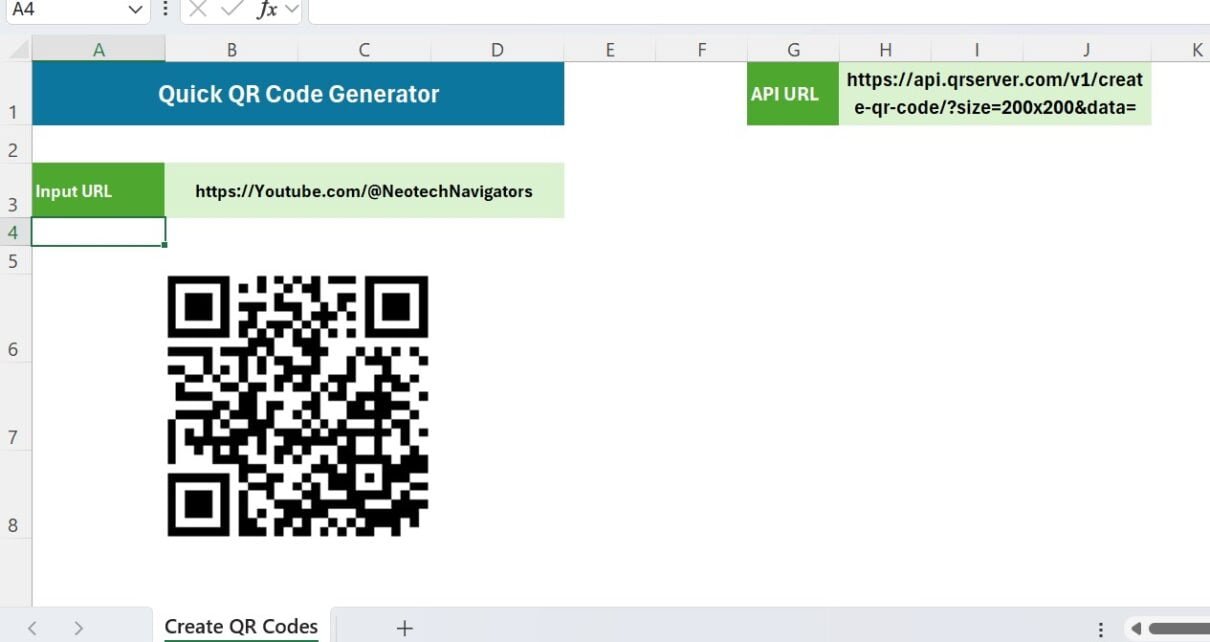
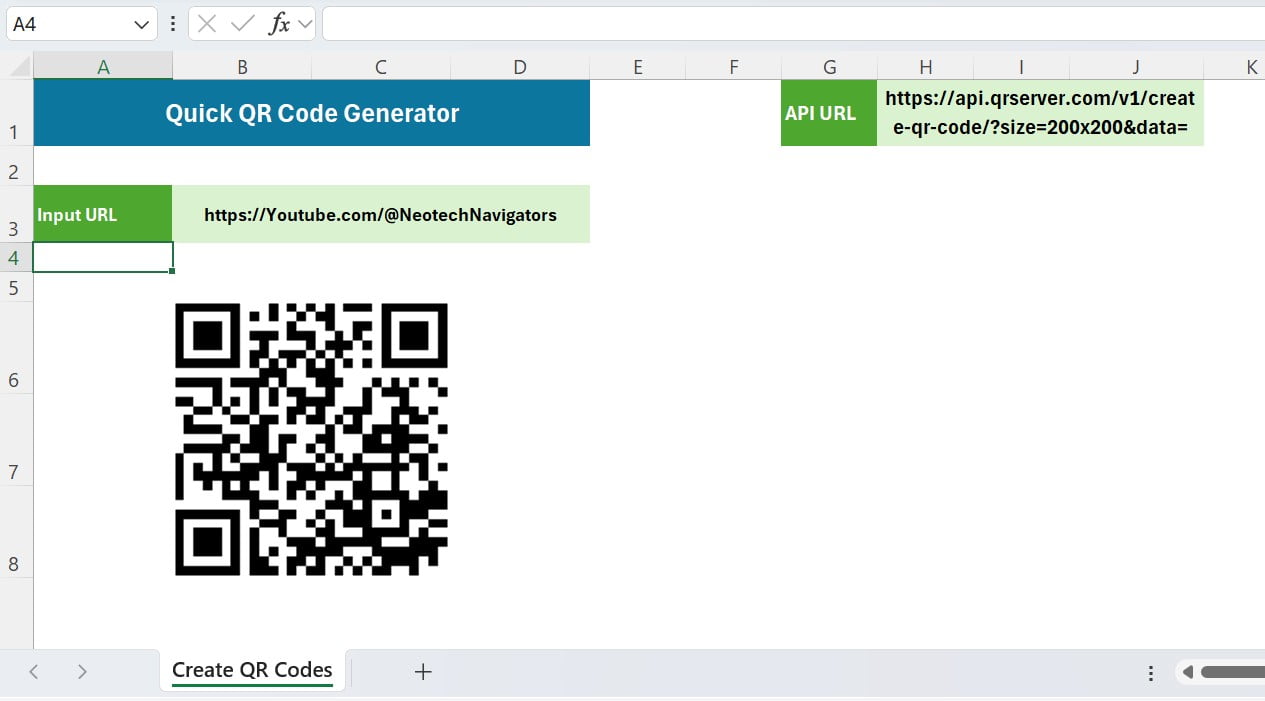
First up, let’s set the stage in Excel. You’ll need to focus on cell H1; this is where the initial setup happens. But, a quick heads up – make sure your internet connection is up and running. It’s essential for the QR magic to happen. Put the below API URL on the range H1:

https://api.qrserver.com/v1/create-qr-code/?size=200x200&data=

Step Two: The URL Awaits

Here’s where the excitement builds. Jump over to cell B3 and type in the URL you’re eager to share. This could be anything – the sky’s the limit! Your website, a cool blog, an invaluable resource… whatever floats your boat.

Step Three: Merge for Space

After you’ve input your URL, you’re going to merge cells B6:C8. This isn’t just busywork; it creates the perfect home for your QR code, ensuring it’s not too cramped and looks just right.

Step Four: Formula Time

Now, in the merged range B6 input this magic formula: =IMAGE(H1&B3). This formula is like a magic wand. It takes the API link we shared (https://api.qrserver.com/v1/create-qr-code/?size=200×200&data=) and your chosen URL, and voilà – your QR code springs to life in the designated cells (B6:C8).
QR code Generator in Excel

Why This Is Awesome

Turning to Excel for your QR code needs isn’t just smart; it’s incredibly straightforward. By following these easy steps, you can churn out QR codes with zero fuss, skipping the hassle of external software or websites. It’s a brilliant way to make your Excel projects that much more dynamic and engaging.

Boost Your Engagement Like Never Before

Now you can use the QR codes with your presentations, your detailed reports, or even those sleek business cards you hand out. You’re doing so much more than just sharing information; you’re essentially creating a captivating, interactive experience for everyone who comes across your work. And the cherry on top? Using this trick in Excel you can simplify this entire process to such an extent that you’re literally just a few clicks away from taking your digital content from good to great.

Wrapping It All Up

Turning your Excel sheet into a QR code generator is practically child’s play. You can simply follow our easy-to-understand guide. It doesn’t matter if you’re a newbie to Excel or a seasoned pro, this tutorial is designed to give you the power to create QR codes smoothly and swiftly, pushing your digital engagement and accessibility to entirely new levels. So, why sit back? Jump into Excel and kickstart your QR code creation journey right now! It’s time to make those digital connections stronger than ever.

Visit our YouTube channel to learn step-by-step video tutorials

Youtube.com/@PKAnExcelExpert

Watch the step-by-step video tutorial:

Click here to download the practice file

Tagged digital engagement, Excel QR code, Excel Tutorial, generate QR code, IMAGE function, interactive content
PK
Meet PK, the founder of PK-AnExcelExpert.com! With over 15 years of experience in Data Visualization, Excel Automation, and dashboard creation. PK is a Microsoft Certified Professional who has a passion for all things in Excel. PK loves to explore new and innovative ways to use Excel and is always eager to share his knowledge with others. With an eye for detail and a commitment to excellence, PK has become a go-to expert in the world of Excel. Whether you're looking to create stunning visualizations or streamline your workflow with automation, PK has the skills and expertise to help you succeed. Join the many satisfied clients who have benefited from PK's services and see how he can take your Excel skills to the next level!
https://www.pk-anexcelexpert.com

Related Articles

TEXTSPLIT Function in Excel
Excel Tips and Tricks

TEXTSPLIT function with three use cases in Excel

December 26, 2022August 5, 2024 PK
TEXTSPLIT is extremely useful function in Excel. We use it to split text by using column and row delimiters in
Analog Clock
Excel Tips and Tricks

Analog Clock in Excel (Pie Chart + Doughnut Chart)

December 22, 2018March 11, 2025 PK
Analog Clock in Excel (Pie Chart + Doughnut Chart) After creating the Digital Clock, we have created a beautiful Analog
Excel Tips and Tricks

Finding and Counting Unique values with Example

September 8, 2024 PK
Have you ever struggled with figuring out how many unique items are in your data set or counting their occurrences

Post navigation

SUM + CHOOSECOLS function for Dynamic Total
Excel Hacks: Seamlessly Embed Files in Excel from Other Apps

Join Our Course

  • Excel Pivot Tables for Data Analysis

Top Categories

  • Blogs (26)
  • Charts and Visualization (155)
  • Dashboard (2,565)
  • Excel Tips and Tricks (186)
  • Power BI (1,190)
  • Power Pivot (104)
  • Power Point Visualization (4)
  • Power Query (1)
  • Predictive Analytics (5)
  • Productivity (2)
  • Templates (1,432)
  • VBA (212)
instant= new adsenseLoader( '#quads-ad1-place', { onLoad: function( ad ){ if (ad.classList.contains("quads-ll")) { ad.classList.remove("quads-ll"); } } });

Latest Articles

Veterinary Clinic Dashboard in Power BI

April 12, 2026April 12, 2026 PK

Salon and Spa Dashboard in Excel

April 12, 2026April 12, 2026 PK

Veterinary Clinic Dashboard in Excel

April 12, 2026April 12, 2026 PK

Shopify Store Dashboard in Power BI

April 12, 2026April 12, 2026 PK

Content Creator Revenue Dashboard in Power BI

April 12, 2026April 12, 2026 PK

Popular Articles

Sustainability Metrics KPI Dashboard Power BI

January 2, 2026January 2, 2026 PK

Digital Media Agencies Dashboard in Excel

November 22, 2025November 22, 2025 PK

Marketing AI Implementation Calendar in Excel

March 22, 2025March 22, 2025 PK
Gantt Chart in Excel

Quick Gantt Chart

May 19, 2018March 9, 2025 PK

Hydropower KPI Dashboard in Power BI

May 15, 2025May 15, 2025 PK

Read More about..

  • Advanced Excel
  • VBA Course
  • Dashboard
  • Chart and Visualization
  • VBA Tips
  • Excel Tips and Trics
  • Our Excel Products
  • About US
  • Contact Us


Subscribe to our Newsletter


Download Dashboards

  • Project Management Dashboard
  • Zonal Dashboard
  • Sales Dashboard
  • Outbound Dashboard
  • A Quick Dashboard
  • C-SAT Dashboard
  • Performance Dashboard
  • Process Dashboard
  • Incentive Dashboard
instant= new adsenseLoader( '#quads-ad2-place', { onLoad: function( ad ){ if (ad.classList.contains("quads-ll")) { ad.classList.remove("quads-ll"); } } });

Popular Tags

Business Analytics business intelligence checklist template data analysis Data Analytics Data visualization Event Management Excel excel-kpi-template Excel calendar Excel Calendar Template excel checklist excel checklist template Excel Dashboard Excel dashboard template Excel KPI Dashboard Excel reporting Excel Template Excel Templates Excel Tips Excel Tutorial healthcare analytics HR Analytics kpi-tracking-excel KPI Dashboard KPI dashboard Excel KPI monitoring KPI tracking MTD YTD analysis MTD YTD dashboard MTD YTD KPIs performance dashboard Performance Metrics performance tracking Power BI Power BI dashboard Power BI KPI Dashboard Power BI Reporting Power BI reports Power BI Template Power BI Templates Project Management Task Management Task Tracker VBA
  • Excel and VBA
    • VBA Course
    • Shortcut Keys
    • Useful Formulas
    • Basic Charts
    • Advanced Chart
    • Sort and Filter
    • Pivot Table
    • Data Validation
    • Conditional Formatting
    • Auto Fill and Flash Fill
    • Find and Replace
  • Charts
    • Progress Charts
    • Info-graphics
    • Animated Charts
    • Comparisons
    • Gantt Charts
    • Heatmaps
    • Speedometers
    • Timelines
  • Templates
  • Tutorials
    • Charts and Visualization
    • VBA
    • Excel Tips and Tricks
  • Power BI
  • Template StoreNew
  • CoursesNew
  • Ready to Use Templates
  • About Us
  • Contact Us
Copyright © 2023 PK-AnExcelExpert.com - Privacy Policy
This website uses cookies to improve your user experience, analyze site traffic and serve targeted ads in accordance with our Privacy Policy ACCEPT
Privacy & Cookies Policy

Privacy Overview

This website uses cookies to improve your experience while you navigate through the website. Out of these cookies, the cookies that are categorized as necessary are stored on your browser as they are essential for the working of basic functionalities of the website. We also use third-party cookies that help us analyze and understand how you use this website. These cookies will be stored in your browser only with your consent. You also have the option to opt-out of these cookies. But opting out of some of these cookies may have an effect on your browsing experience.
Necessary
Always Enabled
Necessary cookies are absolutely essential for the website to function properly. This category only includes cookies that ensures basic functionalities and security features of the website. These cookies do not store any personal information.
Non-necessary
Any cookies that may not be particularly necessary for the website to function and is used specifically to collect user personal data via analytics, ads, other embedded contents are termed as non-necessary cookies. It is mandatory to procure user consent prior to running these cookies on your website.
SAVE & ACCEPT