The SaaS Product Usage Dashboard in Excel is a pivot-driven analytics workbook that tracks 5 SaaS KPIs — Total Activities, Total MRR, Total Sessions, Total Active Users, and Total Net Profit — across 5 interactive pages with 19 charts, all powered from a single Data Sheet. With one Refresh All click, every visual updates in under 5 seconds, even on 50,000+ rows of usage events.
Most early-stage SaaS teams don’t need a $400/month Mixpanel seat or a 6-week Amplitude rollout. They need MRR, churn, and product-usage signals in one place — fast, owned locally, and ready for the Tuesday investor call. That’s exactly what this Excel dashboard solves: a one-time $17.99 workbook covering the same metrics that paid SaaS analytics platforms charge $1,500–$120,000 per year for at small team sizes.
Key Features of SaaS Product Usage Dashboard in Excel
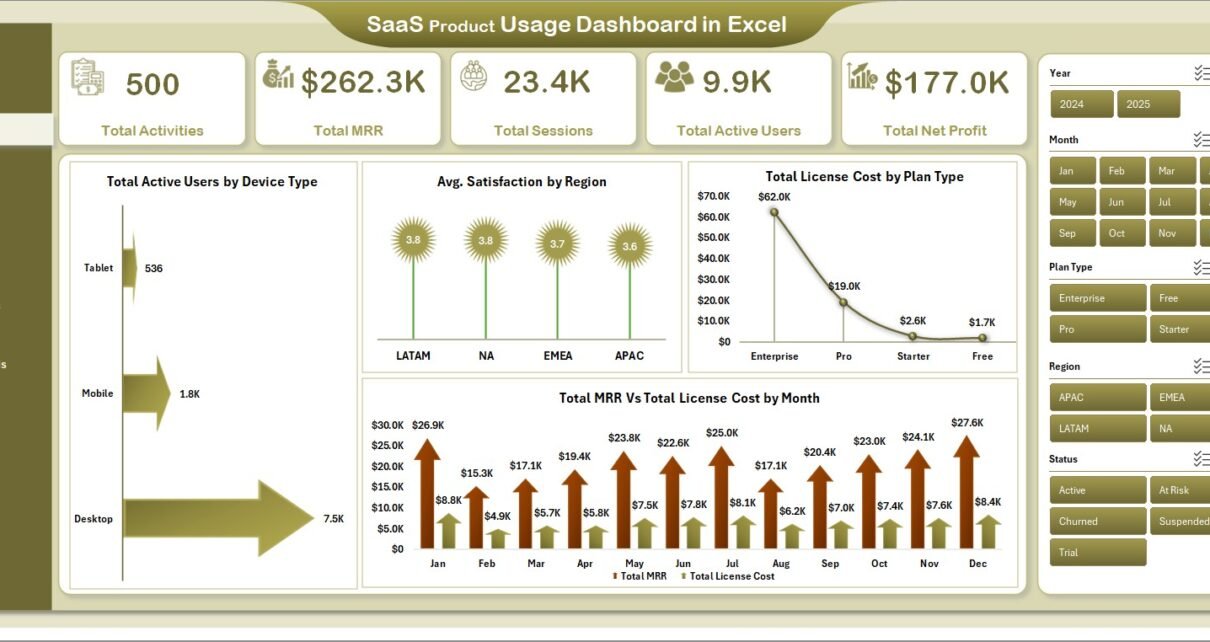
🔹 5 KPI cards on the Overview page — Total Activities, Total MRR, Total Sessions, Total Active Users, and Total Net Profit refresh in one click after a Data Sheet update, giving leadership the at-a-glance numbers they ask for in every status meeting.
🔹 19 charts across 5 dedicated pages — Overview, Usage Analytics, Customer Health, Revenue Analysis, and Engagement Trends. Each page is engineered to answer one specific SaaS business question without writing a formula.
🔹 Pivot-driven architecture — every visual is built from a single Support Sheet of pivot tables. The pivot model is the engine; the dashboard pages are the cockpit. Read more about pivot tables on Microsoft Support.
🔹 Multi-dimensional slicers — filter the entire workbook by Plan Type, Device Type, Region, Module, Login Method, and Industry. Slicer changes cascade across every page simultaneously through shared pivot caches.
🔹 Combined revenue + churn surface — pairs Total MRR vs. Total License Cost by Month with Avg. Satisfaction vs. Churn Rate by Region in one workbook, so finance and customer-success teams use the same source of truth instead of arguing over divergent reports.
🔹 Hidden Support Sheet — the entire pivot infrastructure can be hidden so business users only see polished pages, while admins maintain full control of the data model.
Dashboard Pages Explanation
Page 1 — Overview: 5 KPI cards (Total Activities, Total MRR, Total Sessions, Total Active Users, Total Net Profit) plus 4 charts: Total Active Users by Device Type, Avg. Satisfaction by Region, Total License Cost by Plan Type, and Total MRR vs. Total License Cost by Month. Multi-field slicers anchor the page so any filter cascades to every chart instantly.
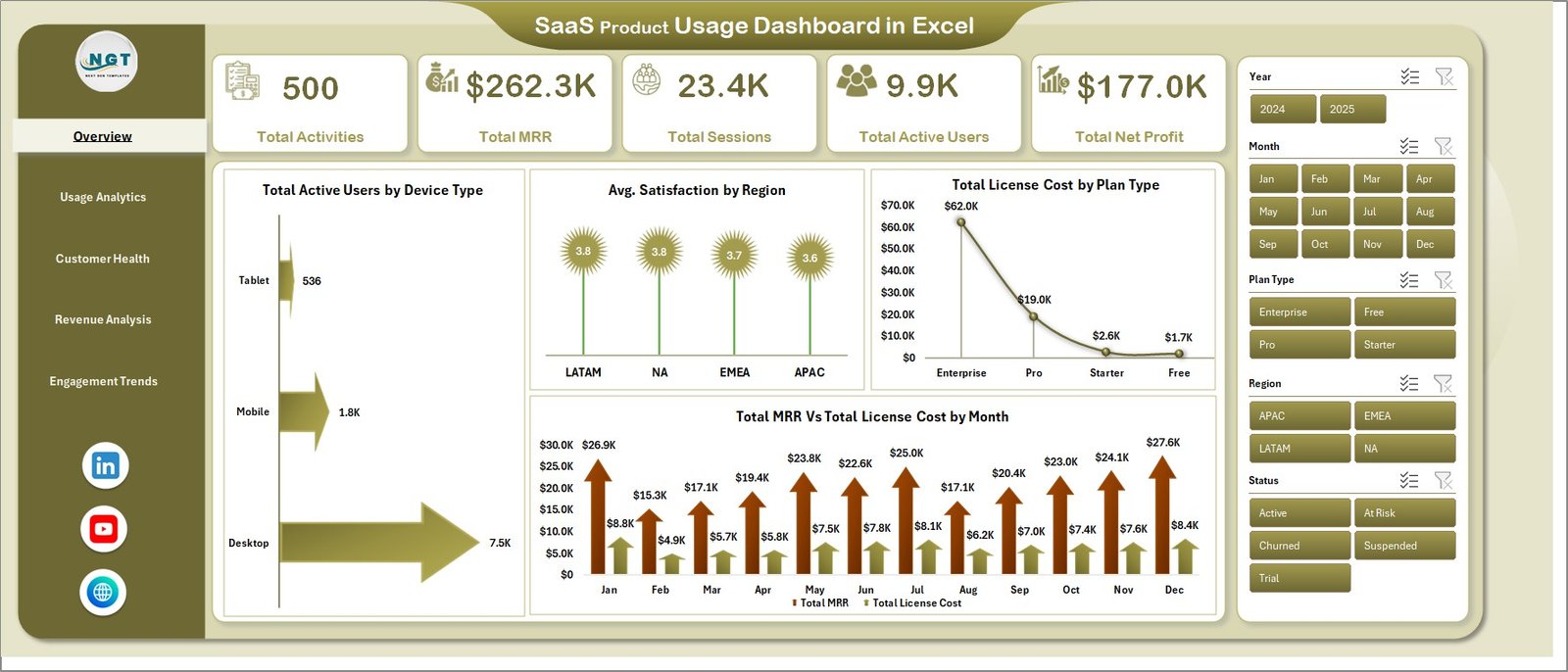
SaaS Product Usage Dashboard – Overview Page
Page 2 — Usage Analytics: Avg. Satisfaction by Module, Total Sessions by Device Type, Total Sessions vs. Total Active Users by Region, and Total Activities by Login Method. Identifies which modules drive engagement and which login methods correlate with deeper usage — a signal often used to justify SSO or magic-link rollouts.
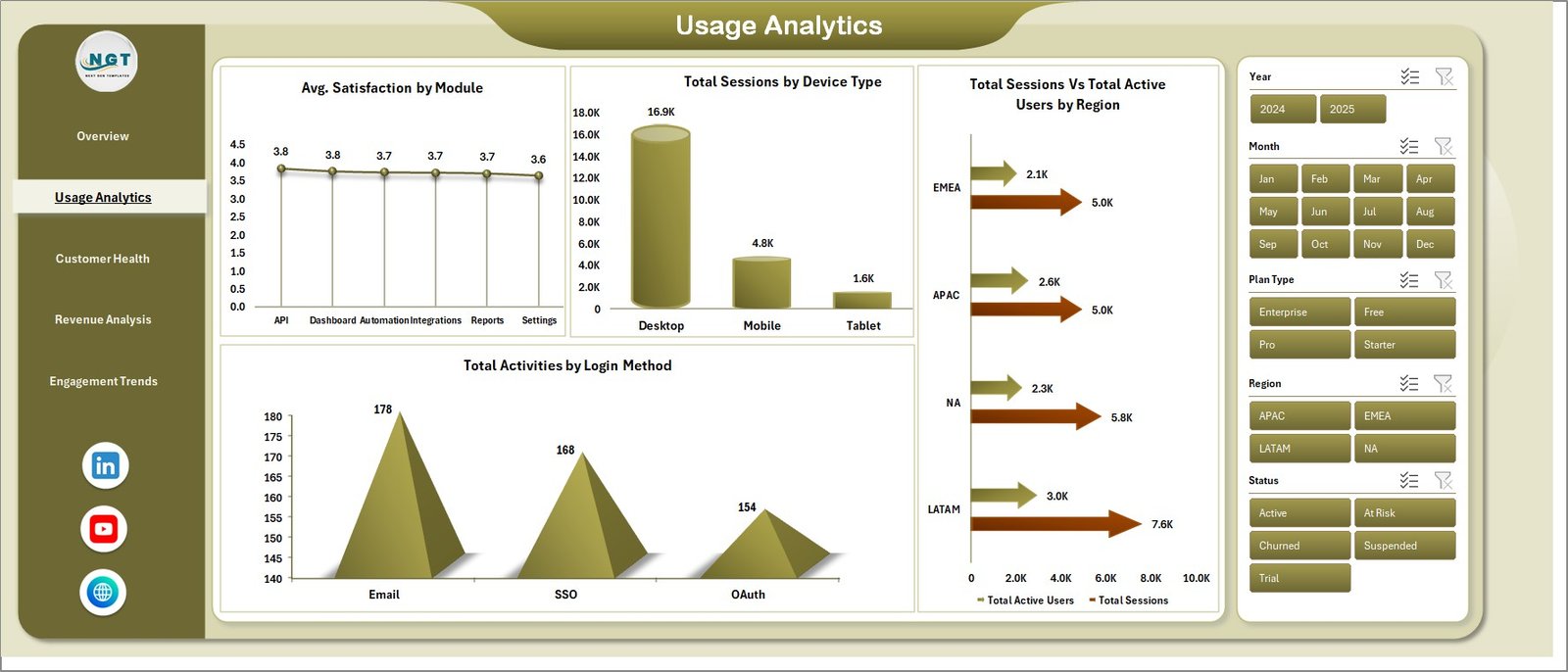
Usage Analytics page
Page 3 — Customer Health: Total Activities by Status, Churn % by Plan Type, Avg. Satisfaction by Industry, and Avg. Satisfaction vs. Churn Rate by Region. The dual-axis satisfaction-vs-churn chart spots at-risk regions before churn lands in next month’s invoice — typically 30–60 days of advance notice.
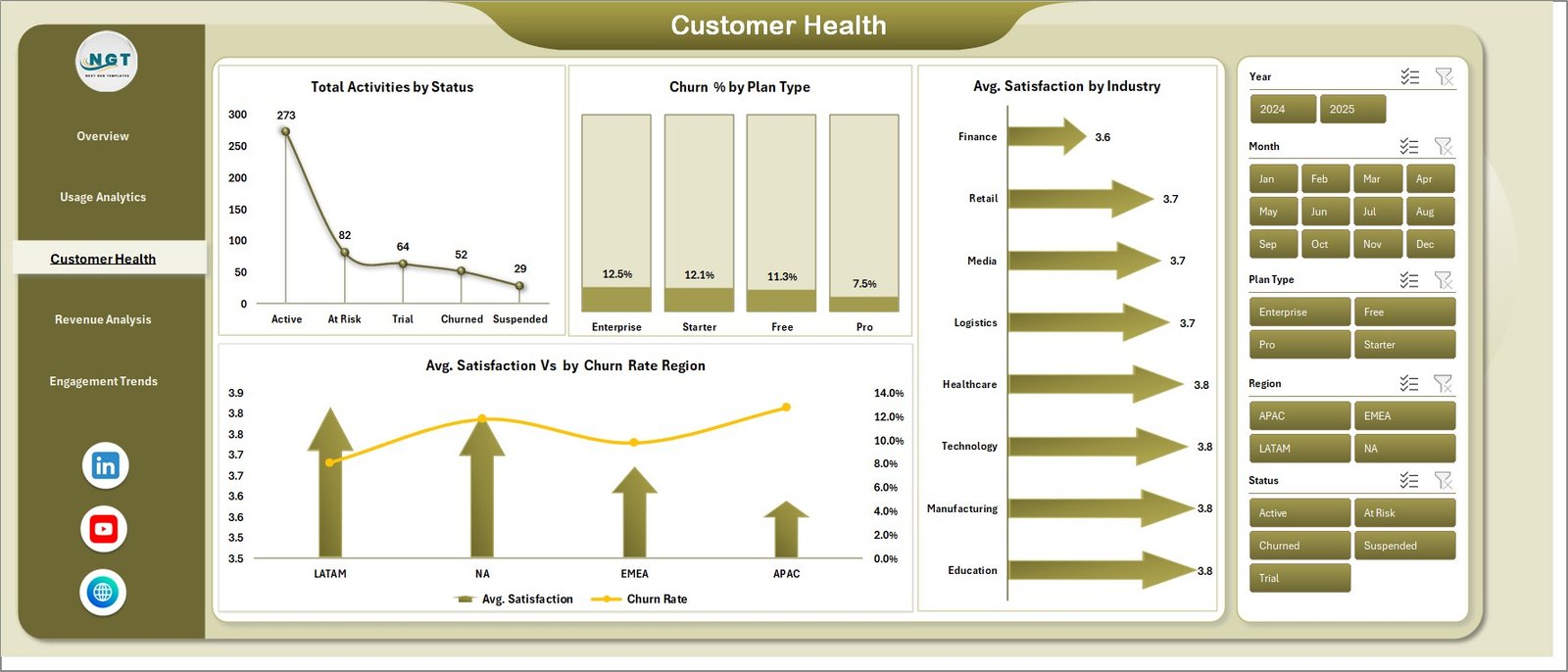
Customer Health page
Page 4 — Revenue Analysis: Total MRR by Device Type, Total MRR by Plan Type, Total MRR by Month, and Total MRR vs. Total License Cost by Region. Pairs revenue trends with infrastructure cost so gross-margin shifts surface immediately, well before a board meeting.
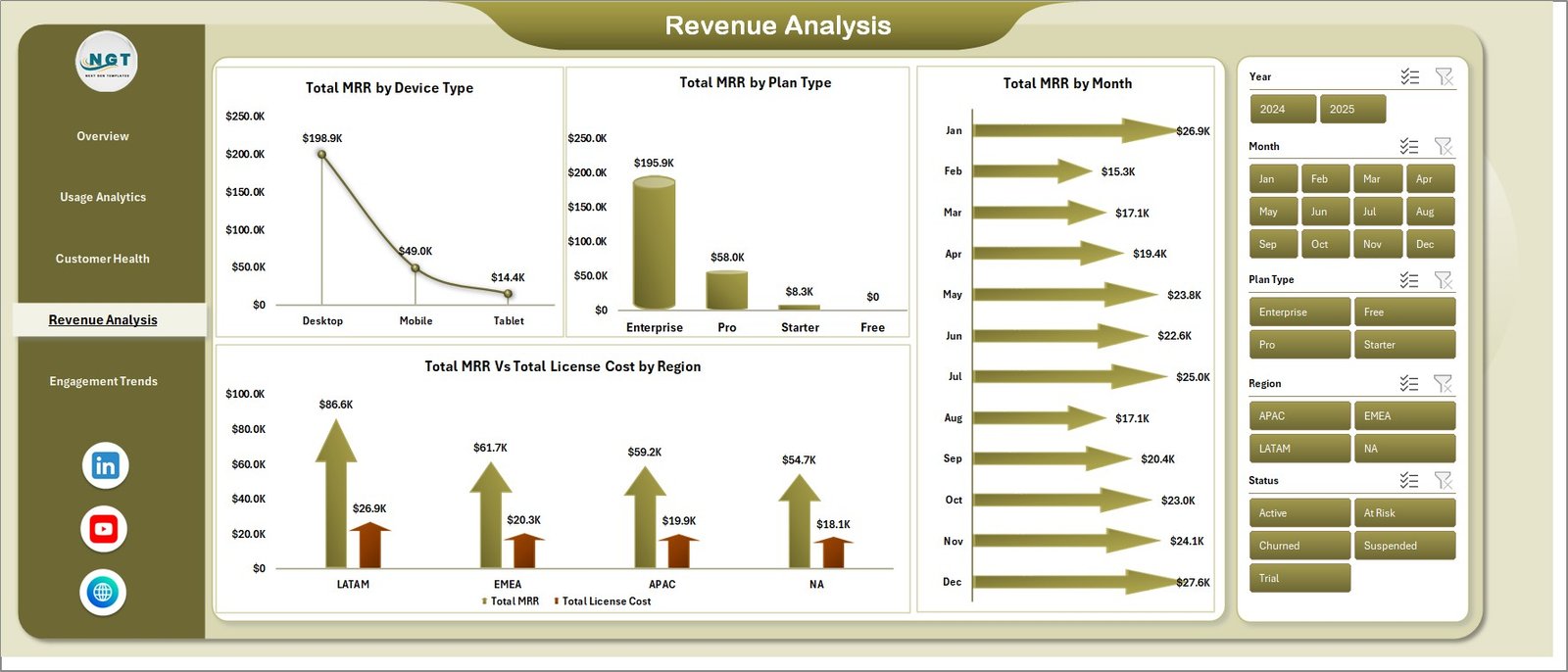
Revenue Analysis page
Page 5 — Engagement Trends: Total Active Users by Month, Total Active Users by Plan Type, and Total Activities by Module. Turns raw event logs into the WAU/MAU patterns product teams quote in board reports and investor decks.
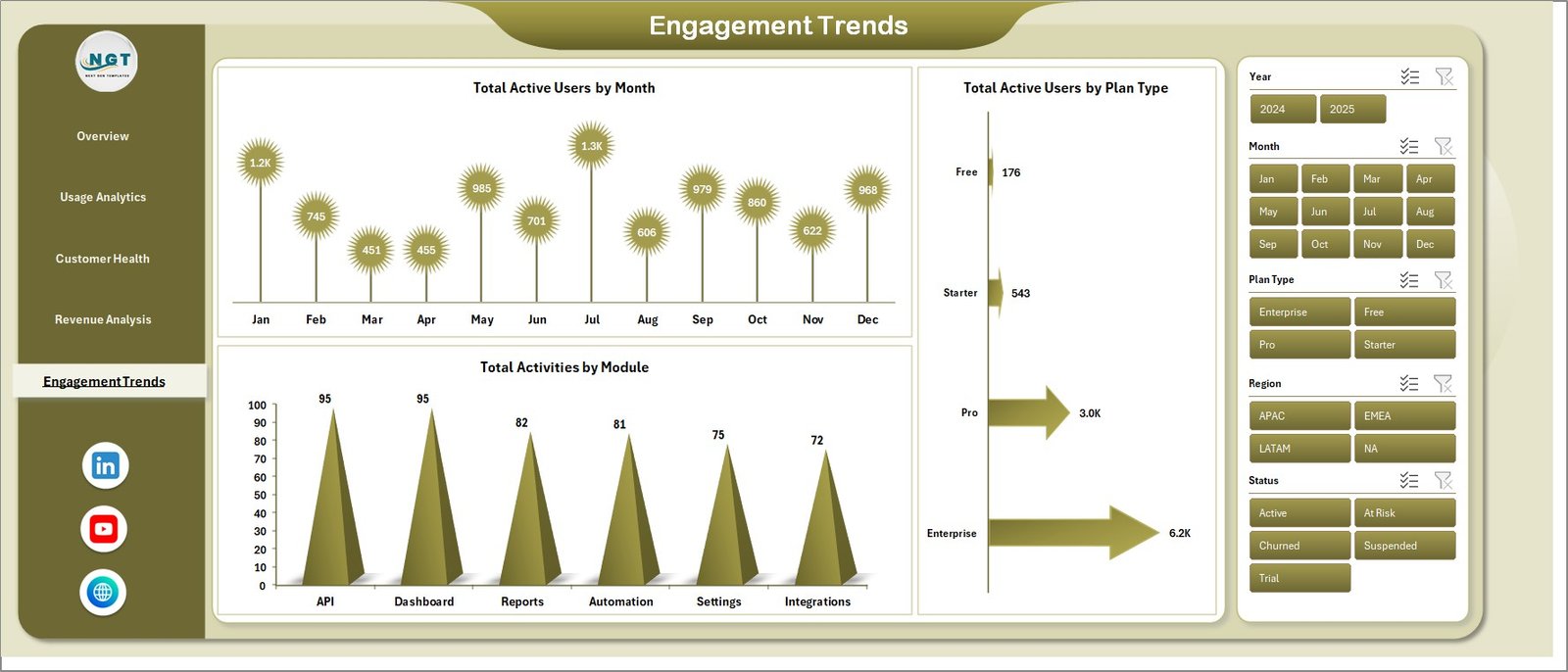
Engagement Trends page
Data Sheet: The single source of truth. Drop your SaaS usage records into the same column format as the sample data, and every page on the workbook updates after Refresh All.

Data Sheet tab
Support Sheet: Houses every pivot table that powers the dashboard. Keep it hidden in production so business users only see the 5 polished pages while admins maintain the data model.

Support Sheet tab
SaaS Product Usage Dashboard in Excel vs. Google Sheets vs. Paid SaaS Analytics — Feature Comparison
| Feature | SaaS Product Usage Dashboard in Excel | Google Sheets equivalent | HubSpot / Mixpanel / Amplitude |
|---|---|---|---|
| Cost | $17.99 one-time | $8-$15 one-time | $25-$2,000 / user / month |
| Platform | Microsoft Excel (offline) | Google Sheets (browser-only) | Cloud SaaS (vendor lock-in) |
| Setup time | Under 10 minutes | 10-15 minutes | 2-6 weeks (event tracking + SDK) |
| Total KPIs + charts | 5 KPIs + 19 charts across 5 pages | Varies by template | Unlimited (after instrumentation) |
| Pivot refresh architecture | ✅ One-click Refresh All | Apps Script or manual rebuild | Auto, but needs event SDK |
| Data ownership | ✅ Local .xlsx file | Tied to Google Drive | Stored on vendor servers |
| Year-1 cost at 5 users | $17.99 total | ~$10 total | $1,500 – $120,000 |
| Works offline | ✅ Yes | ❌ Browser required | ❌ Internet required |
For SaaS founders, customer-success leads, and FP&A teams who want full MRR + churn + usage visibility without paying $1,500/year for Mixpanel seats, the SaaS Product Usage Dashboard in Excel sits in the sweet spot.
Who Should Use This Template
Perfect for:
- SaaS founders and operators at 5–200 employee companies tracking MRR, churn, and product usage in one workbook.
- Customer-success managers who need a Customer Health page tied to satisfaction and churn by region and industry.
- FP&A and finance leads who want MRR vs. license-cost margin trends without a Power BI license.
- Product managers replacing $30–$200/month seat-based analytics tools during seed and Series A stages.
Not a fit if:
- You’re an enterprise SaaS team needing real-time event streaming — Mixpanel, Amplitude, or Heap are better choices.
- You require SOC 2 audit trails, SSO, or row-level security on usage data.
- No one on the team is comfortable opening Excel and refreshing pivot tables once a week.
Real-World Use Cases
Priya runs growth at a 25-person B2B SaaS startup. She uses the SaaS Product Usage Dashboard in Excel every Tuesday morning to track MRR by Plan Type and Total Active Users by Month for her investor update — generating the same numbers her old Mixpanel dashboard produced, but without the $400/month bill that became hard to justify after the seed round closed.
Marcus heads customer success at a 60-employee fintech SaaS. He pulls the Customer Health page weekly to monitor Avg. Satisfaction vs. Churn Rate by Region, flags any region where satisfaction drops below 4.0, and assigns a CSM to run a save call before renewal. Two regions caught early in Q3 saved roughly $48k in ARR that would otherwise have churned silently.
Anita, an FP&A analyst at a Series A vertical SaaS, uses the Revenue Analysis page at every month-end close to compare Total MRR vs. Total License Cost by Region. The dashboard surfaced gross-margin compression in two regions where infrastructure scaling outpaced subscription growth — three quarters before it would have appeared in the company’s QuickBooks-only finance reporting.
Advantages of SaaS Product Usage Dashboard in Excel
🔹 One-time payment, no per-user fees — at a 5-person team using HubSpot Service Hub or Mixpanel Growth, you’d pay $1,500–$15,000 in Year 1. This dashboard is $17.99, total.
🔹 Native Excel, no SDK — no event instrumentation, no JavaScript snippets, no engineering tickets. If you can export a CSV, you can run this dashboard.
🔹 Local data ownership — the .xlsx file lives on your laptop or company drive. No vendor servers, no migration risk if you switch tools later.
🔹 Slicer-based exploration — non-technical users can answer “How is the Pro plan trending in EMEA?” in 3 clicks without writing SQL or learning a new query language.
Opportunities for Improvement
🔹 No real-time data — the dashboard updates on a refresh schedule, not on a streaming event basis. If you need second-by-second telemetry, this isn’t the tool.
🔹 50,000-row practical limit — Excel handles up to ~1M rows, but pivot performance degrades past 50K. For larger event volumes, a pre-aggregation step (or Power BI / Power Query) is needed.
🔹 No native cohort analysis — retention cohorts and funnel drop-off charts aren’t included by default. They can be added by extending the pivot model, but that takes Excel skills.
Best Practices
🔹 Refresh weekly, not daily — most SaaS metrics move on weekly trends. Daily refreshes generate noise; weekly cadence shows real signal.
🔹 Hide the Support Sheet — once your pivot model is set up, hide the Support Sheet so business users don’t accidentally break it. Right-click the tab and choose Hide.
🔹 Use the slicer Clear Filter button — before sharing screenshots, clear all slicers so the visible data matches the title. Stale filters cause more board-meeting confusion than any other dashboard issue.
🔹 Version-control the workbook — save monthly snapshots (e.g., SaaS_Dashboard_2026-05.xlsx) so you can compare May vs. June without overwriting history.
Explore Relevant Templates
🔹 SaaS Onboarding Dashboard in Excel — pair with this dashboard to track activation alongside long-term usage.
🔹 SaaS Metrics Dashboard in Excel — adds MRR/ARR/expansion-revenue tracking to the usage signals from this dashboard.
🔹 SaaS Customer Success Dashboard in Google Sheets — Google Sheets equivalent for teams already living in Drive.
🔹 Subscription Box Dashboard in Power BI — Power BI version for subscription-revenue businesses.
🔹 Financial Tech Startups KPI Dashboard in Excel — companion startup KPI dashboard for finance and board reviews.
Frequently Asked Questions
What KPIs does the SaaS Product Usage Dashboard in Excel track?
The SaaS Product Usage Dashboard in Excel tracks 5 high-level KPIs — Total Activities, Total MRR, Total Sessions, Total Active Users, and Total Net Profit — plus 19 chart-level metrics covering customer satisfaction, churn rate, license cost, and active users by plan, device, region, and module.
How long does setup take for the SaaS Product Usage Dashboard in Excel?
Setup takes under 10 minutes. Open the file in Microsoft Excel, paste your usage data into the Data Sheet in the same column format, click Refresh All on the Data tab, and every chart and KPI card on all 5 dashboard pages updates automatically through the pivot-driven Support Sheet.
How does the SaaS Product Usage Dashboard in Excel compare to HubSpot or Mixpanel?
HubSpot and Mixpanel charge $25-$2,000 per month with per-event pricing and seat fees. The SaaS Product Usage Dashboard in Excel is a one-time $17.99 purchase with no subscription, no per-user limits, and full data ownership — ideal for early-stage SaaS teams who don’t need real-time event streaming.
Can I customize the charts and KPIs in the SaaS Product Usage Dashboard?
Yes — every chart in the SaaS Product Usage Dashboard in Excel is built on standard pivot tables in the Support Sheet. You can drag fields, change measures, swap chart types, recolor visuals, and add new pages without breaking the slicer connections or the pivot refresh chain.
Does the SaaS Product Usage Dashboard track churn and customer health together?
Yes — the dedicated Customer Health page tracks Total Activities by Status, Churn % by Plan Type, Avg. Satisfaction by Industry, and a combined Avg. Satisfaction vs. Churn Rate by Region chart. It lets you spot regions where satisfaction is dropping before churn spikes.
What data fields do I need for the SaaS Product Usage Dashboard in Excel?
The Data Sheet expects fields like Date, Region, Plan Type, Device Type, Module, Login Method, Status, Industry, Active Users, Sessions, Activities, MRR, License Cost, Satisfaction Score, and Churn Rate. Sample data is included so you can see the exact format before mapping your own export.
About the Author
Built by PK — Microsoft Certified Professional with 15+ years of Excel, Google Sheets, and Power BI experience. Founder of NextGenTemplates, reaching 300K+ subscribers across YouTube channels (@PK-AnExcelExpert, @NextGenTemplates, @NeoTechNavigators). Every template is hand-built and tested before release.
Conclusion
The SaaS Product Usage Dashboard in Excel gives early-stage and mid-market SaaS teams MRR, churn, customer health, and product-usage visibility in one workbook — without subscription fees, event instrumentation, or vendor lock-in. Five KPI cards, 19 charts, 5 dedicated pages, and a hidden pivot engine that refreshes everything in one click.
👉 Click here to Purchase SaaS Product Usage Dashboard in Excel
✅ Instant download · One-time payment · No subscription · No per-user fees · Lifetime access
🎥 Visit our YouTube channel for step-by-step Excel tutorials: 👉 Youtube.com/@PK-AnExcelExpert
📅 Last updated: May 2026