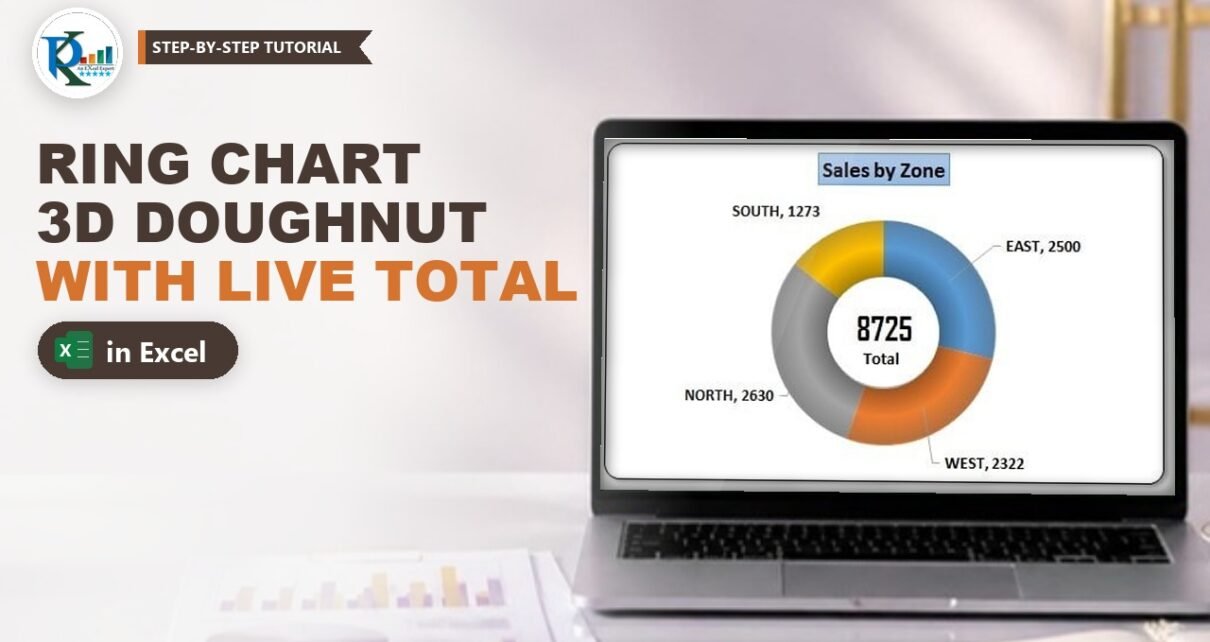
A ring chart in Excel is a doughnut chart dressed up to look like a shiny 3D ring, with the total shown right in the middle. It is a great way to show how a total splits into parts, such as sales by zone or revenue by location, on a dashboard, in a report or on a presentation slide. In this tutorial you build it from a normal doughnut chart, a linked text box and one Excel auto shape with a gradient. There is no VBA, and the chart updates as soon as your numbers change.
Watch the Video Tutorial
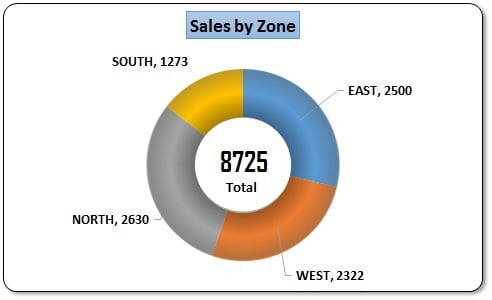
In the video PK builds the Sales by Zone ring from scratch: a doughnut chart with a 50% hole, category and value labels, a total linked into the centre and a donut shape with a path gradient that creates the 3D ring look.
What You Will Build
- A doughnut chart that splits a total into parts, with a thicker ring (hole size 50%).
- Data labels that show the category name with its value or its percentage share.
- A live total in the centre, linked to a SUM cell with a text box.
- A 3D ring effect made with a Donut shape and a three-stop path gradient.
- A finished card look with a styled title, black border, rounded corners and a soft shadow.
Data for the Ring Chart in Excel
The ring chart in Excel needs only a small two-column table. In the video it sits in A1:B6 of a new sheet:
- A1:B1 – the headers Zone and Sales.
- A2:B5 – EAST 2500, WEST 2322, NORTH 2630 and SOUTH 1273.
- A6:B6 – the label Total and the sum of the four zones.
Type the total formula in B6:
B6 =SUM(B2:B5)With the numbers above it returns 8725. This cell feeds the number in the middle of the ring, so the total always matches the chart.
Part 1 – Insert and Clean Up the Doughnut Chart
Step 1: Insert a doughnut chart
Select A1:B5 only. Do not include the Total row, otherwise the total becomes a fifth slice and every share is cut in half. Go to Insert > Charts > Insert Pie or Doughnut Chart and pick Doughnut.
Step 2: Remove the gridlines
Click any cell, go to View and untick Gridlines. A plain white sheet makes the ring stand out.
Step 3: Remove fills, outlines and the legend
Select the chart and on the Format tab set Shape Fill to No Fill and Shape Outline to No Outline. Click the doughnut itself and set its Shape Outline to No Outline too, so there are no white lines between the slices. Click the legend and press Delete; the labels will name each slice instead.
Step 4: Set the chart title
Click the title and type Sales by Zone. Make it black and bold.
Part 2 – Labels and Ring Thickness
Step 5: Add category and value labels
Right-click the doughnut and choose Add Data Labels. Then right-click a label, choose Format Data Labels and tick Category Name next to Value. Each label now reads like EAST, 2500. Make the labels black and bold, then drag each one just outside its slice so the ring stays clean.
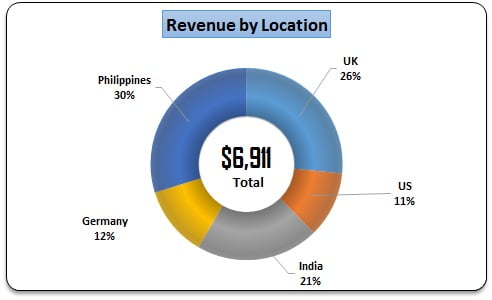
For a contribution chart, untick Value and tick Percentage instead. Excel calculates each slice’s share of the total for you, which is exactly how the Revenue by Location ring below shows UK 23%.
Step 6: Make the ring thicker
Right-click the doughnut, choose Format Data Series and change Doughnut Hole Size from the default 75% to 50%. A thicker ring looks better with the 3D effect and still leaves enough room for the total in the middle.
Part 3 – Put the Total in the Centre
Step 7: Insert a text box inside the chart
Select the chart first, then insert a Text Box and draw it in the hole. Because the chart was selected, the text box belongs to the chart: it moves with the chart and cannot be dragged outside it. Type Total in it and centre it.
Step 8: Link a second text box to the total cell
Copy the text box (Ctrl+C, Ctrl+V) and place the copy above the word Total. Select the copy, click in the formula bar, type =, click cell B6 and press Enter. The formula bar shows:
=Sheet1!$B$6The box now shows 8725 and updates whenever any zone changes. Format it with a large font; the video uses Agency FB, size 20, bold.
How the link works
- A text box cannot hold a formula like a cell, but it can point to one cell through the formula bar.
- Pointing to B6 instead of typing the number means the centre label always equals
SUM(B2:B5). - Change East from 2500 to any other value and both the slice and the total change at the same time.
Part 4 – Give the Ring Its 3D Look
Step 9: Draw a Donut shape over the chart
Select the chart, then go to Insert > Shapes > Basic Shapes and pick the Donut shape. Hold Shift and drag it so it covers the chart’s doughnut exactly. Use Format Shape > Size to match the height and width precisely, and set Line to No line.
Step 10: Apply a three-stop path gradient
In Format Shape > Fill choose Gradient fill and set up exactly three gradient stops:
- Stop 1 at position
0%: black. - Stop 2 at position
50%: black with100%transparency. - Stop 3 at position
100%: white.
Finally change Type from Linear to Path. The shape now adds dark and light shading over the coloured slices while the transparent middle stop lets the colours show through, so the flat doughnut looks like a rounded 3D ring.
Part 5 – Finish the Chart Card
Step 11: Style the title, border, corners and shadow
Select the chart title and give it a Shape Style from the Format tab so it looks like a label. Then right-click the chart, choose Format Chart Area and set:
- Border: Solid line, black.
- Rounded corners: ticked (at the bottom of the Border section).
- Effects > Shadow: the first Outer preset, Offset Diagonal Bottom Right.
Your ring chart is ready for a report, a dashboard or a presentation. Build the second ring for revenue by location with the same steps and percentage labels.
Common Errors and Fixes
The total appears as a slice
The Total row was included in the chart range. Right-click the chart, choose Select Data and change the range to A1:B5.
The centre total does not update
The number was typed into the text box instead of linked. Select the text box, click in the formula bar and enter =Sheet1!$B$6 (use your own sheet name).
The 3D shape does not line up with the ring
The shape and the doughnut have different sizes. Match the shape’s height and width in Format Shape > Size, and keep the hole size at 50% so both rings have similar thickness. Adjust the shape’s yellow handle if the inner edge still does not match.
The shape stays behind when you move the chart
The shape was inserted while a cell was selected, so it is not part of the chart. Delete it, select the chart first and insert the shape again.
Tips
- Keep the ring to 3 to 6 slices; with more parts, a bar chart is easier to read.
- Sort the data from largest to smallest if you want the biggest share to start at the top.
- Format the total cell as currency (for example $6,911) and the linked text box shows the same format.
- Save the finished chart as a template so the next ring takes seconds; see Chart Templates in Excel.
- Microsoft’s guide Present your data in a doughnut chart covers the hole size and other options.
Want It Ready-Made?
If you want both rings already built and styled, the Ring Chart in Excel template on NextGenTemplates.com is ready for your own numbers, and the 3D Doughnut Chart for KPI Metrics takes the same 3D idea to KPI tracking. You can also browse more Excel charts and visualization templates. To learn charts, infographics and complete dashboards step by step, join the course Excel Pivot Tables & Dashboards: Basic to Advanced on NextGenTemplates Academy.
Related Tutorials
- Doughnut Chart in Excel
- Double Doughnut Chart in Excel
- Multilayered Doughnut Chart in Excel
- Conditional Formatting in a Stylish Doughnut Chart
- Filling Circle Chart in Excel
Frequently Asked Questions
What is a ring chart in Excel?
It is a doughnut chart with extra formatting: a thicker ring, labels outside the slices, the total in the centre and a gradient shape on top that makes the ring look 3D.
How do I show the total in the middle of a doughnut chart?
Select the chart, insert a text box inside it, then select the text box, type = in the formula bar and click the total cell. The text box then shows the live total.
How do I change the doughnut hole size?
Right-click the doughnut, choose Format Data Series and change Doughnut Hole Size. The ring chart uses 50% instead of the default 75%.
Can the labels show percentages instead of values?
Yes. In Format Data Labels untick Value and tick Percentage. Excel calculates each slice as a share of the total automatically.
Do I need VBA to create the ring chart?
No. The ring chart uses a doughnut chart, a linked text box and a gradient-filled Donut shape. Everything updates through formulas and chart links.
About the Author
PK is a Microsoft Excel expert and trainer and the founder of PK: An Excel Expert and NextGenTemplates.com. He has been teaching Excel, Power Query and Power BI since 2016 on his YouTube channel.
Conclusion
A ring chart in Excel takes a plain doughnut and turns it into a polished visual: a 50% hole, category labels, a total linked into the centre and a Donut shape with a black, transparent and white path gradient for the 3D look. Finish it with a border, rounded corners and a shadow, and you have a reusable chart for any part-to-whole split in your reports and dashboards.