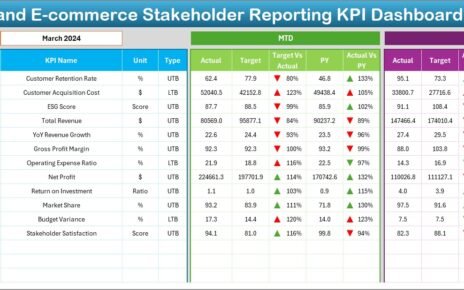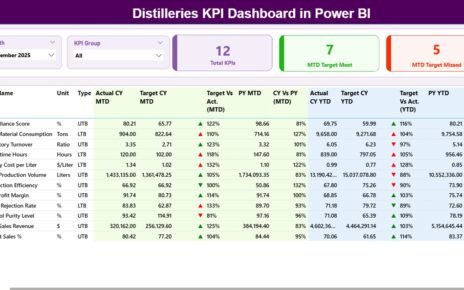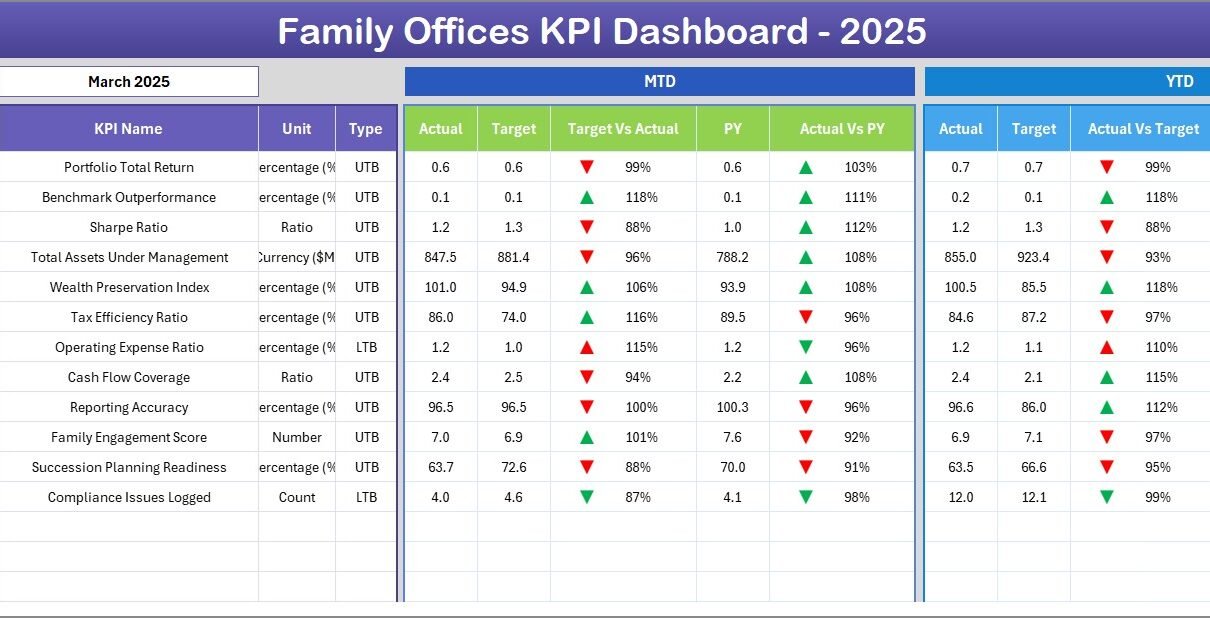
Universities across the world track dozens of department-level KPIs monthly — but according to EDUCAUSE research, fewer than 40% of academic institutions report having a standardized, consistent process for tracking department performance against targets. The University Department KPI Scorecard in Excel solves this gap: 4 structured worksheets, dropdown-driven MTD and YTD views, Actual vs. Target comparisons, and color-coded performance indicators — all in a single Excel file that takes under 10 minutes to set up.
Whether you manage a Business department, an Engineering faculty, or a Health Sciences unit, manually assembling monthly KPI reports from scattered spreadsheets is inefficient and error-prone. This ready-to-use scorecard replaces scattered files and expensive institutional analytics software with a formula-driven, fully customizable Excel template designed specifically for academic department performance monitoring.
Click here to Purchase the University Department KPI Scorecard in Excel
Key Features of University Department KPI Scorecard in Excel
The University Department KPI Scorecard in Excel includes 4 worksheets designed for structured academic performance monitoring across any university department. It tracks enrollment rate, course completion, faculty research output, student satisfaction, budget utilization, and any other KPIs your institution defines. Here are the main features:
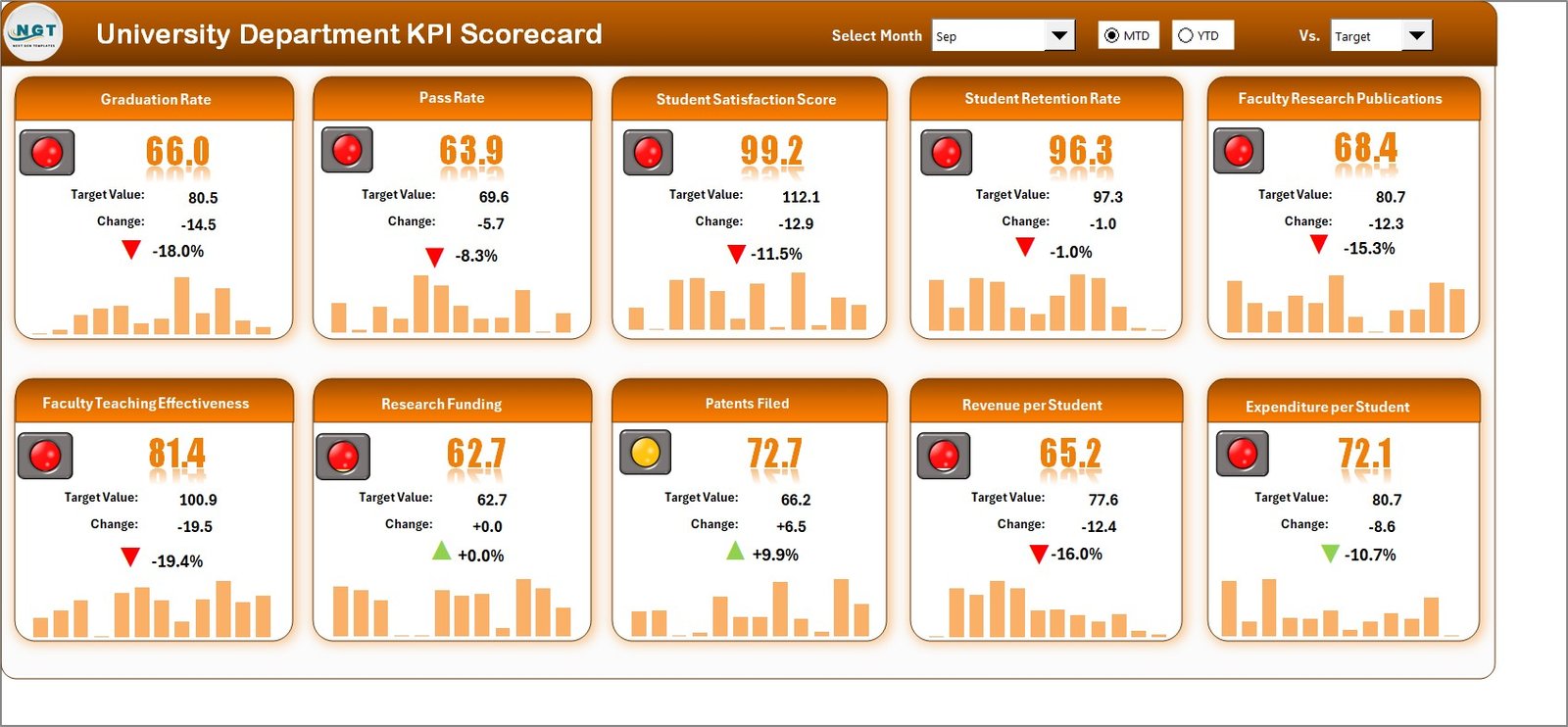
- Dropdown-Driven Scorecard View — Select any month from the dropdown on the Scorecard sheet and the entire performance view refreshes instantly for MTD or YTD analysis, displaying Actual vs. Target values and color-coded status indicators for every department KPI.
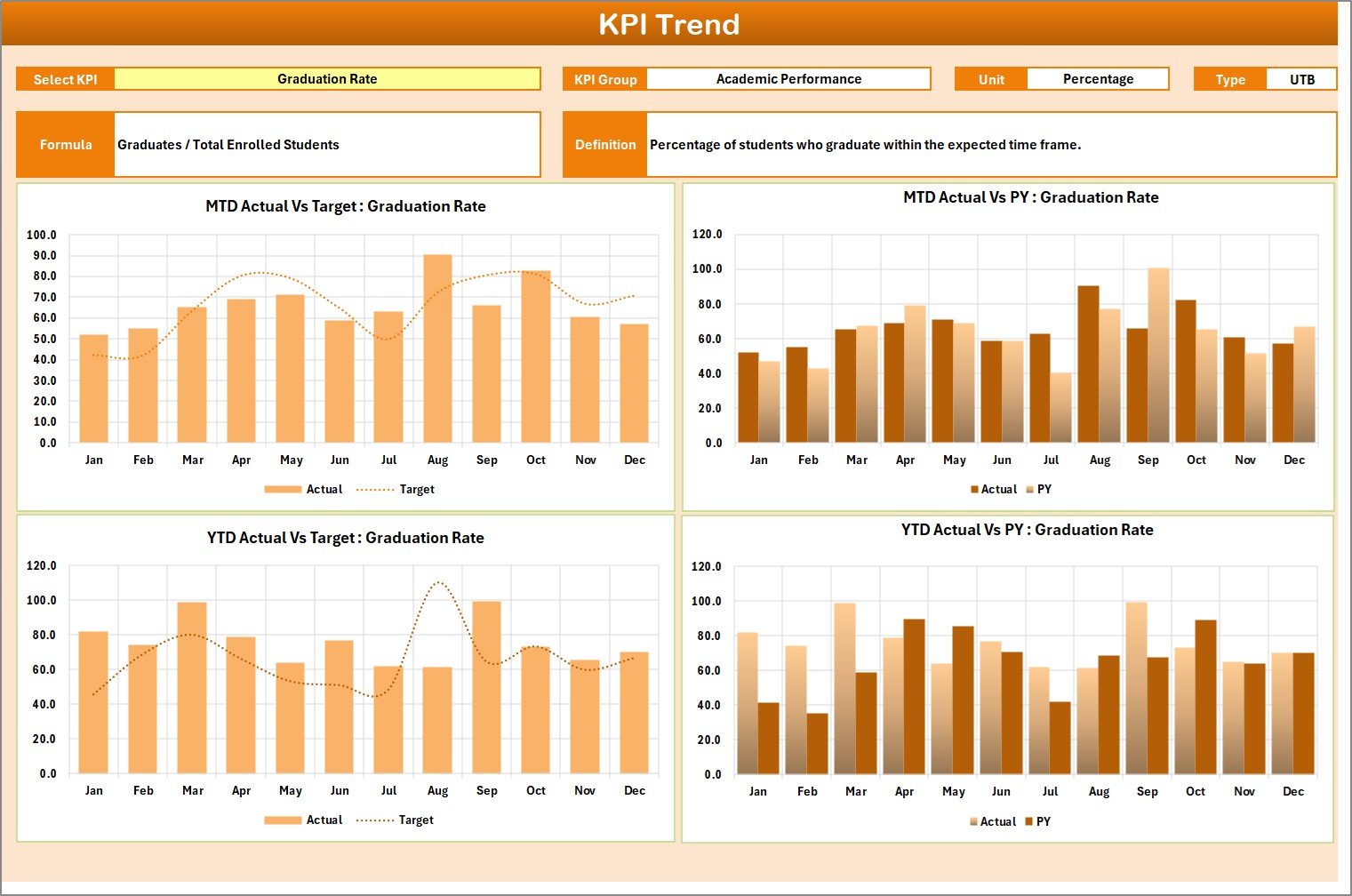
- Individual KPI Trend Analysis — The KPI Trend sheet lets you select any single KPI from a dropdown to view its Group, Unit, Type (Lower the Better or Upper the Better), Formula, and Definition alongside MTD and YTD trend charts comparing Actual, Target, and Previous Year numbers.
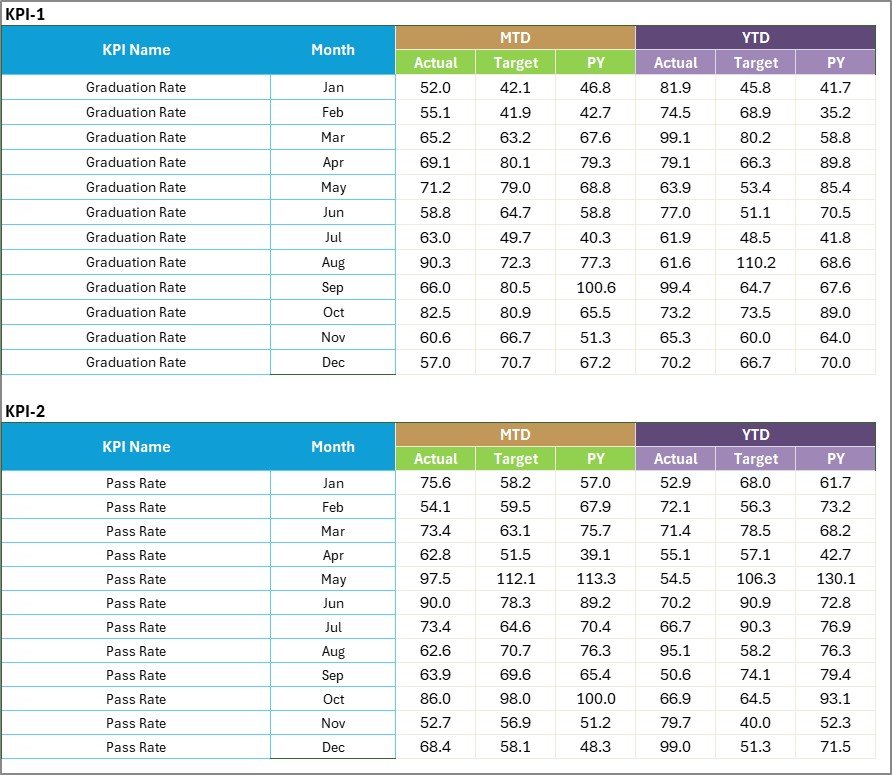
- Structured Data Entry — The Input Data sheet provides a clean, organized layout for recording monthly actual values, targets, and historical data for each KPI, ensuring the scorecard remains current with the latest academic performance figures.
- Built-in KPI Knowledge Base — The KPI Definition sheet stores each KPI’s name, group, unit, formula, and definition so every stakeholder — from faculty leads to accreditation reviewers — understands exactly what each metric measures and how it is calculated.
- Automatic Calculations — All MTD, YTD, variance, and conditional formatting calculations are formula-driven with no manual computation needed. Replace or add data and every view updates automatically.
- No VBA or Macros — Built entirely on native Excel formulas, conditional formatting, and data validation. Compatible with Excel 2016, 2019, 2021, Microsoft 365 on Windows and Mac, and Excel Online.
Scorecard Sheets Explanation — How the University Department KPI Scorecard in Excel Is Structured
This University Department KPI Scorecard in Excel contains 4 carefully structured worksheets. Here is a detailed walkthrough of each sheet and how to use it.
1. Scorecard Sheet
University Department KPI Scorecard in Excel
Click here to Purchase the University Department KPI Scorecard in Excel
The Scorecard sheet is the main interface where you can view all university department KPI performance at a glance. Key features include:
- Dropdown Menus: Select the month, MTD (Month-to-Date), or YTD (Year-to-Date) for performance analysis. The entire scorecard refreshes instantly based on your selection.
- Actual vs Target Values: Compare actual performance against targets for each department KPI side by side, so department chairs and deans can immediately see where performance is exceeding or lagging expectations.
- Visual Indicators: Quickly see performance status using color-coded visuals and conditional formatting — green for on/above target, amber for near threshold, red for below target — without reading individual numbers.
- Comprehensive KPI Overview: Display all relevant information about every university department KPI in one view, including MTD and YTD comparisons, making it the go-to sheet for monthly reviews and board presentations.
2. KPI Trend Sheet
KPI Trend Sheet
The KPI Trend sheet gives you a deep-dive view of any individual university department KPI. Select the KPI name from the dropdown available on cell C3 and the sheet displays the KPI Group, Unit of KPI, Type of KPI (Lower the Better or Upper the Better), Formula of the KPI, and Definition of the KPI.
Below this metadata, the sheet displays MTD and YTD trend charts plotting Actual, Target, and Previous Year numbers across all months — giving department heads and institutional research officers the context needed to identify seasonal patterns, year-over-year improvements, or consistent underperformance before it becomes a strategic issue.
3. Input Data Sheet
Input Data Sheet
Click here to Purchase the University Department KPI Scorecard in Excel
The Input Data sheet is where you enter all KPI data for your university department. Record actual values, targets, and previous year metrics for each KPI and each month. This sheet offers the flexibility to easily update data as new results become available, ensuring the Scorecard and KPI Trend sheets always reflect the latest department performance figures with no manual chart rebuilding.
4. KPI Definition Sheet

KPI Definition Sheet
In this sheet, you enter the KPI Name, KPI Group, Unit, Formula, and KPI Definition for every metric you want to track. This serves as the authoritative reference for all stakeholders — from department faculty and administrative staff to external accreditation reviewers — ensuring that everyone interprets each university department KPI consistently and that definitions are documented for compliance and audit purposes.
University Department KPI Scorecard in Excel vs. Google Sheets Scorecard vs. Paid Higher-Ed Analytics SaaS — Feature Comparison
| Feature | University Department KPI Scorecard in Excel | Google Sheets Scorecard | Paid Higher-Ed SaaS (e.g., Tableau, Qualtrics) |
|---|---|---|---|
| Cost | $12.99 one-time | Free (DIY build) | $500–$5,000 / year |
| Platform | Excel 2016+, Microsoft 365, Mac | Google Sheets (browser) | Cloud SaaS, requires IT setup |
| Setup time | Under 10 minutes | 1–3 days to build from scratch | Weeks to months onboarding |
| Offline access | ✅ Full offline | ❌ Requires internet | ❌ Web-only |
| MTD/YTD trend charts | ✅ Built-in per KPI | ❌ Build manually | ✅ Configurable |
| KPI Definition reference | ✅ Built-in sheet | ❌ Manual setup | ✅ Built-in |
| Customizable KPIs | ✅ Unlimited | ✅ Manual setup | Limited to plan tier |
| Year-1 cost at 5 users | $12.99 total | $0 + dev time | $2,500–$25,000+ |
| No IT integration needed | ✅ Yes | ✅ Yes | ❌ Often required |
For university departments that want structured KPI tracking with trend charts and color-coded indicators without paying enterprise analytics pricing, the University Department KPI Scorecard in Excel sits in the sweet spot.
Who Should Use This Template
✅ Perfect for:
- Department chairs and academic managers at colleges and universities needing monthly KPI tracking against targets
- Institutional research officers preparing MTD and YTD performance summaries for deans and provosts
- Accreditation coordinators who need documented KPI definitions, formulas, and trend data for compliance reviews
- Faculty leads monitoring student outcomes, course completion rates, and research output monthly
- Higher education consultants who deliver performance scorecards to multiple institutional clients
❌ Not a fit if:
- You need a live dashboard with automatic data feeds from your Student Information System (SIS) or ERP
- Your institution requires multi-user role-based access control, SSO, or SOC 2-compliant audit logging
- You need real-time reporting for 50+ KPIs across 20+ departments simultaneously with centralized governance
Real-World Use Cases
👉 Click here to Purchase the University Department KPI Scorecard in Excel
Dr. Anita chairs the Business Department at a regional university. She uses the University Department KPI Scorecard in Excel to track 16 KPIs — including enrollment rate, course pass rate, faculty publication count, student satisfaction, and budget utilization — against monthly targets. Each quarter she presents the Scorecard sheet to the dean, switching to the KPI Trend sheet to walk through any metrics that dipped below target. Monthly reporting time dropped from a full afternoon to 45 minutes.
Marcus manages institutional research at a community college. He uses the KPI Definition sheet to standardize metric definitions across five departments, then collects monthly data from each department head into the Input Data sheet. The YTD trend charts help him identify which departments consistently miss completion rate targets so the provost can allocate academic support resources earlier in the semester — before end-of-year numbers lock in.
Priya is an accreditation coordinator at a technical university. The KPI Definition sheet’s formula and definition columns give her a ready-made documentation portfolio for accreditation visits. Reviewers can verify exactly how each KPI is defined and calculated, with three years of MTD and YTD trend data available directly from the Trend sheet — no manual compilation needed. She pairs this scorecard with the Open Universities KPI Dashboard in Excel for her executive-level deep-dive reporting.
Advantages of University Department KPI Scorecard in Excel
- One-time $12.99 cost with no recurring subscription fees — a fraction of what platforms like Tableau or Qualtrics charge annually for equivalent department-level reporting.
- Works offline — essential for faculty and department staff who work on managed university laptops where internet access or cloud tools may be restricted by IT policy.
- No technical training needed — anyone familiar with basic Excel can start tracking department KPIs within minutes of opening the file for the first time.
- Fully customizable — add, remove, or rename any KPI to match your department’s specific reporting requirements without breaking formulas or charts.
- Shareable across teams — save to OneDrive or SharePoint for shared access across department staff and institutional research teams at no per-user cost.
- Accreditation-ready documentation — the KPI Definition sheet provides a permanent, auditable record of how each metric is defined, grouped, and calculated.
Opportunities for Improvement
👉 Click here to Purchase the University Department KPI Scorecard in Excel
A few honest limitations worth knowing before you buy:
- The template does not include automated data import from Student Information Systems (Ellucian Banner, PeopleSoft, etc.) — data entry is manual. Teams needing live SIS feeds should consider a Power BI or Tableau solution instead.
- No built-in multi-department consolidation view — each department uses its own file. A provost wanting a cross-department rollup would need a separate summary workbook.
- The scorecard tracks monthly data. Weekly or daily KPI tracking would require structural modifications to the Input Data and Definition sheets.
- Real-time collaboration during simultaneous data entry works best via OneDrive co-authoring rather than a shared network drive.
Best Practices
- Define KPIs before entering data — Complete the KPI Definition sheet first so metric names, formulas, and units are agreed upon by all department stakeholders before any data is entered.
- Update data by the 5th of each month — Consistent monthly data entry ensures accurate MTD and YTD comparisons throughout the academic year.
- Use the KPI Trend sheet in faculty meetings — Select individual KPIs during department or faculty meetings to walk through trend charts with full historical context — far more persuasive than a static table of numbers.
- Save monthly snapshots — Archive a dated copy of the file each month (e.g., Uni-Dept-KPI-2026-04.xlsx) for year-end review and audit trails.
- Align KPI types correctly — Accurately marking each KPI as LTB (Lower the Better, e.g., dropout rate) or UTB (Upper the Better, e.g., enrollment rate) ensures the conditional formatting flags performance correctly.
- Refer to Microsoft Excel Support for guidance on advanced conditional formatting and dropdown list customization.
Explore Relevant Templates
If you found the University Department KPI Scorecard in Excel useful, these related templates from our Excel KPI Dashboard collection are worth a look:
- Open Universities KPI Dashboard in Excel — Full 7-page interactive dashboard for higher-education institutions with detailed trend analysis, target vs. actual, and previous year comparisons.
- Vocational Training KPI Scorecard in Excel — The same 4-worksheet scorecard structure adapted for vocational and trade training programs.
- Online Universities KPI Dashboard in Excel — Track enrollment, graduation rates, and e-learning performance metrics for online programs.
- Colleges & Universities KPI Dashboard in Power BI — Power BI version for institutions wanting interactive visual analytics with drill-through capabilities.
Also read: Continuing Education Programs KPI Dashboard in Excel
Frequently Asked Questions
👉 Click here to Purchase the University Department KPI Scorecard in Excel
What KPIs does the University Department KPI Scorecard in Excel track?
The University Department KPI Scorecard in Excel tracks any academic KPIs you define — common examples include student enrollment rate, course completion rate, faculty research publications, student satisfaction score, faculty-to-student ratio, grant revenue, graduate employment rate, and budget utilization. All KPIs are fully customizable from the KPI Definition sheet with no formula editing required.
How long does setup take for the University Department KPI Scorecard in Excel?
Setup takes under 10 minutes. Open the file, enter your KPI definitions in the KPI Definition sheet, add monthly actual and target values in the Input Data sheet, and the Scorecard and KPI Trend sheets update automatically. The file ships with sample data so you can see every feature working before entering your institution’s actual figures.
Does the University Department KPI Scorecard in Excel use VBA or macros?
No. The University Department KPI Scorecard in Excel is built entirely on native Excel formulas, conditional formatting, and data validation. There are no VBA scripts, macros, or external add-ins required, so the file opens cleanly on managed university laptops where macros are disabled by IT policy.
Can I add custom university department KPIs?
Yes. The KPI Definition sheet accepts unlimited custom KPIs. Add the KPI name, group, unit, formula, and definition, and specify LTB or UTB type. The Scorecard and KPI Trend sheets automatically incorporate every new metric you define without any structural changes to the workbook.
How does this compare to paid higher-education analytics platforms?
The University Department KPI Scorecard in Excel costs $12.99 one-time. Enterprise platforms like Tableau and Qualtrics run $500–$5,000+ per year, require IT onboarding, and often demand SIS integration. For departments that need structured MTD/YTD KPI tracking with trend charts and no IT dependency, this scorecard delivers 80% of the analytical value at under 1% of the annual cost.
Which Excel versions are compatible?
The University Department KPI Scorecard in Excel works with Microsoft Excel 2016, Excel 2019, Excel 2021, and Microsoft 365 on both Windows and Mac. It also opens in Excel Online for read-only review. All formulas, dropdown menus, conditional formatting, and trend charts are fully compatible across these versions.
Can I share the scorecard with multiple department members?
Yes. Save the file to OneDrive or SharePoint and multiple users can access and co-edit simultaneously at no extra cost. There are no per-user fees or seat limits — you can share the University Department KPI Scorecard in Excel with your entire department faculty, administrative team, and institutional research office.
About the Author
Built by PK — Microsoft Certified Professional with 15+ years of Excel, Google Sheets, and Power BI experience. Founder of NextGenTemplates, reaching 300K+ subscribers across YouTube channels (@PK-AnExcelExpert, @NextGenTemplates, @NeoTechNavigators). Every template is hand-built and tested before release.
Conclusion
The University Department KPI Scorecard in Excel gives academic departments a structured, affordable, and easy-to-use system for tracking KPIs monthly — with dropdown-driven Scorecard views, per-KPI trend charts, Actual vs. Target comparisons, and a built-in KPI Definition reference. Four organized worksheets, automatic calculations, color-coded visual indicators, and no VBA or subscription fees.
👉 Click here to Purchase the University Department KPI Scorecard in Excel
✅ Instant download · One-time payment · No subscription
Visit our YouTube channel for step-by-step video tutorials: Youtube.com/@PK-AnExcelExpert