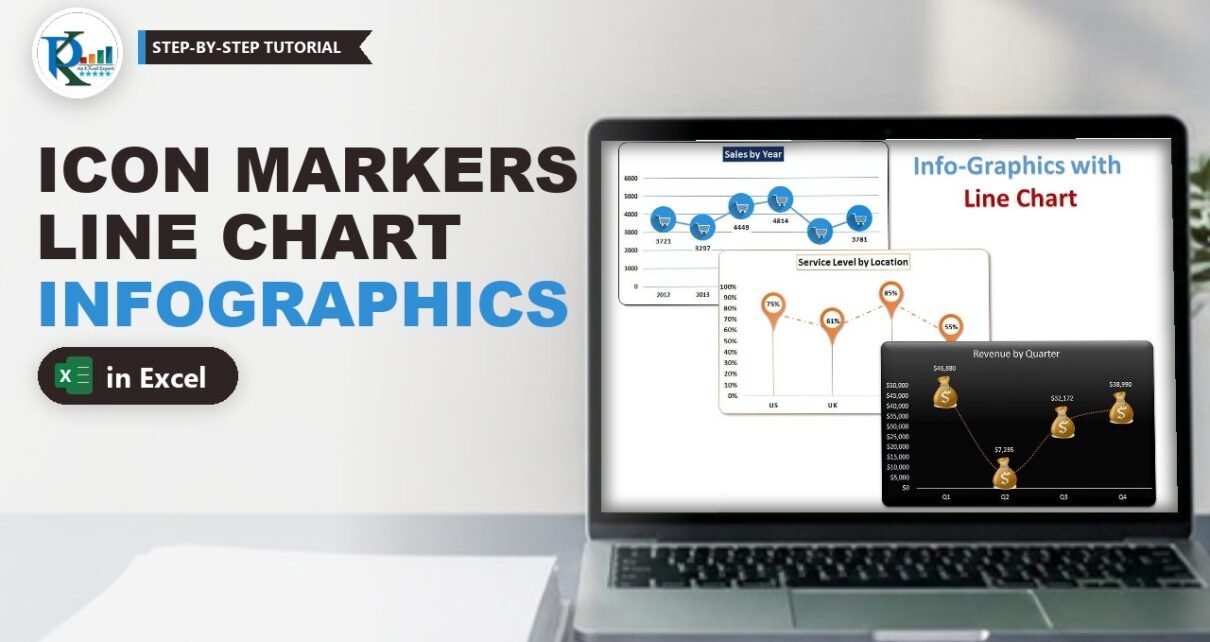
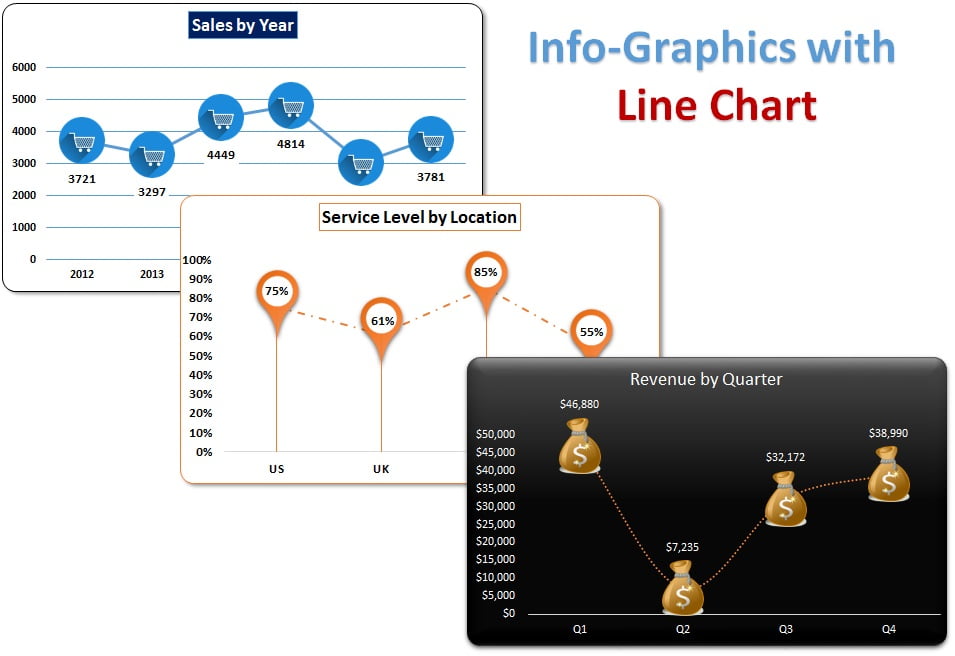
Infographics with a line chart in Excel means swapping the plain round markers for meaningful icons: a shopping cart for sales, a money bag for revenue and a location pin for each country. The line still shows the trend, but now the chart explains itself at a glance. In this tutorial you build three of them from scratch: Sales by Year, Revenue by Quarter and Service Level by Location. The method works with any picture or shape, and the icons stay on the data points when the numbers change.
Watch the Video Tutorial
In the video PK creates all three charts step by step: pasting icons onto the line, formatting gridlines and labels, styling the dark revenue chart, and drawing the location pin with Excel shapes.
What You Will Build
- Sales by Year – a blue line chart where every marker is a cart icon, with labels below the points.
- Revenue by Quarter – a dark chart with money bag markers and a dotted orange line.
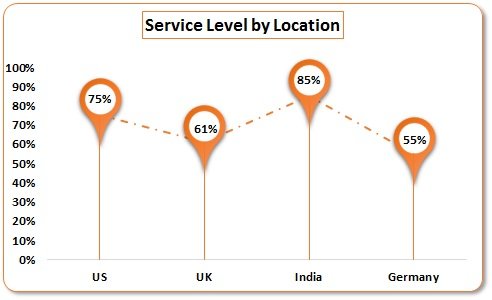
- Service Level by Location – a pin for each country, drawn with Excel shapes and joined by drop lines.
- Rounded, shadowed chart frames that look ready for a dashboard.
- Dynamic icons that move with the data.
The Data Behind the Charts
Each chart uses a small two-column table:
- Sales by Year (A1:B7): 2012 – 3721, 2013 – 3297, 2014 – 4449, 2015 – 4814, 2016 – 3035, 2017 – 3781.
- Revenue by Quarter: Q1 – $46,880, Q2 – $7,235, Q3 – $32,172, Q4 – $38,990.
- Service Level by Location: US – 75%, UK – 61%, India – 85%, Germany – 55%.
Before you start, untick Gridlines on the View tab so the charts sit on a clean white sheet.
Infographics with Line Chart in Excel: Paste an Icon onto the Line
Every chart in this tutorial uses the same move. Copy a picture or shape with Ctrl+C, click the line once so the whole series is selected, and press Ctrl+V. Excel fills every marker of that series with the picture. Because the picture is the marker, it sits exactly on the data point and moves when the value changes.
PK uses two PNG pictures (a cart and a money bag) and one shape built in Excel (the pin). If you take pictures from the web, use only images that are labelled for reuse.
Chart 1 – Sales by Year with Cart Icons
Step 1: Insert the line chart with markers
Select A1:B7 and go to Insert › Charts › Line › Line with Markers (the 2-D version). You get the default blue line with small round markers.
Step 2: Replace the markers with the cart
Copy the cart picture, click the line and press Ctrl+V. Six carts now sit on the six years.
Step 3: Recolour the gridlines and axis
Select the horizontal gridlines and use Format › Shape Outline to pick a light blue theme colour. The bottom line does not change because it is the axis line, so select the horizontal axis and give it the same light blue outline. Then select each axis and the title, and on the Home tab make the font black and bold.
Step 4: Add clean data labels
Right-click the line, choose Add Data Labels, then right-click a label and open Format Data Labels. Set Label Position to Below and make the labels bold and black. Where a label overlaps the line, select the labels and use Format › Shape Fill › White; the white box hides the line behind the number.
Step 5: Frame the chart
Right-click the chart and choose Format Chart Area. Under Border pick Solid line in dark blue, then scroll down and tick Rounded corners. For depth, use Format › Shape Effects › Shadow and choose the first Outer shadow. Finally give the title a dark blue fill, a white font and the text Sales by Year.
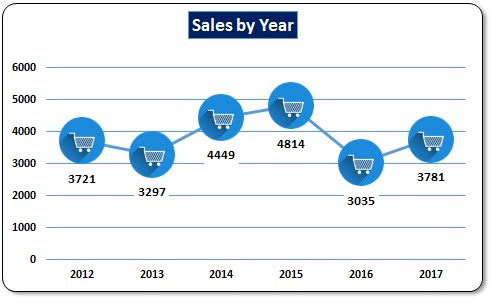
Chart 2 – Revenue by Quarter with Money Bags
Step 6: Insert the chart and paste the money bag
Select the quarter and revenue table, insert the same Line with Markers chart, copy the money bag picture, click the line and press Ctrl+V.
Step 7: Style the line
Right-click the line and choose Format Data Series › Fill & Line › Line. Set Solid line, colour Orange, Accent 2, width 1.5 pt and dash type Round Dot. The dotted line links the bags without competing with them.
Step 8: Give the chart a dark background
Click the + Chart Elements button and untick Gridlines. Then select the chart, open Format › Shape Styles and choose a dark style from the gallery. Gold money bags stand out well against black.
Step 9: Position the labels
Add data labels and set them to Above. If the top label crowds the chart title, select the plot area and drag its top edge down a little. You can add a black solid border with rounded corners, as in Chart 1.
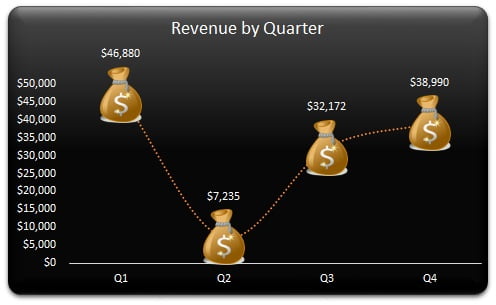
Chart 3 – Service Level by Location with Pin Markers
Step 10: Draw the location pin
This icon is made in Excel, so you can recolour it any time:
- Go to Insert › Shapes › Teardrop (Basic Shapes) and hold Shift while you drag to keep it round.
- Open Size & Properties and set Rotation to
135°. The point of the teardrop now faces down. - Drag the yellow handle to sharpen the point, then pick a shape style.
- Insert an Oval (hold Shift), fill it white, give it an Orange, Accent 2 outline and place it in the head of the pin.
- Select both shapes, use Align › Align Middle (centre them) and Group them. Resize the group with Shift held down.
Step 11: Insert the chart and paste the pin
Select the location and service level table, insert a Line with Markers chart, copy the grouped pin, click the line and press Ctrl+V. Format the line as a solid orange line, 1.5 pt, dash type Dash Dot.
Step 12: Fix the axis scale
Right-click the vertical axis, choose Format Axis and set Minimum to 0 and Maximum to 1. Service level can never be above 100%, so a fixed scale keeps the pins comparable.
Step 13: Add drop lines
Select the chart and go to Design › Add Chart Element › Lines › Drop Lines. A thin line now falls from every pin to its country on the axis. Give the drop lines an orange outline so they look like the pin’s stem. Colour the axis line orange too, make the axis text bold and black, and name the chart Service Level by Location.
Step 14: Put the value inside the pin
Add data labels and set the position to Center. Because the pin’s head is above the point, nudge each label up by hand into the white circle, then make it bold and black. Change India from 85% to another value and the pin and its stem move to the new height.
Why Pictures as Markers Work
- The picture is the marker, so Excel places it at the exact x and y position of each value. Nothing is placed by hand except the Chart 3 labels.
- The line keeps its own format. You can make it dotted, thin or orange without touching the icons.
- Drop lines and fixed axes give the eye a baseline, which a decorative chart needs even more than a plain one.
Modern Excel Alternative: Built-in Icons
This section is an addition to the original tutorial. In Microsoft 365 you do not need to search the web for pictures. Go to Insert › Icons, search for cart, money or location, insert the icon, colour it with Graphics Fill, copy it and paste it onto the line exactly as above. Excel’s icons are free to use in your workbooks, which avoids the copyright question.
Common Errors and Fixes
The picture replaced the chart instead of the markers
You pasted with the whole chart selected. Click once on the line so only the series is selected, then press Ctrl+V.
Only one marker shows the icon
You clicked the line twice, which selects a single point. Click once elsewhere, click the line once and paste again.
The icons are too big or too small
The marker uses the size of the copied picture. Resize the picture on the sheet, copy it again and paste it onto the line.
Tips
- Use PNG pictures with transparent backgrounds so the gridlines show around the icon.
- Keep one icon per series; different icons on the same line make a trend harder to read.
- Use the Line with Markers chart type, not a plain Line, so there are markers to fill.
- Microsoft explains marker options in Change data markers in a line, scatter, or radar chart.
Want It Ready-Made?
The finished workbook with all three charts is available as the Info-graphics with Line Chart template on NextGenTemplates.com, and the Charts and Visualization templates collection has many more infographic charts. To learn charts, infographics and dashboards in a structured way, join the video course Excel Pivot Tables & Dashboards: Basic to Advanced.
Related Tutorials
- Line Chart in Excel
- Candle Infographic Chart in Excel
- Comparison Infographic in Excel: Team vs Team Balance Chart
- Advanced Excel Charts and Infographics
- Sparkline Chart in Excel with Examples
Frequently Asked Questions
How do I use a picture as a marker in an Excel line chart?
Insert a Line with Markers chart, copy the picture with Ctrl+C, click the line once to select the series and press Ctrl+V. Every marker in that series becomes the picture.
Will the icons move when my data changes?
Yes. The icon is the marker itself, so it always sits on the data point and moves with the value.
How do I make a location pin in Excel?
Insert a Teardrop shape, rotate it 135 degrees so the point faces down, add a white circle on top, align and group the two shapes, then paste the group onto the line.
How do I add vertical lines from the points to the axis?
Select the chart and use Add Chart Element, Lines, Drop Lines. Format them with a colour that matches the markers.
Where can I get icons for infographic charts?
In Microsoft 365 use Insert, Icons for free built-in icons. If you use pictures from the web, choose only images that are labelled for reuse.
About the Author
PK is a Microsoft Excel expert and trainer and the founder of PK: An Excel Expert and NextGenTemplates.com. He has been teaching Excel, Power Query and Power BI since 2016 on his YouTube channel.
Conclusion
Infographics with a line chart in Excel take one simple move, copy an icon and paste it onto the line, plus some careful formatting. Use carts for sales, money bags for revenue and pins for locations, keep the line light and the labels clear, and your trend charts become far easier to read in any report or dashboard.