Part of the free Module 10: Pivot Tables · Lesson 14 of 20 · Full Excel course
Show Details in a pivot table extracts the source rows behind any summarised number onto a new worksheet, so you can prove where a total came from. In this lesson you will learn how to drill down from a pivot table value in Excel with a double-click or the Show Details command, how to get the full underlying data from the Grand Total, and how to switch the feature off for protected reports.
What Show Details does and when to use it
Every value in a pivot table is an aggregate of one or more records in the pivot cache. Show Details, often called drill-down or drill-through, copies exactly those records to a new sheet formatted as an Excel Table. It answers the question a manager asks most often, “which transactions make up this figure?”, without filtering the raw data by hand. Use it to audit a suspicious total, to hand a colleague the transactions behind one product or period, or to recover the source data when the original range has been deleted but the pivot cache is still saved in the file.
How to show the details behind a pivot table value
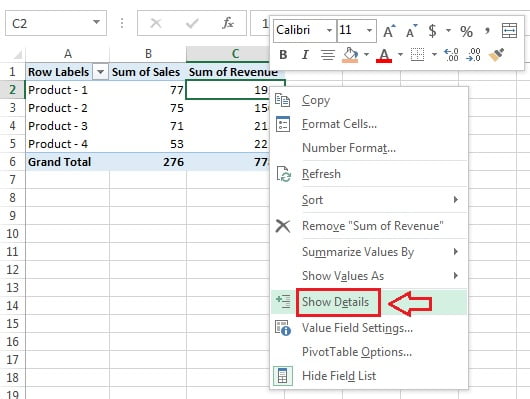
Our pivot table lists products with Sum of Sales and Sum of Revenue. We want the transactions for Product-1.
- Right-click the Sum of Revenue or Sum of Sales cell on the Product-1 row.
- Click Show Details in the shortcut menu. Double-clicking the same cell does exactly the same thing.
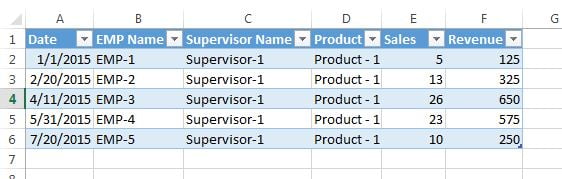
- Excel inserts a new worksheet immediately to the left of the pivot sheet containing every source row for Product-1, with all original columns, formatted as a Table so you can sort and filter it.
- To extract the complete data set behind the pivot table, double-click the Grand Total cell at the bottom right. Every record in the cache is written to a new sheet.
Show Details versus Expand and Collapse
Double-clicking a row label rather than a value opens the Show Detail dialog that asks which field to expand under that item, for example Employee Name under a supervisor. This adds a level to the pivot itself and is the same as the plus button. Double-clicking a value creates the detail sheet described above. Both are called Show Details in Excel’s interface, so remember: label = expand a level, value = extract the rows.
Tips and common mistakes
- Detail sheets are static. The extracted rows are a snapshot; refreshing the pivot does not update them. Delete them when finished to keep the workbook small.
- Turn the feature off. Right-click the pivot, choose PivotTable Options > Data and untick Enable show details when readers should not see individual records, for example salary data.
- Data Model pivots return a maximum of 1,000 rows by default. Change the limit in the connection properties under Data > Queries & Connections.
- Recover lost source data. If the raw data sheet was deleted but the pivot still works, double-click the Grand Total to rebuild the source from the cache. This only works while Save source data with file is ticked in PivotTable Options.
- Filtered items are excluded. Show Details returns only the rows that contribute to the visible value, so report filters and slicers are respected.
Practice and real-world use
Apply a Product slicer, double-click one supervisor’s revenue and check that the detail sheet shows only that product. Then remove the slicer and repeat to see the difference. Auditors use this to trace a ledger balance to invoices, sales managers use it to list the deals behind a monthly total, and analysts use it to hand raw records to a colleague without sharing the whole database.
Related lessons
- Filters in a pivot table
- Refresh and change data source
- Calculated fields and items
- Pivot Table course hub
Frequently asked questions
How do I see the raw data behind a pivot table number?
Double-click the value, or right-click it and choose Show Details. Excel copies the contributing source rows to a new worksheet as a Table.
How do I stop users from double-clicking into my pivot table?
Right-click the pivot table, open PivotTable Options, go to the Data tab and untick Enable show details. Double-clicking then does nothing.
Can I get the whole source data back from a pivot table?
Yes, as long as the source data was saved with the file. Double-click the Grand Total cell and every record in the pivot cache is written to a new sheet.
Want the finished version? Ready-made Excel dashboards, trackers and VBA systems are available at NextGenTemplates.com.