The Subscription Box Dashboard in Power BI packs 5 KPI cards, 16 charts, and 5 fully interactive pages into a single .pbix file priced at $17.99 — replacing $99-499/month vertical SaaS analytics tools while letting you keep full ownership and DAX-level customization. Setup takes under 10 minutes once you have Power BI Desktop installed.
If you run a subscription box business — beauty, snacks, fitness, pet, hobby, books — you already know the data problem: revenue rolls up cleanly, but plan-level profit margin, channel ROI, and regional order volume hide in five different exports. According to the Subscription Trade Association (SUBTA), the subscription box market is forecast to exceed $74 billion by 2028, and operators who track plan-level profit margins consistently outperform peers who only watch top-line revenue. The Subscription Box Dashboard in Power BI gives you that visibility on day one.
Key Features of Subscription Box Dashboard in Power BI
The Subscription Box Dashboard in Power BI ships as an unlocked .pbix with every visual, slicer, and DAX measure fully editable. Here’s what’s inside:
- 5 KPI cards on the Overview page — Total Revenue, Total Orders, Total Discounts, Total Cost, and Net Profit — all driven by the same data model and updated by every slicer click.
- 16 native Power BI charts across 5 pages, including bar, column, line, gauge, and donut visuals.
- Cross-page slicers for Region, Subscription Plan, Box Category, Channel, Customer Type, and Order Status — change once, the whole report updates.
- Plan-level profitability via Net Profit by Subscription Plan and Total Revenue by Subscription Plan, so you stop optimizing on revenue alone.
- Channel ROI lens through Total Revenue by Channel and Net Profit by Channel — required for every weekly ad-budget review.
- Operational health view via Total Orders by Status and Total Revenue by Payment Method, surfacing churn and payment-failure leakage early.
- One-time payment, no subscription, no per-user fee — your file forever.
Dashboard Pages Explanation
The Subscription Box Dashboard in Power BI contains 5 fully interactive pages. Each page uses cross-filtering — clicking on any chart segment filters every other visual on the same canvas, and the slicer panel applies across all pages.
1 — Overview Page
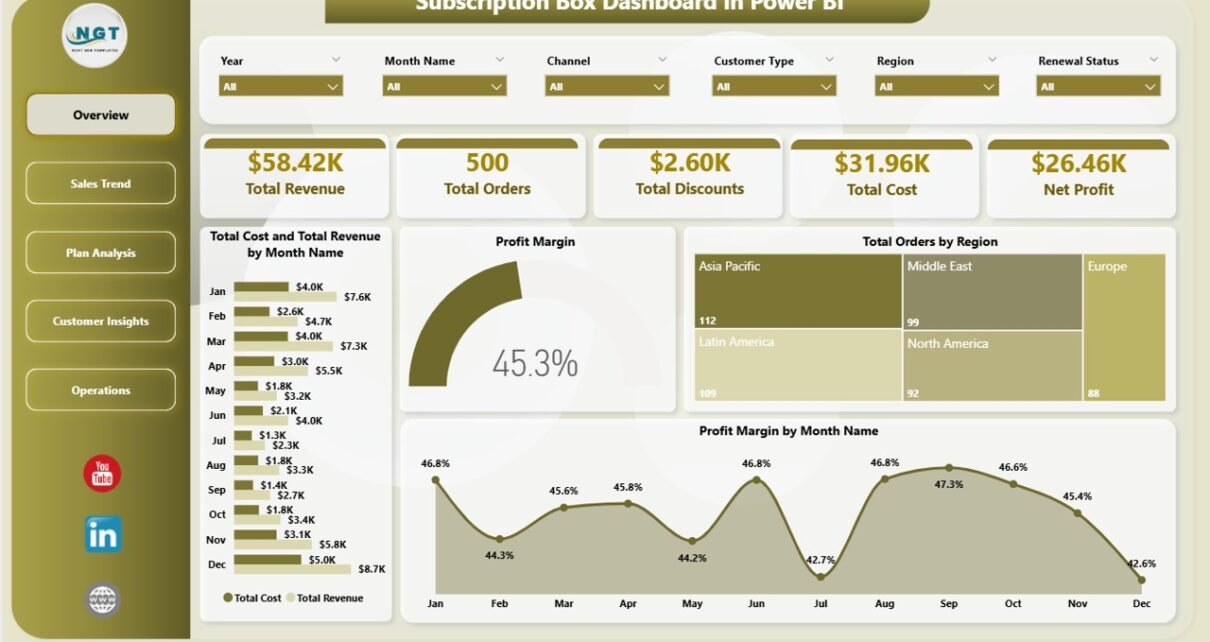
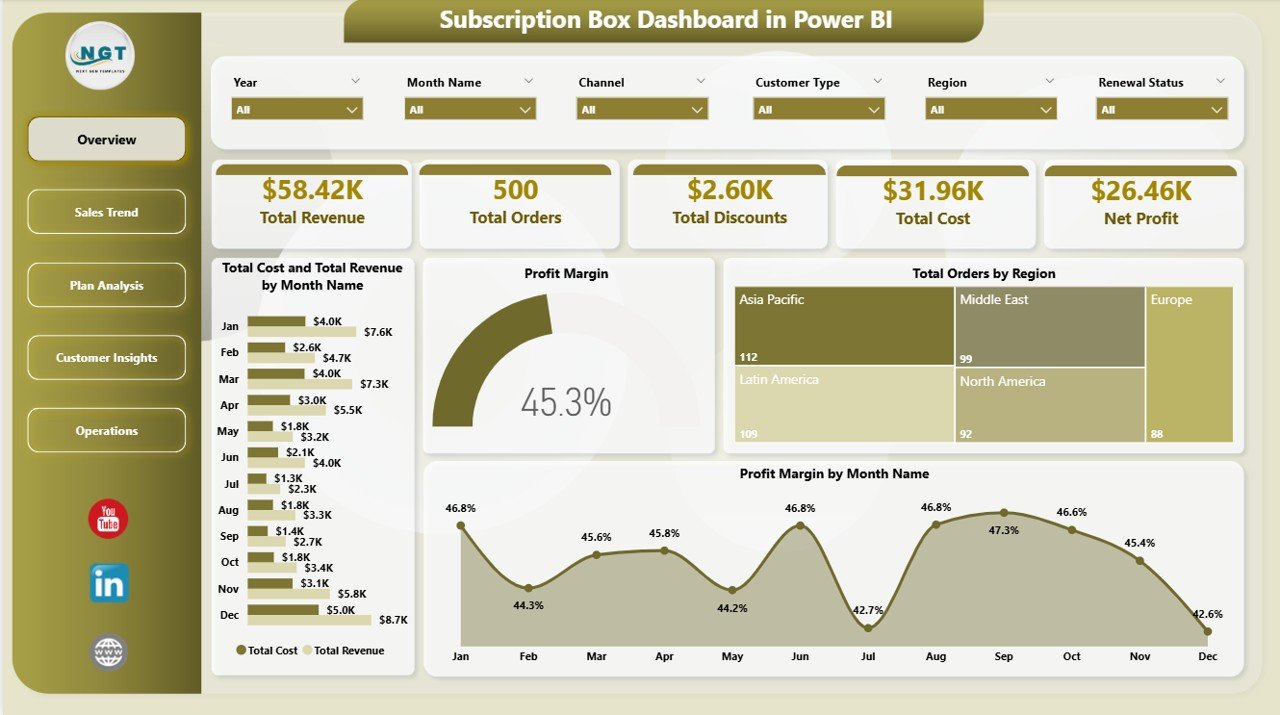
The Overview page is your daily-driver. The top strip shows the 5 KPI cards (Total Revenue, Total Orders, Total Discounts, Total Cost, Net Profit), with the following charts and multiple slicers below:
- Total Cost and Total Revenue by Month Name — Combined column chart comparing month-on-month revenue against cost so you can spot margin compression instantly.
- Profit Margin — A gauge/KPI visual showing overall profit margin percentage with target and variance, so leadership reviews take seconds, not hours.
- Total Orders by Region — A bar chart breaking down order volume by region, ranking your top markets and underperforming territories.
- Profit Margin by Month Name — A line chart tracking margin trend across 12 months — perfect for spotting seasonality and validating pricing changes.
Overview Page — Subscription Box Dashboard in Power BI
2 — Sales Trend
The Sales Trend page focuses on month-over-month performance and revenue mix, with the following analyses:
- Total Orders by Month Name — Tracks order volume across all 12 months, exposing peak acquisition windows.
- Total Revenue by Subscription Plan — Shows which plan tier (Starter, Mid, Premium) drives the most revenue.
- Net Profit by Month Name — Plots net profit trend month-by-month so finance can flag any month where profit dips even as revenue climbs.
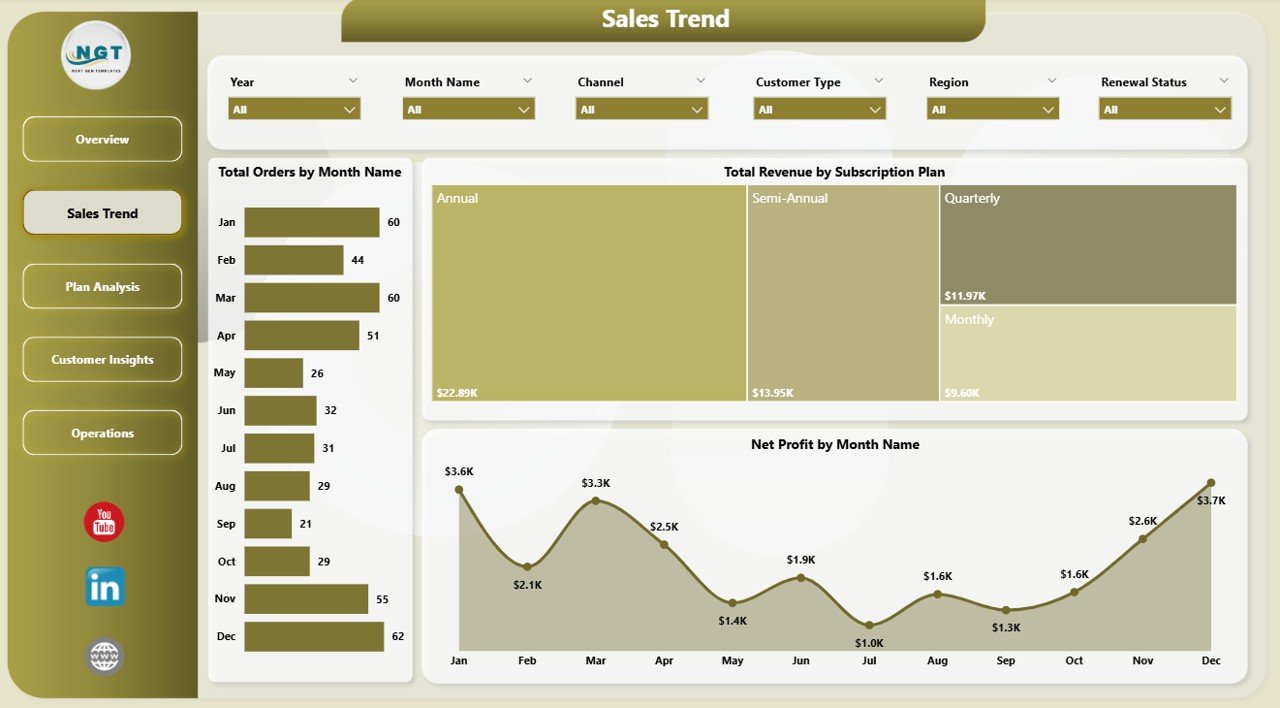
Sales Trend Page
3 — Plan Analysis
The Plan Analysis page splits performance by subscription plan and box category:
- Total Box Sales by Box Category — Compares units sold across categories (Beauty, Snacks, Fitness, etc.) so you can rationalize your category lineup.
- Net Profit by Subscription Plan — Reveals which plan tier delivers the highest absolute profit — often surprising.
- Total Revenue by Customer Type — Splits revenue by new vs returning, a critical input for retention strategy.
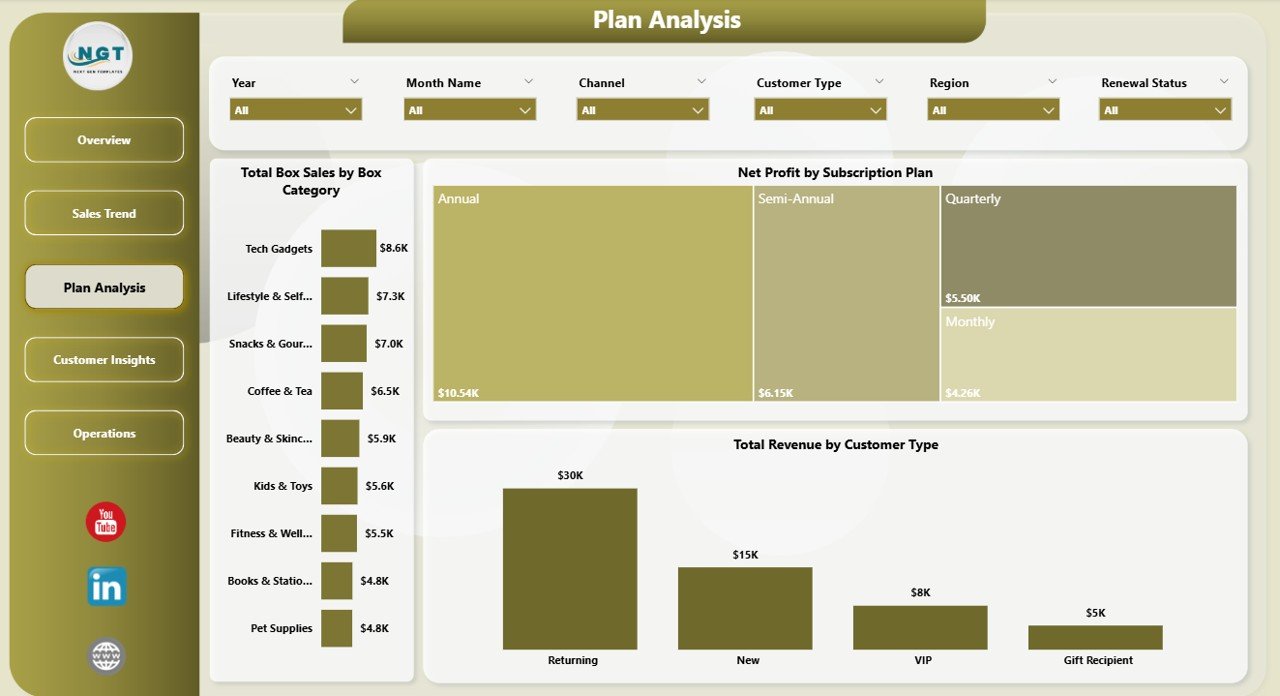
Plan Analysis Page
4 — Customer Insights
The Customer Insights page surfaces channel and regional revenue patterns:
- Total Revenue by Channel — Compares organic, paid social, affiliate, referral, and direct channels for sharper budget decisions.
- Avg Order Value by Customer Type — Tells you whether new customers spend more or less than returning customers.
- Total Revenue by Region — Pinpoints regional revenue concentration for fulfillment and ad-spend prioritization.
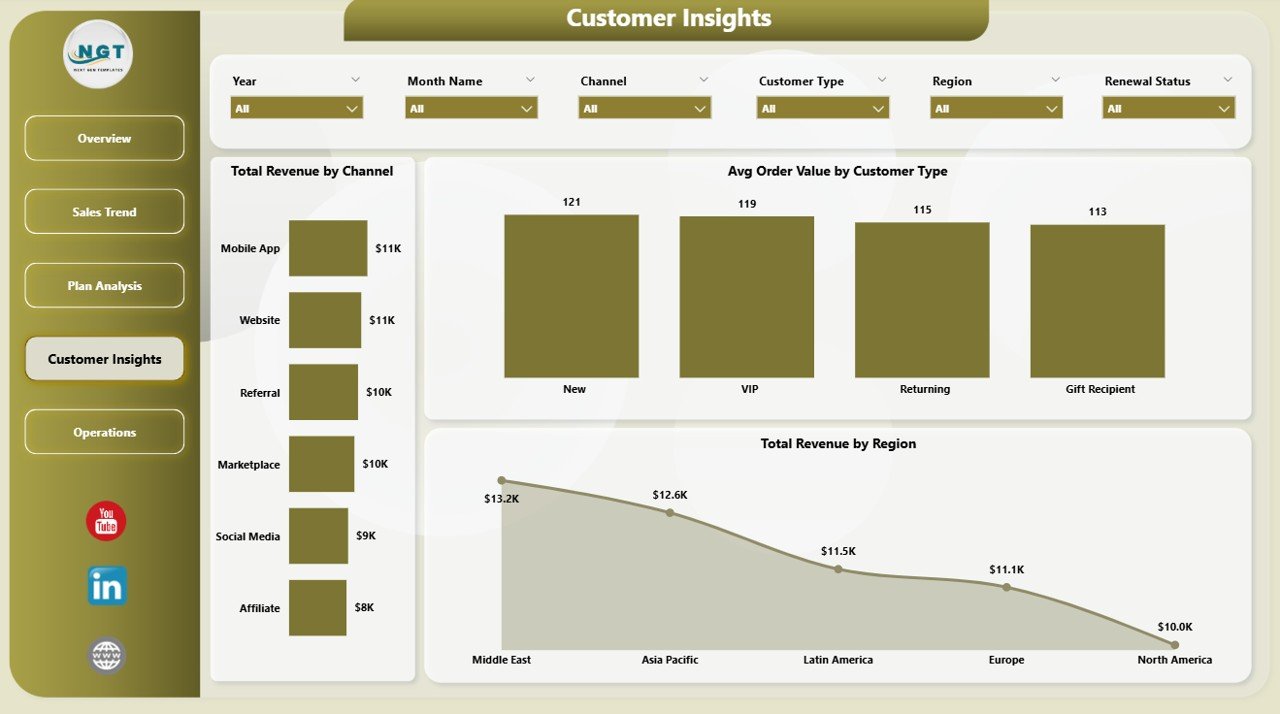
Customer Insights Page
5 — Operations
The Operations page surfaces order status, channel profitability, and payment health:
- Net Profit by Channel — Layers profit (not just revenue) across channels, exposing channels that look great on top-line but lose money after fees.
- Total Orders by Status — Splits orders into active, paused, cancelled, and pending — your first defense against silent churn.
- Total Revenue by Payment Method — Highlights revenue by card, wallet, UPI, and other methods for payment-failure recovery.
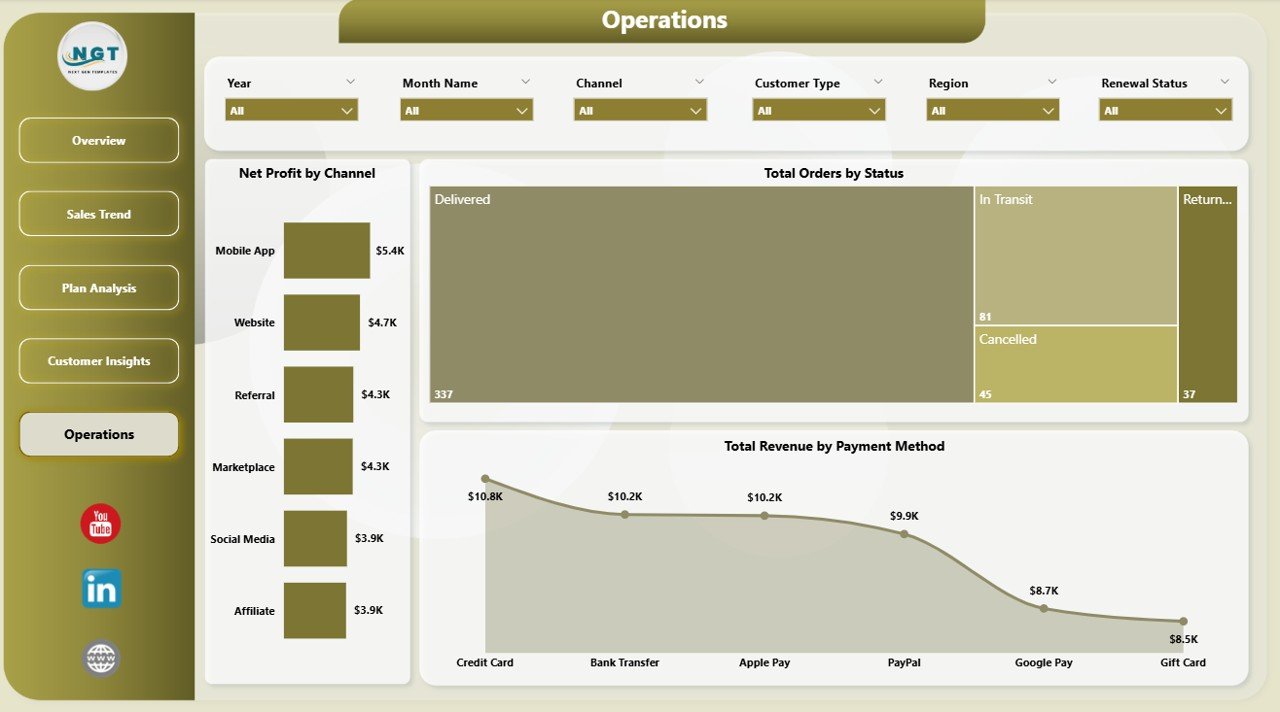
Operations Page
Subscription Box Dashboard in Power BI vs. Tableau / Qlik vs. Paid Subscription SaaS — Feature Comparison
| Feature | Subscription Box Dashboard in Power BI | Tableau / Qlik Equivalent | Recharge / Stay AI / Subbly Analytics |
|---|---|---|---|
| Cost | $17.99 one-time ✅ | $70-100 / user / month | $99-499 / month |
| Platform | Power BI Desktop (free) ✅ | Tableau Desktop / Qlik Sense | Web-based SaaS |
| Setup time | Under 10 minutes ✅ | 2-4 hours per dashboard | Connector setup + reconciliation |
| Customizable DAX measures | Yes, fully editable ✅ | Yes (calculated fields) | Limited to vendor presets |
| 5 pre-built pages with slicers | Yes ✅ | Build from scratch | Limited templates |
| Mobile + web viewing | Yes (Power BI Service) | Yes | Yes |
| Vendor lock-in | None — your file ✅ | Tableau ecosystem | Locked to platform |
| Year-1 cost at 5 users | $17.99 ✅ | $4,200 – $6,000 | $1,188 – $5,988 |
For subscription box operators who want plan-level, channel-level, and regional profitability views without paying $1,000+ per year for vertical SaaS, the Subscription Box Dashboard in Power BI sits in the sweet spot.
Who Should Use This Template
Perfect for:
- Subscription box founders running 50-50,000 active subscribers who need monthly P&L visibility.
- E-commerce growth managers reporting MRR, churn, and channel ROI to leadership.
- DTC operators in beauty, snacks, fitness, pet, books, or hobby boxes.
- Finance / FP&A analysts rolling up plan-level profit into a board pack.
- Power BI users who prefer customizable .pbix files over closed SaaS tools.
Not a fit if:
- You need SOC 2, SSO, or multi-region replication for an enterprise subscription business.
- You run pure SaaS / software subscriptions (use a SaaS Onboarding Dashboard instead).
- You require real-time webhooks from Shopify or Recharge — this uses scheduled refresh.
- You don’t want to install Power BI Desktop locally.
Real-World Use Cases
Maya runs a 12,000-subscriber beauty box brand. Every Monday she opens the Subscription Box Dashboard in Power BI to review last week’s Net Profit by Channel and Total Revenue by Subscription Plan. Within an hour she decides where to redirect her $40K monthly ad budget — without paying $399/month for Subbly Analytics.
Diego is the FP&A lead at an $8M ARR snacks DTC brand. He drops the .pbix into his existing Power BI workspace, swaps the sample data for the company’s monthly export, and presents Profit Margin by Month Name and Avg Order Value by Customer Type at every Friday’s executive review. His CFO finally has the same numbers Diego has been quoting.
Priya runs a hobby-box startup with a 5-person team and no data analyst. The prebuilt slicers let her filter by region and box category in seconds. Last quarter she discovered her North region’s “Crafts” boxes deliver 2.4× the margin of her flagship “Stationery” boxes — a finding that drove her next quarter’s catalog refresh.
Advantages of Subscription Box Dashboard in Power BI
The Subscription Box Dashboard in Power BI delivers four concrete advantages over both DIY dashboards and SaaS analytics:
- Time savings — A custom 5-page Power BI report typically takes a developer 2-4 days. This template ships ready in 10 minutes.
- Cost savings — At $17.99 one-time vs $99-499/month for Subbly Analytics, Recharge, or Stay AI, year-1 savings range from $1,170 to $5,970.
- Full customization — Every DAX measure, visual, and color is editable. Bolt on your own tables, calculated columns, or custom KPIs anytime.
- Vendor independence — You own the .pbix file. No SaaS vendor can deprecate features, raise prices, or lock you into proprietary formats.
To explore the broader catalog, browse Power BI Dashboard Templates or check the full Dashboard Templates library on NextGenTemplates.
Opportunities for Improvement
To be honest about limitations: the Subscription Box Dashboard in Power BI ships with monthly data refresh assumptions, so users wanting real-time webhook ingestion from Shopify or Recharge will need to set up a custom Power Query data source. The template also doesn’t currently include cohort retention curves or LTV by acquisition month — those are advanced metrics best paired with the Customer Retention KPI Dashboard. Finally, while DAX measures are fully editable, users new to Power BI may want to follow the official Microsoft Power BI documentation for a refresher on data modeling.
Best Practices
To get the most out of the Subscription Box Dashboard in Power BI:
- Refresh weekly, not daily — subscription metrics are slow-moving; daily refresh creates noise.
- Pair with a CRM export — joining customer email, plan, and channel data unlocks segmentation analyses the template can’t surface from order data alone.
- Save versions monthly — Power BI’s auto-save is light; manual saves preserve the audit trail for board reporting.
- Publish to Power BI Service for team-wide access — this also enables mobile dashboards via the Power BI mobile app.
- Consider the Excel companion — the Subscription Box Dashboard in Excel shares the same data structure, so you can email-share to non-Power-BI stakeholders.
Explore Relevant Templates
📦 Also available as: Subscription Box Dashboard in Excel — same metrics and pages, native Excel pivot-driven version.
🎯 Related templates worth exploring:
- SaaS Onboarding Dashboard in Power BI — companion if you also run a SaaS subscription line.
- Dropshipping Dashboard in Excel — adjacent e-commerce template covering supplier-side fulfillment.
- Customer Retention KPI Dashboard in Google Sheets — pair with this dashboard to model churn and LTV.
- Ecommerce Conversion Rate KPI Dashboard in Excel — for tracking checkout-funnel health alongside subscription metrics.
- Retail and E-commerce Resource Allocation KPI Dashboard in Excel — useful for FP&A teams allocating fulfillment resources.
Frequently Asked Questions
What KPIs does the Subscription Box Dashboard in Power BI track?
The Subscription Box Dashboard in Power BI tracks 5 primary KPIs on the Overview page (Total Revenue, Total Orders, Total Discounts, Total Cost, Net Profit) plus 16 supporting charts across 4 analysis pages covering month-on-month revenue, plan-level profit, customer type, channel, region, and order status.
How does the Subscription Box Dashboard in Power BI compare to paid subscription analytics SaaS like Recharge or Subbly?
The Subscription Box Dashboard in Power BI costs $17.99 one-time vs $99-499 per month for Recharge or Subbly Analytics. You own the .pbix file forever, can edit every DAX measure, and there’s no per-user fee. Year 1 saves you $1,170-$5,970 for a 5-user team.
How long does setup take?
Setup for the Subscription Box Dashboard in Power BI takes under 10 minutes. Download the .zip, open the .pbix in Power BI Desktop, paste your subscription transaction data into the existing data table, and click Refresh. Every chart, slicer, and KPI card updates automatically — no DAX rewriting required.
Can I customize DAX measures and visuals?
Yes. The Subscription Box Dashboard in Power BI ships as an unlocked .pbix with all DAX measures fully editable. You can add new pages, swap chart types, change the colour theme, or extend the data model with your own calculated columns and tables.
Does this work with Shopify, Recharge, or Stripe data?
The Subscription Box Dashboard in Power BI accepts any tabular data with matching column headers. You can connect it to Excel, CSV, SQL Server, or any source Power BI supports — including direct Shopify, Stripe, or Recharge exports — by repointing the data source in Power Query.
Is there an Excel version of the Subscription Box Dashboard in Power BI?
Yes. The Subscription Box Dashboard in Excel covers the same metrics and pages but uses pivot tables for refresh instead of Power BI’s data model. Choose Excel if your team doesn’t use Power BI Desktop.
Do I get future updates?
The Subscription Box Dashboard in Power BI is a one-time purchase with lifetime access. Any major version updates we publish are downloadable from your account on NextGenTemplates. There are no recurring fees, no per-user charges, no expiration.
About the Author
Built by PK — Microsoft Certified Professional with 15+ years of Excel, Google Sheets, and Power BI experience. Founder of NextGenTemplates, reaching 300K+ subscribers across YouTube channels (@PK-AnExcelExpert, @NextGenTemplates, @NeoTechNavigators). Every template is hand-built and tested before release.
Conclusion
The Subscription Box Dashboard in Power BI is a complete, ready-to-use analytics template for subscription box operators who need plan-level, channel-level, and regional profitability views without locking themselves into a $99-499/month SaaS contract. With 5 KPI cards, 16 charts, 5 fully interactive pages, and full DAX customization, it’s everything a beauty, snacks, fitness, pet, or hobby box brand needs to run weekly reviews and quarterly board packs.
👉 Click here to Purchase Subscription Box Dashboard in Power BI
✅ Instant download · One-time payment · No subscription · Lifetime access
For more Power BI tutorials and downloadable templates, visit our YouTube channel at Youtube.com/@PK-AnExcelExpert.
📅 Last updated: May 2026