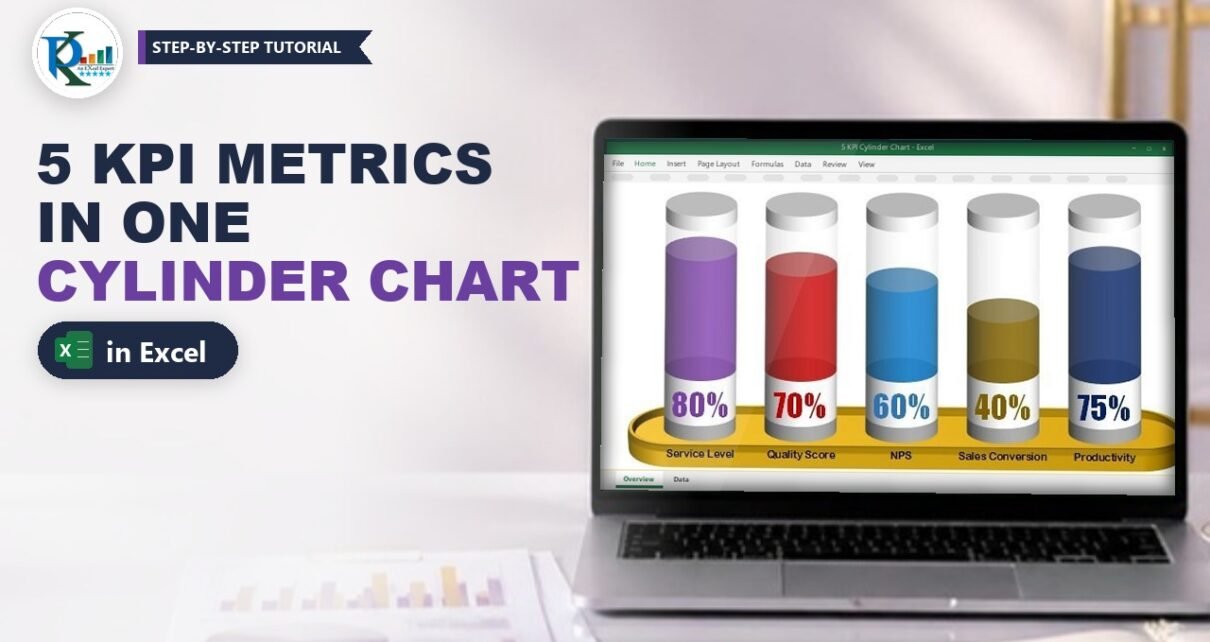
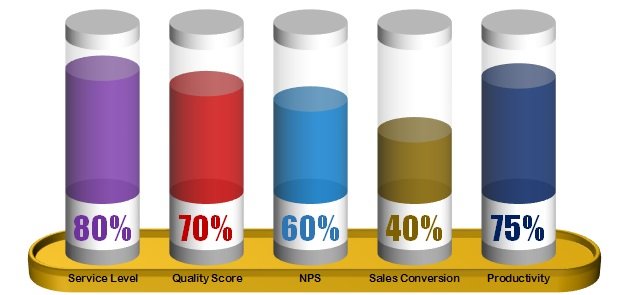
A KPI cylinder chart in Excel lets you show five metrics side by side in one compact, eye-catching visual. Each KPI gets its own glass cylinder, and the coloured fill rises to the KPI’s percentage, so a manager can read Service Level, Quality Score, NPS, Sales Conversion and Productivity in a single glance. In this tutorial you will build it exactly the way PK does in the video: four support columns, a 3-D stacked column chart in the Cylinder shape, labels pulled from cells and a 3-D gold tray underneath. It works in Excel 2013, 2016, 2019, 2021 and Microsoft 365.
Watch the Video Tutorial
In the video PK adds four support columns, turns them into a 3-D stacked cylinder chart, formats every layer, links the labels to the performance cells and finishes with a 3-D rounded-rectangle platform.
What You Will Build
- One chart for five KPIs: Service Level, Quality Score, NPS, Sales Conversion and Productivity (the same method works for three or four metrics).
- Five stacked layers per cylinder: a grey bottom cap, a white label area, the coloured performance fill, a see-through glass area and a white top cap.
- A fill level that follows the data: change a performance value and the coloured part rises or falls.
- A dark colour per KPI with a big Impact-font percentage label in the matching colour.
- A gold 3-D platform made from a rounded rectangle with perspective and bevel, placed behind the chart.
Step 1 – Set Up the Data and Support Columns
Enter the five KPIs
Put the metric names in A2:A6 under the heading Metrics and their values in B2:B6 under Performance, formatted as Percentage. PK copies this table to a new sheet before building the chart.
Add the four support columns
Look at one finished cylinder from bottom to top: a bottom cap, a white area that holds the label, the coloured performance, a transparent area and a top cap. Each part needs its own column, so add four headings in C1:F1 and fill them like this:
| Column | Heading | Value in row 2 (fill down to row 6) |
|---|---|---|
| C | Transparent Area | =1-B2 |
| D | Data label Area | 30% |
| E | Top Cap | 10% |
| F | Bottom Cap | 10% |
How the support columns work
=1-B2fills the gap between the performance and 100% (1 = 100% in Excel). Performance plus Transparent Area is always 100%, so the glass part is always the same height and only the coloured level moves.- The fixed 30% Data label Area is a white band under the liquid. It gives the big percentage label a clean place to sit.
- The two 10% caps form the grey ends of the cylinder.
- Every column therefore adds up to 150% (100% + 30% + 10% + 10%). You will use that number for the axis in Step 2.
Step 2 – Build the KPI Cylinder Chart in Excel
Insert a 3-D Stacked Column chart
Select A1:F6 and go to Insert › Column Chart › 3-D Stacked Column. Then click Design › Switch Row/Column so the five metrics sit along the horizontal axis and the five columns become the stacked series.
Set gap depth, gap width and the Cylinder shape
Right-click a column and choose Format Data Series. In Series Options set Gap Depth to 0% and Gap Width to 40%, and change Column shape from Box to Cylinder.
Fix the vertical axis at 0 to 150%
Because every column totals 150%, right-click the vertical axis, choose Format Axis and set Minimum to 0 and Maximum to 1.5. Excel’s automatic maximum (1.6 in the video) would leave empty space above the cylinders.
Clean up and tilt the chart
Remove the chart title and the gridlines, then delete the vertical axis. Make the chart a little bigger. Right-click the chart, open 3-D Rotation and set X Rotation to 0° and Y Rotation to 20°, so you look at the cylinders straight on and slightly from above.
Put the series in the right stacking order
Right-click the chart and choose Select Data. Use the up and down arrows in Legend Entries (Series) so the list reads, from top to bottom:
- Bottom Cap
- Data label Area
- Performance
- Transparent Area
- Top Cap
The first series in the list is stacked at the bottom, so this order builds each cylinder from the base up. Click OK.
Step 3 – Format the Cylinder Layers
Caps, label area and glass
Right-click each series, choose Format Data Series › Fill › Solid fill and use these settings:
- Top Cap: white.
- Bottom Cap: a slightly darker white (light grey), so the base looks solid.
- Data label Area: white.
- Transparent Area: white with Transparency at about 70 to 75%. This is the empty glass above the liquid.
- Performance: any solid colour for now, with Transparency 20%.
Give each KPI its own colour
Click the Performance series once, then click one cylinder again so only that data point is selected (the pane changes to Format Data Point). Fill the first one violet, the second dark red and the third dark blue, then choose any other dark colours for the last two (PK uses brown and olive while building). Darker colours make the chart look richer against the white glass.
Step 4 – Add the Percentage Labels
Show the performance value on the white band
Right-click the white Data label Area series and choose Add Data Labels. The labels show 30%, because that is the value of this series. You need the performance value instead:
- Excel 2013 or newer: right-click the labels, choose Format Data Labels, tick Value From Cells, select the performance range B2:B6 and click OK. Then untick Value so only the performance number remains.
- Excel 2010 or older: click a single label, type
=in the formula bar, click that metric’s Performance cell and press Enter. Repeat for each label.
Format the labels
With the labels selected, go to Home and set the font to Impact, size 25. Then select one label at a time and give it the same colour as its cylinder: violet, dark red, dark blue and so on.
Tidy the legend and metric names
Delete the legend. Select the horizontal axis labels and set the font to Arial Rounded MT, size 8, in black. The chart itself is now ready.
Step 5 – Build the Gold Platform
Prepare the sheet and the chart
Turn off the sheet gridlines (View › Gridlines) so the background is white. Select the chart and on the Format tab set Shape Fill to No Fill and Shape Outline to No Outline.
Draw and shape the tray
Go to Insert › Shapes, pick the Rounded Rectangle and draw a long, thin bar under the chart. Drag the small yellow handle all the way to the right to make the ends fully round. Fill it with a gold or yellow colour and remove the outline.
Add perspective and depth
Right-click the shape and choose Format Shape › Effects:
- 3-D Rotation › Presets: choose Perspective Relaxed, then nudge the Y Rotation to about 294° so the tray lies flat like a platform.
- 3-D Format: set the Top bevel to Slope and the Depth to 15 pt.
Resize the tray to fit under the cylinders, then right-click it and choose Send to Back. Because the chart has no fill, the tray shows through under the cylinders, and the KPI cylinder chart is finished.
Common Errors and Fixes
These fixes are general Excel guidance added to the video steps.
- Column shape option is missing. You inserted a 2-D stacked column. The Cylinder shape only exists in 3-D column charts, so change the chart type to 3-D Stacked Column.
- The caps or the label band sit in the wrong place. The series order is wrong. Open Select Data and set the order to Bottom Cap, Data label Area, Performance, Transparent Area, Top Cap.
- Empty space above the cylinders, or the top caps are cut off. The axis is on automatic bounds. Set Minimum 0 and Maximum 1.5 to match the 150% column total.
- Every label shows 30%. The labels still show the Data label Area value. Use Value From Cells with B2:B6 and untick Value.
Tips
- Keep the KPIs on the same 0 to 100% scale. A cylinder chart compares fill levels, so mixing a percentage with a raw count misleads the reader.
- If a KPI can go above 100%, the Transparent Area turns negative and the stack breaks. Plot a capped copy such as
=MIN(B2,1)and keep column B for the labels (an addition, not shown in the video). - Want a taller label band? Change the 30% in column D, then raise the axis maximum to match the new column total.
- Save the finished chart as a template (right-click › Save as Template) to reuse the formatting on your next report.
- New to charts? Microsoft’s guide Create a chart from start to finish covers the basics used here.
Want It Ready-Made?
If you would rather skip the formatting, the finished 5 KPI Metrics Chart template is available on NextGenTemplates.com, along with many more Excel templates. To learn how to build charts and full dashboards step by step, take the video course Excel Pivot Tables & Dashboards: Basic to Advanced.
Related Tutorials
- One-Pager KPI Dashboard in Excel
- Stunning Thermometer Chart in Excel
- Beer Mug Graph in Excel
- Truck Graph to Show Occupancy or Workload in Excel
- Candle Infographics Chart in Excel
Frequently Asked Questions
How do I show multiple KPIs in one chart in Excel?
Put the KPIs as categories with their performance in one column, add support columns for the empty part (1 minus performance), a 30% label area and two 10% caps, and plot everything as a 3-D stacked column chart with Switch Row/Column. Each cylinder then shows one KPI, so five metrics fit in one compact chart.
How do I make a cylinder chart in Excel?
Insert a 3-D Stacked Column chart, right-click a column, choose Format Data Series and change Column shape from Box to Cylinder. In this chart PK also sets Gap Depth to 0% and Gap Width to 40%.
Why is the axis maximum 1.5 and not 1?
Each cylinder stacks performance plus transparent area (100%), the 30% label area and two 10% caps, which adds up to 150%. Setting the maximum to 1.5 makes every cylinder fill the full chart height.
How do I show the performance value instead of 30% in the labels?
In Excel 2013 or newer, open Format Data Labels, tick Value From Cells, select the performance range and untick Value. In Excel 2010 or older, select each label, type = in the formula bar and click the performance cell.
Which Excel versions can build this chart?
The video is recorded in Excel 2013, and the same steps work in Excel 2016, 2019, 2021 and Microsoft 365. Older versions can build the cylinders too, but they need the formula-bar method for the labels.
Is there a ready-made version of this KPI chart?
Yes. The finished 5 KPI Metrics Chart template is available on NextGenTemplates.com if you want to drop it straight into your report.
About the Author
PK (Priyendra Kumar) is a Microsoft Excel expert and trainer, the founder of PK: An Excel Expert and NextGenTemplates.com. He has been teaching Excel, dashboards and Power BI on his YouTube channel since 2016.
Conclusion
A KPI cylinder chart in Excel turns five plain percentages into a visual your audience remembers. With four support columns, a 3-D stacked column chart in the Cylinder shape, labels taken from cells and a 3-D gold platform, you get a space-saving chart that updates as soon as your KPI numbers change.