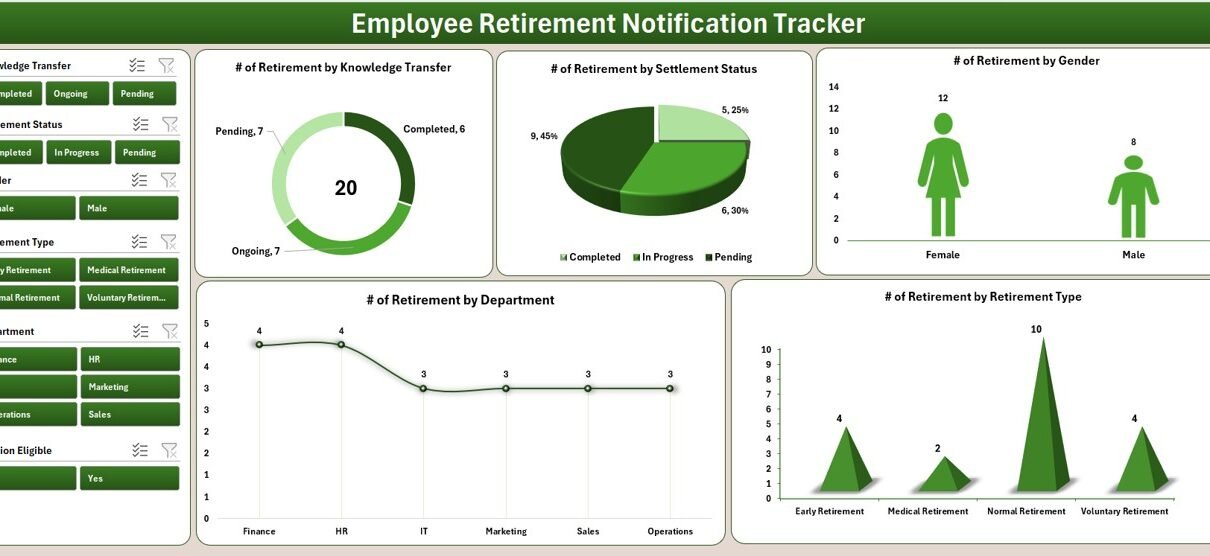
The Employee Retirement Notification Tracker in Excel manages 8 connected worksheets that help HR teams track upcoming employee retirements across departments, locations, and designations. The Dashboard runs on 4 slicers and 5 dynamic charts, while a VBA-powered data entry form handles Add, Update, and Delete operations with one click. Setup takes under 10 minutes — replace the sample data, and every chart refreshes automatically.
Workforce planning fails when HR teams discover key retirements 30 days too late. Manual spreadsheets and paid HRIS subscriptions both leave gaps — one is fragile, the other is expensive ($8–$15 per employee per month). This Employee Retirement Notification Tracker in Excel sits in the sweet spot: a secure, login-protected, VBA-driven Excel file built specifically for retirement notification and succession planning. In this post we walk through every sheet, explain how the slicers and charts connect, and show 3 real-world examples of HR teams using it today.
Key Features of the Employee Retirement Notification Tracker in Excel
The tracker bundles 5 capabilities that normally require separate tools:
- 🔐 Secure Login Form — Password-protected entry with credentials stored in the User Management sheet. Prevents accidental edits to retirement records.
- 📊 Interactive Dashboard — 4 slicers + 5 dynamic charts covering department, location, designation, retirement year, and status. Charts refresh automatically when new records are added.
- 📝 VBA Data Entry Form — Three buttons (Add, Update, Delete) drive a validated UserForm. Update auto-fills the form with the selected employee’s existing data.
- 📋 Editable Lists — Drop-down values for departments, locations, designations, and statuses live in a single sheet. Edit one cell, every drop-down updates.
- 👥 Multi-User Management — Add unlimited users with Admin or User role. Each person logs in with their own credentials.
Three definitive points worth highlighting: the Dashboard is fully pivot-driven (no formulas to break when you add 1,000+ records); the data entry form runs entirely on UserForm VBA without any third-party add-ins; and the file is a single .xlsm — no installation, no cloud dependency, no per-user licensing.
Sheets Explanation — All 8 Worksheets in the Tracker
1. Login Form
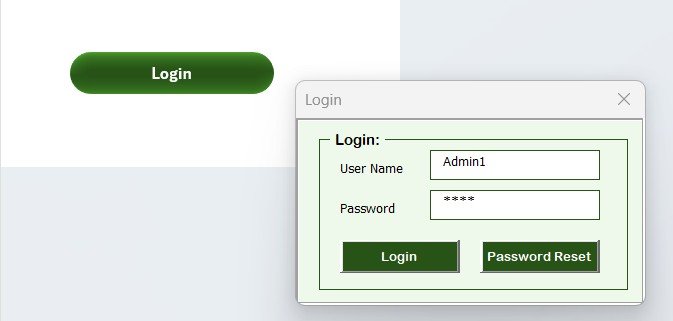
Opens automatically when the workbook is launched. Authenticates the user against credentials stored in the User Management sheet. Failed attempts close the workbook to prevent brute-force access. The Login Form is the security gate for the entire system.
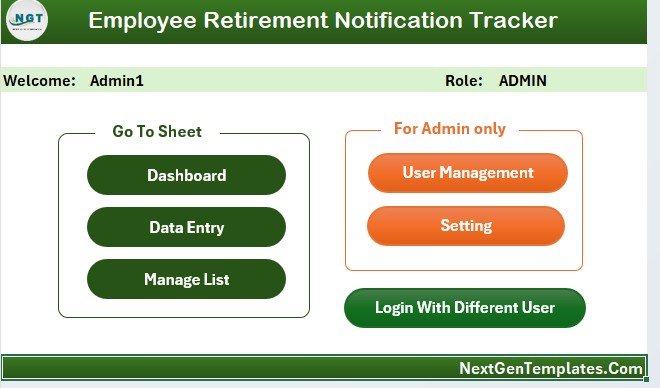
2. Home Page
A clean navigation hub that replaces tab clicking. Quick-access buttons jump to the Dashboard, Data Sheet, List Sheet, Settings, and User Management. New HR users find what they need in one click instead of hunting through 8 tabs.
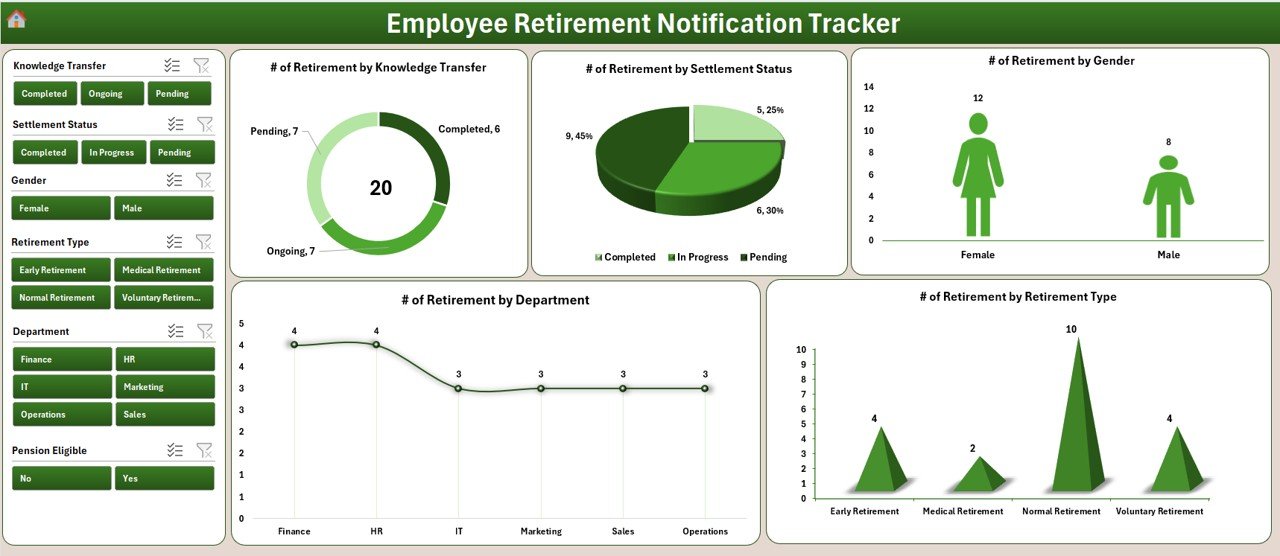
3. Dashboard (4 Slicers + 5 Charts)
The heart of the tracker. The Dashboard visualizes upcoming retirements with the following:
- 4 Slicers — Department, Location, Designation, Retirement Year. Click any slicer value to filter every chart simultaneously.
- 5 Charts — Retirement count by Department, by Location, by Designation, by Retirement Year, and by Age Band / Status.
- Auto-refresh — Whenever you add a new record via the data entry form, the Support Sheet pivot tables refresh and every chart updates immediately.
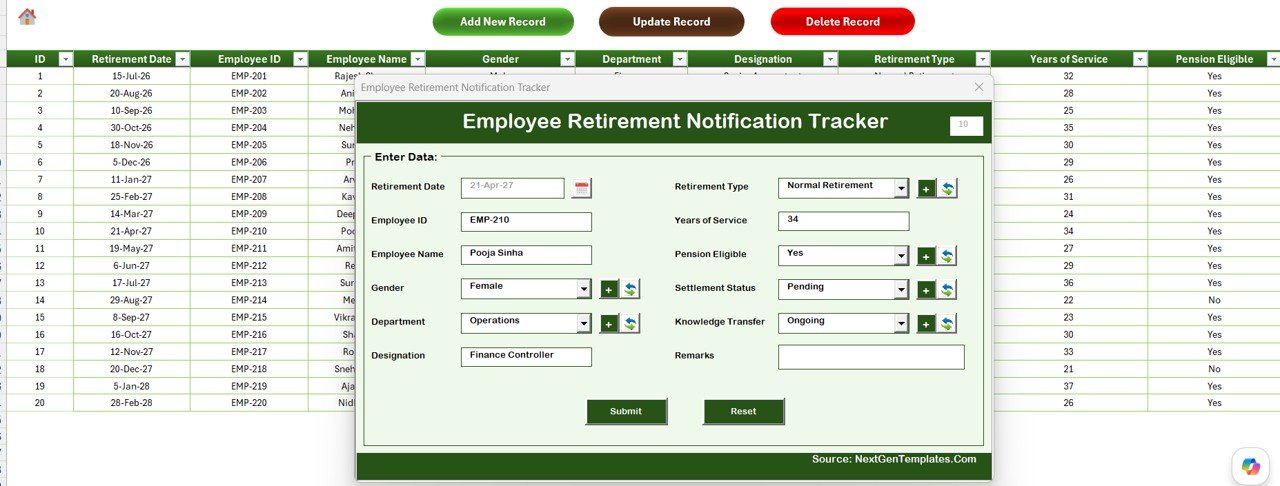
4. Data Sheet (Add / Update / Delete Buttons)
The master employee table. Three command buttons sit at the top of the sheet:
- Add New Record — Opens a blank UserForm. Fill in Employee ID, Name, Date of Birth, Department, Location, Designation, Retirement Date, and Status. Click Submit; the record is appended to the table and every Dashboard chart refreshes.
- Update Record — Select any cell in the row you want to edit, click Update, and the form opens pre-filled with that employee’s data. Modify and resubmit.
- Delete Record — Select the row, click Delete, and a confirmation prompt appears before the entry is permanently removed.
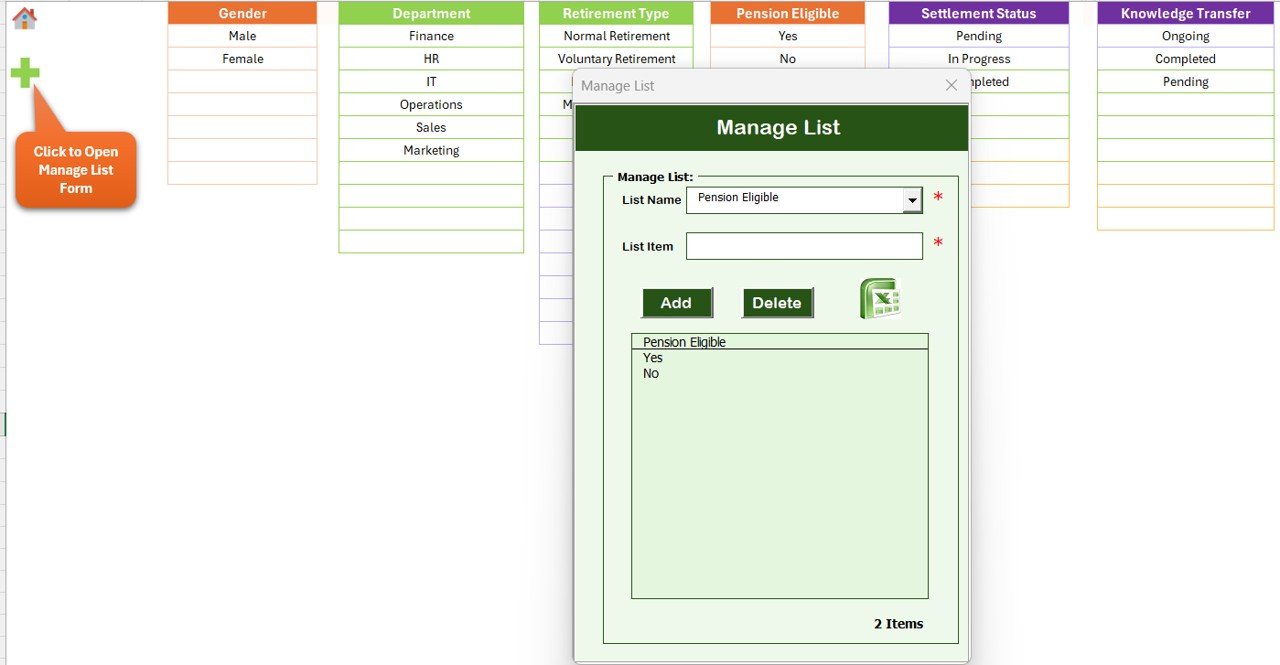
5. List Sheet
Drives every drop-down in the data entry form. Edit a single cell here — say, add a new department called “Quality Assurance” — and the next time you open the Add Record form, that department appears in the drop-down. No VBA editing required.
6. Support Sheet
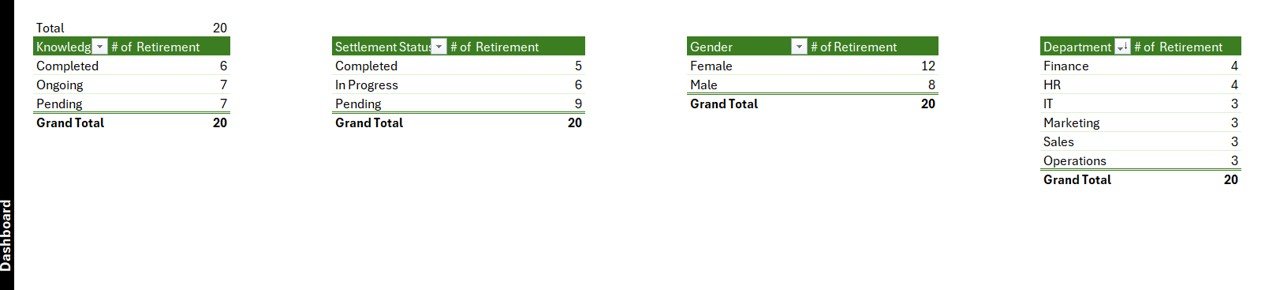
A hidden backend tab containing the pivot tables that feed each Dashboard chart. You don’t need to interact with it — Excel refreshes the pivots automatically when records change. You can hide this sheet from end users for a cleaner workspace.
7. Settings Sheet
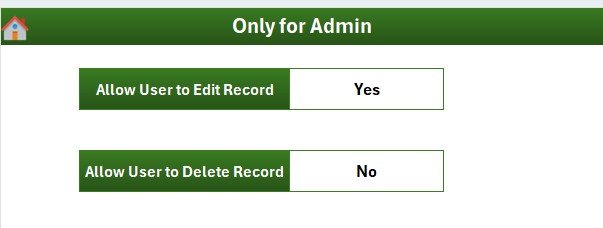
Centralized configuration: company name, default retirement age (58 / 60 / 65 — varies by country and sector), date format, and other global parameters. Update Settings once and every sheet picks up the new values.
8. User Management Sheet
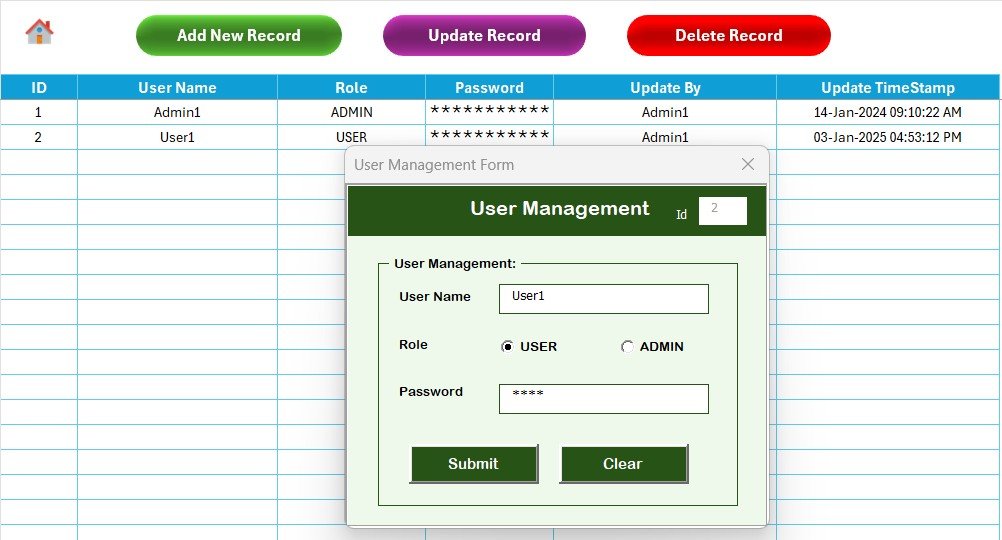
Add, edit, or remove user accounts. Each row stores a username, password, and role (Admin or User). Admins access every sheet; regular users access only the Data Sheet workflow. Credentials live inside the file — no external authentication server needed.
Employee Retirement Notification Tracker in Excel vs. Google Sheets vs. BambooHR / Workday — Feature Comparison
| Feature | Employee Retirement Tracker (Excel) | Google Sheets HR Tracker | BambooHR / Workday |
|---|---|---|---|
| Cost | $6.99 one-time | $5–$15 one-time | $8–$15 / employee / month |
| Platform | Microsoft Excel (offline) | Google Sheets (cloud) | SaaS (cloud) |
| Setup time | Under 10 minutes | 10–15 minutes | 2–8 weeks |
| VBA Add/Update/Delete form | ✅ | ❌ | ✅ |
| Multi-user login + roles | ✅ | Limited | ✅ |
| Works fully offline | ✅ | ❌ | ❌ |
| Customizable fields | ✅ | ✅ | Limited |
| Year-1 cost at 50 employees | $6.99 total | $5–$15 total | $4,800–$9,000+ |
| Vendor lock-in | None | Google account | Annual contract |
For HR teams that want secure, structured retirement tracking without paying $5,000+ per year for a full HRIS, the Employee Retirement Notification Tracker in Excel sits in the sweet spot.
Who Should Use This Template
Perfect for:
- HR managers and HRBPs at 20–500 person companies tracking 5–50 retirements per year
- Public-sector and PSU HR teams with mandatory retirement-age workflows (58 / 60 / 65)
- Workforce planners running succession analysis on Excel-only environments
- Multi-location organizations needing department- and location-wise retirement visibility
- HR consultants who need a portable, client-deployable retirement notification tool
Not a fit if:
- Your company already uses Workday, SAP SuccessFactors, or Oracle HCM as system of record
- You need SOC 2 Type II compliance or SSO with Active Directory
- Your workforce exceeds 5,000 employees with mandatory payroll integration
- You’re on Mac-only environments where VBA UserForms are unsupported (use the Google Sheets version instead)
Real-World Use Cases
Priya leads HR at a 220-person Indian manufacturing company. Her plant runs three shifts across two locations, and India’s mandatory retirement age of 58 means several senior fitters and supervisors retire each year. She uses the Employee Retirement Notification Tracker to forecast retirements 24 months in advance. The Dashboard slicer for “Retiring This Year” shows her 11 upcoming retirements across plant operations, helping her start succession hiring before the gap appears.
Daniel runs HR Shared Services at a 5-branch UK retail chain. Each Monday he logs into the tracker, filters the Dashboard by location, and sends each branch manager a one-page retirement forecast for the next 6 months. Multi-user login lets each store HR update only their own records, while head office sees the consolidated view in real time.
Anita is an HR consultant supporting 8 mid-sized clients in the GCC. She deploys the tracker for each client at $6.99 and customizes the List Sheet to match each country’s mandatory retirement age — saving each client roughly $4,800 per year compared to a BambooHR subscription. The portability of an .xlsm file is what makes the consulting model work.
Advantages of the Employee Retirement Notification Tracker in Excel
- Cost: $6.99 one-time replaces $4,800+/year HRIS subscriptions for retirement-tracking use cases.
- Speed: Setup completes in under 10 minutes for a 100-employee org.
- Security: Login-gated access plus role-based User Management protects sensitive birth-date and pension data.
- Portability: Single .xlsm file. Email it, store it on OneDrive, or back it up to a USB drive.
- No vendor lock-in: No annual contracts, no per-user fees, no “platform fee” creep.
- Customization: Every chart, slicer, and field is editable using standard Excel tools — you don’t need a developer.
Opportunities for Improvement
Honest limitations matter — buyers should know what they are getting:
- VBA security model: The login system is convenience-grade. It prevents accidental edits but won’t stop a determined attacker who opens the file in a low-trust environment. For high-security needs, layer file-level password protection on top.
- Co-authoring: Native simultaneous editing requires Microsoft 365 + OneDrive/SharePoint with co-authoring enabled. The default behavior is single-user editing.
- Mac compatibility: VBA UserForms have known rendering quirks on macOS. The Google Sheets version is the recommended alternative for Mac-only teams.
- Notifications: The tracker shows upcoming retirements visually but does not send email reminders. For automated alerts, integrate with Power Automate or use Excel’s calendar integration.
Best Practices
- Use unique Employee IDs. The Update and Delete buttons rely on the ID column to find rows. Duplicate IDs break the workflow.
- Update the List Sheet first. Before adding records, replace the sample departments and locations with your real organizational structure. This avoids cleanup later.
- Review the Dashboard monthly. Filter by “Retiring in next 6 months” and share the slice with department heads.
- Lock the Support Sheet. Hide it from non-admin users to prevent accidental pivot-table damage.
- Back up the file weekly. Treat the .xlsm as your retirement system of record — copy it to OneDrive or a backup folder every Friday.
- Review user accounts quarterly. Remove stale logins from the User Management sheet to keep access tight.
Explore Relevant Templates
- Employee Retirement Notification Tracker in Google Sheets — cloud-based version with real-time collaboration
- Employee Offboarding Tracker in Excel — pairs with this tracker for full exit lifecycle management
- Pension Funds Dashboard in Excel — financial side of retirement planning
- Employee Benefits Dashboard in Excel — benefits eligibility alongside retirement timelines
- 💎 HR & Payroll Template Bundle — get this tracker plus 9 more HR Excel tools at 43% off
For Excel automation tutorials, Microsoft’s official VBA reference for Excel is the canonical source of UserForm and event-handler documentation.
Frequently Asked Questions
Does the Employee Retirement Notification Tracker in Excel require macros?
Yes. The Add, Update, and Delete buttons run VBA macros, and the Login + User Management features depend on macros. Open the file in Microsoft Excel for Windows (Office 365 / 2021+) and click Enable Content when the security prompt appears.
How does this compare to BambooHR or Workday for retirement tracking?
BambooHR and Workday cost $8–$15 per employee per month and require multi-week onboarding. The Employee Retirement Notification Tracker in Excel costs $6.99 one-time, deploys in under 10 minutes, and runs offline. It does not replace a full HRIS — it is purpose-built only for retirement notification and workforce planning.
Can multiple users edit the tracker at the same time?
The User Management sheet supports unlimited user accounts with Admin or User roles. Simultaneous editing requires the file to live on OneDrive or SharePoint with co-authoring enabled — by default, only one person edits at a time.
How long does setup take for a 100-employee organization?
Under 10 minutes. Update the List Sheet with your departments, locations, and designations (2 minutes), add HR users in the User Management sheet (3 minutes), then enter your 100 employee records via the data entry form. The Dashboard updates automatically.
Can I customize the charts and slicers on the Dashboard?
Yes. All 5 charts and 4 slicers are standard Excel objects connected to the Support Sheet pivot tables. Right-click any chart to change its type, colors, or data range. You can also add new charts that reference the same pivot data.
Is this template available for Google Sheets or Power BI?
Yes — the Employee Retirement Notification Tracker in Google Sheets is the cloud-native version. For visualization-heavy workforce analytics, the Pension Funds Dashboard in Excel and Power BI pair well with this tracker.
What happens if I forget the admin password?
Open the User Management sheet directly to view stored credentials, or contact NextGenTemplates support with proof of purchase. The login system is convenience-grade — designed to prevent accidental edits, not to defeat determined attackers.
About the Author
Built by PK — Microsoft Certified Professional with 15+ years of Excel, VBA, Google Sheets, and Power BI experience. Founder of NextGenTemplates, reaching 300K+ subscribers across YouTube channels (@PK-AnExcelExpert, @NextGenTemplates, @NeoTechNavigators). Every template is hand-built and tested before release.
Conclusion
The Employee Retirement Notification Tracker in Excel is the cheapest, fastest, most portable way to track upcoming employee retirements with a secure, multi-user, dashboard-driven Excel file. 8 connected sheets, 4 slicers, 5 dynamic charts, full VBA-powered Add/Update/Delete workflow, and built-in user authentication — all in a single .xlsm file at $6.99 one-time.
👉 Click here to Purchase the Employee Retirement Notification Tracker in Excel
✅ Instant download · One-time payment · No subscription · Lifetime access
For step-by-step video tutorials on Excel VBA dashboards and HR templates, visit Youtube.com/@PK-AnExcelExpert.
📅 Last updated: May 2026