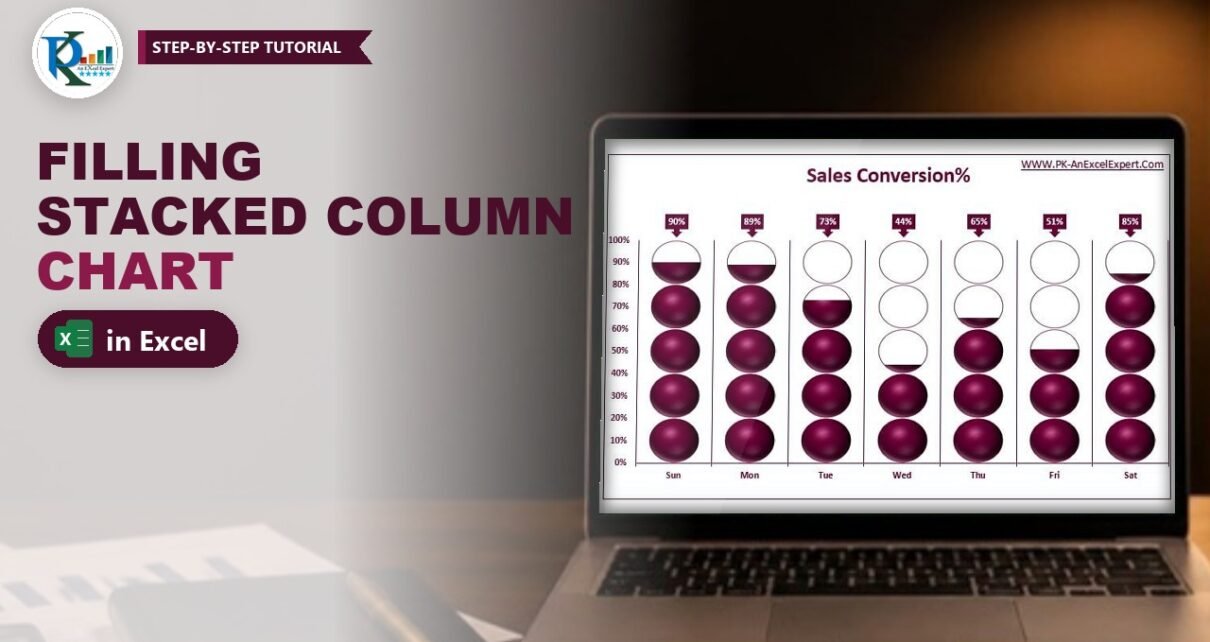
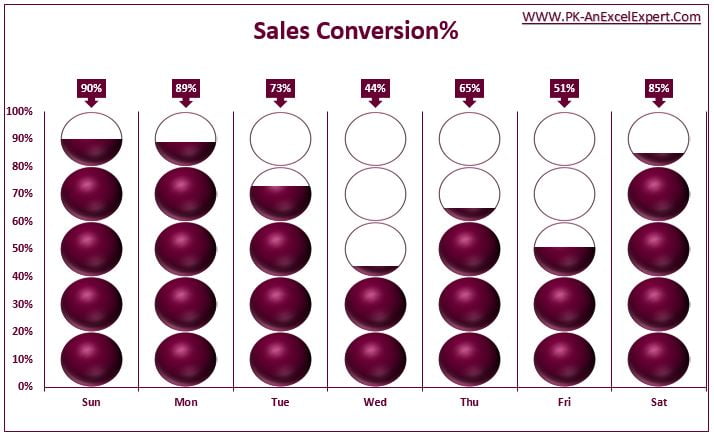
A filling stacked column chart in Excel turns a plain percentage into a column of 3D balls that fill up like a gauge. In this tutorial you will build it for day-wise sales conversion: every column has five circles, each circle stands for 20%, and the circles fill from the bottom. So 20% fills one circle, 50% fills two and a half, and 90% fills four and a half. There is no VBA and no add-in, just a clustered column chart, two shapes and the Stack and Scale picture fill. It is an eye-catching KPI visual for dashboards and presentations.
Watch the Video Tutorial
In the video PK shows how the chart reacts to new values, then rebuilds it on a fresh sheet: helper column, clustered column chart, 3D ball and empty ring shapes, Stack and Scale fill and the linked callout labels.
What You Will Build
- A weekly sales conversion chart with one column per day, Sunday to Saturday.
- Five circles per column, each worth 20%, so the scale is easy to read at a glance.
- Solid 3D balls for the achieved value, filled exactly to the percentage, including partial balls.
- Empty rings behind them that show the remaining gap to 100%.
- Callout labels on top of each column that show the real percentage.
How the Filling Stacked Column Chart in Excel Works
The chart has two column series that sit exactly on top of each other. The Max series is always 100% and is filled with empty rings. The Sales Conversion% series is filled with solid balls. Both use the Stack and Scale with picture option, which repeats a picture inside a column, one picture per unit. With the axis running from 0 to 1 and a unit of 0.2, a 100% column holds exactly five pictures. A 90% column holds four whole balls and a half ball, because Excel cuts the last picture at the column’s top edge. That cut is what creates the “filling” effect.
Step 1: Prepare the Data
Enter the data in A1:B8 and switch off gridlines with View → Gridlines:
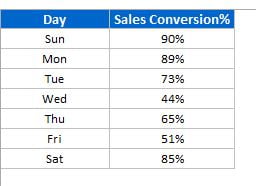
The values are real percentages (90% is stored as 0.9). Next to them, add a helper column. Type Max in C1 and 100% in C2, then fill it down to C8. This helper series draws the empty rings that show the gap up to 100%.
Step 2: Insert a Clustered Column Chart
- Select A1:C8 and choose Insert → Column → 2-D Clustered Column. You get two series: Sales Conversion% and Max.
- Right-click a column and choose Format Data Series. Set Gap Width to 40% and Series Overlap to 100%. Now the two series sit on top of each other instead of side by side.
- Right-click the vertical axis, choose Format Axis and set the Minimum to 0 and the Maximum to 1. A fixed maximum keeps the five circles the same size whatever the data.
- Resize the chart so the columns are roughly five times taller than they are wide. Otherwise the balls look stretched.
Step 3: Draw the 3D Ball and the Empty Ring
The solid ball
Choose Insert → Shapes → Oval and click once on the sheet. That inserts a 1″ x 1″ circle. Remove the outline (Shape Outline → No Outline), then right-click it, choose Format Shape and open Effects → 3-D Format. Set the Top bevel to Circle with a Width and Height of 36 pt. Half of the 1″ shape is 36 pt, so the bevel rounds the whole circle into a solid ball. Give it a fill colour through Shape Fill → More Fill Colors; PK uses a deep maroon.
The empty ring
Copy the ball and paste it next to the original. On the copy, set Shape Fill → No Fill and Shape Outline to the same maroon (More Outline Colors). You now have a solid ball and an empty ring with the same size and colour.
Step 4: Fill the Columns with Stack and Scale
Rings for the Max series
- Select the empty ring and press Ctrl+C.
- Click the Max series in the chart (in the formula bar you will see
=SERIES(Sheet1!$C$1,Sheet1!$A$2:$A$8,Sheet1!$C$2:$C$8,2)) and press Ctrl+V. Each column is now one tall stretched ring. - In Format Data Series → Fill & Line → Fill, scroll down and choose Stack and Scale with, then type
0.2as the units per picture.
Because the axis runs from 0 to 1, a unit of 0.2 means one picture for every 20%, so each 100% column now shows five rings.
Balls for the Sales Conversion% series
- Copy the solid ball.
- Select the Sales Conversion% series. It is hidden behind the rings, so pick it from the Series Options drop-down at the top of the Format pane (or from Format → Current Selection).
- Press Ctrl+V and again choose Stack and Scale with and
0.2.
Your chart is now working: Sunday’s 90% shows four solid balls and a half-filled fifth, and Wednesday’s 44% fills two balls and a sliver of the third. Change any value in column B and the balls refill instantly.
Step 5: Format the Filling Stacked Column Chart
PK uses the ball colour for every element, so the chart looks like a single design:
- Delete the legend.
- Make the axis labels bold and maroon, and type the chart title Sales Conversion% in the same colour.
- Delete the horizontal gridlines and add Primary Major Vertical gridlines instead (Add Chart Element → Gridlines). Colour them maroon so each day sits in its own lane.
- Give the horizontal axis line and the chart border the same colour, and resize the plot area to leave room for the labels on top.
Step 6: Add Callout Labels with the Real Values
The labels go on the Max series, because its columns all end at 100% and so the labels line up neatly above the chart. But Max shows 100% everywhere, so you link the labels to the real values:
- Right-click the Max series and choose Add Data Labels.
- Right-click a label, choose Format Data Labels and tick Value From Cells. In the Data Label Range box select B2:B8 and click OK.
- Untick Value and Show Leader Lines, and keep the position at Outside End.
- Right-click a label, choose Change Data Label Shape and pick a downward callout. Fill it with the maroon colour and make the font white and bold.
Excel 2010 users: Value From Cells only exists from Excel 2013. In Excel 2010, click one label twice to select just that label, type = in the formula bar, click the matching cell in column B and press Enter. Repeat for each day.
Common Errors and Fixes
Each column shows one stretched ball
The fill is still set to Stretch. Open Format Data Series → Fill and select Stack and Scale with.
There are far too many or too few circles
The units per picture do not match your data. With percentages stored as fractions, 20% is 0.2. If your values are whole numbers such as 90, set the axis maximum to 100 and the unit to 20. Also check that the axis maximum is fixed at 1 and not set to Auto.
The balls sit next to the rings instead of inside them
Series Overlap is not 100%. Set it to 100% in Format Data Series.
The labels all show 100%
The labels are still showing the Max values. Tick Value From Cells, select B2:B8 and untick Value.
Tips
- Keep the chart’s column width and height in proportion to five circles; if the balls look like eggs, resize the chart, not the shapes.
- Try other shapes for other KPIs: people icons for staff utilisation or coins for budget use, all with the same Stack and Scale trick. (Our suggestion; the video uses balls.)
- Save the finished chart as a template (right-click → Save as Template) to reuse the formatting.
- Microsoft explains the chart types and options in Available chart types in Office.
Want It Ready-Made?
If you want the finished workbook, the Filling Stacked Column Chart in Excel template on NextGenTemplates.com is the exact chart from this tutorial, ready to point at your own KPI. Its sibling, the Filling Circle Chart, shows a single KPI as one filling circle. You can browse more Excel chart templates too. If you want to go further with charts, infographics and dashboards, the Excel Pivot Tables & Dashboards: Basic to Advanced course covers them step by step.
Related Tutorials
- Filling Circle Chart in Excel
- How to Use the Picture Effect in Your Chart
- 5 KPI Cylinder Chart in Excel
- 3D KPI Indicator in Excel
- Multicolor Filling Bars in Excel Cells Without a Chart
Frequently Asked Questions
What is a filling stacked column chart?
It is a column chart whose columns are filled with repeated pictures, such as 3D balls, instead of a solid colour. Each picture stands for a fixed amount, here 20%, and the last picture is cut at the column’s value, so the chart looks like it is filling up.
How do I make each circle equal 20%?
Fix the vertical axis from 0 to 1 and set the series fill to Stack and Scale with 0.2 units per picture. Five pictures then fill a 100% column.
Why do I need the Max helper column?
The Max series is always 100% and holds the empty rings, so every column shows all five circles and the reader sees the gap to the target. It also carries the data labels at the top of the chart.
Does this chart work in Excel 2010?
Yes. The column chart, shapes and Stack and Scale fill all work. Only the Value From Cells label option is missing, so link each label to its cell through the formula bar, as shown in Step 6.
Does the chart update when the data changes?
Yes. It is a normal chart, so changing a percentage in column B refills the balls immediately. No macro or refresh is needed.
About the Author
PK is a Microsoft Excel expert and trainer and the founder of PK: An Excel Expert and NextGenTemplates.com. He has been teaching Excel, VBA, Power Query and Power BI since 2016 on his YouTube channel.
Conclusion
A filling stacked column chart in Excel takes a clustered column chart, a 100% helper series, two shapes and the Stack and Scale fill with 0.2 units. The rings show the target, the 3D balls show the result, and the callout labels give the exact numbers. Build it once for sales conversion, then swap in any percentage KPI you want to make stand out on your dashboard.