Pricing teams that rely on spreadsheets typically spend 3–5 hours each month stitching together MTD actuals, YTD targets, and prior-year comparisons from multiple Excel files — only to produce a table that’s already out of date by the time it reaches leadership. The Pricing Strategy KPI Dashboard in Power BI eliminates that bottleneck with a pre-built 16-column KPI summary table covering Actual vs Target and Current Year vs Prior Year for every pricing metric, refreshed in seconds from a plain Excel data file. According to Microsoft Power BI documentation, Power BI Desktop is free to download and use — making this one of the most accessible KPI reporting setups available to finance and pricing teams of any size.
This post walks through every page of the Pricing Strategy KPI Dashboard in Power BI, explains the data input structure, and shows how pricing managers, finance analysts, and commercial consultants use it in practice.
👉 Click here to Purchase the Pricing Strategy KPI Dashboard in Power BI
Key Features of Pricing Strategy KPI Dashboard in Power BI
The Pricing Strategy KPI Dashboard in Power BI ships with 3 report pages inside a single .pbix file, an Excel data source requiring no DAX or coding expertise, and the following built-in capabilities:
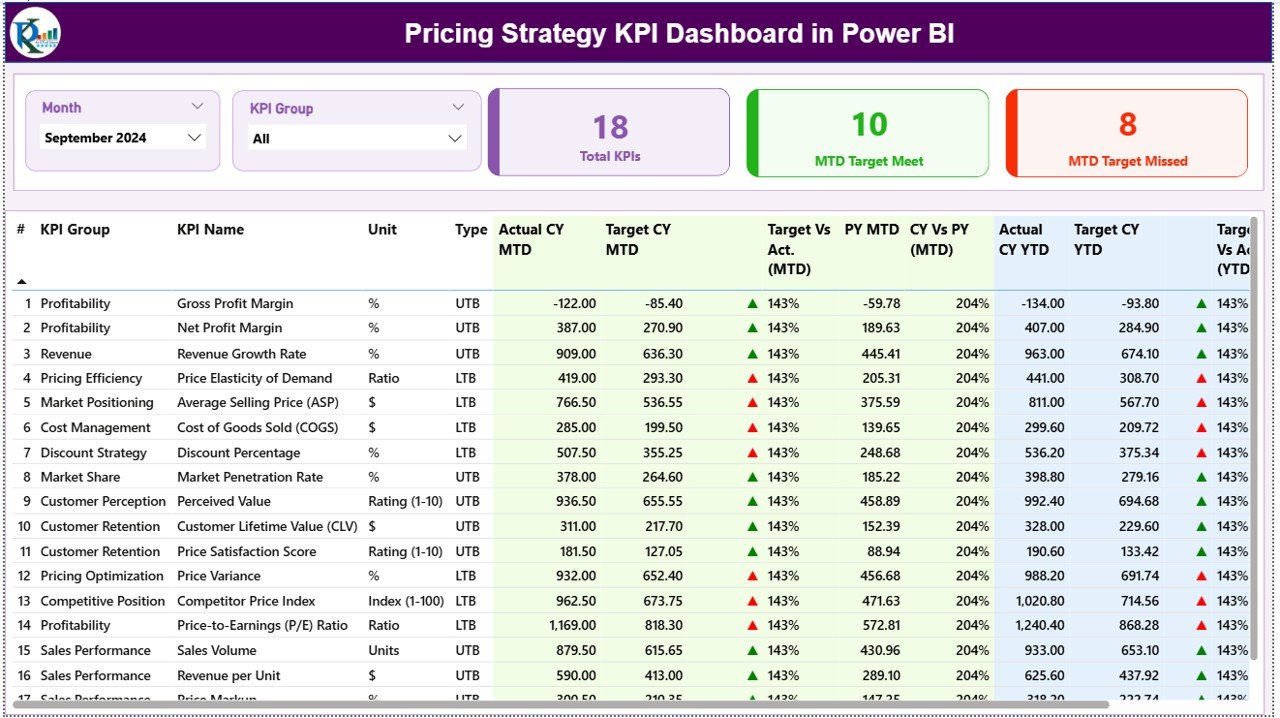
- 16-column KPI Summary Table — displays KPI Number, KPI Group, KPI Name, Unit, Type (LTB/UTB), Actual CY MTD, Target CY MTD, MTD Icon, Target vs Actual MTD %, PY MTD, CY vs PY MTD %, Actual CY YTD, Target CY YTD, YTD Icon, Target vs Actual YTD %, PY YTD, and CY vs PY YTD % in one scrollable view.
- LTB and UTB KPI Classification — Lower the Better and Upper the Better logic controls the red/green icon direction. A rising Discount Rate correctly triggers a red ▼ even though the number increased.
- MTD & YTD Status Icons (▼▲) — colored arrows in both the MTD Icon and YTD Icon columns give pricing managers an instant pass/fail signal before reading raw numbers.
- Month & KPI Group Slicers — two top-level slicers filter the entire dashboard by reporting period and KPI category.
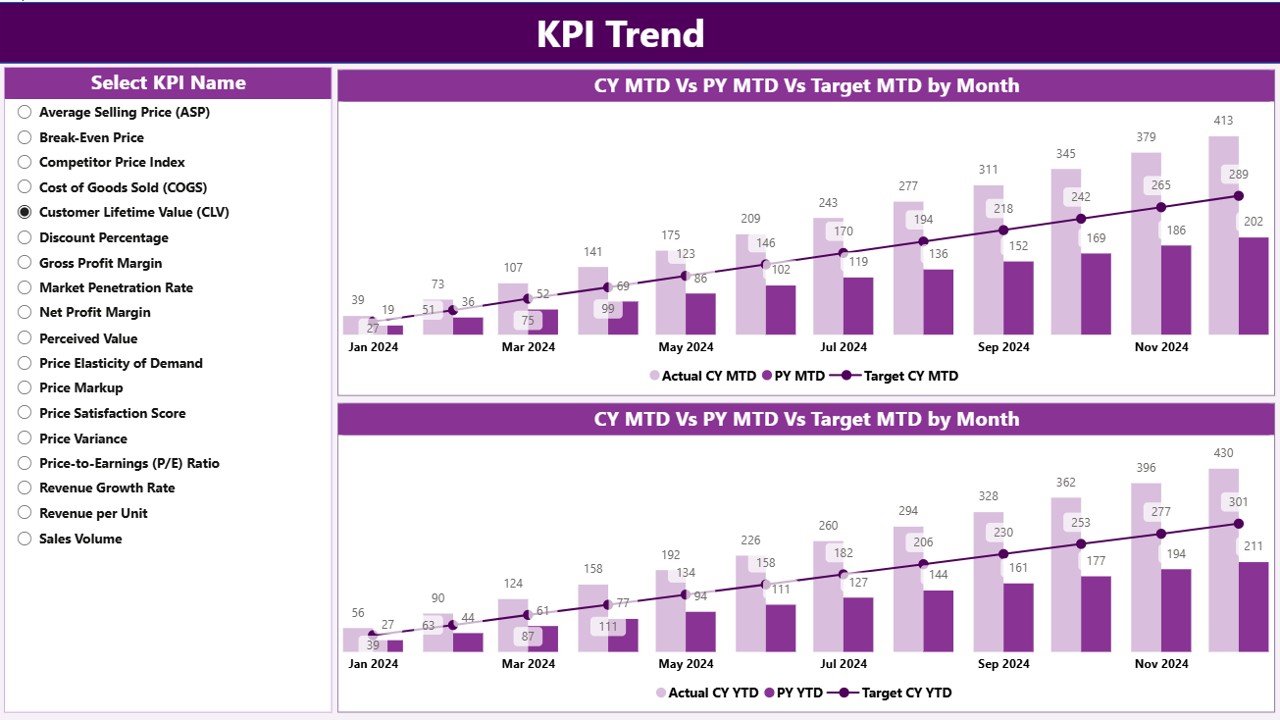
- KPI Trend Combo Charts — side-by-side MTD and YTD combo charts plot Current Year Actual, Previous Year Actual, and Target for any selected KPI.
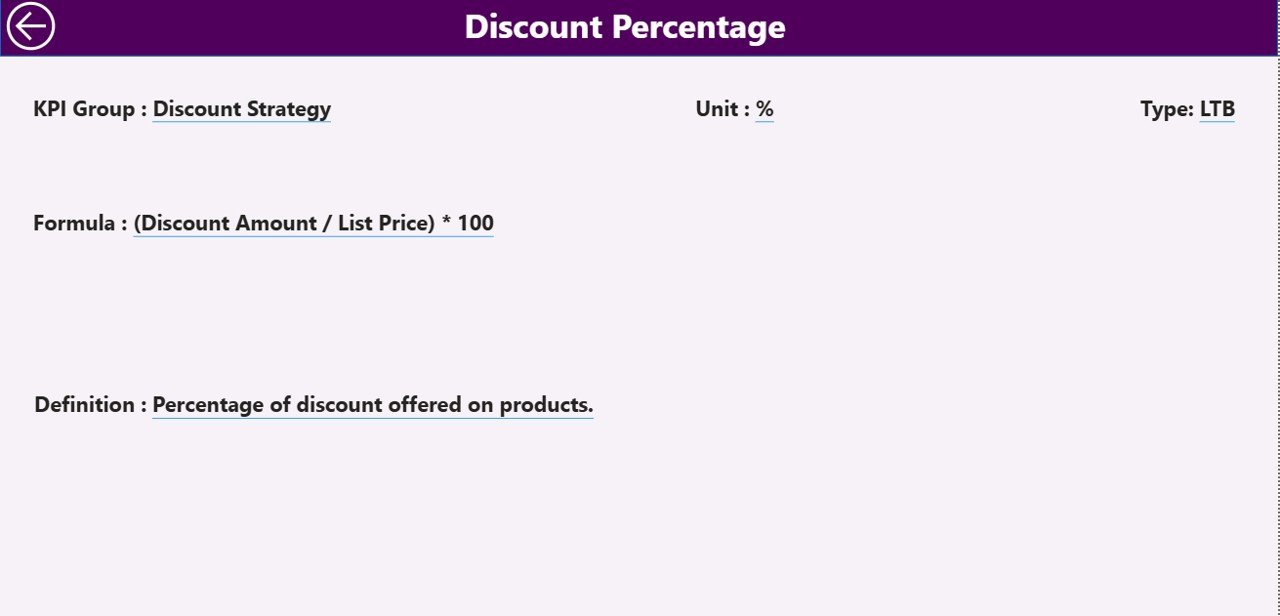
- Hidden Drill-Through KPI Definition Page — right-click any KPI row to see its Formula, Unit, and Definition without cluttering the main summary view.
- Plain Excel Data Source — 3 input sheets (Input_Actual, Input_Target, KPI Definition) — no DAX, no Power Query customization needed.
Dashboard Pages Explanation
Page 1 — Summary Page
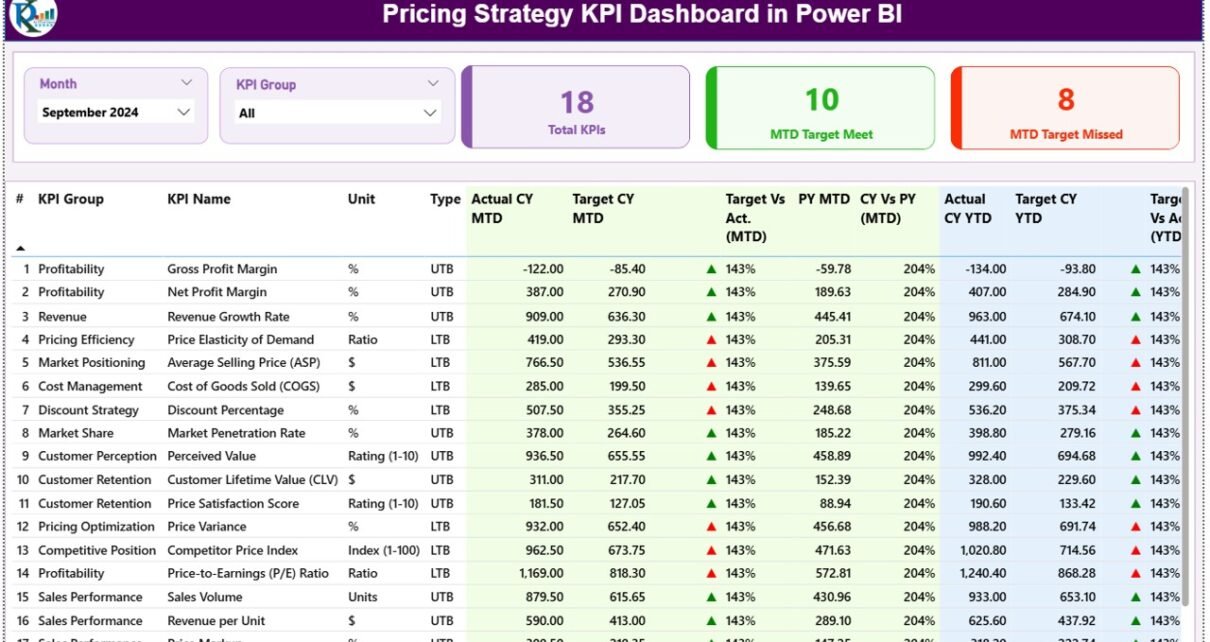
The Summary page is the primary reporting view of the Pricing Strategy KPI Dashboard in Power BI. At the top sit two slicers: Month and KPI Group. Three headline cards beneath the slicers show Total KPI Count, MTD Target Met count, and MTD Target Missed count. The main 16-column detail table below covers KPI Number, KPI Group, KPI Name, Unit, Type (LTB/UTB), Actual CY MTD, Target CY MTD, MTD Icon, Target vs Actual MTD %, PY MTD, CY vs PY MTD %, Actual CY YTD, Target CY YTD, YTD Icon, Target vs Actual YTD %, PY YTD, and CY vs PY YTD %. The Target vs Actual % is calculated as Actual ÷ Target; the CY vs PY % is calculated as Current Year ÷ Prior Year.
Page 2 — KPI Trend Page
The KPI Trend page contains two combo charts displayed side by side — one for MTD and one for YTD. A KPI Name slicer on the left lets users select any single pricing KPI. Both charts update simultaneously to show month-by-month values for Current Year Actual, Previous Year Actual, and Target, making it easy to identify seasonal pricing patterns and year-over-year variance at a glance.
Page 3 — KPI Definition Page (Hidden Drill-Through)
The KPI Definition page is hidden from the main navigation and only accessible via right-click drill-through from the Summary page. It displays the selected KPI’s KPI Number, KPI Group, KPI Name, Unit, Formula, Definition, and Type (LTB or UTB). A back button in the top-left corner returns to the Summary page. This keeps the main dashboard clean while making KPI documentation available on demand — particularly useful in presentations where analysts need to explain how a metric is calculated.
Excel Data Source — 3 Input Sheets
The data source is a plain Excel file with three worksheets. Input_Actual: enter KPI Name, Month (first date of month), MTD Number, and YTD Number. Input_Target: same structure for target values. KPI Definition: enter KPI Number, KPI Group, KPI Name, Unit, Formula, Definition, and Type. Once all three sheets are populated, open the .pbix in Power BI Desktop and click Refresh — the entire Pricing Strategy KPI Dashboard in Power BI rebuilds automatically.
Pricing Strategy KPI Dashboard in Power BI vs Excel Manual Tracking vs Tableau — Feature Comparison
| Feature | Pricing Strategy KPI Dashboard in Power BI | Excel Manual Tracking | Tableau / Power BI Premium |
|---|---|---|---|
| Cost | $11.99 one-time ✅ | Free but days of setup | $70–$420/user/month |
| Platform | Power BI Desktop (free) ✅ | Microsoft Excel | Tableau / Power BI Service |
| Setup time | Under 10 minutes ✅ | Days of formula work | Weeks of developer time |
| MTD & YTD vs Target | Built-in ✅ | Manual formulas required | Custom DAX measures required |
| Prior-Year comparison | Built-in ✅ | Manual setup per KPI | Custom time intelligence needed |
| LTB/UTB icon logic | Built-in ✅ | Not available | Custom conditional formatting |
| Drill-through KPI definitions | Built-in ✅ | Not available | Requires custom page setup |
| Year-1 cost (5 users) | $11.99 total ✅ | $0 but high time cost | $4,200–$25,200/year |
| No subscription needed | Yes ✅ | Yes | No — ongoing license |
For pricing teams that need MTD/YTD vs Target vs Prior Year reporting without an enterprise BI license, the Pricing Strategy KPI Dashboard in Power BI sits in the sweet spot.
Who Should Use This Template
Perfect for:
- Pricing managers and revenue analysts building monthly KPI scorecards for commercial leadership
- Finance teams tracking price realization, gross margin, and discount performance against annual targets
- Commercial directors who want MTD vs YTD vs Prior Year in a single Power BI file
- Strategy consultants delivering structured pricing performance reports to clients
- Small to mid-size businesses wanting structured pricing analytics without an enterprise BI budget
Not a fit if:
- Your team needs real-time pricing data from an ERP or CRM — this template uses a static Excel data source
- You require Row-Level Security (RLS) or multi-user Power BI Service workspace sharing
- Your primary deliverable is a visual chart-based dashboard rather than a structured KPI scorecard table
Real-World Use Cases
Priya manages pricing analytics at a mid-size FMCG brand. Each month she fills the Excel input sheets with Gross Margin %, Net Price Realization, and Promotional Discount Rate actuals and targets. The Pricing Strategy KPI Dashboard in Power BI gives her a 16-column view with ▼▲ icons flagging misses, ready for the monthly commercial review in under 10 minutes of data entry.
A financial consultant tracks pricing performance for 6 client accounts. He points the same .pbix to whichever Excel file he needs per client. The drill-through KPI Definition page lets him show clients exactly how each metric is calculated during review meetings, building credibility without walking through raw spreadsheet formulas.
The finance director at a B2B SaaS company tracks 12 pricing KPIs — including Average Revenue Per User, Discount Rate by Segment, and Price Volume Mix variance — against annual targets. The KPI Trend page shows month-by-month CY vs PY vs Target, making it easy to see whether the pricing strategy is gaining traction quarter over quarter.
Advantages of Pricing Strategy KPI Dashboard in Power BI
- No DAX or coding required — all data input happens in plain Excel sheets accessible to non-technical pricing analysts.
- Flexible KPI definition — the same template works for Gross Margin %, Average Selling Price, Discount Rate, Price Elasticity, or any other pricing metric.
- LTB/UTB logic prevents misinterpretation — cost and discount metrics flag red when numbers rise, not just when they fall below target.
- Self-documenting drill-through — KPI formulas and definitions live inside the report itself, not in a separate reference document.
- One-time cost, no license dependency — runs indefinitely in free Power BI Desktop at $11.99 total.
Opportunities for Improvement
- The static Excel data source does not connect to ERP or CRM systems directly — teams with automated pipelines will need to export data to the Excel sheets manually.
- The template uses a flat KPI list structure; hierarchical roll-ups (product-level to category-level) would require data model customization.
- Sharing the live report with stakeholders requires publishing to Power BI Service, which needs a Pro license for recipients.
Best Practices
- Always use the first date of each month in the Month column of both input sheets to ensure correct Power BI date filtering.
- Define all KPIs in the KPI Definition sheet before entering actuals or targets — KPI Name must match exactly across all three sheets.
- Use the KPI Group field to organize metrics into logical categories (e.g., “Margin KPIs”, “Discount KPIs”) so the slicer filters meaningfully.
- Refresh the data source path in Power BI Desktop any time you move the Excel file to a new folder location.
Explore Relevant Templates
- Sales Funnel KPI Dashboard in Power BI — MTD/YTD sales funnel KPI tracking with the same scorecard format and LTB/UTB logic.
- Franchise Performance Dashboard in Power BI — 5-page revenue, compliance, and customer satisfaction reporting for franchise networks.
- Accountancy Practice Dashboard in Power BI — financial KPI tracking for accounting firms in Power BI.
Browse the full Power BI Dashboard Templates collection on NextGenTemplates.
Frequently Asked Questions
What KPIs can I track with the Pricing Strategy KPI Dashboard in Power BI?
The dashboard is fully flexible — define your own KPIs in the Excel KPI Definition sheet. Common pricing KPIs include Gross Margin %, Net Price Realization, Discount Rate, Average Selling Price, Price Volume Mix Variance, and Promotional Discount Impact. Any metric with an MTD and YTD target can be tracked.
Do I need a paid Power BI license to use this template?
No. The Pricing Strategy KPI Dashboard in Power BI runs in Power BI Desktop, which is free from Microsoft. A paid Pro or Premium license is only needed if you want to publish the report to Power BI Service and share it with colleagues via a browser link.
How does the LTB/UTB icon logic work?
Each KPI is classified as LTB (Lower the Better) or UTB (Upper the Better) in the KPI Definition sheet. UTB KPIs like Revenue show a green ▲ when actual beats target. LTB KPIs like Discount Rate show a red ▼ when actual exceeds target — correctly flagging higher discount spending as a negative outcome regardless of direction.
How long does initial setup take?
Setup takes under 10 minutes. Fill the three Excel sheets (KPI Definition, Input_Actual, Input_Target), open the .pbix in Power BI Desktop, update the data source path, and click Refresh. The Pricing Strategy KPI Dashboard in Power BI auto-updates from that point forward each month.
Can I add new pricing KPIs after the initial setup?
Yes. Add new rows to the KPI Definition sheet and the corresponding rows in the input sheets. Power BI reads from the Excel tables dynamically, so new KPIs appear in the Summary table on the next refresh with no changes to the .pbix file.
How does this compare to a manual Excel pricing scorecard?
An Excel pricing scorecard requires writing formulas for every MTD/YTD calculation, status icon, and year-over-year comparison. The Pricing Strategy KPI Dashboard in Power BI has all of this pre-built, including the 16-column table, LTB/UTB logic, drill-through page, and trend charts — saving days of development and eliminating monthly formula maintenance.
Does the template work for teams outside of pricing?
Yes. The Pricing Strategy KPI Dashboard in Power BI works for any team needing MTD/YTD vs Target vs Prior Year KPI scorecards in Power BI. Manufacturing, retail, finance, SaaS, and healthcare teams all use this format — define your domain-specific metrics and the template adapts.
About the Author
Built by PK — Microsoft Certified Professional with 15+ years of Excel, Google Sheets, and Power BI experience. Founder of NextGenTemplates, reaching 300K+ subscribers across YouTube channels. Every template is hand-built and tested before release.
Conclusion
The Pricing Strategy KPI Dashboard in Power BI gives pricing managers, finance analysts, and commercial teams a structured MTD/YTD vs Target vs Prior Year scorecard that takes under 10 minutes to set up and refreshes automatically each month. With 16 columns of pricing intelligence, LTB/UTB icon logic, KPI trend charts, and a drill-through definition page — all in a free-platform .pbix file — it replaces hours of monthly spreadsheet work with a professional, boardroom-ready Power BI report.
👉 Click here to Purchase the Pricing Strategy KPI Dashboard in Power BI
✅ Instant download · One-time payment · No subscription
For step-by-step video tutorials, visit Youtube.com/@PK-AnExcelExpert.
📅 Last updated: May 2026