Part of the free Module 5: Excel Formulas and Functions · Function 80 of 105 · Full Excel course
The Excel SUMIFS function adds up the cells in a range that meet two or more conditions at the same time. Use SUMIFS in Excel to total sales for one region and one month, or costs above a limit and within a date range. It returns a single number, and 0 when no row satisfies every criterion.
SUMIFS syntax
=SUMIFS(sum_range, criteria_range1, criteria1, [criteria_range2, criteria2], ...)Note the order: unlike SUMIF, the range to add comes first. Up to 127 range/criteria pairs are allowed, and every condition must be true for a row to be included (AND logic).
Arguments
| Argument | Required | Meaning |
|---|---|---|
| sum_range | Required | The cells to add when all conditions are met. |
| criteria_range1 | Required | The range tested against criteria1. Must be the same size as sum_range. |
| criteria1 | Required | The condition: a value (“East”, 500), a comparison in quotes (“>=500”, “<>Cancelled”) or a cell reference (“>”&G1). |
| criteria_range2, criteria2 … | Optional | Additional range and condition pairs. Each pair narrows the result further. |
Step-by-step example
Assume a sales table with Region in A2:A100, Product in B2:B100 and Amount in D2:D100. To total the Amount for Region “East” and Product “Laptop”:
=SUMIFS(D2:D100, A2:A100, "East", B2:B100, "Laptop")- Excel checks each row of A2:A100 for “East”.
- For the same rows it checks B2:B100 for “Laptop”.
- Only rows that pass both tests contribute their D value to the total.
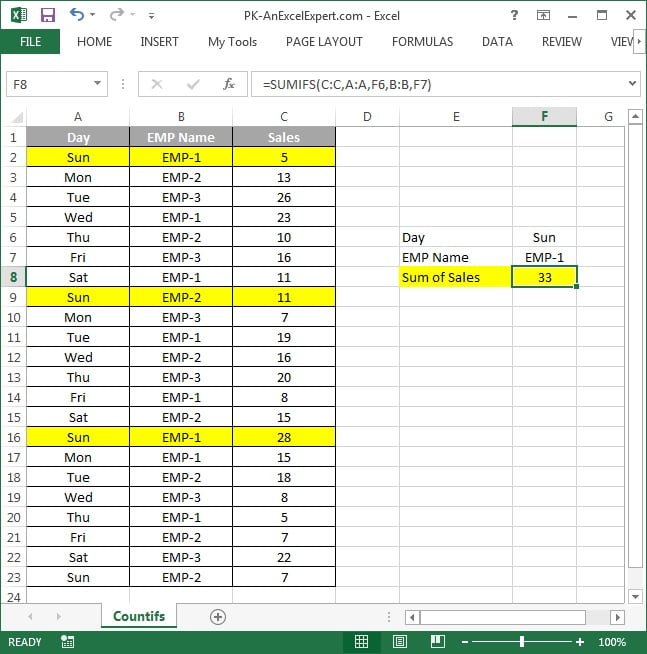
The screenshot below shows SUMIFS applied to a data table with two criteria and the total returned in the result cell.
Practical use cases
1. Number comparisons
=SUMIFS(D2:D100, D2:D100, ">=1000", D2:D100, "<5000")Totals only the amounts between 1,000 and 4,999.99. Operators go inside the quotes.
2. Date range criteria
=SUMIFS(D2:D100, C2:C100, ">="&DATE(2025,1,1), C2:C100, "<="&DATE(2025,3,31))Sums Q1 2025. Join the operator to a real date with & so Excel does not treat it as text. To reference cells instead: ">="&G1.
3. Wildcards for partial text
=SUMIFS(D2:D100, B2:B100, "Lap*")* matches any number of characters, ? matches one character. “*Pro” sums every product ending in Pro. To match a literal * or ?, prefix it with ~.
4. Exclude a value
=SUMIFS(D2:D100, E2:E100, "<>Cancelled")5. Criteria from cells (report style)
=SUMIFS($D$2:$D$100, $A$2:$A$100, $G2, $B$2:$B$100, H$1)Put regions down column G and products across row 1, fill the formula through the grid, and you have a one-formula summary report.
Common mistakes and errors
- #VALUE! – the criteria ranges and sum_range are different sizes (for example D2:D100 with A2:A99). Make every range the same height.
- Result is 0 when it should not be – numbers stored as text, trailing spaces, or a date typed as text inside the quotes. Use TRIM, VALUE or DATE.
- Argument order – SUMIFS puts sum_range first; SUMIF puts it last. Swapping them silently returns wrong totals.
- OR logic does not work – SUMIFS is AND only. For “East or West” add two SUMIFS together or use
SUM(SUMIFS(D:D, A:A, {"East","West"})). - Whole-column references on huge sheets – work, but slow down recalculation. Use a table or a bounded range.
Tips and best practices
- Convert the data to an Excel Table (Ctrl+T) and reference columns as Sales[Amount]; new rows are included automatically and the formula reads like a sentence.
- Keep criteria in cells, not in the formula. A report grid with regions down the side and months across the top needs one SUMIFS filled across, and users change filters without editing formulas.
- Use the same date column twice for a range, and build both bounds with DATE or EOMONTH so month-end reports never miss the 31st.
- Test with a manual filter first. Filter the table by the same criteria and check the status-bar sum; if it differs from SUMIFS, the culprit is almost always text-formatted numbers.
- Google Sheets compatibility: SUMIFS works identically, so shared workbooks translate cleanly.
Related functions
- SUMIF – single-condition version.
- COUNTIFS – counts rows instead of adding them, same criteria rules.
- AVERAGEIF – conditional average.
- SUMPRODUCT – handles OR logic and calculated criteria that SUMIFS cannot.
- Browse the Excel Formulas hub.
Frequently asked questions
What is the difference between SUMIF and SUMIFS?
SUMIF tests one condition and takes the sum range as its last argument. SUMIFS tests one or more conditions, all of which must be true, and takes the sum range as its first argument.
How do I use SUMIFS with a date range?
Use two criteria on the same date column: “>=”&start_date and “<=”&end_date, where the dates are real Excel dates from cells or the DATE function.
Can SUMIFS use OR conditions?
Not directly. Add two SUMIFS results together, or wrap SUMIFS in SUM with an array constant such as {“East”,”West”} as the criteria.
Need a ready-made template? Browse 7,000+ Excel, Power BI and Google Sheets templates at NextGenTemplates.com.