Part of the free Module 5: Excel Formulas and Functions · Function 57 of 105 · Full Excel course
The Excel MID function returns a specified number of characters from the middle of a text string, starting at any position you choose. Unlike LEFT and RIGHT, which are anchored to the ends of the text, MID can extract a segment from anywhere, which makes it the main tool for splitting codes, pulling out middle names and reading fixed-width data.
Syntax
=MID(text, start_num, num_chars)Arguments
| Argument | Required / Optional | Meaning |
|---|---|---|
| text | Required | The text string or cell to extract from. Numbers are converted to text. |
| start_num | Required | Position of the first character to return. The first character is 1. If start_num is greater than the text length, MID returns an empty string. |
| num_chars | Required | How many characters to return. If it runs past the end of the text, MID returns the characters that remain. |
How MID works
MID counts characters, including spaces, from the left. It always returns text, so extracted digits need VALUE or a +0 to become numbers. A start_num of 0 or less, or a negative num_chars, produces #VALUE!. Because num_chars can safely exceed the remaining length, a large number such as 100 or LEN(text) is a convenient way to say “everything from start_num onwards”.
Step-by-step example
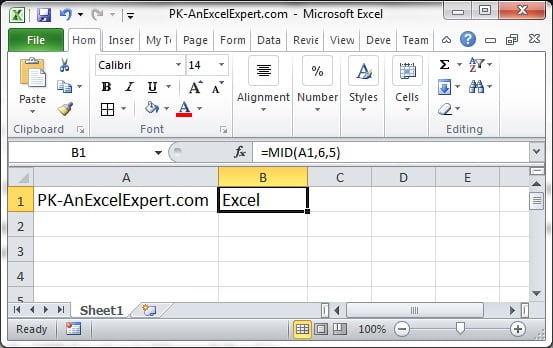
The screenshot shows MID extracting a section from each text value in column A.
- Type
PK-AnExcelExpertin A2. - In B2 enter
=MID(A2,4,2). Excel starts at the fourth character and returns two characters:An. - Change the formula to
=MID(A2,6,5). The result isExcel. - Enter
=MID(A2,FIND("-",A2)+1,100)in C2. FIND locates the hyphen and MID returns everything after it,AnExcelExpert, however long the text is.
Practical use cases
1. Middle segment of a fixed-width code
=MID(A2,5,3)From a code like 2026-NYC-0042, characters 6 to 8 are the city; adjust the start to 6 for this layout.
2. Text between two delimiters
=MID(A2,FIND("(",A2)+1,FIND(")",A2)-FIND("(",A2)-1)Returns the text inside parentheses. The second FIND minus the first, minus one, is the length of the inner text.
3. Middle name from a full name
=TRIM(MID(A2,FIND(" ",A2)+1,FIND(" ",A2,FIND(" ",A2)+1)-FIND(" ",A2)))4. Split a string into individual characters
=MID($A$2,COLUMN(A1),1)Copied across a row, this returns one character per cell, useful for check-digit calculations.
5. Domain from an email address
=MID(A2,FIND("@",A2)+1,LEN(A2))Common mistakes and tips
- #VALUE! error: start_num is less than 1 or num_chars is negative, usually because a FIND inside the formula did not locate its delimiter. Wrap in IFERROR.
- Empty result: start_num is beyond the end of the text. Check the length with LEN.
- Result is text: use
=VALUE(MID(A2,3,4))or=MID(A2,3,4)+0to get a number. - Formatted numbers: MID reads the stored value, so apply TEXT first when you want to slice a formatted date or number.
- Excel 365 alternatives: TEXTBEFORE, TEXTAFTER and TEXTSPLIT handle delimiter-based extraction with less nesting; MID remains the tool for position-based extraction.
MID compared with LEFT and RIGHT
LEFT, MID and RIGHT are variations of the same idea. LEFT(text,n) equals MID(text,1,n); RIGHT(text,n) equals MID(text,LEN(text)-n+1,n). MID is the general form, so any extraction can be written with it, but LEFT and RIGHT are easier to read when the segment sits at an end of the string. Choose MID when the segment starts at a known position or after a delimiter located with FIND or SEARCH. The MIDB function is the byte-based version for double-byte languages such as Japanese; in English text it behaves identically to MID.
Related functions
- LEFT: extracts from the start of the text.
- RIGHT: extracts from the end of the text.
- FIND: supplies the start position for MID.
- LEN: supplies lengths for open-ended extraction.
- See all lessons in the Excel Formulas course.
Frequently asked questions
How do I extract text between two characters with MID?
Use FIND for both positions: =MID(A2,FIND(“(“,A2)+1,FIND(“)”,A2)-FIND(“(“,A2)-1) returns the text between the parentheses.
What happens if num_chars is larger than the remaining text?
MID returns all the characters from start_num to the end of the string without an error, which is why LEN(A2) or a large number is often used as num_chars.
Why does MID return #VALUE!?
Either start_num is zero or negative, or num_chars is negative. This usually happens when a nested FIND cannot locate the delimiter.
Need a ready-made template? Browse 7,000+ Excel, Power BI and Google Sheets templates at NextGenTemplates.com.